
★★★★★
My surface laptop was replaced with an SSD card and the services was very good.

Buying & education guide · Singapore
Adding memory is one of the cheapest, most effective ways to make a slow laptop feel quick again — but only when memory is the thing holding it back, and only when your machine can actually take more. This guide explains what RAM does, how much you really need, and the two or three facts about your specific laptop that decide whether an upgrade is possible at all.
More RAM helps only if your laptop is actually running out of it — the tell-tale signs are stalling when you have many tabs and apps open, browser tabs reloading when you switch back to them, and heavy disk activity as the machine pages memory to storage. For most people 16GB is the comfortable target in 2026; 8GB is a bare baseline and 32GB suits heavy work. Before you buy anything, two facts decide everything: is your RAM socketed (upgradeable) or soldered (fixed forever), and exactly which type, speed and capacity your model supports. If your laptop is slow but not short on memory, the fix is usually an SSD upgrade instead — a different problem entirely.
On this page
RAM — random access memory — is your laptop's short-term working space. Every program you open, every browser tab, every document you have on the go lives in RAM while you use it, because RAM is thousands of times faster to read and write than storage. The more memory the machine has, the more it can keep active at once without having to shuffle things back and forth. Think of it as the size of your desk: a bigger desk lets you spread out more papers and switch between them instantly, while a small desk forces you to keep putting things away and fetching them again.
When a laptop runs out of RAM it does not simply stop — instead it starts paging, moving chunks of memory it cannot fit onto the storage drive to free up space. That storage is far slower than real memory, so the whole machine bogs down. This is why a laptop that felt fine with a couple of programs can crawl the moment you push it. The signs that you are short of memory are fairly specific:
Here is the crucial caveat, and it saves people money: more RAM only speeds up a machine that is actually RAM-limited. If your laptop is slow because it has an old mechanical hard drive, a failing battery throttling the processor, or a thermal problem, adding memory changes nothing at all — you will have spent money and seen no difference. That is why the first job is always to work out why the machine is slow, not to reach for the most obvious upgrade. Our guides on a laptop running slow and a laptop freezing frequently walk through the other causes.
There is no single right number — it depends entirely on what you do with the machine. The mistake to avoid is buying far more than you will ever use in the belief that it makes the laptop faster. It does not. Once you have enough memory that the machine is not paging, adding more sits idle and delivers nothing. Here is a realistic read for 2026:
The honest way to size it is to look at how your machine behaves under your normal load. If it multitasks smoothly and rarely pages, you have enough. If it stalls, reloads tabs and thrashes the disk when you get busy, more memory will genuinely help. When you are not sure, we can look at how the machine is using its memory and tell you whether an upgrade is the right call before you spend anything — see how long you should expect a machine to keep up in our guide to how long a laptop should last.
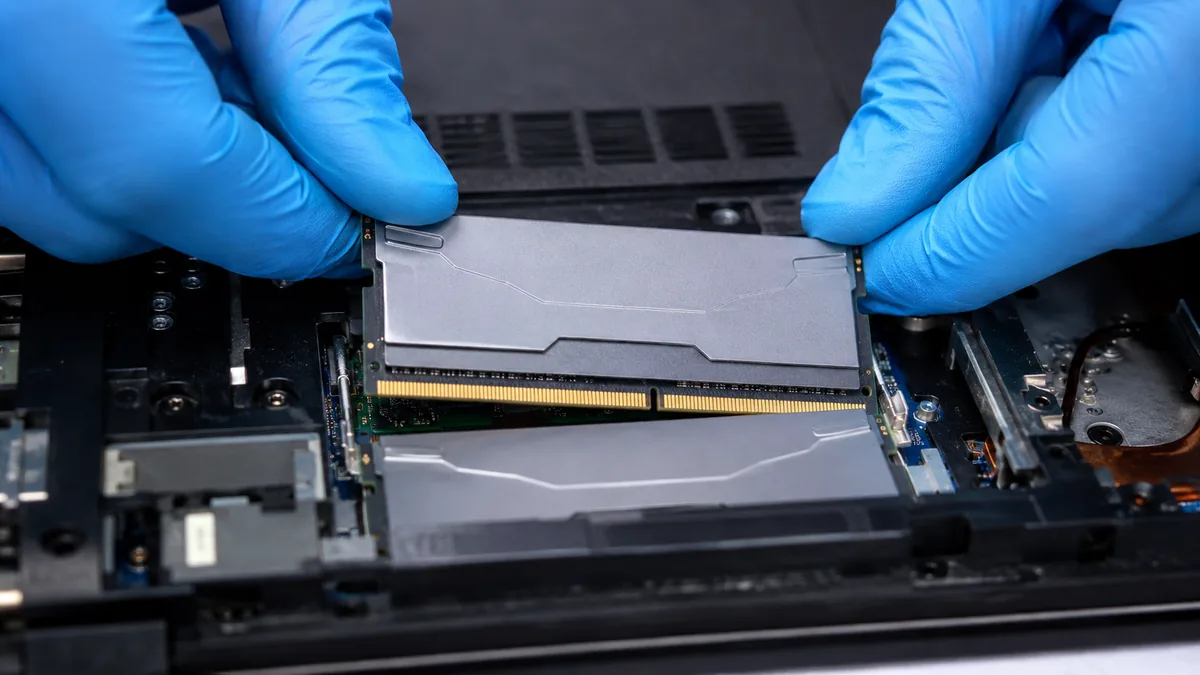
This is the part that trips people up. Unlike a desktop, where memory is nearly always upgradeable, a laptop may or may not let you add RAM at all — and if it does, only very specific memory will work. Get these facts straight before you buy a single module.
The single most important question is whether your RAM is socketed or soldered. Socketed memory sits in slots called SO-DIMMs — the laptop-sized version of the memory sticks you would find in a desktop — and it can be removed and replaced, which means it is upgradeable. Soldered memory is fixed permanently to the mainboard during manufacture and cannot be changed at any price. There is no trick, no service and no workaround; if it is soldered, the amount you bought is the amount you keep for the life of the machine.
Soldered memory has become far more common as laptops have got thinner. It is the norm on most ultrabooks and slim consumer laptops, and it is universal on every Apple silicon Mac — the MacBook Air and MacBook Pro with M-series chips have their memory built into the same package as the processor, so it is not even a separate chip you could dream of replacing. Some laptops take a middle path, with a fixed amount soldered on and a single spare SO-DIMM slot you can add a module to. Because of all this, the very first thing to establish is which camp your specific model falls into — it decides whether there is any upgrade to have at all.
If your laptop does have SO-DIMM slots, the next question is how many there are and how many are already used. Many thin machines have just one slot; larger and business laptops often have two. This matters because it sets your ceiling and it affects whether you can run in dual channel. A machine with two empty slots gives you the most freedom; a machine with one slot already filled means you either add to the second slot or replace what is there.
Laptop memory comes in generations, and the current ones are DDR4 and DDR5. They are not interchangeable: a DDR5 module is physically keyed differently and will not fit a DDR4 slot, nor will it work in a DDR4 machine, and vice versa. Your laptop's motherboard and processor were designed for exactly one generation, so the type is fixed by the machine — you cannot "upgrade" a DDR4 laptop to DDR5 by swapping sticks. On top of the generation, memory has a rated speed measured in megahertz (or the equivalent data rate), and your machine supports a specific figure. Buy memory that matches the exact type, speed and form factor your model was built for; the wrong type simply will not work, and the wrong speed either runs slower than you paid for or is not recognised.
Memory can run in single channel (one module doing all the work) or dual channel (two modules working together across two channels, which roughly doubles the memory bandwidth). Dual channel gives a real, measurable improvement, and it matters most on laptops that use integrated graphics, because those borrow system memory and are especially sensitive to how fast that memory can be fed. The practical upshot: for the same total capacity, two matched 8GB modules usually beat a single 16GB module, because the pair can run in dual channel while the single stick cannot. This is why we recommend fitting memory in matched pairs — the same capacity and speed — wherever the machine allows it.
Every laptop has a ceiling on how much memory it can address, set by its processor and chipset. Fit more than that and the machine will either ignore the excess or fail to boot. The maximum is a property of the platform, not the slots, so it is worth checking against your exact model rather than assuming that two big modules will always be seen. On older machines the ceiling can be surprisingly low; on modern ones it is usually generous. Either way, there is no point buying beyond what the platform will use.
A quick reference to the words you will run into when checking what your laptop takes and shopping for modules. If any of these are unfamiliar, this table is the fastest way to get oriented.
| Code | Term | What it is | Why it matters |
|---|---|---|---|
| RAM-01 | SO-DIMM | The small memory module format used in laptops, sitting in a removable slot on the mainboard. | If your machine uses SO-DIMMs, its memory is socketed and therefore upgradeable — this is the good case. |
| RAM-02 | Soldered / on-board RAM | Memory fixed permanently to the board (or built into the CPU package) during manufacture. | Cannot be changed at any price. Common on ultrabooks and universal on Apple silicon Macs — decides whether an upgrade is even possible. |
| RAM-03 | DDR4 | A generation of memory found in many laptops from roughly the mid-2010s onward. | Not interchangeable with DDR5. If your machine is DDR4, only DDR4 modules will fit and work. |
| RAM-04 | DDR5 | The newer memory generation, offering higher bandwidth than DDR4. | Physically keyed differently to DDR4. You cannot convert a DDR4 laptop to DDR5 by swapping sticks — the platform decides. |
| RAM-05 | Dual channel | Two matched modules working together across two channels, roughly doubling memory bandwidth. | A real speed gain, especially with integrated graphics. Favour matched pairs over a single larger module. |
| RAM-06 | Capacity (GB) | How much memory a module holds, and the total across all installed modules. | The headline number: 8GB baseline, 16GB comfortable, 32GB for heavy work. More than you use adds nothing. |
| RAM-07 | Speed / MHz | The rated operating speed of the memory, in megahertz or the equivalent data rate. | Must match what the machine supports. A mismatched set runs at the slowest module's speed, wasting the faster one. |
| RAM-08 | Max supported capacity | The upper limit on memory the CPU and chipset can address. | Buying past this ceiling is wasted money — the excess is ignored or the machine will not boot. |
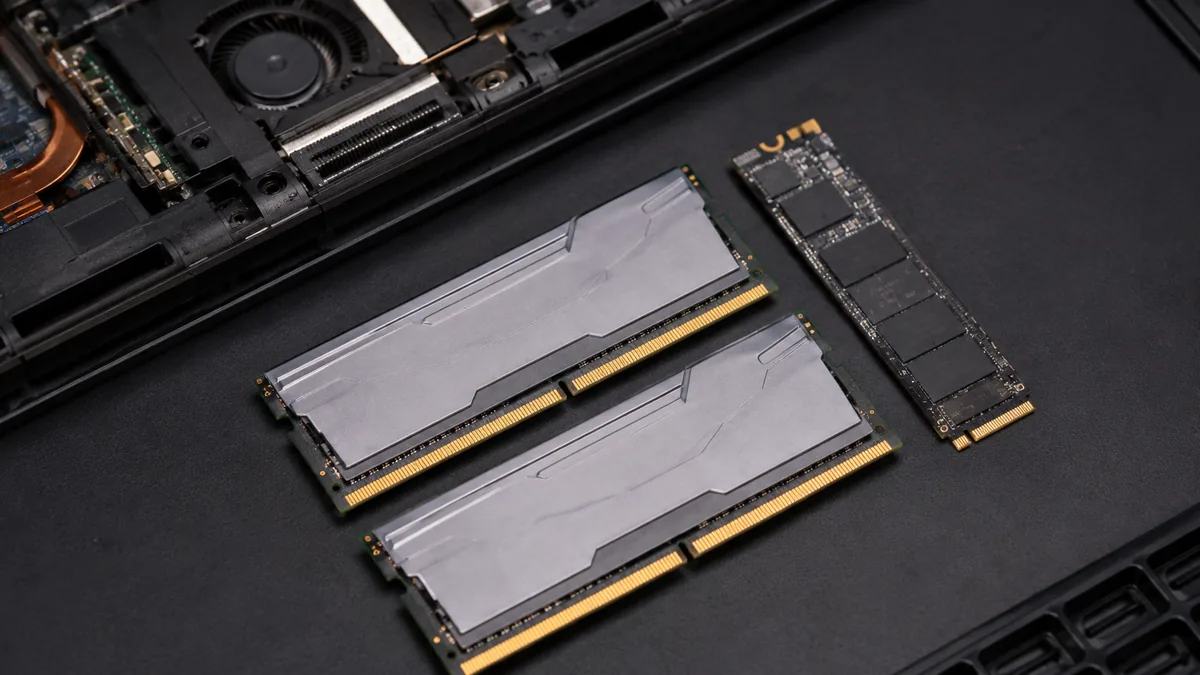
You do not need to guess at any of the above. The type, speed, slot count and maximum capacity are all fixed properties of your exact laptop model, and there are a few reliable ways to find them:
Getting this right is the whole game. The most common wasted purchase we see is memory that is the wrong type, the wrong speed, or bought for a machine whose RAM turned out to be soldered in the first place. A few minutes of checking avoids all of it.
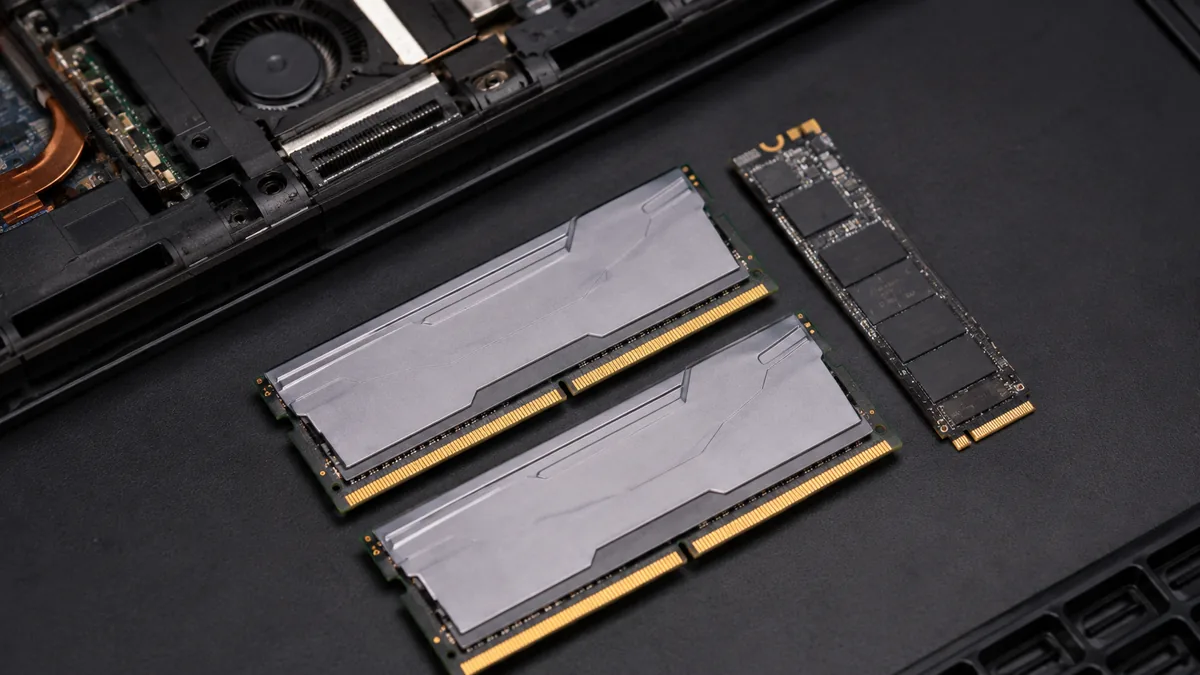
These two upgrades get confused constantly, and choosing the wrong one wastes money. They solve different problems. RAM is about how much you can have open and active at once — it is the fix when the machine stalls under multitasking and pages heavily. Storage is about how fast the machine reads and writes files, boots, and loads programs — and if your laptop still has an old mechanical hard drive, moving to a solid-state drive (SSD) is usually the single biggest speed jump available, far bigger than any memory upgrade.
A laptop that takes an age to boot, opens programs slowly and feels sluggish in general — but does not especially struggle with lots of things open — is almost always storage-limited, not memory-limited. A laptop that is quick with one app but grinds the moment you pile on tabs and programs is memory-limited. Many older machines benefit from both at once. If your slowness points to storage rather than memory, read our laptop SSD upgrade guide and, when you are ready, our SSD upgrade service. When memory really is the bottleneck, our laptop RAM upgrade service is the companion to this guide.
When your laptop is one of the upgradeable ones, the job itself is quick and low-risk. We confirm the model takes the memory, choose modules that match the exact type and speed — a matched pair for dual channel wherever the machine allows — and fit them into the SO-DIMM slots. Then, importantly, we run a memory test to verify that the new memory is seen at the correct total capacity and speed and that it is error-free, because faulty or mismatched memory can cause crashes and data corruption that are miserable to diagnose later. On a machine with accessible slots this is usually a same-day job, often ready within the hour once the right modules are on hand. If we open your laptop and find the memory is soldered, we will tell you straight away that an upgrade is not possible rather than take the job on — the same honest approach we bring to every repair, set out in our laptop parts replacement standards. When you would like us to check what your machine takes, get in touch for a free assessment and we will give you a clear answer before anything is bought or opened.
Bring it in or send us the model, and we will tell you whether your RAM is socketed or soldered, how many slots you have, and exactly what type and speed to buy — before you spend a cent. Upgrades are same-day and verified with a memory test.
Keep reading
What the upgrade costs, how it is done, and how we verify it with a memory test.
See the service →The other big speed upgrade — when storage, not memory, is your bottleneck.
Read the guide →Work out the real cause before you buy any upgrade at all.
Read the guide →Verified Google reviews
Real reviews from our Google profile, shown with the customer’s name as they left it. The score and the count are Google’s own, updated every week.
My surface laptop was replaced with an SSD card and the services was very good.
Great service - MacBook froze on upgrade. Could not solve problem myself. iDevice expedited the repairs and my Mac is like new! Very reasonable rates for repair too. Highly recommend.
I sent in 2 Dell laptops for repairs due to SSD replacement and battery and fan replacement. The technicians service were fast and prompt with ready parts. They are conveniently located and service is overall recommended! Thank you!
Lenovo laptop motherboard repair. Send in on 19 Feb 2024 repair done by 26 Feb 2024.. repair within the promised time frame.. good service.. free diagnostic.. update promptly about the status.. good service...
Good service, sometimes had slow replies but fairly reliable and transparent about the repair process and got me what I needed.
Fixed my macbook battery same day and had speedy and clear communication via WhatsApp throughout :) thanks !!
The service was great. Explained all the issues that the laptop have and say why its happening. and with it being doing quickly. And thanks to Ramdan for helping to repair the laptop.
Replaced my lenovo laptop battery in 4 hrs - thanks Ramdhan and Dean for the great service!
Questions we get every week
For everyday use — a browser, email, office documents and video — 8GB is a workable baseline, though a busy set of tabs will push it. 16GB is the comfortable sweet spot for most people in 2026 and leaves plenty of headroom for multitasking. 32GB is worth it for heavy work such as virtual machines, large photo and video editing projects, big spreadsheets or software development. Going beyond what you use does not make a laptop faster, though. RAM only helps once you are actually running out of it; if your machine is slow for another reason, more memory changes nothing.
It comes down to whether the memory is socketed or soldered. Socketed RAM sits in SO-DIMM slots and can be removed and replaced, so it is upgradeable. Soldered RAM is fixed directly to the mainboard and cannot be changed at any price — this includes most thin ultrabooks and every Apple silicon Mac, where the memory is part of the processor package. Some laptops mix the two, with a fixed amount soldered on and one spare SO-DIMM slot. The honest way to know for certain is to check your exact model's specifications or let us open it up and look. Bring it in and we will tell you in minutes.
DDR4 and DDR5 are different generations of memory, and they are not interchangeable — the modules are keyed differently and a DDR5 stick will not fit a DDR4 slot or work in a DDR4 machine. Your laptop's motherboard and processor support exactly one of them, so the type is decided by the machine, not by choice. DDR5 is newer and offers higher bandwidth, which helps some workloads, but a DDR4 laptop is not upgraded to DDR5 by swapping sticks. The only thing that matters when buying is matching the exact type, speed and form factor your model was built for.
Dual channel means the system uses two memory modules at once over two channels, which roughly doubles the memory bandwidth compared with a single module. In practice it gives a real, measurable improvement, and it matters most on laptops that rely on integrated graphics, which share system memory. This is why fitting two matched 8GB modules is usually better than one 16GB module for the same total capacity. Where possible we recommend installing memory in matched pairs of the same capacity and speed so the machine can run in dual channel.
You can often mix, but it is not ideal. The modules must all be the correct type and form factor for the machine, and if they differ in speed the whole set runs at the slowest module's speed. Mixing different capacities can also force the machine partly out of dual channel, giving up some bandwidth. For the most reliable result we recommend a matched pair — same capacity, same speed, ideally the same kit — which avoids compatibility quirks and keeps the machine running in dual channel. If you are only using one spare slot alongside soldered memory, we match the new module to what is already there as closely as the platform allows.
On a laptop with accessible SO-DIMM slots, a RAM upgrade is usually a same-day workshop job and often ready within the hour once we have the right modules on hand. We confirm your model takes the memory, fit it, and then run a memory test to verify the new modules are seen at the correct capacity and speed and that they are error-free before the machine goes back to you. Machines with fully soldered memory cannot be upgraded, so for those we will tell you that up front rather than take the job on.
A free, no-obligation assessment tells you whether memory is really your bottleneck, whether your machine can take more, and exactly what to fit. If the answer is an SSD instead, we will tell you that too — before you spend anything.