
★★★★★
My surface laptop was replaced with an SSD card and the services was very good.
Troubleshooting guide · Singapore
A laptop that has slowed to a crawl feels like it is dying, but slowness is almost always a symptom with a specific, fixable cause — most often a mechanical hard drive that modern software has outgrown. This guide shows you how to read what your laptop is actually struggling with, the safe fixes you can do yourself, and the point at which a simple upgrade is the smart move.
Open Task Manager and look at the Disk and Memory columns. A disk pinned at 100% almost always means a mechanical or failing drive, and cloning it to an SSD is the single biggest speed-up you can get. High memory means you need more RAM. Then trim your start-up apps, uninstall bloatware, run a malware scan and free up disk space. If the machine also runs hot and loud, dust and dried paste are throttling it, and a fan clean brings the speed back. Age is not the diagnosis — the real cause almost always is one of these.
On this page
"Slow" feels like one problem, but under the bonnet it is usually one of a handful of very different bottlenecks — and telling them apart is most of the battle, because the fix for each is different. The good news is that a laptop rarely gets slow for no reason. There is nearly always a single component or a specific pile of software dragging everything down, and once you find it, the machine can very often be brought back to full speed for a fraction of the price of replacing it. Age, on its own, is not a diagnosis. A five-year-old laptop that crawls is not "worn out"; it is almost always waiting on one slow part.
The biggest single cause on an older laptop is a mechanical hard drive. For years, laptops shipped with spinning hard disks, and those drives read and write data far more slowly than the solid-state drives in modern machines. As Windows and everyday apps have grown heavier, that old drive simply cannot feed the processor fast enough, and the whole machine spends its time waiting. The tell-tale sign is a disk stuck at or near 100% in Task Manager while the laptop is barely doing anything. Swapping that drive for an SSD is, without exaggeration, the change that most often makes a tired laptop feel brand new.
The second common cause is too little RAM for the way you actually use the machine. Modern browsers, chat apps and office software are hungry, and if you keep a dozen tabs and several programs open at once, a laptop with only a small amount of memory runs out and starts shuffling data back and forth to the much slower drive. That constant swapping is felt as lag and stutter, especially when you switch between apps. High memory use that never comes down in Task Manager is the clue.
Then there is software clutter. Over the years a laptop collects programs that launch themselves at start-up, sit in the background and quietly consume resources — updaters, cloud sync tools, chat clients, toolbars and trial software you forgot you installed. Each one is small, but together they can make a machine slow to boot and sluggish from the moment it starts. Malware is the more sinister version of the same thing: hidden software using your processor and network without your knowledge, often showing up as a process you do not recognise eating CPU. A nearly full drive compounds everything — Windows needs free space to work in, and a disk with only a sliver left slows down noticeably. Keeping at least fifteen percent free makes a real difference.
Finally, heat makes a laptop slow with no error message at all. When dust clogs the cooling fins and the thermal paste on the chips dries out, the machine cannot get rid of heat, so it deliberately slows itself down to protect the hardware — a behaviour called thermal throttling. This shows up as a laptop that is quick when cold but grinds to a crawl once it warms up, usually with a loud fan and a hot base. An outdated operating system that has missed months of updates can add its own drag on top. Most slow laptops are a mixture of two or three of these, which is why reading the machine rather than guessing is so valuable.

Use this quick reference to see where your particular symptom is likely to sit, and whether it is something you can safely sort out yourself or something that calls for an upgrade or a workshop clean.
Quick diagnosis
A guide, not a guarantee — the surest way to know is to read the drive, memory and temperatures on the bench, which is exactly what our free diagnosis does.
Tell us the make, model, how old it is and what Task Manager shows when it is slow. A technician replies with a probable cause and an honest read on whether an upgrade is worth it — diagnosis is free on walk-ins.
Work through these in order. Every one of them is safe, none of them involves opening the laptop, and between them they clear up a large share of software-caused slowness. Start by reading the machine, then act on what you find — there is no point disabling start-up apps if the real problem is a dying drive.
Do not install "PC booster", "driver updater" or "registry cleaner" tools that promise to speed things up — they are usually bloatware themselves and often bundle more junk. Do not delete files from the Windows or Program Files folders to make space. And do not open the laptop to clean it yourself unless you know what you are doing — a slipped screwdriver or a torn ribbon cable turns a simple clean into a real repair. A workshop clean with fresh thermal paste is cheap and safe.
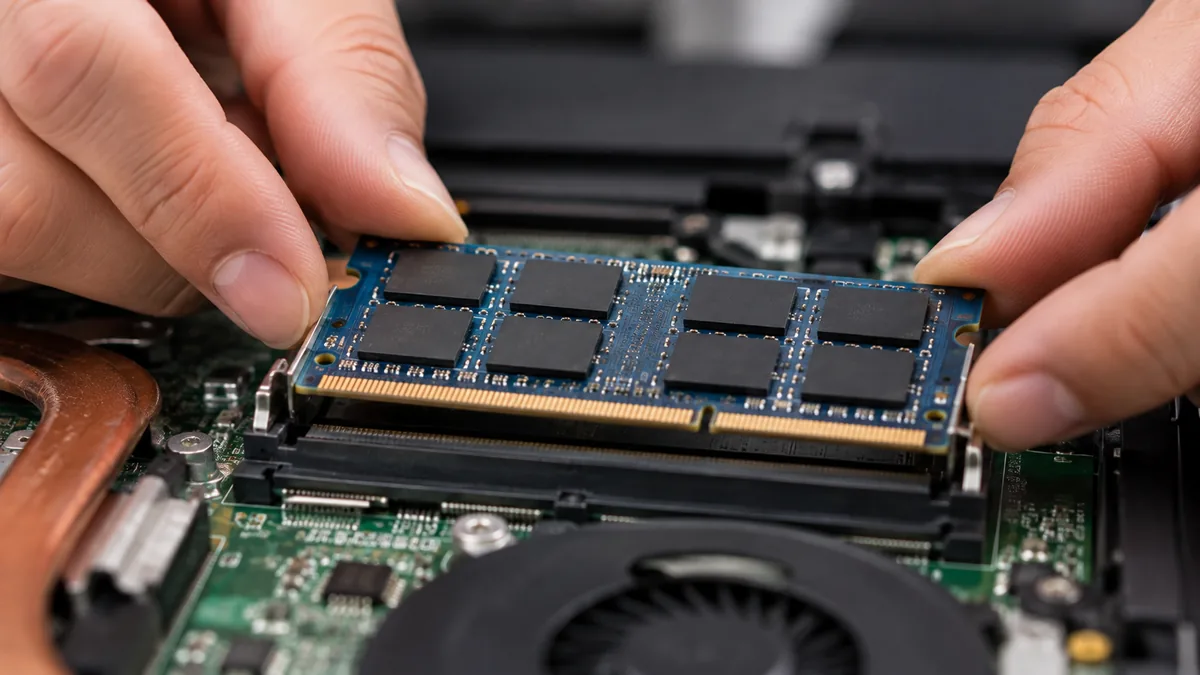
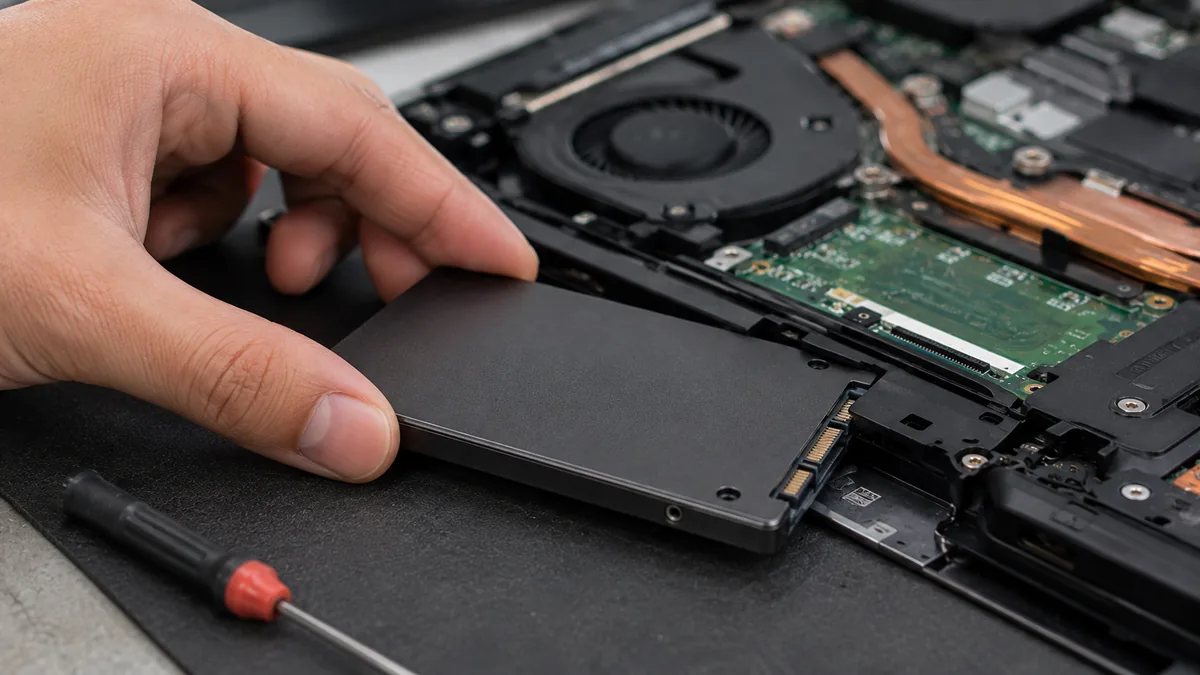
If you have read Task Manager, trimmed your start-up apps, cleared malware and freed up space and the laptop is still slow, the bottleneck is hardware rather than software — and that is where a small, targeted upgrade almost always wins. In our workshop, two changes transform an old laptop more than anything else:
For anything that does not fit neatly into one of those, or where the slowness comes with crashes, errors or a drive that is starting to fail, our general computer repair and laptop repair services cover every brand. If the drive is failing and the files on it matter, mention it early — a slow, clicking or 100%-pinned drive can be a dying one, and the safe move is to back up or image it before it goes.
Whatever the cause, our diagnosis comes first and is free on walk-ins: we read the drive, memory and temperatures, tell you exactly what is slowing the machine and what it will cost to fix, and if we cannot help you do not pay a repair fee. Most slow laptops are one cheap upgrade away from being genuinely fast again — it is almost always worth finding out which before you spend on a whole new machine.
Related repair services
Old hard drives cloned to a fast SSD — nothing lost, boots in seconds.
See the service →More memory so many tabs and apps stop dragging the machine down.
See the service →Cooling cleaned and fresh paste applied to stop heat throttling.
See the service →Verified Google reviews
Real reviews from our Google profile, shown with the customer’s name as they left it. The score and the count are Google’s own, updated every week.
My surface laptop was replaced with an SSD card and the services was very good.
Great service - MacBook froze on upgrade. Could not solve problem myself. iDevice expedited the repairs and my Mac is like new! Very reasonable rates for repair too. Highly recommend.
I sent in 2 Dell laptops for repairs due to SSD replacement and battery and fan replacement. The technicians service were fast and prompt with ready parts. They are conveniently located and service is overall recommended! Thank you!
Lenovo laptop motherboard repair. Send in on 19 Feb 2024 repair done by 26 Feb 2024.. repair within the promised time frame.. good service.. free diagnostic.. update promptly about the status.. good service...
Good service, sometimes had slow replies but fairly reliable and transparent about the repair process and got me what I needed.
Fixed my macbook battery same day and had speedy and clear communication via WhatsApp throughout :) thanks !!
The service was great. Explained all the issues that the laptop have and say why its happening. and with it being doing quickly. And thanks to Ramdan for helping to repair the laptop.
Replaced my lenovo laptop battery in 4 hrs - thanks Ramdhan and Dean for the great service!
Questions we get every week
The most common reason on an older laptop is a mechanical hard drive that can no longer keep up with modern software. Open Task Manager and watch the Disk column: if it sits at or near 100% while the machine crawls, the drive is the bottleneck and cloning to an SSD transforms the machine. Other frequent causes are too little RAM for the number of tabs and apps you run, a pile of programs launching at start-up, malware, a nearly full drive, or heat throttling from dust and dried thermal paste. Age itself is not a diagnosis — there is almost always one specific, fixable cause underneath.
Open Task Manager with Ctrl+Shift+Esc and click the Performance and Processes tabs. If the Disk figure is pinned at 100%, you likely have a mechanical or failing drive. If Memory is constantly high and the machine swaps to disk, you need more RAM. If one process you do not recognise is eating the CPU, note its name and search for it — it may be bloatware or malware. Reading these three numbers for a few minutes tells you which fix will actually help, so you are not guessing or paying for the wrong thing.
For an older laptop, this is the single biggest improvement you can make. A mechanical hard drive reads data far more slowly than a solid-state drive, and on Windows that shows up as long boot times, apps that hang on opening and a disk stuck at 100%. Swapping in an SSD often makes a five or six year old laptop feel new — boots drop from minutes to seconds. We clone your existing drive across so Windows, your programs and every file come with you and nothing is lost in the process.
Yes. If you keep many browser tabs, chat apps and documents open at once and the machine slows to a crawl, it is probably running out of memory and shuffling data to the much slower drive. Many laptops let us add or upgrade the RAM, which lets the machine hold everything it is working on at once and removes that lag. Some newer and thinner models have the memory soldered to the board and cannot be upgraded, so we check your exact model before advising — bring it in and we will tell you honestly what is possible.
Very often, yes. When dust clogs the cooling fins and the thermal paste on the chips dries out, the laptop cannot shed heat, so it deliberately slows itself down to avoid damage — this is called thermal throttling. It produces slowness with no error message at all, usually alongside a loud fan and a hot base. A fan and heatsink clean with fresh thermal paste restores normal cooling and, with it, normal speed. If your laptop is hot to the touch and noisy while lagging, heat is a strong suspect.
It is usually worth checking first, because the two upgrades that transform an old laptop — an SSD and more RAM — cost a fraction of a new machine and often leave it running better than it did when new. We diagnose the real cause before quoting, so you get the upgrade figure alongside an honest read on the machine's remaining life, and you decide with both numbers in front of you. Diagnosis is free on walk-ins and there is no fix, no fee, so it costs nothing to find out.
Walk-ins welcome from the CBD, Orchard, Novena, Toa Payoh, Bishan, Ang Mo Kio, Jurong East, Clementi, Tampines, Bedok, Woodlands, Yishun, Hougang and Punggol. We read the drive, memory and temperatures and tell you what is slowing it — and what a fix costs — before any work begins.