
★★★★★
I got the motherboard issue fixed on my 16” MacBook Pro. No data was lost, and everything is the same as before. As promised, I also received a 60-day service warranty. Thank you, iDevice! 😊
Service · Storage upgrade · Singapore
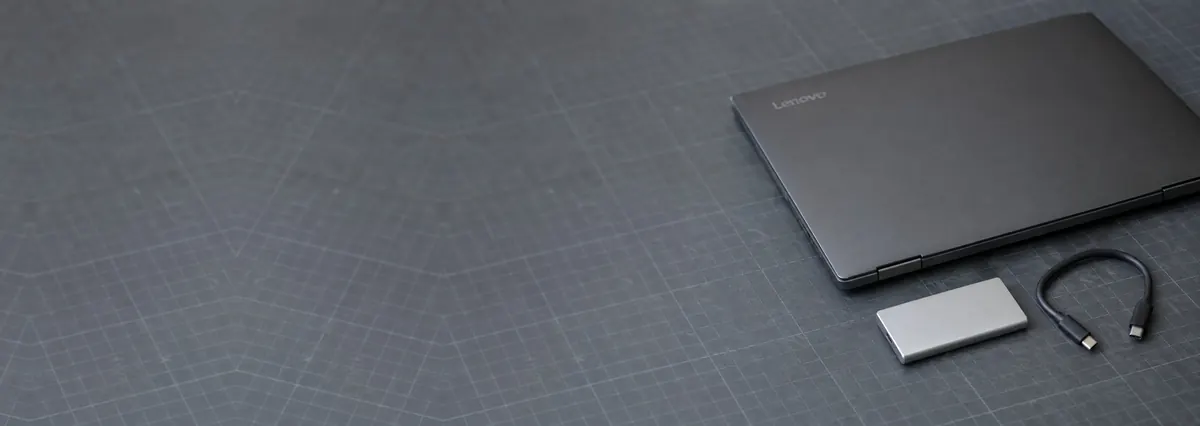
The fastest thing you can do for a slow laptop is not more RAM or a fresh install — it is modern storage. We move you from a mechanical hard disk or an old SATA SSD to a fast NVMe drive, clone your Windows or macOS across so nothing is reinstalled and nothing is lost, and usually hand it back the same day.
A slice of this week's storage bench log
Looking for the price? The price guide for this page is further down — jump straight to it ↓. Diagnosis is free on a walk-in, you get the price in writing before any work starts, and if we cannot fix it you do not pay a repair fee.
On this page
Of everything you can change inside a laptop, the storage drive is almost always the part holding you back. The processor spends most of its life waiting — waiting for Windows to load off the disk, waiting for an application to be read into memory, waiting for a file to be saved. On a mechanical hard disk, that waiting is measured in the time it takes a physical arm to swing across a spinning platter and find the right spot, which is glacial by the standards of everything else in the machine. Swap that disk for a solid-state drive and the waiting largely disappears, because an SSD has no moving parts and reads any block of data at effectively the same instant speed. That is why a five-year-old laptop that felt terminally slow can feel new again after nothing more than a storage change.
The biggest single leap is moving from a mechanical hard disk — or even from an ageing SATA SSD — to an NVMe SSD. NVMe drives talk to the processor directly over the PCIe bus rather than through the much older, much narrower SATA channel, so boot times and application-load times collapse rather than merely improve. A machine that took over a minute to become usable typically reaches the desktop in seconds, and heavy jobs like copying a large folder or opening a big project stop being coffee breaks. The CPU and the memory are untouched, so this is not a cure for a genuinely underpowered machine — but for everyday responsiveness, storage is the bottleneck far more often than people expect, and removing it is the cheapest meaningful upgrade there is.
The part that worries people most is their data, and it is the part we handle most carefully. We do not wipe your machine and start fresh. We clone your existing Windows or macOS installation directly onto the new SSD, so your programs, settings, licences, saved logins, documents and desktop all arrive on the new drive exactly as they were. You switch the laptop on afterwards to the same familiar setup — just far faster. Nothing is reinstalled and nothing is lost, and we return the old drive to you so you keep a complete copy of everything until you are happy the new one is working. Where the machine has the room, we can even leave a large SATA drive in as bulk storage and run the fast NVMe drive as the boot disk, giving you speed and space at once. If you are also short on memory, an SSD upgrade pairs naturally with a laptop RAM upgrade for a bigger overall lift.
There are two separate questions hiding in a slow laptop, and it helps to keep them apart. The first is simply whether your storage is too slow for how you use the machine. The second, more urgent, is whether the drive you already have is on its way out. The signs overlap, but the response is different — one calls for an upgrade, the other calls for a backup right now.
Signs your storage is the bottleneck and an upgrade would transform the machine:
Signs the drive is actually failing, where the priority is protecting your data before anything else:
If your machine matches the first list, an SSD upgrade is a straightforward, same-day win. If it matches the second, treat it as urgent: the safest path is to image the failing drive first and only then clone from that image, and if the drive has already deteriorated the job crosses over into data recovery territory, where we work on write-blocked hardware so nothing further is written to a disk that is barely holding on.
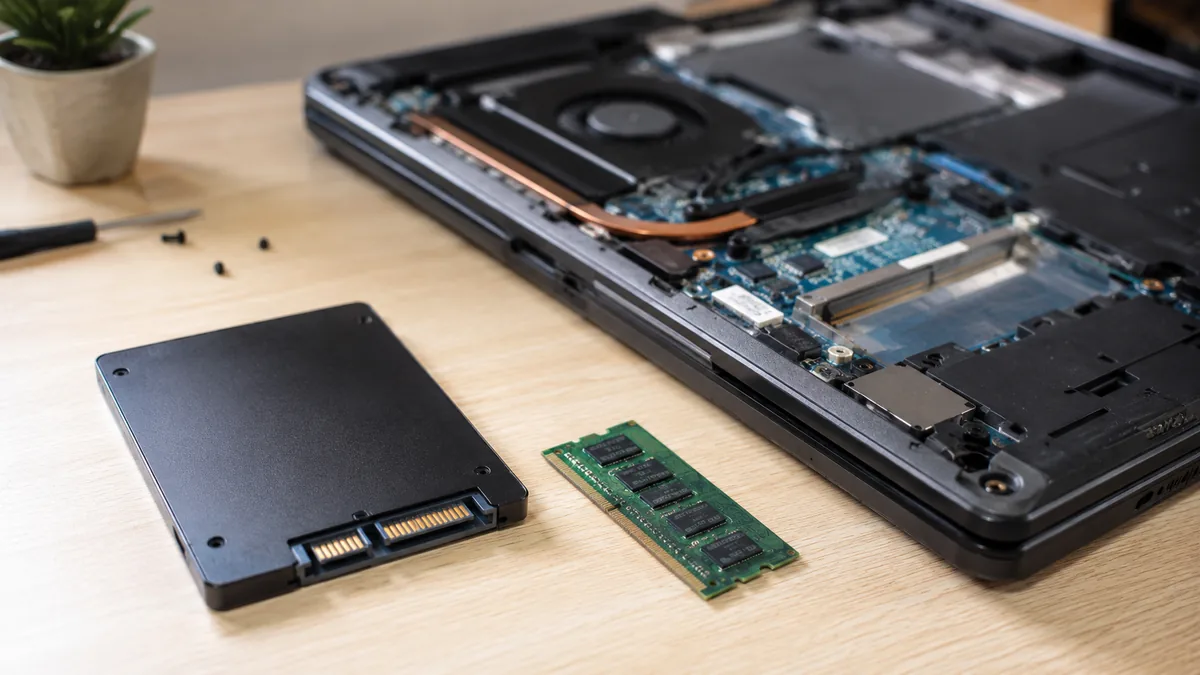
Below is the bench reference our technicians use during a storage intake. The reference codes are ours, not an industry standard — quoting one over WhatsApp simply lets us confirm the right drive and cable type and free the right bench before you arrive. Turnaround assumes the drive behaves the way the symptom suggests; a disk that is actively failing is imaged carefully first, and that step is never rushed.
Diagnostic reference
The storage cases that account for most upgrades and drive work on our bench, in roughly the order we see them.
Send the exact model and a photo, and a technician confirms whether it takes NVMe or SATA, whether there is a spare slot, and gives you an honest price band before you leave the house.
Every storage job follows the same disciplined path. The point of a fixed process is that your data is protected at each stage and the new drive is proven before the machine goes home — an upgrade is only a good one if nothing is lost along the way.
Two honest limits sit at the front of every quote. First, if your existing drive is already failing, the job is a data question before it is an upgrade — we image on write-blocked hardware first, and where the disk has degraded badly the work belongs with our data recovery team rather than a routine clone. Second, some machines cannot be upgraded at all because the storage is soldered to the mainboard; where that is the case we tell you on day one instead of taking the laptop apart to reach a chip that was never removable.
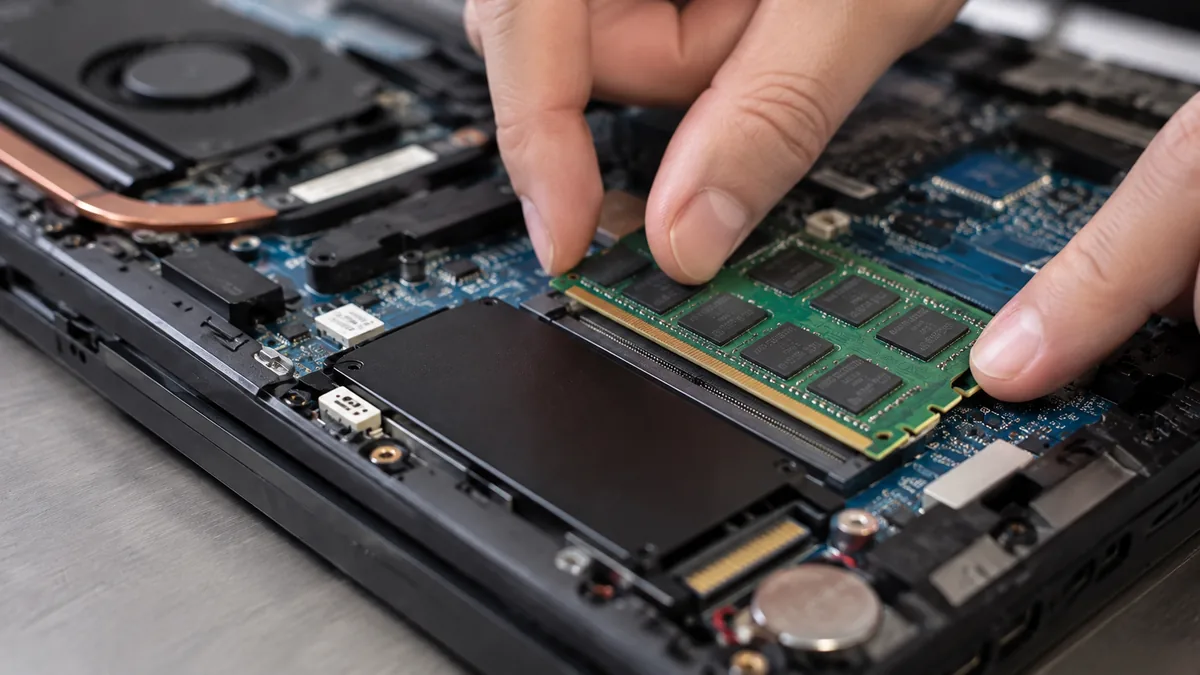
The reason we ask for your exact model up front is that laptops that look similar can take completely different drives, and fitting the wrong one wastes your money. We check the following from the model, so you get a straight answer before you commit:
Get those four right and the upgrade is smooth and same-day. Guess at them and you end up with a drive that does not fit, a stick that runs at half its speed, or a machine that was never upgradable in the first place — which is exactly why we do the checking rather than leave it to chance.

SSDs are more reliable than the spinning disks they replace, but they are not immortal, and a few habits keep yours fast and safe for years:
Because we clone rather than reinstall, so you keep your programs, licences and settings and lose nothing. Because we check the slot type against your model first, so you never pay for an NVMe drive that ends up running at SATA speed. Because a failing drive is imaged on safe hardware before we touch it, not read to death to save time. Because we hand back the old drive as a complete copy and let you watch the before-and-after benchmark. And because we will tell you honestly when a machine's storage is soldered and cannot be upgraded at all — a truthful "this one can't be done" is part of the service, and it is the basis of the trade we have built over fourteen years. When a job needs more than storage — a board or power fault behind the slowness — it goes to the same bench as our laptop motherboard repair and wider computer repair work, following the same laptop repair standards.
Verified Google reviews
Real reviews from our Google profile, shown with the customer’s name as they left it. The score and the count are Google’s own, updated every week.
I got the motherboard issue fixed on my 16” MacBook Pro. No data was lost, and everything is the same as before. As promised, I also received a 60-day service warranty. Thank you, iDevice! 😊
Thank you iDevice for helping me recover the data from my bootloop iPhone. I had asked many other places for help, but none of them could do it without restoring the phonne only you guys managed to recover it successfully. I really appreciate it! 🙏
My surface laptop was replaced with an SSD card and the services was very good.
Managed to successfully fix my damaged iPhones and my data is also saved! Thank you for assisting
Managed to recover data from MacBook Pro 16” successfully. Professionally done. Thanks.
Replaced my laptop HDD here, service was fast and collected within 2h, would come back here again if any other issues arise
I sent in 2 Dell laptops for repairs due to SSD replacement and battery and fan replacement. The technicians service were fast and prompt with ready parts. They are conveniently located and service is overall recommended! Thank you!
They are very professional and good. They fixed my laptop quickly, fixed the mother board and they managed to keep all of my data. Well done!
Related services
Pair the SSD with more memory to stop a machine choking on open tabs and apps.
See the service →Imaged first on write-blocked hardware when a drive is already failing.
See the service →Screens, batteries, keyboards and boards — component-level, with a written warranty.
See the service →Upgrades are priced as labour plus the part, so you are never paying us a mark-up you cannot see:
| Repair | Our band (SGD) | What drives the price |
|---|---|---|
| SSD upgrade | From around $80 (labour) + the drive | Capacity and type of drive; cloning your existing setup |
| RAM upgrade | From around $60 (labour) + the memory | Capacity and type of memory; soldered vs socketed |
Our figures are bands, not quotes — the exact price depends on the model and what the diagnosis finds, and you get a written quote before any work starts. Apple prices where shown were read from Apple’s official Singapore service estimator on 16 August 2026 and are for comparison only; Apple states it will inspect the device to determine the final fee, that a delivery fee may apply, and that Apple Authorised Service Providers set their own fees.
Moving a spinning hard disk to an SSD does more for day-to-day speed than any other change, and it is usually same-day with your existing setup cloned across so nothing is reinstalled.
Full ladders across every device: device repair cost guide, laptop repair cost, MacBook repair cost and iPhone repair cost.
Questions we get every week
Moving from a mechanical hard disk to an NVMe SSD is the single biggest speed upgrade most laptops can get, and the difference is not subtle. A machine that took a minute or more to reach a usable desktop typically boots in well under fifteen seconds afterwards, and the applications that used to hang while the disk chugged now open almost instantly. Even stepping up from an older SATA SSD to NVMe collapses large file copies and project-load times, because NVMe talks to the CPU over PCIe rather than the much slower SATA bus. The processor and memory stay the same, so it is not magic — but for everyday responsiveness, storage is almost always the bottleneck, and this is the cheapest way to remove it.
No. We clone your existing Windows or macOS installation across to the new drive, so nothing is reinstalled and nothing is lost. Your programs, settings, licences, browser logins, documents and folder layout all arrive on the new SSD exactly as they were — you switch on afterwards to the same desktop, just far faster. The only time we deviate is when the old drive is already failing, in which case we image it on separate hardware first and clone from the safe image rather than reading a dying disk. We also hand you back the old drive so you keep a full copy of everything until you are satisfied.
Not every one, which is why we check from the model before we promise anything. Three things decide it. First, whether there is a spare M.2 slot to add a drive or the existing one must be swapped. Second, whether that slot is NVMe (PCIe) or SATA-only — the two look physically identical but behave very differently, and fitting an NVMe drive to a SATA-only slot will not give NVMe speed. Third, and most important, some thin ultrabooks and all Apple silicon MacBooks have their storage soldered to the mainboard, and soldered storage cannot be upgraded at any price. Tell us the exact model and we will tell you honestly what your machine can and cannot take before you commit.
A 2.5-inch SATA SSD is a small drive that sits in the bay a mechanical hard disk used to occupy and connects over the SATA cable; it is a big jump over a spinning disk but caps out at SATA speeds. An M.2 drive is a bare stick that plugs flat onto the board. Confusingly, an M.2 slot can be wired for NVMe (fast, over PCIe) or for SATA (same speed ceiling as the 2.5-inch drive), and the sticks look nearly identical. That is exactly why the slot type has to be confirmed against your model rather than guessed. Where a laptop has both a 2.5-inch bay and an M.2 slot, we can often add the NVMe drive as your main disk and keep the old one for extra storage.
Most SSD upgrades are done the same day. Once we have confirmed the slot type and the right drive is on hand, the clone itself runs in the background while we get on with other work, and the physical swap and boot verification take a short while on top of that. Larger drives that are nearly full take longer to clone, and a drive that is showing signs of failure needs to be imaged carefully first, which adds time. If you drop the machine in early we can usually hand it back the same afternoon, tested and benchmarked, with your old drive returned to you.
The everyday signs of a storage bottleneck are slow boot, applications that take an age to open, and Task Manager showing the disk pinned at 100% while nothing much is happening. The warning signs of a drive that is actually failing are more serious: a mechanical hard disk that clicks, ticks or whirrs, freezes that clear after a pause, sudden 'disk needs to be repaired' errors, files that vanish or corrupt, SMART health warnings at startup, and shutdowns that drag on for minutes. Slowness alone usually just means it is time to move to an SSD. Those failure signs mean back up now — bring it in before the drive stops entirely, because recovering from a healthy backup is easy and recovering from a dead disk is not.
SSDs are reliable, but a few habits keep them healthy. Keep a real backup — an SSD failure tends to be sudden and total rather than the slow decline of a spinning disk, so a backup is your safety net. Do not fill the drive past roughly eighty-five per cent, because SSDs need free space to manage wear and stay fast. Check the SMART health once in a while; a drive reporting reallocated sectors or a falling health percentage should be replaced before it fails, not after. And if the drive that is already in the machine is throwing errors, do not keep using it in the hope it settles — every extra hour of use on a failing disk lowers the odds of a clean recovery.
Walk-ins welcome from the CBD, Orchard, Novena, Toa Payoh, Bishan, Ang Mo Kio, Jurong East, Clementi, Tampines, Bedok, Woodlands, Yishun, Hougang and Punggol. Courier collection islandwide for machines that should not be moved.