
★★★★★
I got the motherboard issue fixed on my 16” MacBook Pro. No data was lost, and everything is the same as before. As promised, I also received a 60-day service warranty. Thank you, iDevice! 😊
Buying & education guide · Singapore
If your laptop feels sluggish, an SSD is almost certainly the single biggest speed upgrade you can give it — and the one that makes an ageing machine feel new again. This guide is the education companion to our upgrade service: it explains what an SSD actually is, the handful of decisions that matter, and how to work out what your laptop can take before you buy a thing.
An SSD replaces your laptop's storage with a chip-based drive that has no moving parts, so boot and app-loading times drop from minutes to seconds — moving from an old hard drive is transformative. The decisions that matter are whether your slot is NVMe (PCIe) or SATA-only (they look identical but behave differently), whether you have an M.2 2280 slot or a 2.5-inch bay, and how much capacity to buy (aim not to fill past about 85 percent). The crucial bit is cloning your existing Windows or macOS install across so nothing is reinstalled. Note that some thin ultrabooks and all Apple silicon Macs have soldered storage that cannot be upgraded. The actual fitting and cloning is a same-day workshop job — see our SSD upgrade service.
On this page
If there is one upgrade that reliably transforms how a laptop feels, it is fitting a solid-state drive. The reason is simple once you picture what the old storage is doing. A mechanical hard disk drive, or HDD, stores your data on spinning metal platters and reads it with a tiny arm that physically swings across the surface to find each file. That movement takes milliseconds — an eternity in computing terms — and it is why a hard-drive laptop takes a minute or two to reach the desktop, stalls every time it opens a program, and grinds when several things want data at once.
An SSD has no platters and no moving arm. It stores everything in flash memory chips and reads it electronically, the same way a memory card or a phone does. There is no waiting for a head to seek, so data arrives almost the instant it is asked for. In practice that means boot times fall from minutes to seconds, applications open near-instantly, and the whole machine stops feeling like it is thinking before it responds. The effect is so pronounced that a laptop several years old with a fresh SSD frequently feels snappier than a brand-new budget machine that still ships with a hard drive.
This is why, when someone asks us how to make a slow laptop quick again, storage is almost always the first thing we look at. If your machine still runs an HDD, an SSD is the upgrade that changes everything — far more noticeably than a faster processor would. It pairs beautifully with a RAM upgrade too, and together those two changes are the backbone of most of what we do to breathe life back into a laptop that has become slow.
An SSD upgrade is not quite as simple as "buy a bigger, faster drive". There are a handful of decisions that decide whether a given drive will even fit and work in your machine, and getting them right up front saves money and frustration. Here is the short list, in the order that matters:
If that list feels like a lot to be sure of, that is the honest reason most people bring the machine to us for a quick compatibility check rather than gambling on a drive that might not fit. Tell us your exact model and we can confirm what it takes before anything is ordered.
This is the part of an SSD upgrade that trips people up most, so it is worth slowing down for. Both NVMe and SATA M.2 drives can be the same small gum-stick shape and slide into a slot that looks the same. Under the surface they are very different.
SATA is the older connection, originally designed for hard drives. A SATA SSD is a huge leap over a hard drive, but it is limited by the SATA interface's ceiling — think of it as a well-surfaced two-lane road. For most everyday tasks it feels wonderfully quick and is often all a machine can accept.
NVMe drives instead talk to the laptop over the PCIe bus, the same high-speed lanes the graphics and processor use — a multi-lane expressway rather than a two-lane road. An NVMe drive can move data several times faster than SATA at its peak. The catch is that not every laptop's M.2 slot is wired for PCIe: some slots are SATA-only, some are NVMe-only, and some accept either. A pure NVMe drive placed in a SATA-only slot will not work; a SATA M.2 drive in an NVMe-only slot will not work either. Because they look the same, you cannot tell by eye — you have to know what your specific model's slot supports.
That is precisely why we always confirm your slot type against your exact laptop model before ordering a part. It is a small check that avoids the most common and most avoidable SSD-upgrade mistake. When you are ready for the actual fitting, our SSD upgrade service handles the compatibility check, the drive and the cloning as one same-day job.

Capacity is the one decision entirely in your hands, and the rule of thumb is easy: buy for what you store today plus comfortable room to grow, and try not to run an SSD past about 85 percent full. SSDs stay fast and age well when they have free space to work with; cram one to the brim and it slows down and wears sooner. Leaving that headroom is the single simplest thing you can do to keep a drive healthy for years.
As a practical guide for most laptop owners:
Because the cost per gigabyte on SSDs is low, it is usually worth going one size up from what you think you need. Running out of space a year later is a genuine nuisance, and on a soldered machine it can be impossible to fix at all — another reason to think about capacity before you buy rather than after.
A quick word on PCIe generations here too, since they often get bundled into the capacity question. Newer NVMe drives advertise ever-higher peak transfer speeds — generation four, five and beyond. On a laptop doing ordinary work, you will rarely feel the difference between one generation and the next, and a faster, hotter drive can actually be a liability in a thin chassis with limited cooling. The speed you notice comes from leaving the hard drive behind, not from chasing the top of the benchmark charts. We fit a drive matched to what your slot genuinely supports, which is what sets your real-world speed anyway.
This is the part that turns an SSD upgrade from a chore into a pleasure, and it is the bit most people worry about unnecessarily. When you replace the drive in a laptop, you do not have to reinstall Windows or macOS and start over. Instead the existing installation is cloned — copied across to the new SSD exactly as it is, with your operating system, your programs, your licences, your settings and every file moved over intact. You turn the laptop on afterwards and boot straight into the setup you already know, only far faster. Nothing to reinstall, nothing to reconfigure, no reactivating software or hunting for passwords.
Cloning is also how a capacity upgrade works when you are moving from a smaller drive to a larger one, or from a hard drive to an SSD — your whole world simply moves across and expands into the extra room. It is genuinely one of the nicer moments in this job: the customer expects to lose an afternoon rebuilding their laptop, and instead it comes back the same but transformed.
One firm piece of advice, though: always back up before any drive work. Cloning is reliable, but a drive that is on its way out can misbehave during the copy, and a backup is your safety net if anything unexpected happens. If your current drive has already failed and the files cannot be read, that becomes a data recovery job rather than a straightforward clone — another reason not to leave a struggling drive too long. Back up first, clone second, and an upgrade carries essentially no risk to your data.
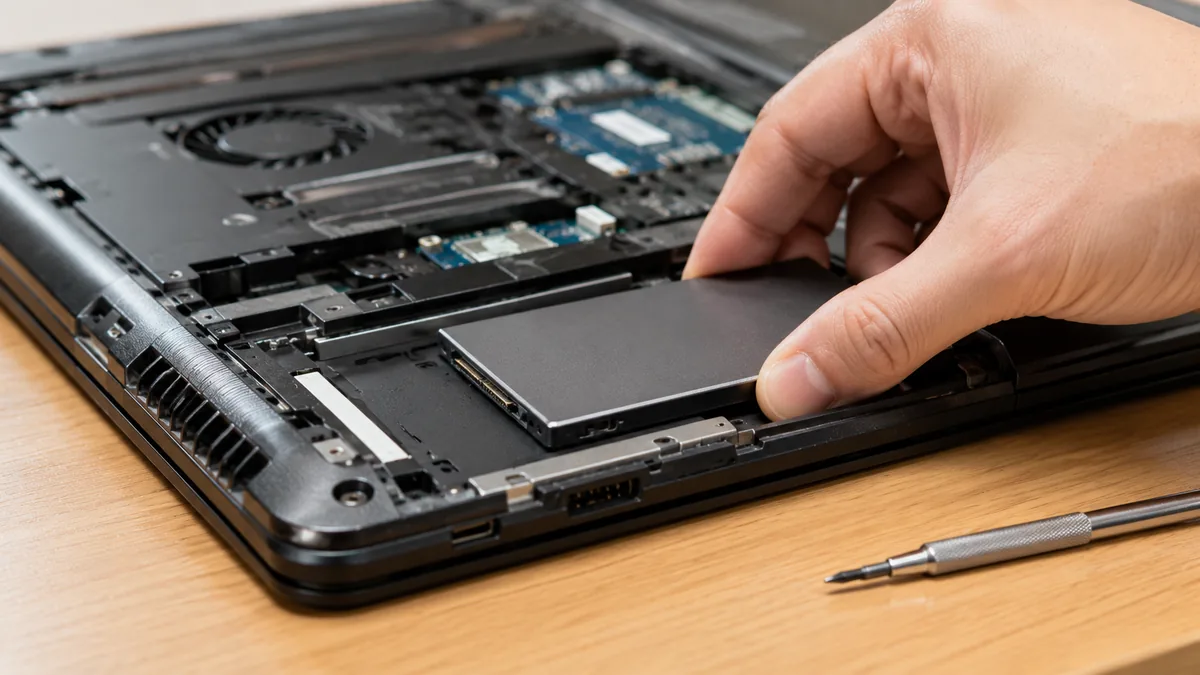
Before you plan any of this, there is one caveat that decides whether an upgrade is even possible: not every laptop has removable storage. On many thin ultrabooks, and on all Apple silicon MacBooks (the M-series Air and Pro), the storage is soldered directly onto the mainboard. That means the flash chips are permanently attached — they cannot be unplugged, swapped or upgraded, and the capacity the machine shipped with is the capacity it keeps for life. It is why buyers of those machines are often advised to choose a larger storage option up front, because there is no second chance later.
Laptops with a standard M.2 card or a 2.5-inch drive can be upgraded normally, and some even have a spare slot so a second SSD can be added alongside the first. The trouble is you cannot always tell which camp a machine is in from the outside — two similar-looking ultrabooks might differ, one soldered and one not. The only reliable way to know is to check the exact model. This is exactly the kind of thing we confirm as part of a free compatibility check: tell us your make and model and we will tell you plainly whether an SSD upgrade is possible before you get your hopes — or your wallet — involved.
If it turns out your storage is soldered and you are running short of space, the answer is usually a fast external SSD or a cloud tidy-up rather than an internal upgrade, and we will point you the right way. If your machine does take a removable drive, you are in the happy majority, and the upgrade is one of the most cost-effective things you can do for it.
You do not need to open the laptop up to work most of this out. The single most useful thing you can do is find your exact model — usually printed on a label on the underside, or shown in the system information screen — and note it down. From the model we can establish whether the storage is soldered or removable, whether the slot is M.2 2280 or a 2.5-inch bay, whether it is wired for NVMe or SATA, and whether there is a spare slot for a second drive. That is every decision on this page answered before a single screw is turned.
Send us the model along with a note of how full your current drive is and roughly what you store, and we will come back with what your machine takes and a sensible capacity to aim for. From there the actual work — fitting the drive and cloning your setup across — is a straightforward same-day workshop job in most cases. For the details of how the upgrade itself is carried out, and to book it, see our laptop SSD upgrade service. If you are weighing storage against memory, our laptop RAM upgrade guide is the companion read, and our note on how long a laptop should last puts an upgrade in the context of a machine's whole life. Everything we do follows the same documented parts-replacement process, and if you would like our read on your specific case first, ask us for a quote.
SSD shopping comes with its own vocabulary, and a lot of the confusion is just jargon. Here is a plain-English reference to the terms you will meet, and why each one matters when you are choosing a drive.
| Code | Term | What it is | Why it matters |
|---|---|---|---|
| SSD-01 | NVMe | A fast SSD that talks to the laptop over the PCIe bus, the same high-speed lanes used by the graphics and processor. | The quickest storage a laptop can take — but only if the slot is wired for PCIe. Not every M.2 slot is. |
| SSD-02 | SATA SSD | An SSD that uses the older SATA interface first designed for hard drives. | Still a massive leap over an HDD, and often all a given laptop can accept. Looks identical to NVMe but is capped lower. |
| SSD-03 | M.2 2280 | The common small "gum stick" card form factor; 2280 means 22mm wide and 80mm long. | The slot most modern laptops use. Knowing the length your machine supports avoids buying a card that will not fit. |
| SSD-04 | 2.5-inch | The larger drive bay in older or bigger laptops, the same size as a small hard drive. | These machines take a 2.5-inch SATA SSD rather than an M.2 card — a different shape entirely, so form factor matters. |
| SSD-05 | PCIe generation | The version of the PCIe bus an NVMe drive uses — gen 3, 4, 5 and so on, each with higher peak speeds. | Higher generations look faster on paper, but on a laptop the everyday difference is small and can run hotter. |
| SSD-06 | Cloning | Copying your existing Windows or macOS install, apps, licences and files onto the new drive exactly as they are. | Means nothing is reinstalled — you boot into the same setup, only faster. The key to a painless upgrade. |
| SSD-07 | TBW / endurance | Terabytes Written — how much data can be written to the drive over its life before wear becomes a concern. | A plain measure of longevity. Everyday users rarely get near the limit, but it is why leaving free space helps. |
| SSD-08 | Capacity | How much the drive can store, measured in gigabytes (GB) or terabytes (TB). | Buy for what you store plus headroom, and try not to fill past about 85 percent so the drive stays fast and lasts. |
Tell us your exact model and we will confirm what SSD it takes, recommend a capacity, and clone your existing setup across — usually a same-day job with your files and programs kept exactly as they are.
Keep reading
The actual fitting and cloning job — compatibility checked, done same day.
See the service →The other big speed upgrade, explained — how much memory you really need.
Read the guide →The real causes of a sluggish laptop, and which ones an upgrade fixes.
Read the guide →Verified Google reviews
Real reviews from our Google profile, shown with the customer’s name as they left it. The score and the count are Google’s own, updated every week.
I got the motherboard issue fixed on my 16” MacBook Pro. No data was lost, and everything is the same as before. As promised, I also received a 60-day service warranty. Thank you, iDevice! 😊
Thank you iDevice for helping me recover the data from my bootloop iPhone. I had asked many other places for help, but none of them could do it without restoring the phonne only you guys managed to recover it successfully. I really appreciate it! 🙏
My surface laptop was replaced with an SSD card and the services was very good.
Managed to successfully fix my damaged iPhones and my data is also saved! Thank you for assisting
Managed to recover data from MacBook Pro 16” successfully. Professionally done. Thanks.
Replaced my laptop HDD here, service was fast and collected within 2h, would come back here again if any other issues arise
I sent in 2 Dell laptops for repairs due to SSD replacement and battery and fan replacement. The technicians service were fast and prompt with ready parts. They are conveniently located and service is overall recommended! Thank you!
They are very professional and good. They fixed my laptop quickly, fixed the mother board and they managed to keep all of my data. Well done!
Questions we get every week
For any laptop still running a mechanical hard drive, yes — nothing else comes close. A spinning HDD has to physically move a read head to find data, which is why an old machine takes a minute or two to reach the desktop and stalls whenever it loads a program. An SSD has no moving parts and reads data electronically, so boot times drop from minutes to seconds and applications open almost instantly. The change is so dramatic that a five year old laptop with a fresh SSD often feels quicker than a brand-new machine that still ships with a hard drive. If you only ever do one upgrade, this is the one.
This is the key question, because an NVMe drive and a SATA M.2 drive can look almost identical yet behave completely differently, and fitting the wrong one means it simply will not work or runs far slower than it should. The safest way to be sure is to check your exact laptop model and its specification, since some machines have an NVMe (PCIe) slot, some are SATA-only, and some accept either. The pin notch on an M.2 drive also hints at what it supports. Rather than guess, tell us your model and we will confirm exactly what your slot takes before any part is ordered — getting this right the first time is most of the job.
It does not have to. The important part of an SSD upgrade is cloning — copying your existing Windows or macOS installation, your programs, licences, settings and files across to the new drive exactly as they are, so nothing is reinstalled and you boot straight into the setup you already know. Done properly you turn the laptop on afterwards and everything is simply where you left it, only much faster. We always recommend a full backup before any drive work as a safety net, but a clean clone means an upgrade is an improvement, not a fresh start you have to rebuild from scratch.
Buy for how full your current drive is plus room to grow, and try not to run an SSD past about 85 percent full, because a drive with a little free space stays faster and lasts longer. As a rough guide, 500GB suits light users who mostly browse and work in documents, 1TB is the comfortable sweet spot for most people including plenty of photos and a few large applications, and 2TB or more makes sense if you keep large media libraries, games or video projects locally. It is usually worth going one size up from what you think you need, since the cost per gigabyte is low and running out of space later is a nuisance.
Usually not. Newer PCIe generations quote much higher peak speeds on paper, but on a laptop doing everyday work — booting, opening apps, browsing, office tasks — you will rarely notice the difference between one NVMe generation and the next, and a faster drive can run hotter in a thin chassis. What transforms a laptop is the jump from a hard drive to any SSD, and from SATA to NVMe; beyond that, the benchmark numbers matter far more than real-world feel for most users. We fit a drive that matches what your slot actually supports, which is what determines the speed you get anyway.
No, and it is important to check before you plan an upgrade. Many thin ultrabooks and all Apple silicon MacBooks have their storage soldered directly to the mainboard, which means it cannot be removed or replaced and the capacity you bought is the capacity you keep. Laptops with a standard M.2 or 2.5-inch drive can be upgraded, and some even have a spare slot so we can add a second drive without removing the first. The only reliable way to know which camp your machine is in is to check the exact model — send it to us and we will tell you whether an upgrade is possible before you commit to anything.
A free compatibility check tells you whether your storage is upgradable, what slot and drive type it uses, and a sensible capacity to buy — before you spend anything. Walk in, or send your model and we will tell you what we think.