
★★★★★
I got the motherboard issue fixed on my 16” MacBook Pro. No data was lost, and everything is the same as before. As promised, I also received a 60-day service warranty. Thank you, iDevice! 😊

Buying & education guide · Singapore
Most laptops give three to five years of comfortable use, and a well-built one reaches five to eight years or more. But the badge on the lid decides far less than you would think — build quality, heat, the battery and how you look after it matter more. This guide explains what really sets a laptop's lifespan in Singapore, and how to stretch yours.
Expect three to five years of easy use from a typical laptop, and five to eight years or more from a well-built business or premium machine. Lifespan is set far more by heat, build quality, battery wear, storage type and how hard the laptop is worked than by its brand. The battery almost always ages first, followed by storage, thermal paste, hinges and keyboards — every one an individually replaceable part. Keep a laptop cool and clean, fit an SSD and enough RAM, replace the battery when it fades and service the thermals every couple of years, and you will comfortably reach the top of that range. Replacement only really wins once the machine drops out of software support or several major parts fail at once.
On this page
Ask ten people how long a laptop should last and you will get ten answers, most of them anchored to whatever their last machine did. The honest, evidence-based ranges are narrower than the folklore suggests. A typical consumer laptop gives roughly three to five years of comfortable, everyday use before it starts to feel its age. A well-built business or premium machine — the kind with a metal chassis, a better cooling system and serviceable parts — will happily reach five to eight years or more if it is looked after. Plenty of the laptops that come across our bench are older than that and still earning their keep.
Notice that these are ranges, not deadlines. A laptop does not stop working the day it turns five; it simply reaches the point where an ageing part or two needs attention. The difference between a machine that is retired at four years and one that serves happily at seven is rarely the brand on the lid. It is the handful of factors below — and every one of them is something you have at least some control over.
Lifespan is not a single number baked into the laptop at the factory. It is the sum of several things, some set by the machine's design and some set by how it lives its life:
Read that list again and you will spot the pattern: most of what shortens a laptop's life is heat, wear and neglect, and most of it is manageable. That is the whole reason a maintenance habit pays off, and it is the thread running through the rest of this guide. Our laptop maintenance checklist turns these factors into a simple routine.
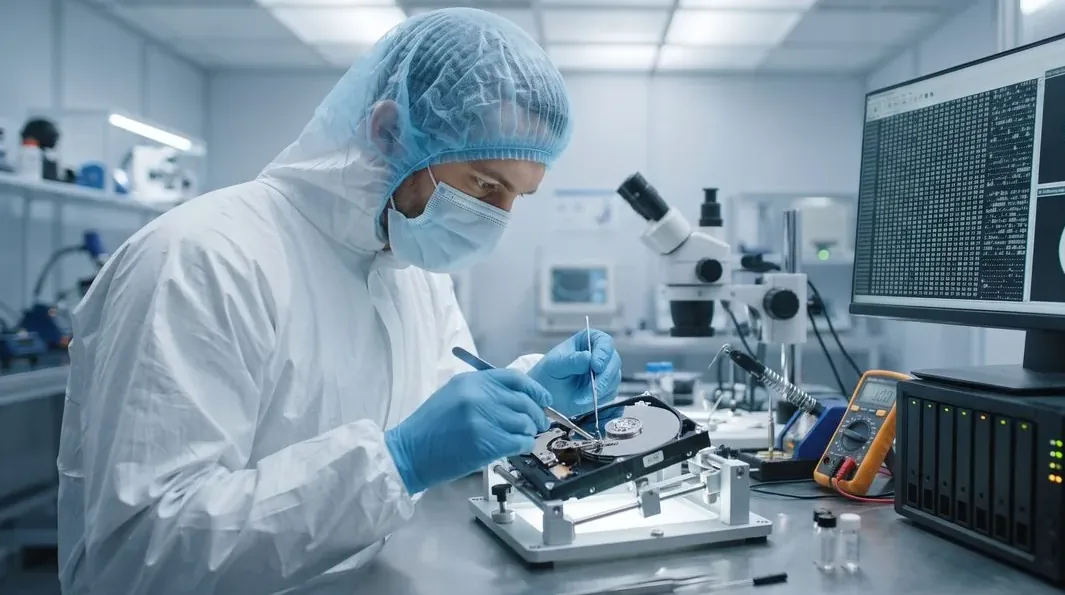
Laptops rarely die all at once. They age one component at a time, and the order is remarkably predictable. Knowing which part is likely to go first tells you where to spend your attention — and your money — to keep a machine alive.
The reassuring theme here is that the first things to fail are also among the cheapest to fix. None of these is a reason to write off a laptop. Each is a single, replaceable part, and swapping it is a small fraction of the cost of a new machine — exactly the kind of work our laptop repair bench handles every day.
Ageing shows itself long before a laptop actually stops working, which is fortunate, because early signs give you time to act cheaply. Watch for these:
The important distinction is between symptoms of a single ageing part — which are a maintenance job — and a machine that is genuinely past its useful life. Most of the signs above fall into the first camp. If you are not sure which yours is, our guide on whether to repair or replace a laptop walks through the decision in detail.
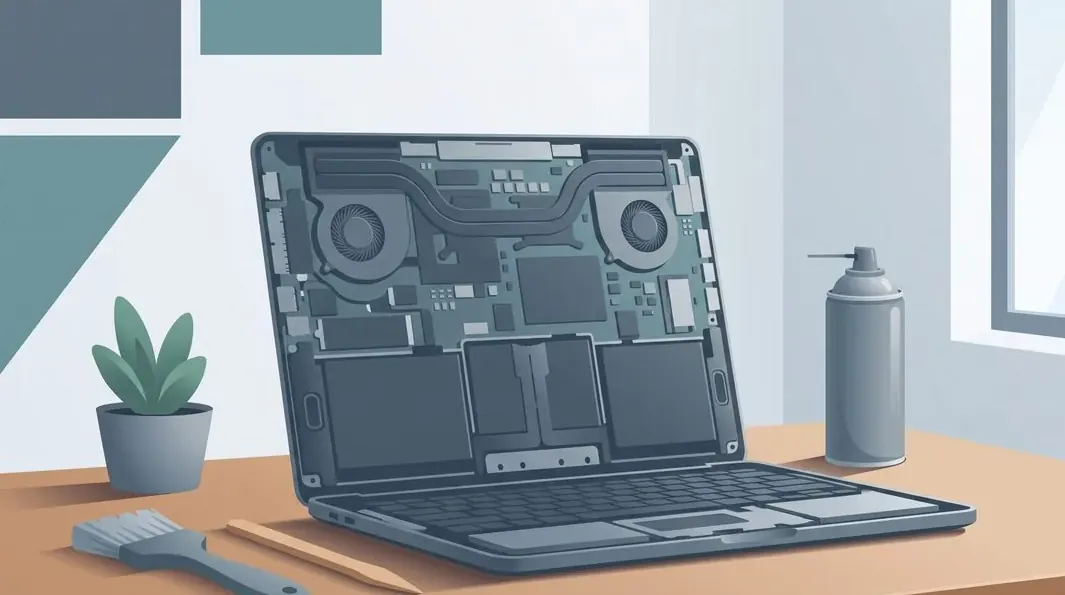
Here is the good news the folklore misses: a laptop's lifespan is largely in your hands. A machine that would otherwise be retired at four years routinely serves happily to seven or eight with a few sensible upgrades and habits. These are the moves that make the biggest difference, roughly in order of impact:
Taken together, an SSD, adequate RAM, a fresh battery and a thermal clean effectively reset the clock on the parts that age fastest — for a fraction of the cost of a replacement. That is the core idea behind our maintenance checklist, and the reason so many machines we service go on for years longer than their owners expected. If you would like a technician to look over an ageing laptop and tell you which upgrades are worth it, ask us for a free assessment.
Stretching a laptop's life is usually the smart, economical choice — but not forever. There are honest cases where the sensible move is a new machine rather than another repair, and we would rather tell you that than sell you an upgrade you will regret:
Even then, replacement does not mean your data is gone — the storage can almost always be read, and our data recovery service exists for exactly that. The one thing we would never do is guess. Every one of these decisions rests on knowing what is actually wrong and what the fix would cost, which is what a diagnosis gives you. Our full repair-or-replace guide lays out the framework in detail, and the way we assess and quote every job is set out in our laptop repair process.
Whether your laptop has years left in it or is genuinely near the end usually comes down to one part and one figure — and neither is something you can guess from the sofa. Bring the machine in, or send a photo and a description of what it is doing, and we will tell you what is wearing out, what it would cost to put right, and whether that is money well spent at its age. Diagnosis is free on walk-ins and there is no obligation to proceed. If a fresh battery and an SSD will buy you three more good years, we will say so; if it is time to replace, we will tell you that too.
Keep reading
The framework we use to decide when a laptop is worth fixing and when it isn't.
Read the guide →The simple routine that keeps a laptop cool, fast and healthy for years.
Read the guide →Habits that slow battery wear and keep runtime where it should be.
Read the guide →Verified Google reviews
Real reviews from our Google profile, shown with the customer’s name as they left it. The score and the count are Google’s own, updated every week.
I got the motherboard issue fixed on my 16” MacBook Pro. No data was lost, and everything is the same as before. As promised, I also received a 60-day service warranty. Thank you, iDevice! 😊
Excellent Lap top repair service! Fast turn around, professional support & my computer was fixed quickly.
They repair fast and good, my DELL laptop had damaged screen and battery and they fixed it in one day. Diagnosis is free and they quote after checking on the problem. Pre-test testing and post testing done well.. Highly recommend.
My surface laptop was replaced with an SSD card and the services was very good.
Managed to fixed my 16inch MacBook pro within 5 working days thank you!
Great service - MacBook froze on upgrade. Could not solve problem myself. iDevice expedited the repairs and my Mac is like new! Very reasonable rates for repair too. Highly recommend.
Super fast and efficient. My motherboard spoiled, spent $350 to replace it, better than getting a new laptop at 2-3k. Hopefully can last for another year 😆
Managed to successfully fix my damaged iPhones and my data is also saved! Thank you for assisting
Questions we get every week
Most laptops give three to five years of comfortable, everyday use, and a well-built business or premium machine will happily reach five to eight years or more with a little care. The number is not fixed by the brand badge — it is set by how the machine is built, how hot it runs, how heavily it is used and whether it still gets software updates. A modestly specified laptop that is kept cool and clean, given an SSD and a fresh battery when needed, will comfortably outlast an expensive one that lives in a hot bag and never gets serviced. Think of the headline figure as a starting point, not a deadline.
It can, if you let it. Singapore's constant heat and high humidity are harder on electronics than a cooler, drier climate. Heat accelerates battery wear and dries out the thermal paste that keeps the processor cool, while humidity encourages corrosion on the board over time, especially where a machine is used near open windows, in cars or in air that swings between cold air-conditioning and warm outdoors. None of this is dramatic day to day, but it means a laptop here benefits more than most from good airflow, regular internal cleaning and a thermal service every couple of years. Treated well, a laptop lasts just as long in Singapore as anywhere else.
The battery, almost every time. It is a consumable that loses capacity with every charge cycle, so it is usually the first thing to feel worn out, often within two to four years. After that the common wear points are storage on older laptops with a mechanical hard drive, dried-out thermal paste that makes the machine run hot and slow, and mechanical parts such as hinges and keyboards that see constant physical use. The good news is that every one of these is an individually replaceable part rather than a reason to retire the whole machine, and each fix is cheap relative to a new laptop.
Very often, yes. If the machine is fundamentally sound, an SSD upgrade and extra RAM are the single biggest improvements you can make, and together they make a three or four year old laptop feel new again for a fraction of the price of replacing it. Add a fresh battery and a thermal clean and you have effectively reset the clock on the parts that age fastest. Upgrades make the most sense on a machine that still meets your needs and still receives software updates; if the laptop is already too slow for what you do even when healthy, that is when replacement starts to make more sense.
The everyday signs are a battery that barely lasts an hour, fans that roar while the machine crawls, frequent slowdowns or crashes, a swelling battery that lifts the trackpad or case, and physical wear such as a loose hinge or failing keys. On their own, most of these point to a single ageing part that can be replaced rather than the end of the road. The genuine end-of-life signals are different: the machine no longer receives security updates, several major parts have failed at once, or a repair would cost more than a comparable replacement. Until you reach that point, ageing is usually a maintenance job, not a funeral.
Keep it cool and clean, look after the battery, and service it before problems compound. Use the laptop on a hard surface rather than a bed or lap so the vents can breathe, have the fans cleaned and the thermal paste refreshed every couple of years, and avoid leaving it charging at one hundred percent in a hot room all day. Move to an SSD if you are still on a mechanical drive, keep a little free storage, and back up your files so a hardware fault never becomes a data loss. Small habits like these routinely add years to a laptop's working life, and a quick service is far cheaper than a new machine.
A free, no-obligation diagnosis tells you what is wearing out, which upgrades are worth it, and how much life is left in the machine. Walk in, or send a photo and we will give you our honest read before you spend anything.