
★★★★★
Got my laptop Serviced and got the hard disk replaced with SSD. Quick response and faster turnaround time.
Service · Memory upgrade · Singapore
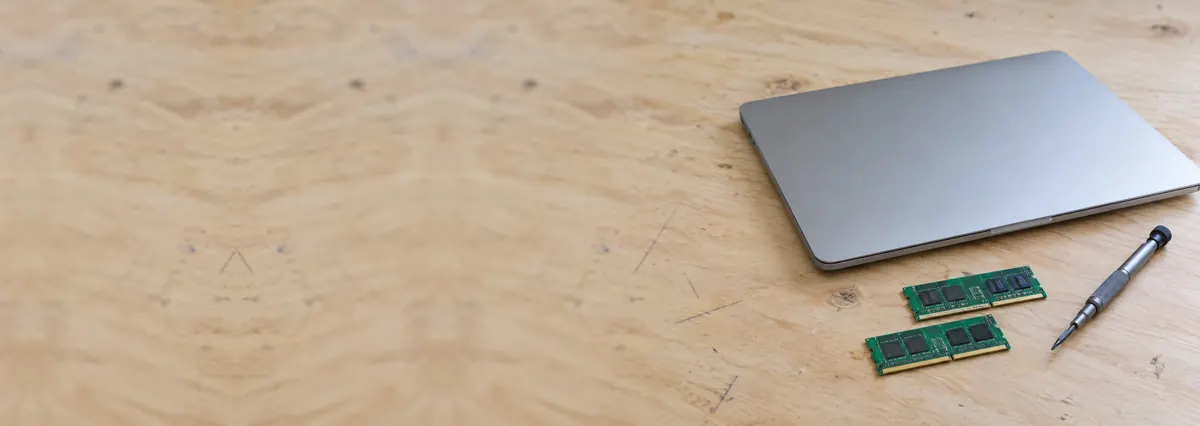
A laptop that grinds to a halt with a few tabs open is usually not worn out — it is out of memory. We check from your exact model whether the RAM can be upgraded, fit matched modules in the right speed, and run a full memory test so you leave with a machine that finally keeps up. Most upgrades are done the same day.
A slice of this week's memory bench log
Looking for the price? The price guide for this page is further down — jump straight to it ↓. Diagnosis is free on a walk-in, you get the price in writing before any work starts, and if we cannot fix it you do not pay a repair fee.
On this page
RAM — random-access memory — is the working space your laptop uses to hold everything it is doing right now: the open applications, the browser tabs, the document you are editing, the background services keeping the machine running. It is not storage; it is the desk your computer works on. When the desk is big enough, everything you are using stays within reach and switching between tasks is instant. When the desk is too small, the machine is forced to shuffle things off to the much slower storage drive to make room, then drag them back when you need them again. That constant shuffling — called paging or swapping — is the single most common reason a laptop that was once fine now feels broken.
This is why a memory upgrade transforms a machine that a new processor would barely improve. Moving from 8GB to 16GB, or to 32GB, ends the swapping that makes a browser full of tabs, a video call with a document open behind it, or any real multitasking feel like wading through mud. Tabs stop reloading when you click back to them. Applications stop freezing when you Alt-Tab between them. The machine stops thrashing its disk every time you open one more thing. It is the cheapest upgrade that most owners actually feel, and on a laptop with accessible memory slots it is usually a same-day job. It is worth being clear about what it does not fix: adding memory will not make a slow CPU calculate faster or a failing battery last longer. It fixes the specific, extremely common problem of running out of room to work.
You rarely need a diagnostic tool to know your laptop is short of RAM — it announces itself through everyday behaviour. Any one of these on its own is a hint; several together are close to a certainty:
If this is your daily experience, more RAM is very likely the fix — but only if your machine can take it. That is the first thing we establish, and it is worth understanding why before you buy anything.
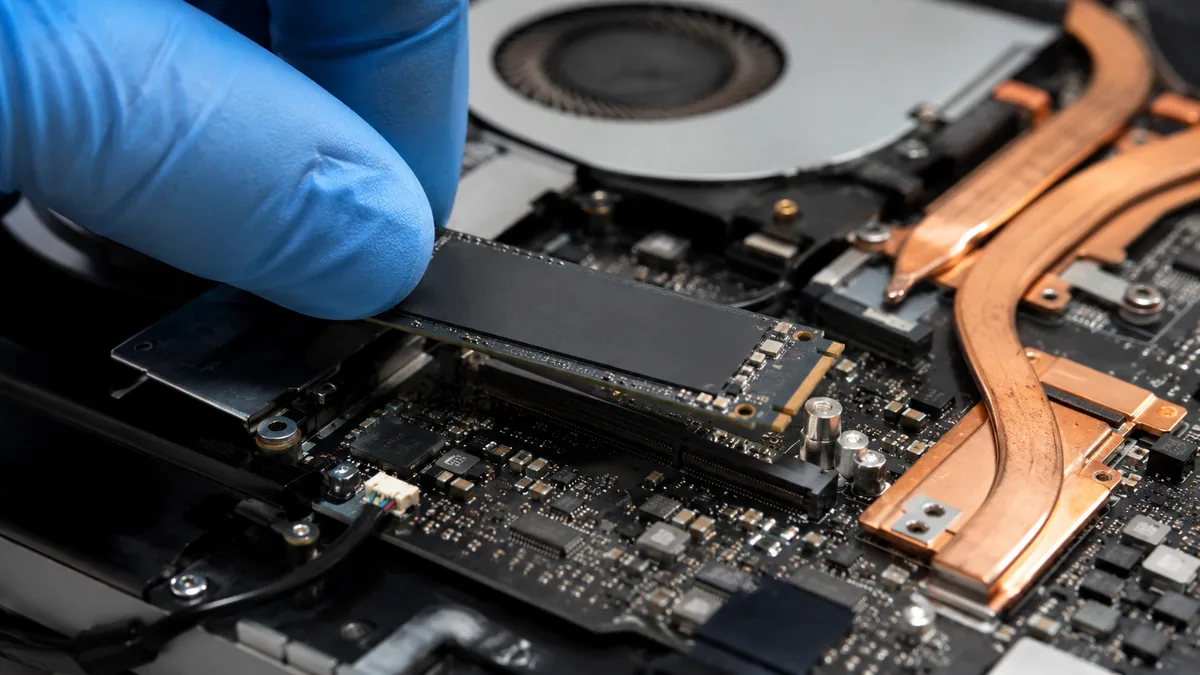
A memory upgrade is only as good as the homework done before a single module is ordered. We work from your exact make and model, because the answers are decided by the machine, not by preference. Five things settle whether an upgrade is possible and what it should be:
Doing this first is what separates an upgrade that just works from an expensive guess. If the answer is that your memory is soldered and cannot be changed, we tell you honestly and save you the wasted trip — and if the machine is simply past the point where a memory upgrade helps, we will say that too.
We do not only add memory — we diagnose it. Faulty RAM and bad slots cause some of the most alarming symptoms a laptop can show, and they are frequently misdiagnosed as a dying machine. Below is the bench reference our technicians use during intake. The reference codes are ours, not an industry standard — quoting one over WhatsApp simply lets us prepare the right modules and the memory tester before you arrive.
Diagnostic reference
The memory jobs that make up most of our bench, from straightforward capacity upgrades to genuine faults.
Send your laptop's make and model and how you use it. A technician replies with whether the memory is upgradeable, the right size, and an honest price band before you leave the house.
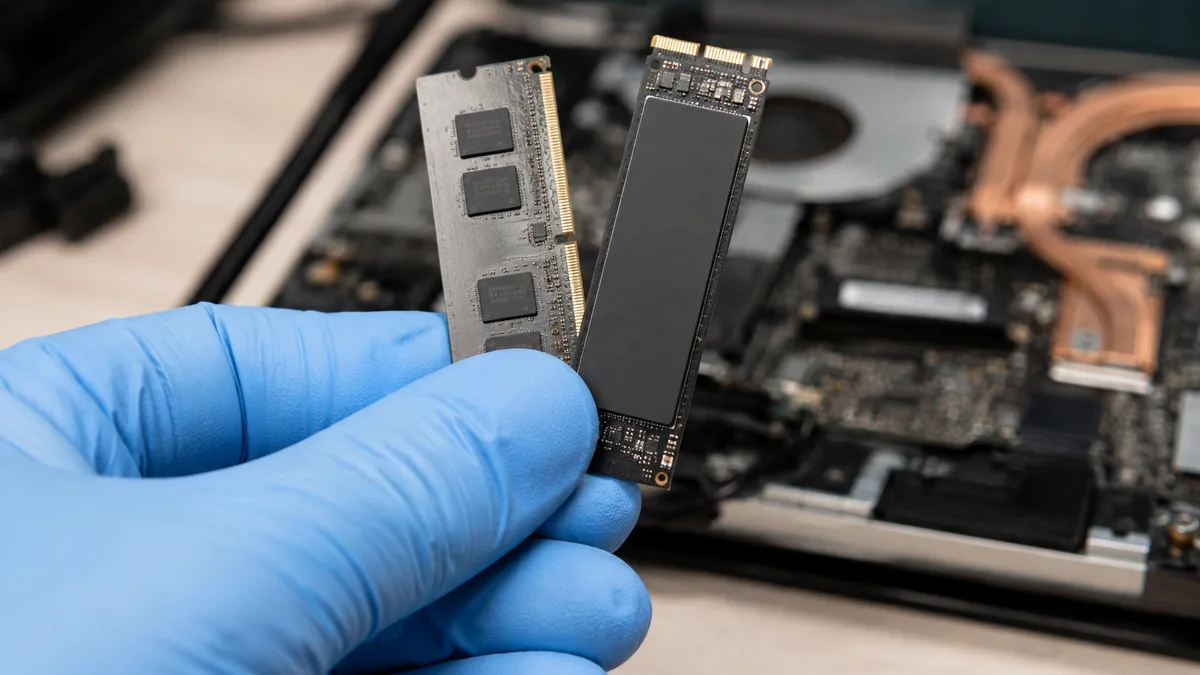
Every memory job follows the same disciplined path, whether it is a simple capacity bump or diagnosing a suspected fault. The checking matters more than the fitting — anyone can push a module into a slot; getting the spec right and proving the result is stable is the actual work.
One honest limit sits at the front of every quote: if the memory is soldered to the board, no upgrade is possible, and we tell you that on day one rather than after you have travelled or paid. In that case the practical routes are a different machine, or making the most of what you have — often paired with an SSD upgrade, which speeds up the paging that a full memory bank causes and is frequently the better-value move on a soldered ultrabook. Where a machine will not POST at all after a memory change, or shows no display with fans running, the fault can sit deeper on the board; that becomes a motherboard repair question and we diagnose it on the bench before recommending anything.
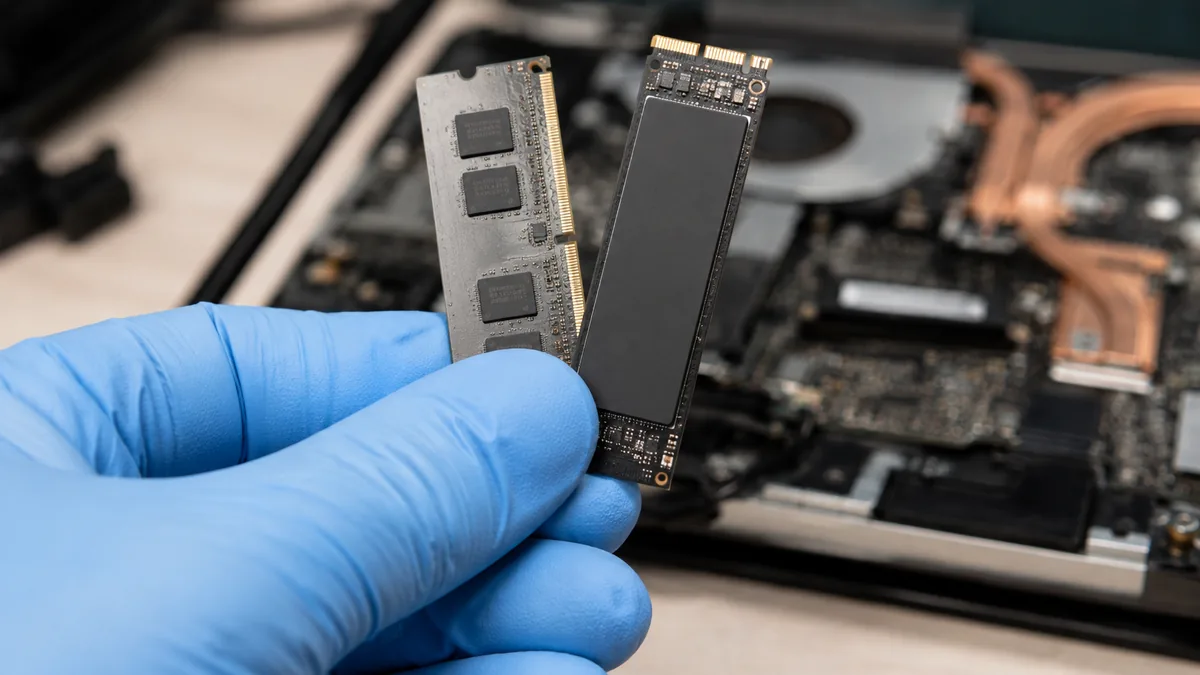
There is very little "maintenance" for RAM — it has no moving parts and no wear item — but a handful of decisions at purchase and upgrade time make all the difference between memory that quietly works for years and a machine that never runs as fast as it should:
Because the first thing we do is tell you the truth about whether your laptop can even be upgraded — checked from the model, before you commit — rather than selling you memory that will never fit. Because we size the upgrade to how you actually work instead of to the biggest number the machine will take. Because every job is proven with a full memory test rather than handed back on a hope, and because we diagnose faulty RAM and bad slots as readily as we add capacity. And because a memory upgrade is one of the fastest, best-value ways to give a tired laptop years more life, which after fourteen years on the bench is exactly the kind of honest, high-value work we would rather do than sell you a replacement you do not need.
Verified Google reviews
Every review below is a real, unedited review from our Google profile, shown with the customer’s name as they left it. Read all 940+ on Google.
Got my laptop Serviced and got the hard disk replaced with SSD. Quick response and faster turnaround time.
My surface laptop was replaced with an SSD card and the services was very good.
Replaced my laptop HDD here, service was fast and collected within 2h, would come back here again if any other issues arise
I sent in 2 Dell laptops for repairs due to SSD replacement and battery and fan replacement. The technicians service were fast and prompt with ready parts. They are conveniently located and service is overall recommended! Thank you!
Related services
The other upgrade that transforms a tired laptop — faster boot, faster everything, more space.
See the service →No power, no POST and no-display faults traced to the actual component and repaired.
See the service →Towers, all-in-ones and desktops diagnosed and repaired on the same bench.
See the service →Priced as labour plus the memory itself:
| Repair | Our band (SGD) | What drives the price |
|---|---|---|
| RAM upgrade | From around $60 (labour) + the memory | Capacity and type of memory; soldered vs socketed |
| SSD upgrade | From around $80 (labour) + the drive | Capacity and type of drive; cloning your existing setup |
Our figures are bands, not quotes — the exact price depends on the model and what the diagnosis finds, and you get a written quote before any work starts. Apple prices where shown were read from Apple’s official Singapore service estimator on 16 August 2026 and are for comparison only; Apple states it will inspect the device to determine the final fee, that a delivery fee may apply, and that Apple Authorised Service Providers set their own fees.
On many thin-and-light laptops the memory is soldered to the board and cannot be upgraded at any price. We check before quoting, and if yours is soldered we will tell you rather than sell you something else.
Full ladders across every device: device repair cost guide, laptop repair cost, MacBook repair cost and iPhone repair cost.
Questions we get every week
No, and this is the first thing we check from your exact model before you commit to anything. Laptop memory is either socketed or soldered. Socketed RAM sits in SO-DIMM slots and can be removed and upgraded freely. Soldered RAM is fixed permanently to the mainboard and cannot be changed at any price — this is the case on most thin ultrabooks and on every Apple silicon Mac, where the memory is packaged with the processor. Many machines are a hybrid, with some memory soldered and one free slot alongside it. Tell us the model and we will tell you honestly what is possible before you travel.
For general use — a browser with many tabs, office documents, video calls and light photo editing — 16GB is the comfortable modern baseline and the upgrade most people feel immediately after leaving 8GB. 32GB is worth it if you run virtual machines, edit large photos or video, work with big datasets, or keep dozens of heavy applications open at once. Going beyond what you use brings no benefit, so we size the upgrade to how you actually work rather than to the biggest number the machine will accept. We also confirm the maximum your CPU and chipset support so you do not buy capacity the board cannot address.
It ends the specific slowness caused by running out of memory, which is one of the most common reasons an otherwise capable laptop feels broken. When RAM fills up, the system starts paging data out to the much slower storage drive, and that constant swapping is what makes switching apps stutter, tabs reload when you return to them, and everything feel like it is wading through mud. Adding memory stops the paging and the machine feels responsive again. It will not make a slow processor calculate faster, but for multitasking and heavy tab use the difference is dramatic and immediate.
Dual channel means running two matched memory modules together so the system can move data over two paths at once instead of one, which measurably improves memory bandwidth and helps integrated graphics in particular. A single 16GB module works, but two matched 8GB modules in dual channel are faster for the same capacity. Where the board has two free slots we recommend fitting a matched pair in the right speed. Where memory is partly soldered, we match the added module to what is already there so the machine runs in the fastest mode it supports.
DDR4 and DDR5 are physically and electrically different, keyed so they will not fit the wrong slot, and they cannot be mixed — a DDR5 board takes only DDR5 and a DDR4 board only DDR4. The right type is decided entirely by your laptop, not by preference. We identify the generation and the exact supported speed from the model before sourcing anything, because fitting a faster-rated module than the board supports simply runs it at the slower speed and wastes the premium. Getting the type and speed right the first time is most of the job.
Yes. Faulty memory or a bad slot causes random freezes, blue screens with memory-management errors, crashes under load, corrupted files, and sometimes a machine that powers on but shows nothing and never completes POST. We do not only add memory — we diagnose it too. When the symptoms point at RAM we run a full memory test to confirm which module or slot is failing before we replace anything, so you are not paying to swap a healthy part on a guess. A memtest that runs clean over several passes is the proof the fix actually worked.
On a laptop with accessible slots and the right modules in stock, a memory upgrade is usually a same-day job — often ready within a couple of hours once we have verified the machine and run the memory test. What takes the time is not the fitting but the checking: identifying the exact spec, confirming the maximum the board supports, and running enough memtest passes to be sure the new memory is stable. If we have to source a specific matched module the turnaround depends on availability, and we will tell you the timeline before you leave the machine with us.
Walk-ins welcome from the CBD, Orchard, Novena, Toa Payoh, Bishan, Ang Mo Kio, Jurong East, Clementi, Tampines, Bedok, Woodlands, Yishun, Hougang and Punggol. Send the make and model and we will confirm what it can take before you travel.