
★★★★★
I got the motherboard issue fixed on my 16” MacBook Pro. No data was lost, and everything is the same as before. As promised, I also received a 60-day service warranty. Thank you, iDevice! 😊

Troubleshooting guide · Singapore
A laptop that keeps freezing or hanging is exhausting to use, but the good news is that the freezing itself is a clue. When it locks up — under heavy load, while opening files, or at random — points straight at the likely cause. This guide walks you through the safe checks you can do at home, what each pattern means, and the point at which it is worth handing to a workshop.
Notice when it freezes. Freezes under load usually mean heat — clean the vents and keep it on a
hard surface. Freezes when opening or saving files point at a failing drive — back up your data urgently.
Random total lock-ups point at RAM or a driver — run the Windows Memory Diagnostic, update or roll back
drivers, and run sfc /scannow. If it started right after an update, the software is the first
suspect. Anything traced to heat, a dying drive or bad RAM is best handled by a workshop, and we diagnose
the exact cause before you commit to anything.
On this page
"Freezing" describes several different faults that happen to look the same on screen — the pointer stops, clicks do nothing, and you end up holding the power button. The trick to sorting them out is not to stare at the frozen screen but to remember what you were doing in the seconds before it locked up. That single detail — under load, opening a file, or completely at random — narrows a long list of possible causes down to one or two, and it is the first thing a good technician will ask you.
The most common cause is overheating. When the processor or graphics chip gets too hot, the laptop deliberately stalls to protect itself, so freezes that arrive during games, video calls, big exports or long downloads — especially after the machine has been running a while — usually mean heat. In Singapore's climate this is even more common: warm rooms, dusty vents and laptops used on beds or laps all trap heat that the fan cannot shift.
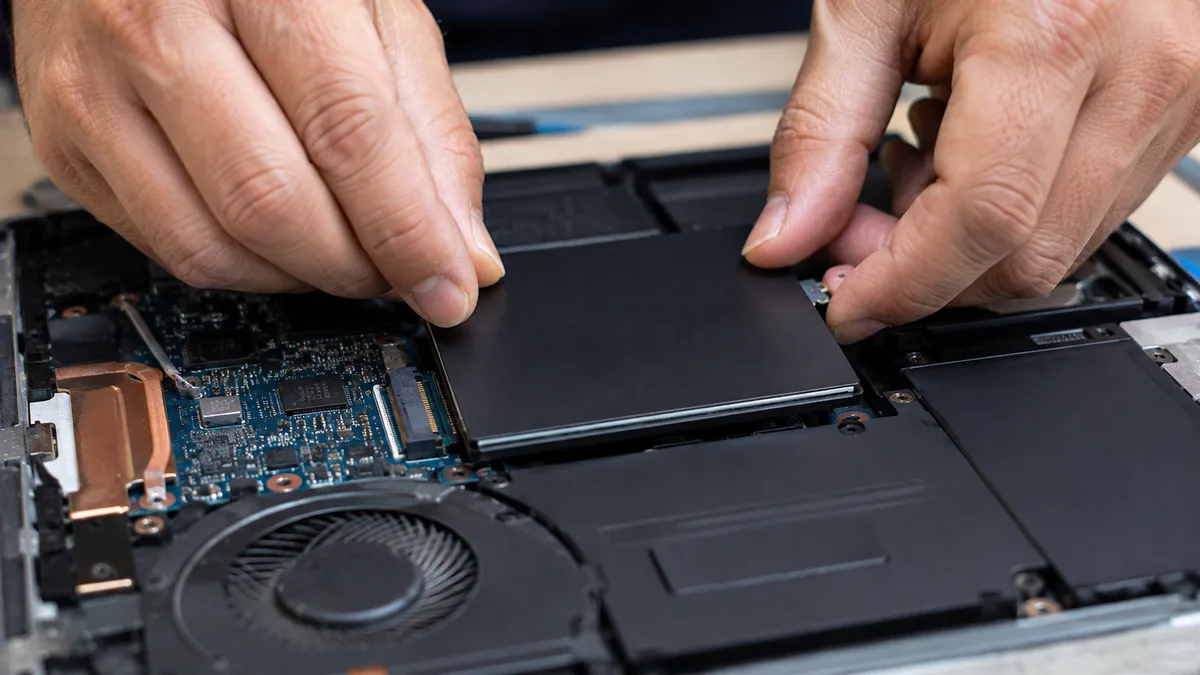
The cause you must never ignore is a failing SSD or hard drive. When a laptop hangs specifically as it reads or writes — opening a folder, saving a document, copying photos — it is stalling while it waits for a drive that can no longer respond reliably. A drive at this stage can fail with little warning, so if this is your pattern, back up anything important before you troubleshoot anything else. Data first, diagnosis second.
A third group is memory and drivers. Random, total lock-ups with no heat and no obvious disk activity often come from a driver conflict — graphics and storage drivers are the usual offenders — or from failing RAM, where a single faulty memory module corrupts data and brings the whole machine down. Related but different is simply too little RAM: if you keep dozens of browser tabs and heavy apps open, the laptop runs out of memory, slows to a crawl and hangs, and more RAM genuinely helps.
Finally there is software. A bad Windows update, corrupted system files, or malware quietly hammering the processor and disk in the background can all cause repeated freezing. The tell here is timing: if the trouble began right after an update, a new program or a dodgy download, start there. Malware in particular loves to hide, so a freezing laptop that also runs hot and noisy for no clear reason is worth a proper scan.

Use this quick reference to see where your particular pattern is likely to sit, and whether it is something you can safely check yourself or something for a workshop.
Quick diagnosis
A guide, not a guarantee — the only way to be certain is to test the drive, memory and thermals on a bench, which is exactly what our free diagnosis does.
Tell us the make, model and exactly when it freezes — under load, while opening files, or at random. A technician replies with a probable cause and an honest price band before you travel — diagnosis is free on walk-ins.
Work through these in order. They are all safe, none of them involves opening the laptop, and between them they resolve or clearly diagnose a large share of freezing machines. If your pattern points at a failing drive, do step one first no matter what — the backup matters more than everything else here.
sfc /scannow to check and repair corrupted Windows system files, which often cures freezing
that began after a bad update. Then run a full scan with your antivirus, or Windows Security, to rule out
malware quietly loading the processor and disk in the background.Do not keep using a laptop that hangs when it touches files in the hope it settles down — every extra hour risks the data on a drive that may be failing, so back up first. Do not open the laptop to reseat RAM or reapply thermal paste unless you genuinely know what you are doing; a slip can do real damage. And do not install "PC cleaner" or "driver booster" tools that promise to fix freezing — they rarely help and often make things worse.
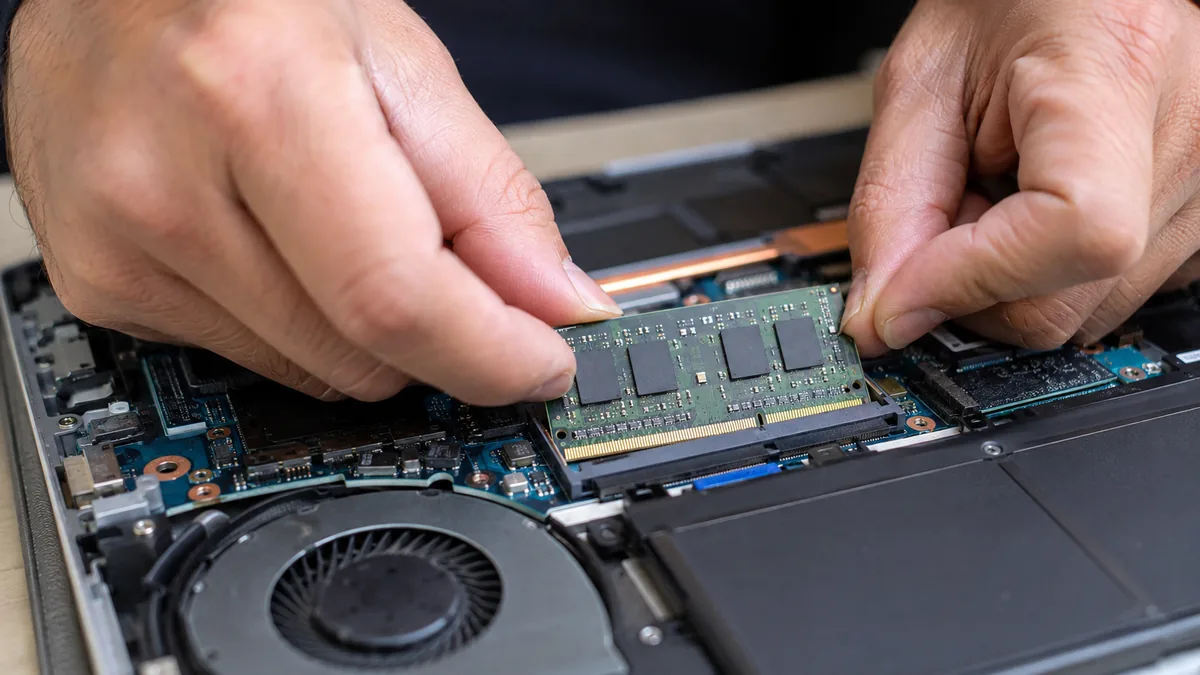
If you have watched the pattern, cleaned the vents, checked the drive and memory, updated drivers and run the built-in repairs and the freezing continues, the fault has moved beyond a safe home fix. At that point the cause is usually one of three things, and each needs a workshop:
Whatever the cause, our diagnosis comes first and is free on walk-ins: we test the drive, the memory and the thermals, tell you what is wrong and what it will cost before any work begins, and if we cannot fix it you do not pay a repair fee. Most freezing laptops turn out to have a single, specific fault — a choked fan, a tired drive or a bad stick of RAM — that is far cheaper to fix than the machine is to replace. For a full rundown of how we approach these jobs, see our laptop parts replacement guide, and if the symptoms don't quite match yours, our sibling guides on a laptop running slow, a laptop overheating and a laptop blue screen error may fit better.
Related repair services
Choked or failing fans cleaned and replaced, with fresh thermal paste.
See the service →Tired or failing drives swapped for a fast, reliable SSD.
See the service →Faulty modules replaced and more memory fitted for heavy workloads.
See the service →Verified Google reviews
Real reviews from our Google profile, shown with the customer’s name as they left it. The score and the count are Google’s own, updated every week.
I got the motherboard issue fixed on my 16” MacBook Pro. No data was lost, and everything is the same as before. As promised, I also received a 60-day service warranty. Thank you, iDevice! 😊
Excellent Lap top repair service! Fast turn around, professional support & my computer was fixed quickly.
They repair fast and good, my DELL laptop had damaged screen and battery and they fixed it in one day. Diagnosis is free and they quote after checking on the problem. Pre-test testing and post testing done well.. Highly recommend.
My surface laptop was replaced with an SSD card and the services was very good.
Managed to fixed my 16inch MacBook pro within 5 working days thank you!
Great service - MacBook froze on upgrade. Could not solve problem myself. iDevice expedited the repairs and my Mac is like new! Very reasonable rates for repair too. Highly recommend.
Super fast and efficient. My motherboard spoiled, spent $350 to replace it, better than getting a new laptop at 2-3k. Hopefully can last for another year 😆
Managed to successfully fix my damaged iPhones and my data is also saved! Thank you for assisting
Questions we get every week
Frequent freezing almost always traces back to one of four things, and the pattern tells you which. If it freezes when the machine works hard — gaming, video calls, exporting — the cause is usually overheating, so the processor stalls to protect itself. If it hangs when you open a folder, save a file or launch an app, suspect a failing SSD or hard drive. If it locks up at random with no pattern, the likely culprits are a driver conflict or failing RAM. And if it started right after a Windows update or a new program, the software is the first place to look. Noticing exactly when it freezes is the single most useful clue you can give a technician.
It can be, and this is the one cause you should never ignore. When a laptop hangs specifically as it reads or writes files — opening a document, copying photos, saving your work — a failing SSD or hard drive is a strong suspect, because the machine stalls waiting for a drive that can no longer respond reliably. Back up anything important straight away, before you do any other troubleshooting. You can check the drive's SMART health with free tools, but a drive that is starting to fail can lose data with little warning, so a current backup matters far more than a diagnosis.
Yes, overheating is one of the most common freezing causes, and it has a tell-tale pattern. Heat-related freezes happen under load — during games, video editing, big downloads or long video calls — and often after the machine has been running for a while, not straight from cold. You may hear the fan roaring beforehand, feel the base getting hot, or notice the underside vents are choked with dust. If your freezes line up with hard work and heat, clean the vents, use the laptop on a hard flat surface rather than a bed or lap, and if it continues the fan or thermal paste likely needs servicing.
Very possibly. Random, total lock-ups with no heat and no disk activity often come from a driver conflict — graphics and storage drivers are the usual offenders — or from a bad update that left system files inconsistent. If the freezing began right after an update or a driver install, that timing is your biggest clue. You can update the graphics and storage drivers, or roll a recently updated one back to the previous version, and run sfc /scannow to repair corrupted system files. These are safe to try and fix a good share of software-driven freezes without any hardware work.
It depends on why it freezes. If the machine slows to a crawl and hangs only when you have many tabs or heavy apps open, you are running out of memory, and more RAM genuinely helps. But if a single stick of RAM is faulty, no amount of extra memory fixes it — the failing module has to be identified and replaced. The way to tell them apart is to run the built-in Windows Memory Diagnostic, which tests the RAM and flags errors. If it reports faults, that is a hardware issue for a workshop; if it passes but you are simply short on memory, an upgrade is the answer.
Usually worth diagnosing first, because most freezing is a specific, affordable fault rather than a worn-out machine. A clogged fan, dried thermal paste, an ageing hard drive or a short supply of RAM are all fixable at a fraction of the cost of a new laptop, and any of them can turn a maddening machine back into a reliable one. We find the actual cause before quoting, so you get the repair figure and an honest read on whether the machine is worth keeping, and you decide with both numbers in front of you. Diagnosis is free on walk-ins.
Walk-ins welcome from the CBD, Orchard, Novena, Toa Payoh, Bishan, Ang Mo Kio, Jurong East, Clementi, Tampines, Bedok, Woodlands, Yishun, Hougang and Punggol. We tell you what is wrong and what it costs before any work begins.