
Troubleshooting guide · Singapore
Laptop Wi-Fi not working? Find out why before you replace anything
A laptop that won't connect to Wi-Fi, keeps dropping, or shows a stubbornly weak signal is usually a software or driver niggle you can fix yourself in minutes — not a broken machine. This guide walks you through the safe checks you can do at home, shows how each symptom points to a different cause, and explains the point at which a failed Wi-Fi card or a pinched antenna is worth handing to a workshop.
Check airplane mode and any hardware Wi-Fi switch or Fn key first, then confirm another device can reach the same router — that one test tells you whether the problem is your laptop or the network. Restart the router and the laptop, forget and reconnect the network, then update or reinstall the Wi-Fi driver in Device Manager. If the laptop still sees no networks at all, or the signal stays weak right next to the router, the fault is likely a failed Wi-Fi card or a pinched antenna at the hinge — both of which we can diagnose before you commit to anything.
On this page
Why laptop Wi-Fi stops working
"Wi-Fi not working" covers several genuinely different situations, and telling them apart is most of the battle. A laptop that won't connect at all but still shows the network is not the same as one where the Wi-Fi option has vanished entirely, and neither is the same as a laptop that connects fine but has a weak signal and constant drops. Before you change anything, notice which of those three you have, because it points at a completely different part of the chain — and often at whether the problem is even your laptop in the first place.
The single most useful check comes before any of that: look at your other devices. If your phone, tablet and another laptop all lose the same network at the same time, the fault is almost certainly the router or the ISP, and nothing is wrong with your laptop at all. A quick router restart, or a call to your provider if a whole area is down, fixes those. It is only when everything else connects happily and one laptop refuses that the problem sits inside that machine.
When the fault really is the laptop, the causes fall into a short list. The simplest and most common is that airplane mode is on, or a physical hardware Wi-Fi switch or Fn key has been toggled off by accident — many laptops have a keyboard shortcut that kills the radio in one keystroke. Next up is an outdated or corrupt Wi-Fi driver, which is behind a huge share of "no networks" and "keeps disconnecting" complaints and is completely fixable in software. Windows power management can quietly switch the adapter off to save battery, so it drops whenever the machine idles. The adapter can also be disabled in Windows entirely, hiding the Wi-Fi toggle. Those four are all software, all safe to fix at home, and between them they explain most cases.
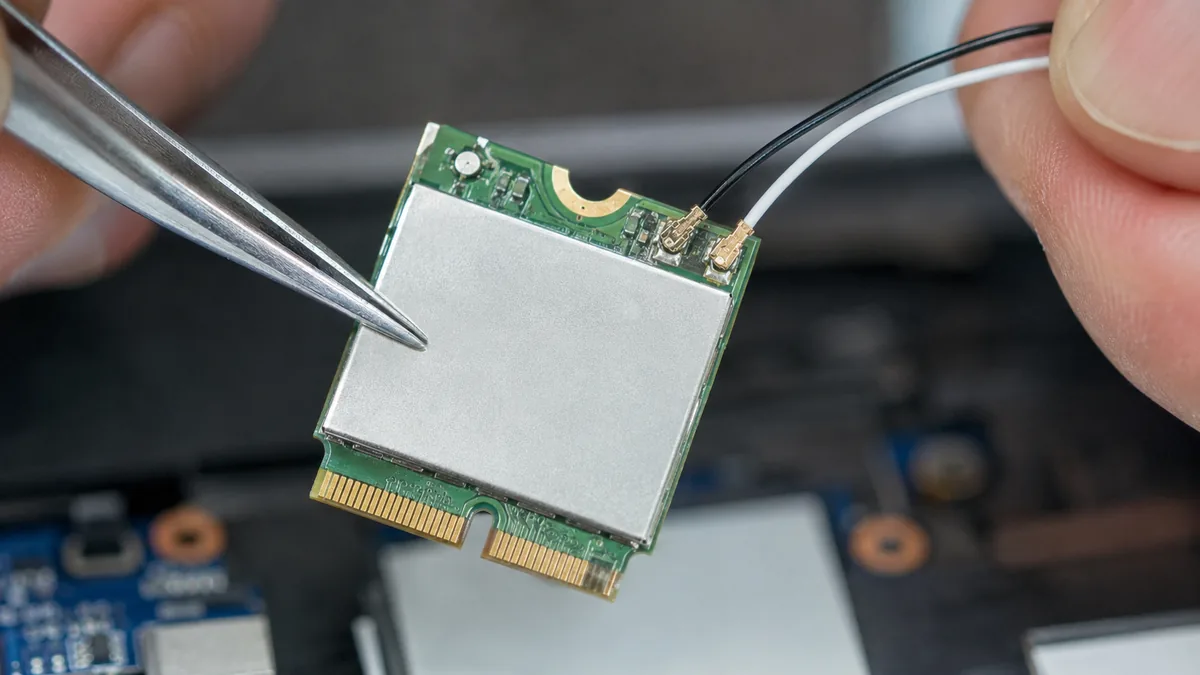
The remaining causes are hardware, and they are where a workshop comes in. A failed M.2 Wi-Fi card — the small module that clips into the motherboard — makes the adapter disappear from Windows no matter which driver you install; that is the classic "no Wi-Fi option at all" signature. Finally, a disconnected or pinched antenna cable leaves the card working but barely connected. Those thin antenna wires run from the card up through the screen hinge, and years of opening and closing can crush or snap one exactly there — which is why weak signal and short range so often trace back to hinge damage rather than the card itself. As a rule of thumb: no Wi-Fi option at all leans toward the driver or the card, weak-signal-only leans toward the antenna, and one network failing while others work leans toward the router.

Match your symptom to the cause
Use this quick reference to see where your particular symptom is likely to sit, and whether it is something you can safely check yourself or something for a workshop.
Quick diagnosis
Symptom-to-cause reference
A guide, not a guarantee — the only way to be certain is to test the card and antenna on the bench, which is exactly what our free diagnosis does.
Not sure which one it is? Tell us the symptom.
Let us know the make, model, and exactly what you see — no networks at all, a weak signal, or drops when idle. A technician replies with a probable cause and an honest price band before you travel — diagnosis is free on walk-ins.
Safe fixes you can try yourself
Work through these in order. They are all safe, none of them involves opening the laptop, and between them they clear the large majority of Wi-Fi faults that are not hardware. Stop at the first one that works.
- Rule out airplane mode and the hardware switch. Click the network icon in the taskbar and make sure airplane mode is off and Wi-Fi is on. Then check your keyboard — many laptops have a Wi-Fi function key (often marked with an antenna or plane symbol, pressed with Fn) and a few have a physical slider on the edge. It is astonishingly easy to knock one of these off by accident, and it is the very first thing to check.
- Confirm it is the laptop, not the network. Try to reach the same Wi-Fi with your phone or another device. If they also fail, the router or your ISP is the problem, not your laptop — skip to restarting the router below. If everything else connects and only this laptop struggles, the fault is on the machine and the rest of these steps apply.
- Restart the router and the laptop. Power the router off at the wall for thirty seconds and let it fully come back, then restart the laptop. A clean restart of both ends clears the temporary glitches behind a surprising number of connection failures, and it costs nothing to try.
- Forget and reconnect the network. In Windows Wi-Fi settings, choose the network, select "Forget", then reconnect and re-enter the password. This clears a stale or wrong saved profile, which is a common reason a laptop that once worked suddenly refuses one particular network.
- Update or reinstall the Wi-Fi driver. Open Device Manager, expand "Network adapters", and right-click your wireless adapter. Choose "Update driver", or "Uninstall device" and restart so Windows reinstalls a fresh copy. For the newest version, download it from your laptop maker's official support page for your exact model. A corrupt or outdated driver is behind a large share of Wi-Fi faults and this never touches your files.
- Run the Windows Network Troubleshooter or a network reset. Windows has a built-in network troubleshooter that resets the adapter and clears common misconfigurations automatically. If that does not help, a full network reset (in Settings, under Network & internet) reinstalls the adapters and returns everything to defaults — you will need to re-enter Wi-Fi passwords afterwards.
- Turn off power saving on the adapter. If Wi-Fi drops whenever the laptop idles, open the adapter's properties in Device Manager, go to the Power Management tab, and uncheck "Allow the computer to turn off this device to save power". This stops Windows quietly switching the radio off in the background.
Do not open the laptop to poke at the Wi-Fi card or reseat the antenna cables unless you genuinely know what you are doing — the antenna wires are fragile and easy to snap, and disturbing the hinge routing can make weak signal worse. Do not download drivers from random third-party "driver updater" sites, which often bundle unwanted software; always use your laptop maker's official support page. And if the machine took a spill or a knock just before the Wi-Fi died, treat it as possible hardware damage rather than forcing software fixes.
When to get professional repair
If you have checked airplane mode and the Fn key, confirmed other devices connect fine, restarted both ends, reinstalled the driver and run a network reset, and the laptop still cannot see any networks or the signal stays stubbornly weak, the fault has moved past anything you can fix in software. At that point the cause is usually one of a few hardware problems, and each needs a workshop:
- A failed Wi-Fi card. When no adapter is detected in Device Manager no matter which driver you install, the M.2 wireless module has usually failed or worked loose in its slot. On most laptops this is a straightforward swap, and we can often upgrade an ageing card to a faster Wi-Fi 6 module at the same time — see our laptop Wi-Fi repair service.
- A pinched or broken antenna. A card that works but gives weak signal and short range, especially on 5GHz, usually has an antenna cable crushed or snapped where it runs through the screen hinge. Because those wires are routed through the display assembly, this often overlaps with laptop hinge repair, and we re-route or replace the antenna at the same time.
- An M.2 slot or board fault. A soldered-down card, or a fault in the M.2 socket itself, is a board-level problem that needs component-level diagnosis rather than a simple part swap. Our laptop motherboard repair service traces the actual failed component instead of replacing the whole board.
Distinguishing these is exactly what a bench diagnosis is for: we test the card in a known-good slot, check each antenna leg, and confirm whether you are looking at a five-minute module swap, an antenna re-route through the hinge, or something deeper on the board. We also offer a straightforward Wi-Fi card upgrade if you simply want faster, more reliable wireless on an older machine. For anything else that is misbehaving, our general laptop parts replacement service covers every brand.
Whatever the cause, our diagnosis comes first and is free on walk-ins: we tell you what is wrong and what it will cost before any work begins, and if we cannot fix it you do not pay a repair fee. Most Wi-Fi complaints turn out to be a driver or a setting rather than a broken part, so it is almost always worth finding out which before you write anything off. If you would like the full picture of how we approach component-level laptop work, our laptop repair standard operating procedure lays it out.
Related repair services
If it turns out to be hardware
Wi-Fi repair & upgrade
Failed M.2 modules swapped, and older cards upgraded to Wi-Fi 6.
See the service →Hinge repair
Cracked hinges and antenna cables pinched where they route through.
See the service →Motherboard repair
M.2 slot faults and board-level wireless issues traced and fixed.
See the service →Questions we get every week

Laptop Wi-Fi not working — frequently asked questions
Why is my laptop not connecting to Wi-Fi when other devices can?
If your phone and other devices reach the same router fine but your laptop does not, the problem is on the laptop, not the network. The usual causes are airplane mode or a hardware Wi-Fi switch being on, an outdated or corrupt Wi-Fi driver, the adapter being disabled in Windows, or Windows power management turning the adapter off. Start by checking airplane mode and any Fn Wi-Fi key, then forget and reconnect the network, then update or reinstall the driver in Device Manager. If the laptop still cannot see any networks, the Wi-Fi card or its antenna may have failed and that needs a workshop.
My laptop has no Wi-Fi option at all — where has it gone?
When the Wi-Fi toggle disappears completely and no networks are listed, Windows has lost sight of the adapter. That usually means a driver has failed or the M.2 Wi-Fi card itself is faulty. Open Device Manager and look under Network adapters: if the wireless adapter is missing, greyed out or flagged with a warning, reinstall the driver first. If a good driver still will not bring it back, or the adapter is not listed at all, the card has most likely failed or come loose in its slot, which is a hardware repair rather than a software fix.
Why does my laptop Wi-Fi signal stay weak even next to the router?
A signal that is strong on your phone but weak on your laptop, even a metre from the router, usually points at the internal antenna rather than the network. The antenna cables run from the Wi-Fi card up through the screen hinge, and years of opening and closing can pinch, crush or snap one at the hinge. That leaves the card working but poorly connected, so you get short range and constant drops. This is a common and very repairable fault, but it means opening the laptop, so it is a workshop job.
Should I update or reinstall the Wi-Fi driver, and is it safe?
Yes, and it is one of the safest and most effective fixes. In Device Manager, right-click your wireless adapter under Network adapters and choose Update driver, or uninstall it and restart so Windows reinstalls a fresh copy. For the newest driver, download it from your laptop maker's official support page for your exact model rather than a third-party site. A corrupt or outdated driver is behind a large share of Wi-Fi faults, and reinstalling one never opens the machine or risks your files.
Can a laptop Wi-Fi card be repaired or upgraded?
On most laptops, yes. The Wi-Fi card is usually a small M.2 module that clips into a socket on the motherboard, so a failed card can be swapped, and an old one can often be upgraded to a faster Wi-Fi 6 or 6E module at the same time. A soldered-down card, or a fault in the M.2 slot itself, is a board-level job instead. We diagnose which one you have first and quote before any work, so you know whether it is a simple card swap or something deeper.
Do I need a repair, or is this just a router or ISP problem?
The quickest test is other devices. If your phone, tablet and other laptops all lose the same network, the fault is the router or the ISP, not your laptop — restart the router and, if it persists, contact your provider. If only one laptop struggles while everything else works, the fault is on that laptop. From there, driver and software checks are free to try at home; if no adapter is detected or the signal stays weak after those checks, it points at a failed card or antenna and is worth a free diagnosis before you decide.
Bring it in for a free diagnosis
Walk-ins welcome from the CBD, Orchard, Novena, Toa Payoh, Bishan, Ang Mo Kio, Jurong East, Clementi, Tampines, Bedok, Woodlands, Yishun, Hougang and Punggol. We tell you what is wrong and what it costs before any work begins.
More laptop troubleshooting guides: laptop USB port not working and laptop running slow.