
★★★★★
I got the motherboard issue fixed on my 16” MacBook Pro. No data was lost, and everything is the same as before. As promised, I also received a 60-day service warranty. Thank you, iDevice! 😊
Service · Wireless · Singapore
No networks showing, a signal that dies a room from the router, or a connection that drops every time the machine wakes up? We separate a driver or setting from a failed wireless card or a broken antenna at the hinge — then fix the actual cause, not whatever is quickest to charge for.
A slice of this week's wireless bench log
Wi-Fi repair runs from around S$60 to S$220, typically same day to 1 day. Diagnosis is free on walk-ins, you get a written quote before any work starts, and if we cannot fix it you do not pay a repair fee. See how we arrive at that.
On this page
Wireless on a laptop is a short chain, and a fault anywhere along it looks the same from the outside: the internet stops working. At one end sits the wireless card — a small M.2 or mini-PCIe module, on most modern machines a Wi-Fi and Bluetooth combo card such as an Intel AX-series part, that slots into the mainboard. From the card, two thin coaxial antenna cables run out, up the sides of the display, and terminate in antenna strips built into the top of the lid, so the radios sit as high and as far from interference as the chassis allows. On top of that hardware sits the software: the driver Windows uses to talk to the card, the power-management rules that decide when the radio may sleep, the network stack, and a handful of switches — an Fn key, a physical slider, a BIOS toggle — that can silence the radio entirely.
Wi-Fi repair means working out which link in that chain has broken and fixing exactly that. It is a very different discipline from the board-swapping instinct, because the honest answer to "my Wi-Fi doesn't work" is often not a part at all — it is a driver, a power setting, or a switch someone knocked. The mistake we see customers pay for elsewhere is a new wireless card fitted to cure a problem that was software all along, or a laptop declared unfixable when one antenna connector had simply popped off. We diagnose the whole chain before we quote, so you pay for the fault you actually have. Using a MacBook? The first checks are different on macOS, so read our MacBook Wi-Fi issues guide before you book.
Wireless problems present in a handful of recognisable ways. None of them names the cause on its own, but each one narrows the search sharply — and several point at software before they point at hardware:
If your machine matches one of these, send us a two-line description and, if you can, a screenshot of the network icon before you travel; we can usually give you a probable cause and an honest price band from the symptom alone.

Below is the bench reference our technicians use during intake. The reference codes are ours, not an industry standard — quoting one over WhatsApp simply lets us prepare the right diagnosis and, where a part is likely, free the right bench and check stock before you arrive. Turnaround assumes the fault behaves the way the symptom suggests; anything that turns out to be a driver or a setting is usually far quicker than the hardware band.
Diagnostic reference
The faults that account for most wireless repairs on our bench, in roughly the order we see them.
Send a screenshot of the network icon and a two-line description of what the machine does. A technician replies with a probable diagnosis and an honest price band before you leave the house.
Every wireless fault follows the same disciplined path, and the order matters: we exhaust the cheap, non-invasive causes before we ever open the machine, because it is unfair to charge you for a card when the cure was a setting.
One honest note sits at the front of every quote: if the fault is a driver or a power-management setting, we will tell you so and charge accordingly rather than invent a part. And where a wireless card lives under a soldered shield or the antenna damage is inside a bonded lid — as on some ultrabooks — we explain the extra work before we start, so there are no surprises on the invoice.
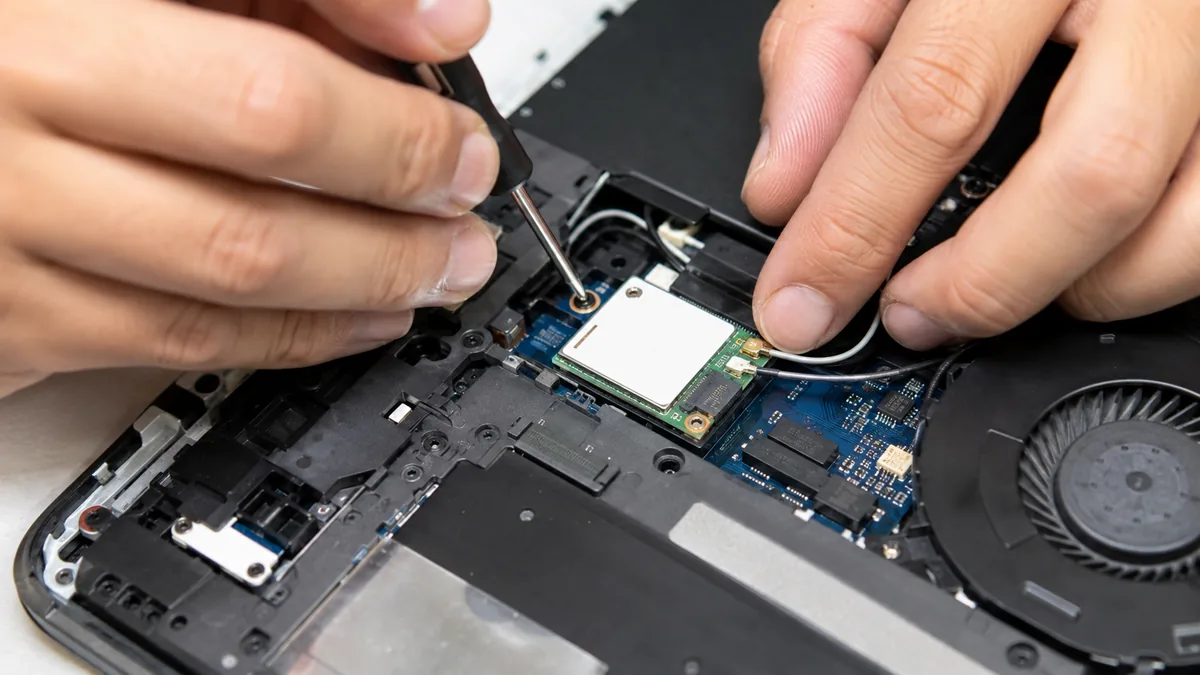
The single most useful thing we do on a Wi-Fi job is decide, early and honestly, whether you have a software problem or a hardware one, because the two cost very different amounts. A driver reinstall, a power-management change, or flipping a radio switch back on is cheap and quick, and a good number of "broken Wi-Fi" laptops need nothing more. A weak-signal-only complaint almost always means an antenna problem — a cable crushed at the hinge or a connector off the card — while a total absence of networks more often means the card or the driver. Naming which of those it is before quoting is the whole point of diagnosing first.
When the card does need replacing, there is an upgrade worth knowing about. Most laptops take a standard M.2 wireless module, so instead of fitting a like-for-like part we can often move you to a newer Wi-Fi 6 or 6E card — better throughput and steadier connections on a congested network, which matters in a dense HDB block where dozens of routers compete for the same air. The upgrade is not automatic: some makers whitelist approved cards in the BIOS, and the antennas and drivers have to suit the new module. We check your machine will accept it before ordering, then fit it, connect both antennas correctly, and load the right driver so you get the full benefit rather than a card the laptop quietly refuses to enable. It is one repair where the fix and a genuine improvement can be the same job.

Most of the wireless faults we see were avoidable in hindsight. A few habits keep a laptop's Wi-Fi reliable in Singapore's dense, crowded airwaves:
Because we diagnose the whole chain before we quote, and we say plainly when the cure is a free driver fix rather than a paid part. Because the quote is written before any work starts and does not change afterwards. Because every completed repair carries a written warranty on parts and workmanship, and if we cannot fix it you do not pay a repair fee. And because wireless is exactly the kind of fault where an honest shop and a dishonest one part ways — telling you the truth about whether your machine needs a card or a setting is the whole basis of the trade we have built over fourteen years.
Verified Google reviews
Real reviews from our Google profile, shown with the customer’s name as they left it. The score and the count are Google’s own, updated every week.
I got the motherboard issue fixed on my 16” MacBook Pro. No data was lost, and everything is the same as before. As promised, I also received a 60-day service warranty. Thank you, iDevice! 😊
Excellent Lap top repair service! Fast turn around, professional support & my computer was fixed quickly.
They repair fast and good, my DELL laptop had damaged screen and battery and they fixed it in one day. Diagnosis is free and they quote after checking on the problem. Pre-test testing and post testing done well.. Highly recommend.
My surface laptop was replaced with an SSD card and the services was very good.
Managed to fixed my 16inch MacBook pro within 5 working days thank you!
Great service - MacBook froze on upgrade. Could not solve problem myself. iDevice expedited the repairs and my Mac is like new! Very reasonable rates for repair too. Highly recommend.
Super fast and efficient. My motherboard spoiled, spent $350 to replace it, better than getting a new laptop at 2-3k. Hopefully can last for another year 😆
Managed to successfully fix my damaged iPhones and my data is also saved! Thank you for assisting
Related services
No-power, no-POST and M.2 slot faults traced on a bench supply before you commit.
See the service →The hinge that crushes antenna cables — rebuilt mounts and cracked chassis corners.
See the service →Screens, batteries, keyboards and upgrades across every major laptop brand.
See the service →Questions we get every week
When a laptop shows no networks at all — or the Wi-Fi option has vanished entirely from Windows — the cause is either the wireless card or its driver, not the router. We check the software side first: a corrupt or missing driver, an adapter that Windows has disabled, an aggressive power-management setting, or a physical Wi-Fi switch or Fn key that has turned the radio off. If the adapter does not even appear in Device Manager, the M.2 or mini-PCIe Wi-Fi card has usually failed or worked loose in its slot, and the fix is to reseat or replace it. We confirm which it is before quoting, because a driver fix and a card replacement are very different jobs.
Constant disconnects usually trace to one of three things. The most common on the software side is power management: Windows is switching the adapter off to save battery, so the connection dies when the machine idles or wakes from sleep. The second is an outdated or buggy driver that loses the link under load. The third is hardware — a Wi-Fi card that has begun to fail, or an antenna connector that has partly popped off, so the signal is fine one moment and gone the next. We reproduce the drop on the bench, rule the settings and driver out, then open the machine only if the fault points to the card or antenna.
A laptop that works right next to the router but is useless a room away almost always has an antenna problem, not a card problem. Laptop Wi-Fi antennas are thin coax cables that run up the sides of the screen inside the lid, and the wire passes through the hinge — the one spot where years of opening and closing can pinch, kink or tear it. A connector can also pop off the card during an earlier repair. When only one of the two antennas is connected, range and speed collapse even though the laptop still sees networks. We inspect the cables end to end, re-route or replace what is damaged, and confirm full signal strength across the room before returning it.
Yes — on almost every modern laptop, Wi-Fi and Bluetooth live on a single combo card, so a fault that takes out one often affects the other. If Bluetooth has disappeared while Wi-Fi still works, it is frequently a driver or a Bluetooth-specific power setting rather than the card. If both are dead or both are flaky, the combo card itself is the more likely culprit. Because they share hardware, we always test both radios together during diagnosis, and when we replace the card we verify Wi-Fi and Bluetooth are back before the machine leaves the bench.
Usually yes. Most laptops use a standard M.2 wireless card that can be swapped for a newer Wi-Fi 6 or 6E module, which improves throughput and reliability on a congested network. The catch is compatibility: some manufacturers whitelist approved cards in the BIOS, and the antennas and drivers have to suit the new module. We check that your machine will accept the upgrade before ordering anything, fit the card, connect both antennas correctly, and load the right driver so you get the full benefit rather than a card the laptop refuses to enable.
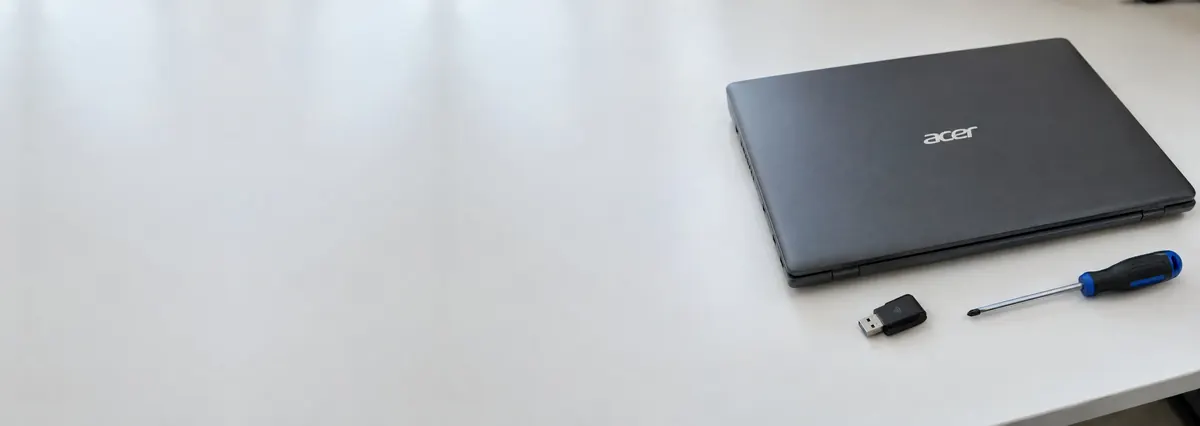
A USB Wi-Fi dongle is a fair stopgap, but it occupies a port, sticks out where it can be knocked, and rarely matches the range of a properly connected internal antenna. Most internal Wi-Fi faults are inexpensive to fix — a driver correction costs almost nothing, a reseated antenna is quick, and an M.2 card is one of the cheaper parts in a laptop. Because the repair is usually modest, we think it is worth doing properly rather than living with a dongle. We will tell you honestly if your particular case is the exception where a dongle genuinely makes more sense.
Many Wi-Fi issues are resolved the same day. A driver, power-management or BIOS-setting fix is often done within the hour once we have the machine. Reseating or replacing an M.2 Wi-Fi card, or re-routing an antenna, typically takes a day or two depending on whether the part is in stock. Antenna damage at the hinge sometimes needs a replacement cable ordered in, which can add a day or two. We diagnose first and give you a clear turnaround with the quote, so you know whether it is an hour or a couple of days before you commit.
Walk-ins welcome from the CBD, Orchard, Novena, Toa Payoh, Bishan, Ang Mo Kio, Jurong East, Clementi, Tampines, Bedok, Woodlands, Yishun, Hougang and Punggol. Courier collection islandwide for machines that should not be moved.