
★★★★★
Excellent Lap top repair service! Fast turn around, professional support & my computer was fixed quickly.
Troubleshooting guide · Singapore
A USB port that has stopped reading your drive, mouse or charger is annoying, but the fix depends entirely on one question: is it just one port, or every port on the laptop? One dead socket usually means physical damage; all of them dead usually means a driver, a power setting or the board. This guide shows you how to tell, which fixes are safe to try at home, and when the port needs a technician.
First, work out how many ports are affected. Test the same device in every port, and a second device in the dead one — that tells you whether the fault is the port or the device. If only one port is dead, it is almost certainly physical (dust, bent pins or a loose socket) and needs a technician. If all ports are dead, try the free software fixes: reinstall the USB controllers in Device Manager, turn off USB selective suspend, and check USB is enabled in BIOS. Never poke metal into a port to clean it.
On this page
"USB port not working" sounds like one problem, but it splits neatly into three very different situations, and working out which one you have solves most of the puzzle before you touch a single setting. The single most useful thing you can do is count the ports. Plug the same known-good device — a mouse or a memory stick you know works — into every USB port in turn and note which ones respond. That one test tells you which of the following three patterns you are dealing with.
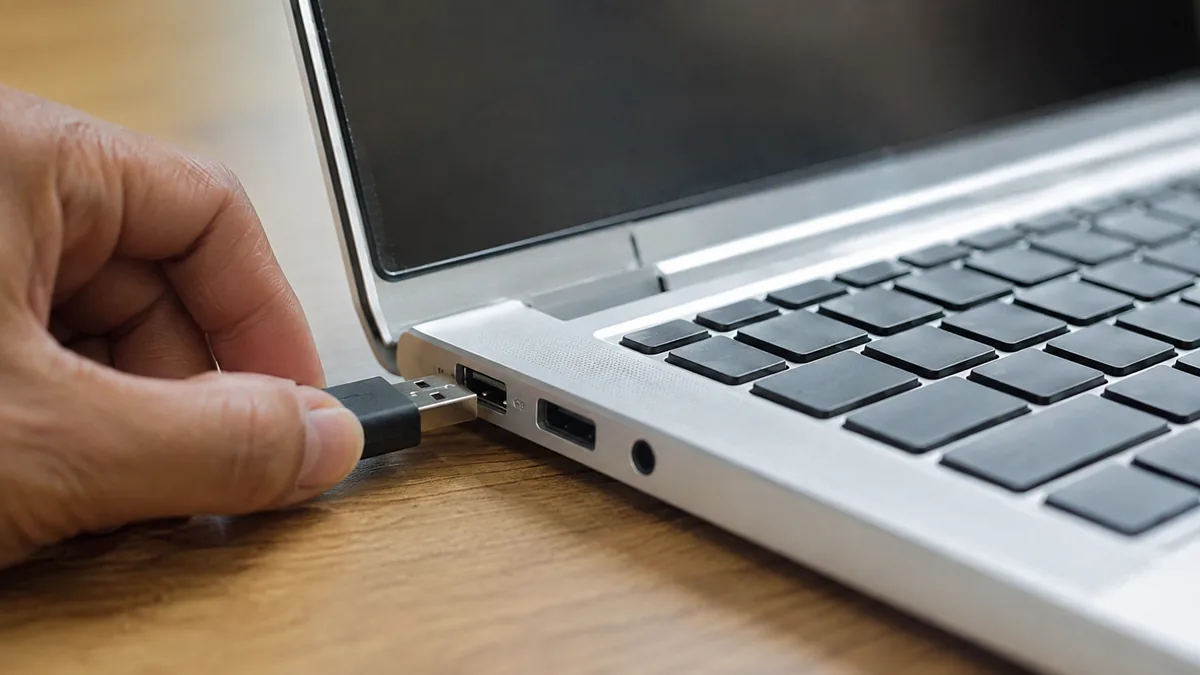
The first pattern is one port dead, the rest fine. When a single socket refuses to work while its neighbours are perfectly happy, the fault is physical and lives inside that one connector — a driver or a Windows setting would knock out several ports at once, not just one. The usual causes are dust or pocket lint packed into the slot, contact pins that have been bent or splayed by a plug going in crooked, or a socket that has cracked or worked loose from its solder joints on the board after years of cables being pushed in and yanked out. None of these is a Windows problem, and no amount of reinstalling drivers will bring the port back.
The second pattern is every port dead at once. It is very unlikely that all the sockets failed on the same morning, so a shared, non-physical cause is far more probable. That points to software or the board: a corrupt USB controller driver, Windows' USB selective suspend power-saving feature switching the ports off and failing to switch them back on, USB disabled in the BIOS, or — less often — a fault in the USB controller chip on the motherboard itself. The good news is that most of these are free to fix at home, and you should always try the software checks before assuming the worst.
The third pattern is a port that worked, then died the moment you plugged something in. That is the signature of an overcurrent trip. Every port has a small protection circuit that shuts it down if the attached device tries to pull too much power or has a short, sparing the rest of the board. A restart usually resets the trip and revives the port; if it stays dead, the protection component or fuse may have blown, or the device you plugged in was itself faulty. And underneath all three patterns sits one wildcard — liquid damage — where a spill corrodes the port or its traces and can affect one port, a cluster of them, or the whole board depending on where the liquid ran.
Use this quick reference to see where your particular symptom is likely to sit, and whether it is something you can safely check yourself or something for a workshop.
Quick diagnosis
A guide, not a guarantee — the only way to be certain is to test the port on the bench and read the board, which is exactly what our free diagnosis does.
Tell us the make, model, how many ports are dead and what happens when you plug a known-good device in. A technician replies with a probable cause and an honest price band before you travel — diagnosis is free on walk-ins.
Work through these in order. They are all safe, none of them involves opening the laptop, and between them they clear a large share of USB faults — especially the ones where every port is dead, which are usually software. Stop at the first one that fixes it.
Never push a pin, paperclip, needle, tweezers or any metal object into a USB port to "clean" or "bend back" the contacts — metal bends the delicate pins and can short them, turning a simple clean into a soldering job. Do not force a plug that will not seat, do not keep jamming a device into a port that wobbles or feels loose, and do not keep using a port that got wet in a spill. If the socket is physically loose, cracked or damaged, stop — that is a workshop repair, not a home fix.

If you have run the software checks — reinstalled the USB controllers, disabled selective suspend, confirmed USB is on in the BIOS — and the ports are still dead, or if a socket is physically loose, wobbly or damaged, the fault has moved beyond anything you can safely fix at home. At that point the cause is usually one of three things, and each needs a workshop:
A liquid spill is the one case where you should not wait at all. Liquid damages a board slowly through corrosion, so a port that stopped working after a spill needs a workshop the same day — see our liquid damage guidance. And if you use the USB ports to move important files off the laptop, do not rely on a failing port to do it — ask about data recovery instead, which reads the drive directly rather than through a suspect connector.
Whatever the cause, our diagnosis comes first and is free on walk-ins: we tell you which port is at fault, why, and what the repair costs before any work begins, and if we cannot fix it you do not pay a repair fee. Most dead USB ports are a small, contained repair rather than a dying laptop — it is almost always worth finding out which before you write the machine off. For anything else that is misbehaving, our general laptop repair service covers every brand, and for desktops and all-in-ones see computer repair. If you are working through a run of faults, our laptop WiFi not working and laptop keyboard not working guides follow the same approach.
Related repair services
Failed USB controllers, blown port fuses and shorted rails traced and fixed.
See the service →Loose and cracked board-mounted connectors re-soldered or replaced.
See the service →Every make, component-level diagnostics and a written warranty on the job.
See the service →Verified Google reviews
Real reviews from our Google profile, shown with the customer’s name as they left it. The score and the count are Google’s own, updated every week.
Excellent Lap top repair service! Fast turn around, professional support & my computer was fixed quickly.
Great service and advice given. Down to earth advice instead of overcharging.
My macbook 16 inches battery was not charging and did a replacement and os reinstalled at affordable cost! Happy with their services!
Supportive staff . It took me to 4 day to resolve issues related to mother board.
Good service. The staff is friendly and responsive both on-line and off-line. The issue with my macbook was resolved swiftly, and the most importantly, the repair was done well.
Prompt reply when you have questions even weekends, and most important people service.
Fast, friendly and the most important: excellent technical skills of the team. Changed bloated battery on my old MacBook Pro in 3 hours, incl. cleaning and a comprehensive function test.
Fast service! Great customer support too. Looking forward to pickup the item. Helps to know there several days worth of warranty post-servicing.
Questions we get every week
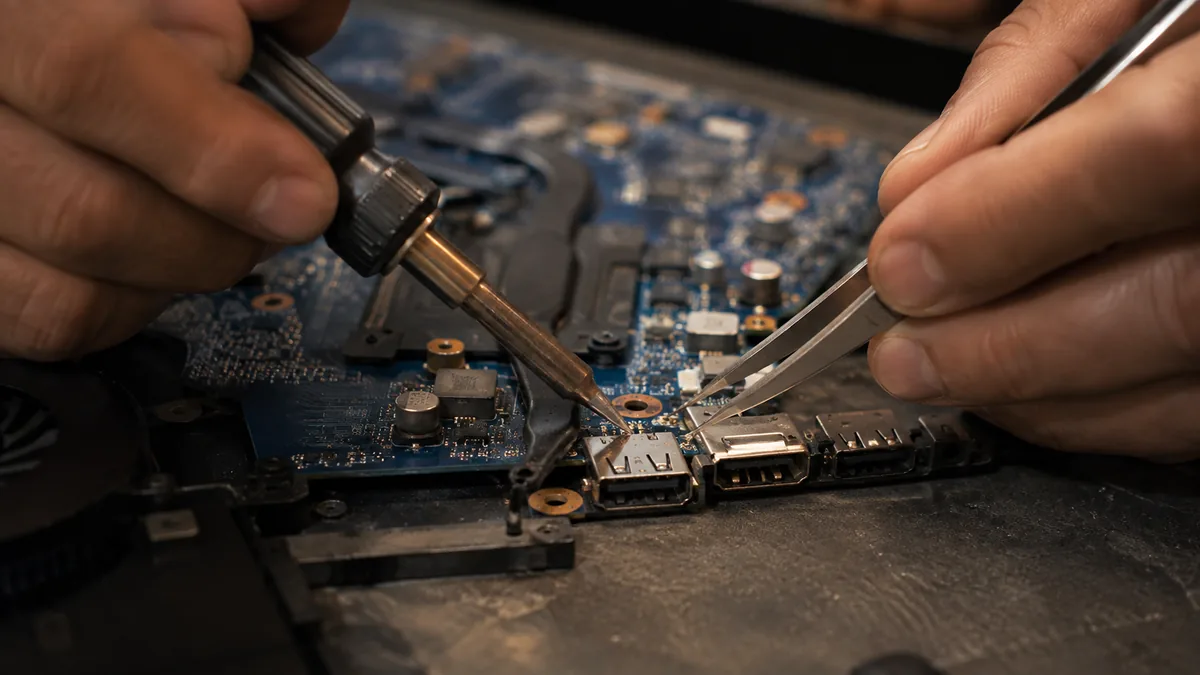
When a single port is dead and the rest still work, the problem is almost always physical rather than software — the fault sits in that one socket, not in Windows or the drivers, because a driver problem would take out several ports at once. The usual culprits are dust or lint packed into the connector, bent or splayed contact pins from a plug going in at an angle, or a socket that has cracked or worked loose from its solder joints after years of cables being pushed in and pulled out. Test the same device in a different port to confirm the port is the problem, then have the loose or damaged socket re-soldered or replaced.
When every port is dead at once, the fault is usually shared rather than physical, because it is unlikely that all the sockets failed on the same day. That points to a software or board-level cause: a corrupt USB controller driver, a Windows power-saving setting suspending the ports, USB disabled in the BIOS, or a fault in the USB controller on the motherboard itself. Start with the free software checks — reinstall the USB controllers in Device Manager, turn off USB selective suspend, and confirm USB is enabled in BIOS. If none of that brings the ports back, it is a board-level USB-controller fault and needs a workshop.
A port that worked perfectly until you plugged a specific device in, then went dead, has usually tripped its overcurrent protection. Laptops fit each port with a protection circuit that shuts the port down if the attached device tries to draw too much power or has a short, which protects the rest of the board. A simple restart often resets the trip and revives the port. If the port stays dead after a reboot, the protection component or fuse may have blown for good, or the device you plugged in was faulty — test the port with a known-good device before assuming the port is damaged.
Yes. Windows has a power-saving feature called USB selective suspend that switches ports off to save battery, and on some machines it fails to switch them back on, leaving ports that seem dead. Corrupt or outdated USB controller drivers can do the same. Both are free to fix at home: open Power Options and turn off USB selective suspend, then open Device Manager, uninstall the USB Root Hubs and controllers, and restart so Windows reinstalls them cleanly. If the ports come back after that, it was software all along and no parts were needed.
Usually yes, because a dead USB port is far more often a cheap, contained fault than a sign of a failing laptop. A loose or cracked socket can be re-soldered or replaced, and even a board-level USB-controller fault can normally be traced and repaired at component level rather than replacing the whole board. We diagnose the exact cause before quoting, so you get the repair figure and an honest read on the machine before you decide — and a USB port repair almost always costs a fraction of a new laptop.
Cleaning is safe only if you never put metal into the port. Dust and lint are a genuinely common cause of a dead-feeling socket, and you can clear them with the laptop switched off, using a short burst of compressed air or a wooden or plastic toothpick to gently lift debris out. Never poke a pin, paperclip, needle or knife into the port — metal bends the delicate contacts and can short the pins, turning a five-second clean into a soldering job. If the port feels loose, wobbly or looks physically damaged, do not try to fix it yourself; that needs a technician.
Walk-ins welcome from the CBD, Orchard, Novena, Toa Payoh, Bishan, Ang Mo Kio, Jurong East, Clementi, Tampines, Bedok, Woodlands, Yishun, Hougang and Punggol. We tell you which port is at fault and what it costs before any work begins.