
★★★★★
My daughter's ASUS laptop battery was deteriorating and also overheating. They repaired the set within the same day and also provided interior cleaning for General maintenance. Responsive and affordable! Highly recommend!
Troubleshooting guide · Singapore
A laptop that runs scorching hot, screams its fans and stutters or shuts down mid-task is not necessarily failing — in Singapore's climate it is usually dust, dried thermal paste or a tired fan doing their worst. This guide walks you through the safe checks you can do at home, what each symptom points to, and the point at which a proper thermal service pays for itself.
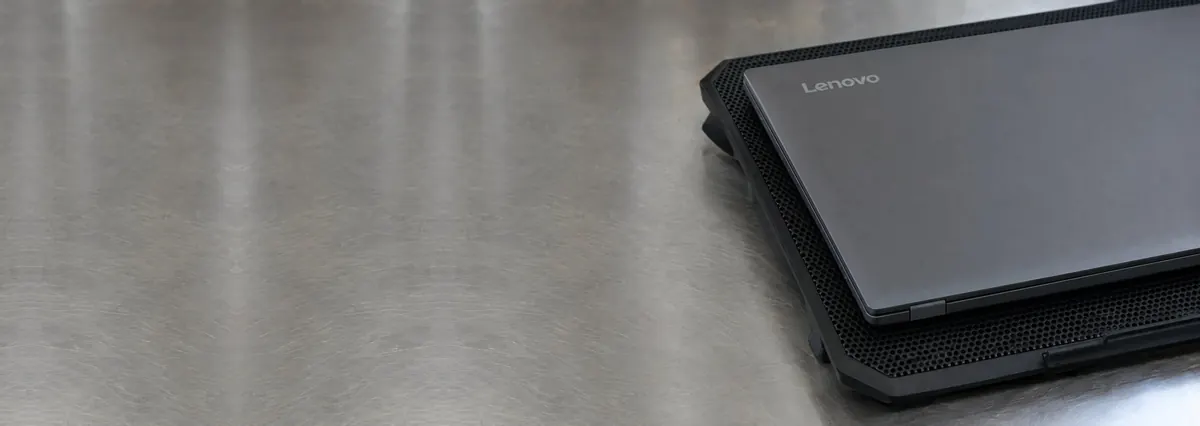
Use the laptop on a hard, flat surface with the vents clear, raise the back or add a cooling pad, and give the vents a careful external blast of compressed air with the machine off. Open Task Manager to catch any process pinning the CPU, close heavy apps and scan for malware. If it still runs hot, loud and throttled after all that, the cooling itself is due for service — a fan clean, fresh thermal paste and new pads — which is a quick, storage-safe job we quote after a free diagnosis.
On this page
Every laptop makes heat. The processor and graphics chip turn electricity into work and, as a by-product, into warmth, and a small cooling system — a copper heat pipe, a stack of thin metal fins and one or two fans — carries that warmth out through the side or rear vents. When the machine is new and clean, the system has enough spare capacity to keep up with almost anything you throw at it. Overheating is simply what happens when that spare capacity runs out: the chip produces more heat than the cooling can remove, temperatures climb, and the laptop starts protecting itself by slowing down or shutting off.
Singapore makes this harder than most places, in two connected ways. The first is ambient temperature. Cooling works by moving heat into the surrounding air, so the warmer that air already is, the less room the system has to dump heat into it. A laptop that idles at a comfortable temperature in a cold climate begins every task closer to its ceiling here, and reaches the limit sooner. The second is humidity and dust. Our humid air carries more airborne lint, hair and fine dust, and over months and years that debris is drawn in through the intake vents and settles on the cooling fins. Those fins sit fractions of a millimetre apart, so it does not take much of a felt-like mat of dust to choke the airflow almost completely. This is the single most common cause of overheating we see, and it builds up faster in Singapore than in drier, cooler places.
Dust is not the only culprit, though. When a laptop runs hot despite clear vents, the cause is usually one of a handful of things. Dried, cracked thermal paste is a big one: the thin compound between the chip and the heatsink loses its ability to transfer heat as it ages, so the processor cooks even while the fans spin freely. A worn or failing fan spins slower than it should, wobbles, or seizes altogether, and a fan that cannot move air cannot cool anything. Blocked vents are a self-inflicted version of the same problem — using the machine on a bed, sofa cushion or your lap smothers the intakes and traps the exhaust. Degraded thermal pads on the memory and power components harden and lose contact, adding to the load. And sometimes the heat is earned honestly: heavy sustained work like gaming, video rendering or dozens of browser tabs keeps the chip at full tilt for hours, while malware pinning the CPU does the same thing invisibly in the background. Layer any of these on top of a warm room and a dusty heatsink and even a healthy laptop will start to throttle.
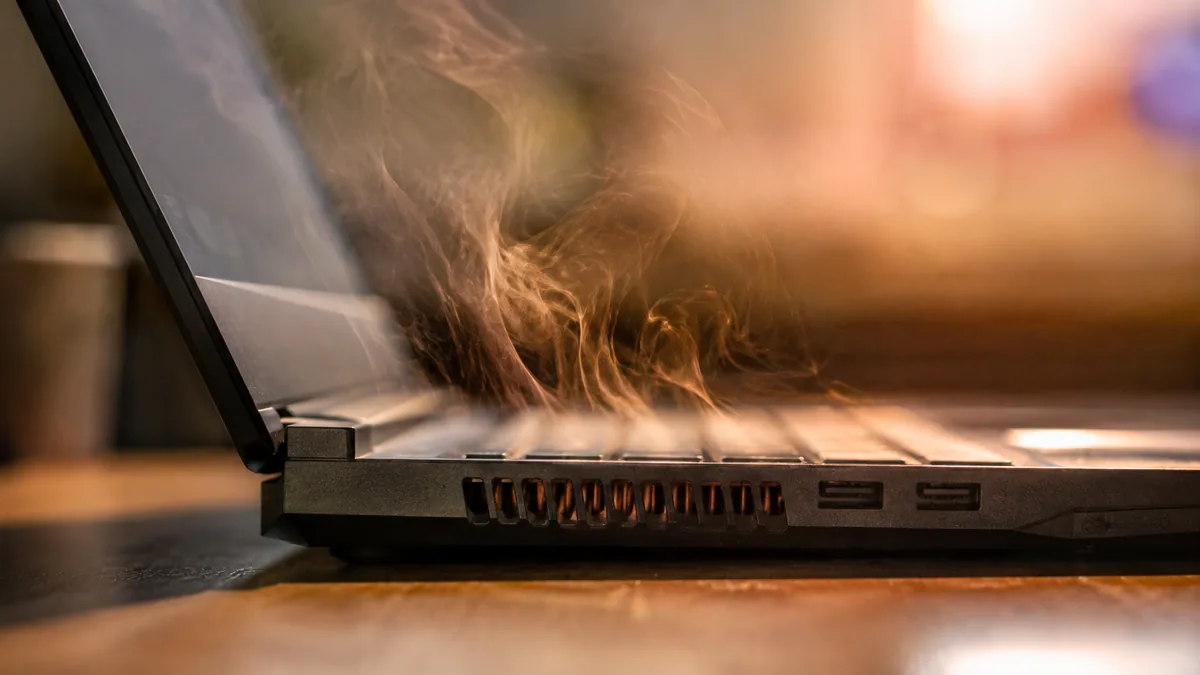
Use this quick reference to see where your particular symptom is likely to sit, and whether it is something you can safely check yourself or something for a workshop.
Quick diagnosis
A guide, not a guarantee — the only way to be certain is to measure temperatures under load and open the machine up, which is exactly what our free diagnosis does.
Tell us the make, model, how long it has been running hot and what it does under load. A technician replies with a probable cause and an honest price band before you travel — diagnosis is free on walk-ins.
Work through these in order. They are all safe, none of them involves opening the laptop, and between them they fix a large share of overheating complaints — or at least tell you clearly that the cooling itself needs service. Stop at the first one that solves it.
Do not open the laptop to spray the fan directly or spin it by hand — an unsupported fan is easily damaged, and blowing dust deeper into the machine makes things worse. Do not run a machine that shuts itself down over and over in the hope it "settles"; those cut-offs are the laptop protecting itself, and ignoring them stresses the board. And never block the vents to muffle a noisy fan — the noise is a symptom, not the problem, and trapping the heat only speeds up the damage.
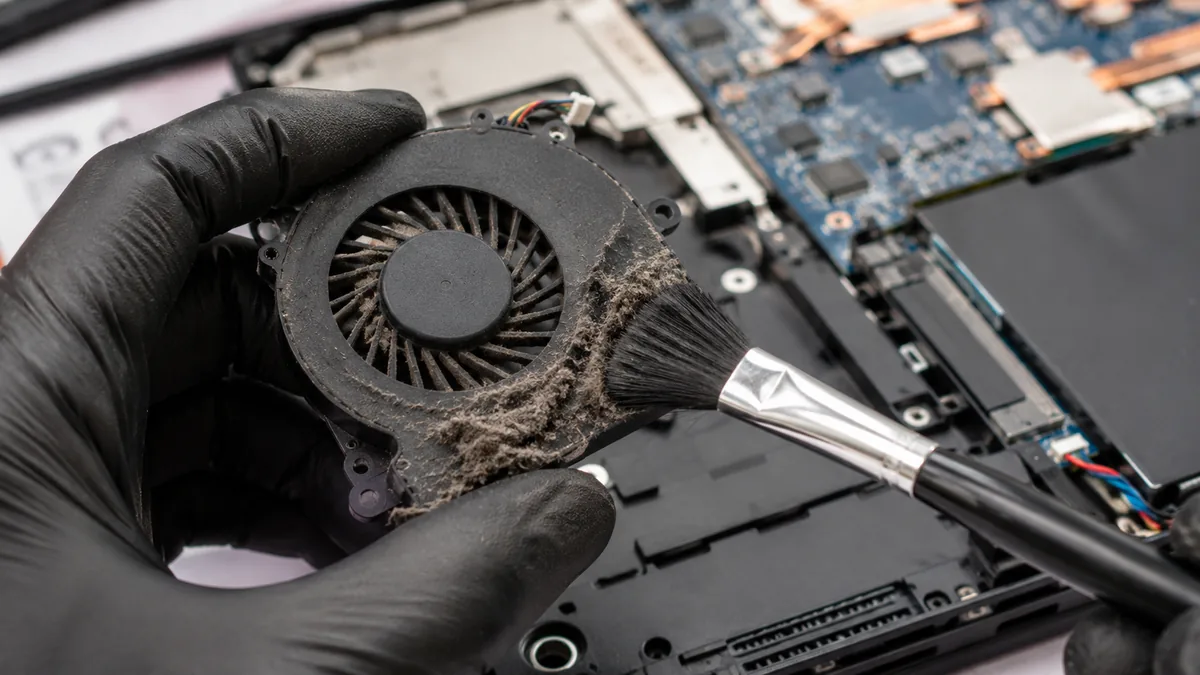
If you have moved the laptop to a hard surface, cleared the vents, checked for a runaway process and scanned for malware and it still runs hot, loud and throttled, the cooling hardware itself has reached the end of what you can address from the outside. At that point the cause is usually one of three things, and each needs a workshop:
The reason overheating is worth acting on rather than tolerating is that heat quietly ages the machine. In the short term it only costs you speed, as the laptop throttles itself to stay safe, but sustained high temperatures stress the solder joints on the board and can turn a cheap fan-and-paste job into a far more expensive board fault. Servicing the cooling early is both the cheaper and the safer choice. The work follows a consistent method — see our laptop parts replacement SOP for how we approach component-level jobs — and none of it touches your storage, so your files stay exactly where they are.
Whatever the cause, our diagnosis comes first and is free on walk-ins: we measure the temperatures, open the machine, show you what we find, and tell you what it will cost before any work begins. If we cannot fix it, you do not pay a repair fee. Most overheating laptops are a straightforward service wearing an alarming symptom — it is almost always worth finding out which before you write the machine off or replace it. For anything else a computer is doing wrong, our general computer repair service covers every make.
Related guides & services
Worn and seized fans replaced, with a full clean and fresh thermal paste.
See the service →Why fans get loud, what is safe to try, and when a fan is failing.
Read the guide →Sudden shutdowns, from heat cut-offs to power and battery faults.
Read the guide →Verified Google reviews
Real reviews from our Google profile, shown with the customer’s name as they left it. The score and the count are Google’s own, updated every week.
My daughter's ASUS laptop battery was deteriorating and also overheating. They repaired the set within the same day and also provided interior cleaning for General maintenance. Responsive and affordable! Highly recommend!
I sent in 2 Dell laptops for repairs due to SSD replacement and battery and fan replacement. The technicians service were fast and prompt with ready parts. They are conveniently located and service is overall recommended! Thank you!
I had a MacBook Pro with a broken screen and they came to the rescue and replace with a new screen within 1 x day. Fantastic service and I would highly recommend.
Fast in responding and staff Dean is experienced and skillful to get my laptop fan issue fixed. 👍
Fantastic service- very professional and quick turnaround. Absolute pleasure to get my macbook repairs done at iDevice. Convenient location as well. Strongly recommend them.
Excellent service, fast turn-around and conveniently located in the Esplanade MRT Xchange right near the escalator going up to South beach Marriot Hotel 👍
Fantastic! Got my iPad that had a “blue screen” shut down issue fixed within a few days :) highly recommend!
It was very nice experience and happy to get fantastic service. Their reply is so quick and kind. And, service too. Thx.
Questions we get every week
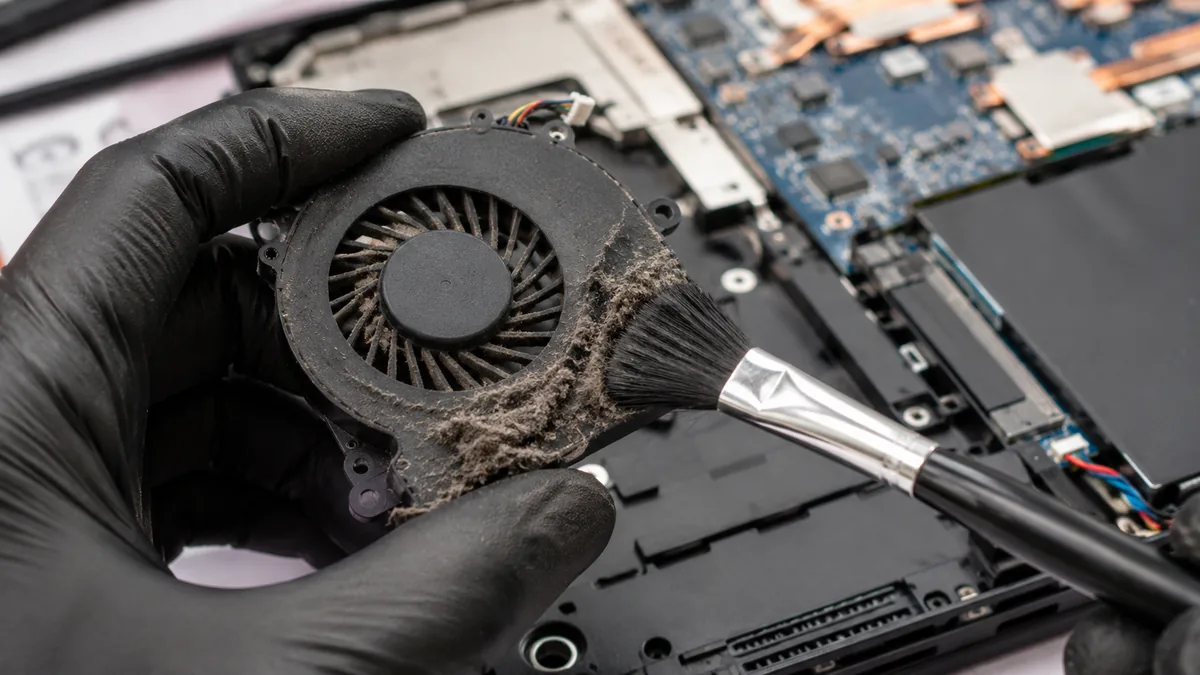
Singapore's constant heat and high humidity make overheating worse in two ways. The high ambient temperature means your cooling system starts every task with less headroom, so it reaches its limit faster. And humid air carries more airborne dust and lint that settles inside the machine, clogging the thin cooling fins over time. Combine that with fans and thermal paste that degrade after a few years, and a laptop that ran cool when new can start throttling and shutting down. A hard, flat surface, clear vents and an occasional thermal service keep it in check.
Some warmth and fan noise under load is normal. It is overheating when the chassis becomes too hot to rest your hands on, the fans run loud and constant even on light tasks, the machine feels sluggish or stutters during video calls or games, or it shuts down on its own without warning. Another giveaway is a burst of hot air from the vents followed by the screen going dark. A free temperature-monitoring tool will confirm it — sustained CPU temperatures near the 90s Celsius under load, or shutdowns around that point, mean the cooling can no longer keep up.
You can safely clear the outside without opening anything. Power the laptop off, hold it so the vents face down, and give them a few short bursts of compressed air from a distance to dislodge loose dust. Keep the can upright and do not jam the nozzle into the vents. What you should not do at home is open the case to spray the fan directly or spin it by hand — an unsupported fan can be damaged, and dust packed deep in the fins needs the heatsink removed to clear properly. That deeper clean, done with the fan held still and fresh thermal paste applied on reassembly, is a workshop job.
Yes, and it is one of the most common causes we see. Thermal paste is the thin layer that carries heat from the processor into the heatsink. Over a few years in a warm climate it dries out, cracks and stops transferring heat efficiently, so the chip runs hotter even though the fans are working. Replacing dried paste with a fresh application, along with new thermal pads on the surrounding components, restores proper contact and typically drops sustained temperatures by 15 to 20 degrees Celsius. It is a routine part of any thermal service.
It is worth addressing sooner rather than later. In the short term overheating only slows you down, because the laptop throttles its own speed to protect itself and may shut off to avoid damage. Over the longer term, repeated heat cycling stresses the solder joints on the board and can lead to permanent faults that are far more expensive to fix than a fan clean and repaste. If your machine is regularly hitting shutdown temperatures, it is cheaper and safer to service the cooling now than to risk a board fault later.
We diagnose the cause before quoting, so you get an honest price for exactly what your machine needs — a fan clean and repaste, a fan replacement, or both — rather than a fixed figure that assumes the worst. A thermal service does not touch your storage, so your files stay exactly where they are. In the rare case that heat has already caused a board fault, we would show you that first and let you decide with the numbers in front of you. Diagnosis is free on walk-ins and there is no fee if we cannot fix it.
Walk-ins welcome from the CBD, Orchard, Novena, Toa Payoh, Bishan, Ang Mo Kio, Jurong East, Clementi, Tampines, Bedok, Woodlands, Yishun, Hougang and Punggol. We measure the temperatures and tell you what is wrong and what it costs before any work begins.