
★★★★★
They repair fast and good, my DELL laptop had damaged screen and battery and they fixed it in one day. Diagnosis is free and they quote after checking on the problem. Pre-test testing and post testing done well.. Highly recommend.
Troubleshooting guide · Singapore
The Windows blue screen of death looks like the end of the world, but most of the time it is a driver having a bad day rather than a broken laptop. This guide shows you how to read the stop code, the safe software fixes anyone can try, and how to tell an easy driver problem from failing RAM or a dying drive that really does need a technician.
Photograph the stop code and any file name on the blue screen, restart, and see if it comes back. If it
does, boot into Safe Mode and update or roll back the driver named in the error — graphics and chipset drivers
are the usual suspects — then run Windows Memory Diagnostic and sfc /scannow. If the blue screens
keep returning after all that, the fault is most likely failing RAM or a dying drive, which we can test on a
bench and repair with your data left in place.
On this page
A blue screen is not Windows breaking — it is Windows protecting itself. When the operating system detects
that something has gone wrong at a level it cannot safely recover from, it halts everything on purpose and shows
the blue screen rather than let a faulty instruction quietly corrupt your files. In that sense a BSOD is a smoke
alarm, not the fire. The important information is the short line of capital letters it prints — the
stop code — because that names the general area where things went wrong, and sometimes a file
name ending in .sys that points straight at the driver responsible.
Once you know that, the causes sort into a fairly short list. By a wide margin the most common is a faulty or outdated device driver — the small piece of software that lets Windows talk to your graphics chip, wireless card or trackpad. A driver that is buggy, half-installed, or left behind by a Windows update throws more blue screens than everything else put together, and it is also the easiest to fix. After that come the hardware causes: failing RAM, which corrupts data at random and produces crashes that seem to come from nowhere; a failing SSD or hard drive, especially when the stop code mentions the boot device; and overheating, where a clogged fan lets the processor cook until it faults. Less often the trigger is corrupted system files or a bad Windows update, malware, or a piece of recently added or faulty hardware such as a new RAM stick or an external device.
Telling a one-off from a real fault matters as much as the cause. A single blue screen that reboots cleanly and never returns is usually a passing glitch not worth chasing. Blue screens that repeat, arrive in a loop before Windows finishes loading, or always carry the same stop code are the ones that point to a genuine fault — and those are the ones this guide is built to sort out.
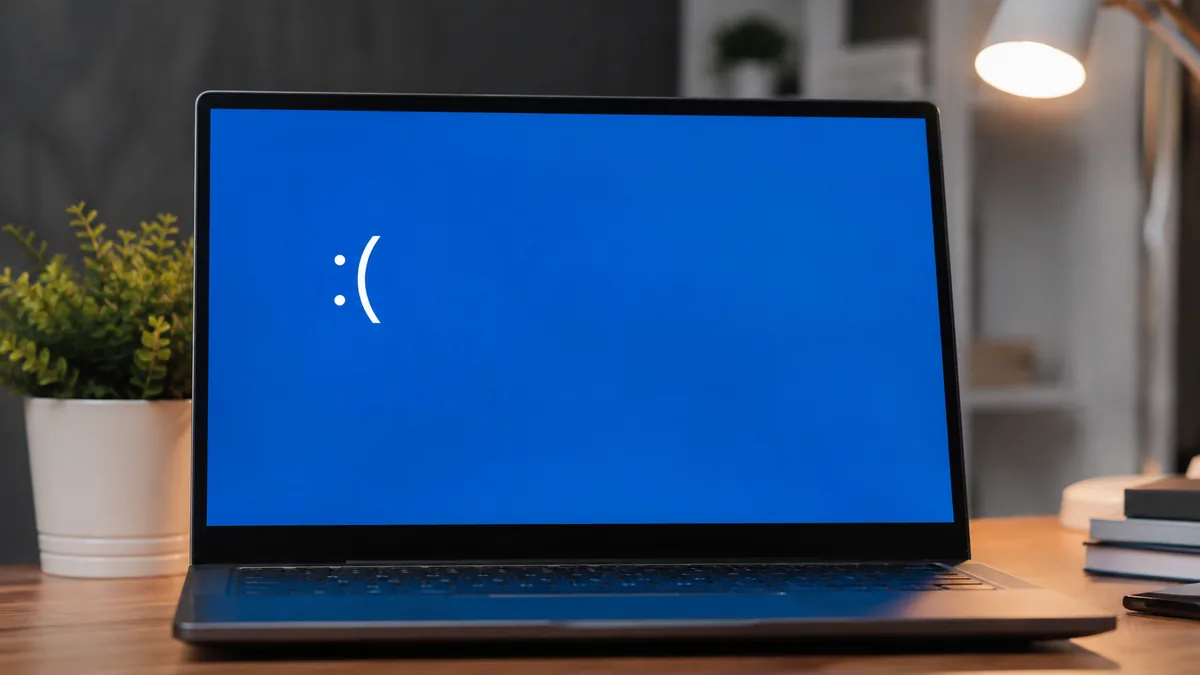
Use this quick reference to see roughly where a given stop code tends to sit, and whether it is something you can safely work through yourself or something better handled on a workbench.
Quick diagnosis
A pointer, not a verdict — the same stop code can have more than one cause, and the only way to be sure is to read the crash logs and test the parts, which is exactly what our free diagnosis does.
Tell us the make, model, the exact stop code on the blue screen and when the crashes started. A technician replies with a likely cause and an honest price band before you travel — diagnosis is free on walk-ins.
Work through these in order. Every step here is safe for a non-technical user, none of them opens the laptop, and between them they clear a large share of blue screens that turn out to be software or driver problems. Stop at the first one that settles the crashes.
MEMORY_MANAGEMENT) and any file name it lists. Newer versions
show a QR code you can scan with your phone. That one line is the single most useful piece of information for
fixing the fault, so capture it every time.sfc /scannow to repair corrupted system
files, followed by chkdsk to check the drive. These tools are made by Microsoft, ship with
Windows, and only report or repair — they will not erase your data.Do not jump straight to wiping the drive and reinstalling Windows — that erases your files and often does not fix a hardware fault anyway. Do not download "driver updater" or "PC booster" tools from pop-up ads, as many are malware that make things worse. Do not open the laptop to reseat RAM unless you genuinely know how, and if the machine will no longer boot far enough to reach your files, stop restarting it repeatedly — each attempt risks a failing drive, and the safest next move is a proper data check.
If you have captured the stop code, updated or rolled back the driver, removed any suspect update, and run the memory, file and disk checks, and the blue screens still keep coming, the fault has almost certainly moved from software into hardware. At that point the cause is usually one of these, and each one is worth a workshop:
INACCESSIBLE_BOOT_DEVICE code, slow loading,
freezes or a drive that reports poor SMART health points at storage on its way out. Back up urgently while it
still starts. Our laptop SSD replacement and upgrade service
clones your data onto a new, faster drive; if the drive has already failed, our
data recovery service reads it on write-blocked hardware
before anything else is attempted.WHEA_UNCORRECTABLE_ERROR, crashes only under load, or a laptop
that is hot and loud usually means a clogged or failing cooling system. Our
laptop fan replacement and cleaning service clears the dust,
renews the thermal paste and replaces a worn fan so the processor stops overheating into a crash.Whichever it turns out to be, our diagnosis comes first and is free on walk-ins: we read the crash logs, test the RAM and the drive, check temperatures and scan for corrupted files, then tell you exactly what is wrong and what it will cost before any work begins — and if we cannot fix it, you pay no repair fee. In the great majority of cases your files come through untouched. For anything else the laptop is doing, our general laptop repair service covers every brand.
Related repair services
Faulty memory tested and swapped so the random blue screens stop.
See the service →A dying drive cloned to a fast, healthy SSD with your data intact.
See the service →Files read on write-blocked hardware when a drive has already failed.
See the service →Verified Google reviews
Real reviews from our Google profile, shown with the customer’s name as they left it. The score and the count are Google’s own, updated every week.
They repair fast and good, my DELL laptop had damaged screen and battery and they fixed it in one day. Diagnosis is free and they quote after checking on the problem. Pre-test testing and post testing done well.. Highly recommend.
Sent my laptop in for a screen replacement at 4:30pm on a Monday, got it back at lunchtime the next day. Super fast and great customer service. Thanks iDevice.
I had a MacBook Pro with a broken screen and they came to the rescue and replace with a new screen within 1 x day. Fantastic service and I would highly recommend.
Had my laptop working fine within 24 hours of service. LCD was replaced too and anyone finding a good laptop repair service, will recommend this place.
Brought my Asus Windows laptop on 27 Oct, screen repaired on 28, 5 star service!
Manage to fix my iPad mini screen as well as the home button with minimal cost incurred compared to Apple Store. It was a very disappointing with Apple Store that they only cares about selling new products to consumers. At least in here, the staffs help you to save either your iPad, iPhone or even Mac book. Thumb up for them!!
Fixed my screen quickly. Cost about what I expected from looking up screen specs/cost online!
my ipad screen was broken and he replaced it for me pretty quickly and the repair price here is quite good, the staff is very friendly
Questions we get every week
A blue screen is Windows stopping itself on purpose because something crossed a line it cannot safely continue past — usually a driver misbehaving, or a piece of hardware returning bad data. The screen shows a short stop code, such as MEMORY_MANAGEMENT or IRQL_NOT_LESS_OR_EQUAL, that names the general area of the fault. A single one-off blue screen after an update or a warm afternoon is often nothing. Blue screens that keep coming back, especially with the same stop code, are the ones worth investigating — that pattern usually points at a driver, the memory or the drive.
Usually not. Windows sometimes hits a single blue screen from a passing glitch — a driver hiccup, a bad update that has since been patched, or a moment of overheating — and then runs perfectly afterwards. Note the stop code in case it returns, make sure your files are backed up, and carry on using the laptop. It is the repeat blue screens, or ones that arrive in a loop before Windows can finish loading, that signal a real fault worth diagnosing rather than ignoring.
Yes, and those are two of the most common hardware causes. Failing RAM tends to throw MEMORY_MANAGEMENT or IRQL_NOT_LESS_OR_EQUAL at random moments, and it will usually show errors when you run Windows Memory Diagnostic. A failing SSD or hard drive often shows up as INACCESSIBLE_BOOT_DEVICE or CRITICAL_PROCESS_DIED and may come with slow loading, freezes or clicking noises. If software fixes do not settle the blue screens, or the built-in memory and disk checks report errors, the memory or the drive is the most likely culprit and should be tested on a bench.
First write down the stop code and any file name shown on the blue screen — something ending in .sys is a driver. Then boot into Safe Mode, which loads Windows with minimal drivers so you can work. In Device Manager you can update the driver for the part named in the error, or, if the trouble started right after a driver update, roll that driver back to the previous version. Graphics and chipset drivers are the usual offenders. If you cannot tell which driver is at fault, a clean reinstall of the graphics driver is a safe next step, and if blue screens continue the fault may be hardware rather than software.
You will not damage yourself, but you do risk your data. Each unexpected crash can leave files half-written and, if the cause is a dying drive, every extra boot is another chance for it to fail completely. If the blue screens are frequent, the safest move is to back up anything important now, while the machine still starts, and then stop relying on it until the fault is found. If it will no longer boot far enough to copy your files off, avoid repeated restart attempts and ask us about data recovery instead.
Yes — diagnosing blue screens is routine work for us, and in most cases your files come through untouched. We start with a free diagnosis that reads the crash logs, tests the RAM and the drive, checks temperatures and looks for corrupted system files, so we treat the actual cause rather than guessing. Software and driver faults are repaired with your data left in place; a failing drive is cloned to a healthy one so nothing is lost; and if a drive has already failed, our data recovery service reads it on write-blocked hardware. We tell you what is wrong and what it costs before any work begins.
Chasing a related symptom? See our guides on a laptop that keeps freezing, a laptop that keeps restarting on its own, and a laptop running slow — blue screens often travel with one of these.
Walk-ins welcome from the CBD, Orchard, Novena, Toa Payoh, Bishan, Ang Mo Kio, Jurong East, Clementi, Tampines, Bedok, Woodlands, Yishun, Hougang and Punggol. We read the crash logs, test the parts, and tell you what is wrong and what it costs before any work begins.