
★★★★★
I got the motherboard issue fixed on my 16” MacBook Pro. No data was lost, and everything is the same as before. As promised, I also received a 60-day service warranty. Thank you, iDevice! 😊
Troubleshooting guide · Singapore
A machine that reboots by itself, sometimes in the middle of your work, is usually crashing or protecting itself from heat — and most of the causes are software, not a dead laptop. This guide shows you the safe checks you can run without opening anything, how to tell a software glitch from failing hardware, and the point at which it is worth a workshop.
First turn off "automatically restart" in Windows so a hidden blue-screen error can be read. Then check for overheating and clean the vents, install pending updates (or undo a recent one), and boot into Safe Mode to see whether the reboots stop. If they only stop in Safe Mode the fault is software; if they continue everywhere the fault is more likely heat, RAM or storage — none of which is a safe home fix, and all of which we can diagnose before you commit to anything.
On this page
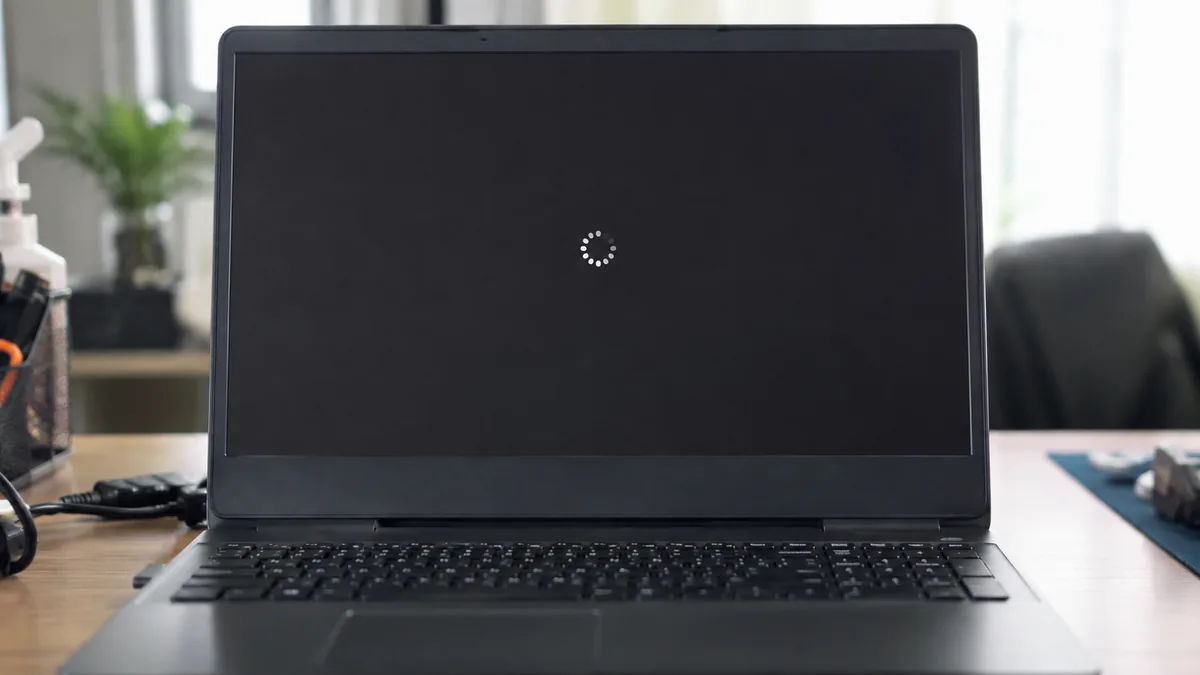
A laptop that reboots without being asked is doing one of two things: it is either crashing, or it is deliberately shutting itself down to avoid damage. Telling those apart is the whole job, because the fixes are completely different. Notice when the restarts happen — under load, at idle, at start-up, at random — and whether anything changed just before they began, such as a Windows update, a new program or a spell of hot weather. Those details narrow the search faster than anything else.
The most common trigger in our workshop is overheating. When dust clogs the vents or the fan starts to fail, the processor hits a safety temperature and the machine cuts power to protect itself, which shows up as a sudden restart — usually during games, video calls or other heavy work. Close behind are the software causes: a faulty Windows update or a driver conflict that crashes the system, corrupted system files, or malware running in the background. There is also a quiet trap here — Windows hides its crash screen by default and reboots instantly, so a genuine blue-screen error can look exactly like a random restart until you switch that behaviour off.
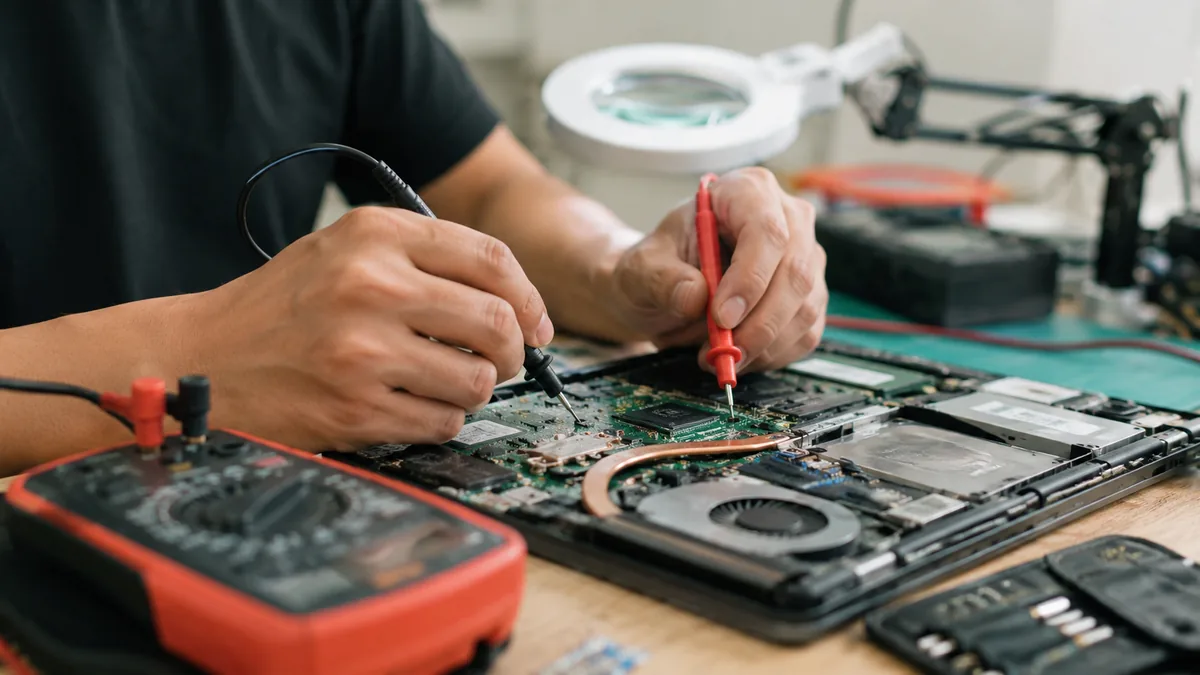
When the software checks come up clean, the cause is usually hardware. Failing RAM throws errors that crash the machine unpredictably. A failing SSD or hard drive can drop out mid-read and force a reboot, often with the file system slowly corrupting as it goes. A failing battery or a faulty charger can starve the board of stable power, and, less often, a motherboard power fault on one of the rails causes the same symptom. None of those is common compared with heat and software, but they are exactly what a bench test is for once the easy causes are ruled out.
Use this quick reference to see where your particular pattern of restarting is likely to sit, and whether it is something you can safely check yourself or something for a workshop.
Quick diagnosis
A guide, not a guarantee — the only way to be certain is to test the memory, storage and thermals on a bench, which is exactly what our free diagnosis does.
Tell us the make, model, when the restarts happen and any stop code you can see. A technician replies with a probable cause and an honest price band before you travel — diagnosis is free on walk-ins.
Work through these in order. Every one of them is safe, none involves opening the laptop, and between them they resolve most restart problems that are not a genuine hardware failure. Stop at the first one that fixes it.
Do not open the laptop to reseat RAM or clean the fan yourself unless you genuinely know what you are doing — it is easy to damage a connector or void a warranty. Do not keep forcing the machine through reboot after reboot if it freezes and clicks first, because that pattern points at a failing drive and every restart risks your files. And do not install random "PC booster" or "driver updater" tools from pop-ups; they are a common source of the very instability they claim to fix.
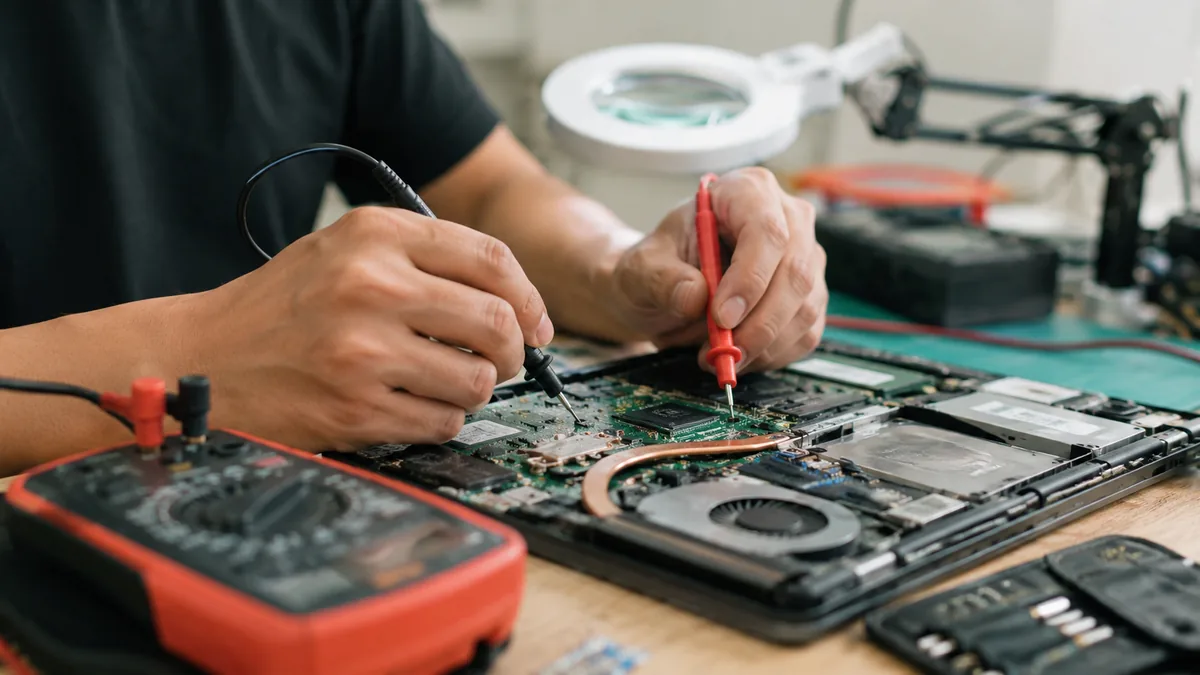
If you have turned off auto-restart, cleared the vents, updated Windows, scanned for malware and tested in Safe Mode, and the laptop still reboots on its own, the software causes are exhausted and the fault has moved into hardware. At that point the cause is usually one of these, and each needs a workshop:
If you would like to read around the topic first, our related guides on blue-screen errors and a laptop that shuts down randomly cover the neighbouring symptoms in more depth. Whatever the cause turns out to be, our diagnosis comes first and is free on walk-ins: we tell you what is wrong and what it will cost before any work begins, and if we cannot fix it you do not pay a repair fee. A laptop that keeps restarting is far more often a heat or software issue than a dead machine, so it is almost always worth finding out which before you replace it. For anything else that is misbehaving, our general laptop repair service covers every brand.
Related repair services
Worn fans and dried thermal paste that trip the safety shutdown.
See the service →Faulty modules that throw errors and crash the machine at random.
See the service →Power rails and charging faults traced and fixed on the board.
See the service →Verified Google reviews
Real reviews from our Google profile, shown with the customer’s name as they left it. The score and the count are Google’s own, updated every week.
I got the motherboard issue fixed on my 16” MacBook Pro. No data was lost, and everything is the same as before. As promised, I also received a 60-day service warranty. Thank you, iDevice! 😊
Excellent Lap top repair service! Fast turn around, professional support & my computer was fixed quickly.
They repair fast and good, my DELL laptop had damaged screen and battery and they fixed it in one day. Diagnosis is free and they quote after checking on the problem. Pre-test testing and post testing done well.. Highly recommend.
My surface laptop was replaced with an SSD card and the services was very good.
Managed to fixed my 16inch MacBook pro within 5 working days thank you!
Great service - MacBook froze on upgrade. Could not solve problem myself. iDevice expedited the repairs and my Mac is like new! Very reasonable rates for repair too. Highly recommend.
Super fast and efficient. My motherboard spoiled, spent $350 to replace it, better than getting a new laptop at 2-3k. Hopefully can last for another year 😆
Managed to successfully fix my damaged iPhones and my data is also saved! Thank you for assisting
Questions we get every week
A laptop that reboots on its own is either protecting itself or crashing. Overheating is the most common cause — when the processor gets too hot the machine cuts power to avoid damage, which looks like a sudden restart. The other frequent causes are a bad Windows update or driver conflict, corrupted system files, malware, or failing hardware such as RAM, the SSD, the battery or the charger. Windows also hides its crash screen by default and restarts instantly, so a blue-screen error can masquerade as a random reboot. Start by ruling out heat and software before assuming the worst.
Turn off automatic restart on failure. Right-click This PC and choose Properties, open Advanced system settings, then under Startup and Recovery click Settings and untick 'Automatically restart'. Now when the machine crashes it will hold on the blue-screen error and show a stop code instead of rebooting instantly. That code — for example MEMORY_MANAGEMENT or CRITICAL_PROCESS_DIED — tells a technician a great deal about whether the fault is memory, storage, a driver or the board. It is a completely safe change and one of the most useful things you can do before bringing the laptop in.
Yes, and it is the single most common cause we see. When the cooling cannot keep up — usually because dust has clogged the vents or the fan is failing — the processor reaches a safety limit and the laptop shuts down or restarts to protect itself. The tell-tale signs are a hot base, a loud fan, and reboots that happen during games, video calls or other heavy work rather than at idle. Clearing the vents and improving airflow often helps, but a fan that has worn out or dried-up thermal paste needs a workshop clean and service to fix properly.
If the reboots began immediately after an update or a new driver, that is almost certainly the cause. First install any further pending updates, since Microsoft often ships a fix quickly. If that does not help, uninstall the offending update or roll back the driver: open Settings, go to Windows Update then Update history, and choose Uninstall updates; for a driver, use Device Manager and Roll Back Driver. Booting into Safe Mode first makes this easier because it loads Windows without the third-party drivers that may be triggering the crash. These are safe, reversible steps that fix a large share of software-related reboots.
Boot into Safe Mode, which loads Windows with only the essential drivers. If the laptop is stable in Safe Mode, the fault is almost certainly software — a driver, an update or malware — and can usually be fixed without any parts. If it still restarts even in Safe Mode, the problem is more likely hardware: overheating, failing RAM, a dying SSD or hard drive, or a battery or board fault. You can narrow it further with the built-in Windows Memory Diagnostic for RAM and a disk-health check for the drive. Persistent reboots that survive all the software checks are our cue to test the hardware on the bench.
It is usually safe for you, but risky for your data. Repeated hard reboots can corrupt the file system and accelerate the failure of an already-weak SSD or hard drive, so the longer a storage fault runs the more you risk losing files. If the restarts are caused by overheating, running the machine hot for long periods also shortens the life of the components. Back up anything important as soon as you can, avoid heavy tasks that trigger the reboots, and have the machine checked. If the drive is making unusual noises or the files matter, ask about data recovery before doing anything else.
Walk-ins welcome from the CBD, Orchard, Novena, Toa Payoh, Bishan, Ang Mo Kio, Jurong East, Clementi, Tampines, Bedok, Woodlands, Yishun, Hougang and Punggol. We tell you what is wrong and what it costs before any work begins.