

Buying & education guide · Singapore
How to secure your laptop and the data on it
A laptop is worth a few hundred to a few thousand dollars. The photos, work files, saved logins and financial records on it are usually worth far more — and unlike the hardware, you cannot buy them back. This guide walks Singapore owners through securing both: the device itself, and the data that makes it irreplaceable. Almost none of it costs money, and most of it takes minutes.
Do five things and you are ahead of most laptop owners: use a strong login password backed by a password manager, turn on full-disk encryption (BitLocker on Windows, FileVault on Mac), keep automatic backups running on a 3-2-1 pattern, install every security update promptly, and enable Find My Device so you can lock or wipe a lost machine remotely. Add caution on public Wi-Fi, a healthy suspicion of phishing links, and basic physical care — never leave the laptop unattended in a cafe — and you have covered the threats that actually happen. If a drive ever fails despite all this, that is what backups and data recovery are for.
On this page
Passwords, a password manager and biometrics
Security starts at the login screen, and most people weaken it in the same two ways: a short, guessable password, and the same password reused across dozens of accounts. Reuse is the real danger — when one website is breached, attackers take the leaked email-and-password pairs and try them everywhere else, which is why a single old leak can unlock your email, your shopping and your cloud storage at once.
The fix is a password manager. It generates a long, random, unique password for every account and remembers them for you, so you only ever memorise one strong master password. That single change eliminates reuse, defeats guessing, and makes phishing harder because the manager will not auto-fill a login on a fake look-alike domain. Pick a reputable manager, protect it with a strong master password you do not use anywhere else, and turn on two-factor authentication for the accounts that matter most — email, banking and Singpass above all, since your email is the master key that resets everything else.
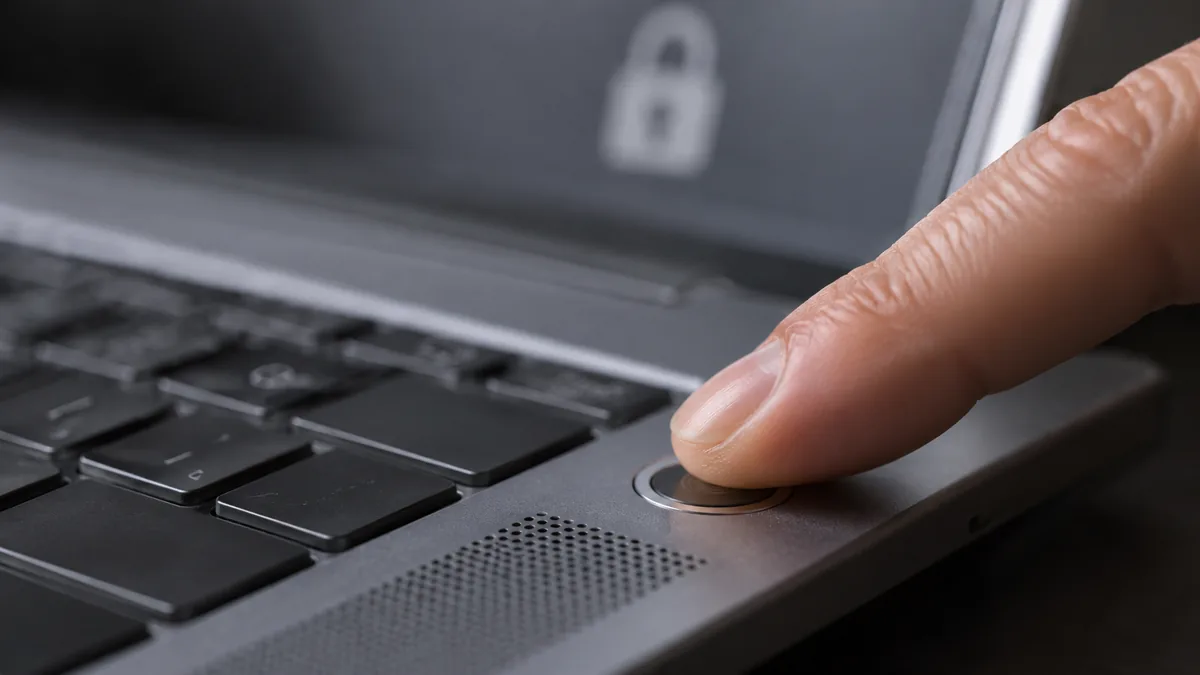
On the laptop itself, set a real login password rather than a blank or four-digit one, and then layer biometric login on top for convenience: Windows Hello (fingerprint or face) on a PC, Touch ID on a MacBook. Biometrics are quick and hard to shoulder-surf, but remember they sit on top of the password, not instead of it — the password or PIN is still the fallback, so it needs to be strong too. Configure the screen to lock automatically after a short idle time and whenever you close the lid, so a laptop left on a table does not stay wide open.
Full-disk encryption: the one that matters most
If you do only one thing from this guide, do this. A login password stops someone using your laptop while it is switched on, but it does nothing to protect the data if the machine is stolen. A thief can simply remove the drive, connect it to another computer, and read every file on it — documents, photos, saved browser logins, tax records — as easily as opening a USB stick. The only thing that prevents that is encryption.
Full-disk encryption scrambles everything on the drive so it is unreadable without your key, which is unlocked by your login. Take the drive out and it is meaningless noise. Both major systems build this in and it is free:
- Windows — BitLocker. Available on Windows Pro and, as "Device Encryption," on many Home machines. Turn it on in Settings, and crucially save the recovery key to your Microsoft account or somewhere safe and separate. That key is your lifeline if something goes wrong — and your lock-out risk if you lose it.
- Mac — FileVault. Found in System Settings under Privacy & Security. Switch it on, and store the recovery key or your iCloud recovery option carefully. On Apple silicon and T2 Macs the hardware is built for this, so the performance cost is effectively nothing.
Encryption runs invisibly once enabled — you will not notice it day to day. The one rule that matters is to keep your recovery key safe and separate from the laptop. If you lose both your password and the key, not even we can recover the data; that is the whole point of encryption, and it cuts both ways. This also matters at repair time: if we need to access an encrypted volume for certain repairs or for data recovery, we will ask you for the recovery key, so know where yours is.
Backups and the 3-2-1 rule
Encryption keeps other people out of your data. Backups keep you from losing it — and those are two completely different jobs. We see the consequence of confusing them every week: a laptop comes in with a dead drive and no backup, and years of photos and documents are suddenly at stake. Here is the uncomfortable truth we will always tell customers straight: all storage fails eventually. SSDs and hard drives both have a finite life, they can fail without warning, and no amount of careful use changes that. The only defence is a copy somewhere else.
The standard worth aiming for is the 3-2-1 rule:
- 3 copies of your important data — the working copy plus two backups.
- 2 different types of media — for example an external drive and a cloud service, so a single failure or accident cannot take out everything.
- 1 copy off-site — in the cloud, or a drive kept somewhere other than next to the laptop, so a theft, fire or flood at home does not destroy your only backups along with the machine.
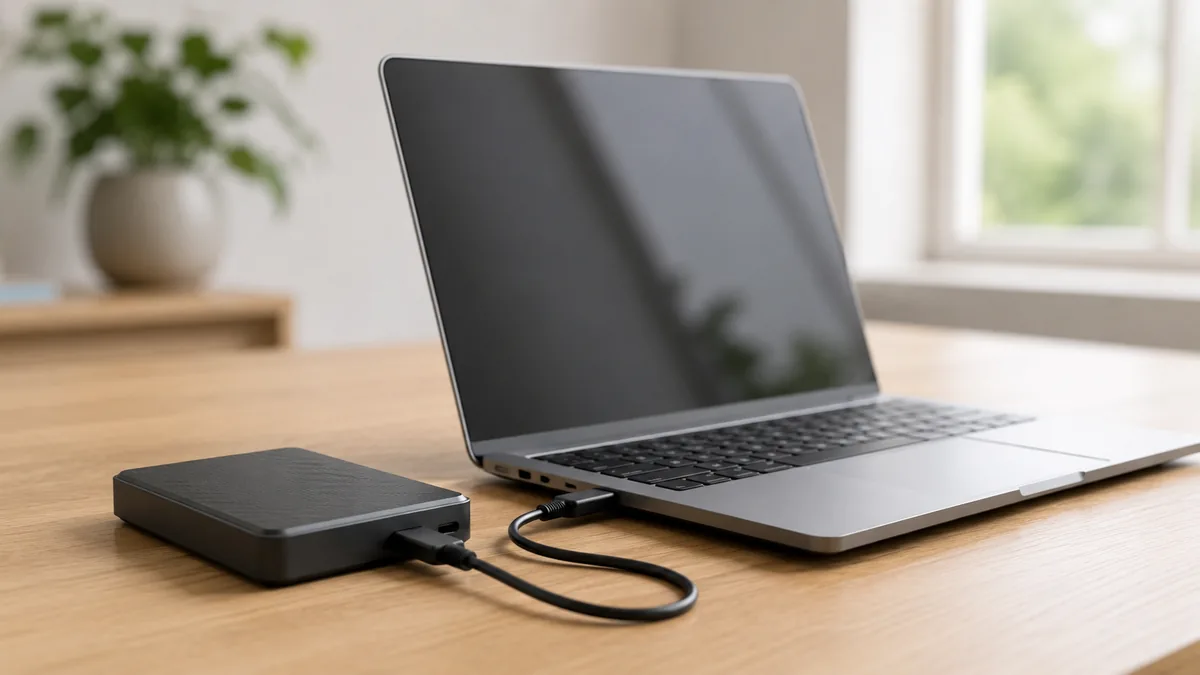
The tools are built in and easy: Time Machine on a Mac backs up automatically to an external drive, File History does the same on Windows, and a reputable cloud backup or sync service covers the off-site copy. Set them to run automatically so backing up is not something you have to remember, and once in a while actually test a restore — a backup you have never checked is only a hope. Good backups also blunt the worst online threat, ransomware, because if your files are locked or encrypted against you by malware, a clean off-site copy lets you recover without paying anyone. For more on keeping the machine itself healthy, see our laptop maintenance checklist.
Updates, antivirus and pirated software
A large share of real-world attacks do not involve clever hacking at all — they exploit a known flaw in software the owner simply never updated. Updates are security. When Windows, macOS, your browser or your apps offer an update, most of what it contains are patches for holes that attackers already know about. Turn on automatic updates for your operating system and browser, install them promptly rather than clicking "remind me later" for weeks, and be aware that once a system reaches end-of-life and stops getting security patches, it becomes steadily riskier to keep online.
Use reputable antivirus or anti-malware. On Windows, the built-in Microsoft Defender is genuinely capable and enough for most people when kept updated; you do not need to pay for heavy third-party suites unless you want their extra features. Macs are not immune either — malware and, more commonly, scam and adware software do target them — so the same caution applies.
Steer clear of pirated software and "cracked" apps. Beyond the legal and licensing problems, they are one of the most common ways malware gets onto a laptop: the crack that promises a paid app for free very often ships a hidden payload that steals passwords or installs a backdoor. The same goes for unofficial download sites and "free activator" tools. Stick to official app stores and the software maker's own website, and if a download seems too generous to be true, it usually is. A machine bogged down by hidden junk can also just feel slow — if yours does, our guide on why a laptop runs slow covers the common causes.
Phishing, scams and public Wi-Fi
The most effective attacks target the person, not the machine. Phishing is a message — an email, SMS or chat — that pretends to be your bank, a delivery company, a government agency or a colleague, and tries to get you to click a link, log in on a fake page, or approve a payment. Singapore sees a steady stream of these, and they are getting more convincing. A few habits catch most of them:
- Slow down on urgency. "Your account will be suspended," "parcel held at customs, pay the fee now" — manufactured pressure is the classic tell. Legitimate organisations do not force you to act in the next five minutes.
- Check the link before you click. Hover to see the real destination, and look hard at the domain. A password manager helps here because it refuses to auto-fill your login on a domain it does not recognise.
- Never enter your password or banking details from a link in a message. Open the site yourself, from a bookmark or by typing the address, rather than trusting the link.
- Treat unexpected attachments with suspicion, especially files that ask you to enable macros or run something.
Then there is public Wi-Fi. Free networks in cafes, malls and MRT stations are convenient, but you cannot assume anyone else on them — or the network itself — is trustworthy, so treat open Wi-Fi as untrusted. Avoid internet banking and payments on it, use a reputable VPN to encrypt your traffic when you must use one, and check that sites show HTTPS. Turn off your laptop's setting to auto-join open networks, so it cannot silently connect to a look-alike hotspot named to impersonate a real one. When you need to do something sensitive away from home, tethering to your own phone's mobile data is usually safer than any free network.
Laptop theft is a genuine, everyday risk in Singapore — a bag lifted from the back of a chair while you order coffee, a machine left unattended in a co-working space or library for "just a minute." If that laptop has full-disk encryption switched on, the thief gets a piece of hardware and nothing more; your data stays unreadable. If it does not, they get everything. This is the single clearest reason to enable BitLocker or FileVault today, before you need it — after the laptop is gone is too late.
Physical security and Find My Device
Software is only half the picture; a laptop is a small, valuable, portable object and opportunistic theft is the most common way people lose one. Simple physical habits go a long way:
- Never leave it unattended in public. The classic Singapore mistake is "chope-ing" a cafe seat with a laptop while you queue. Do not — it takes seconds to walk off with. If you must step away, take it with you.
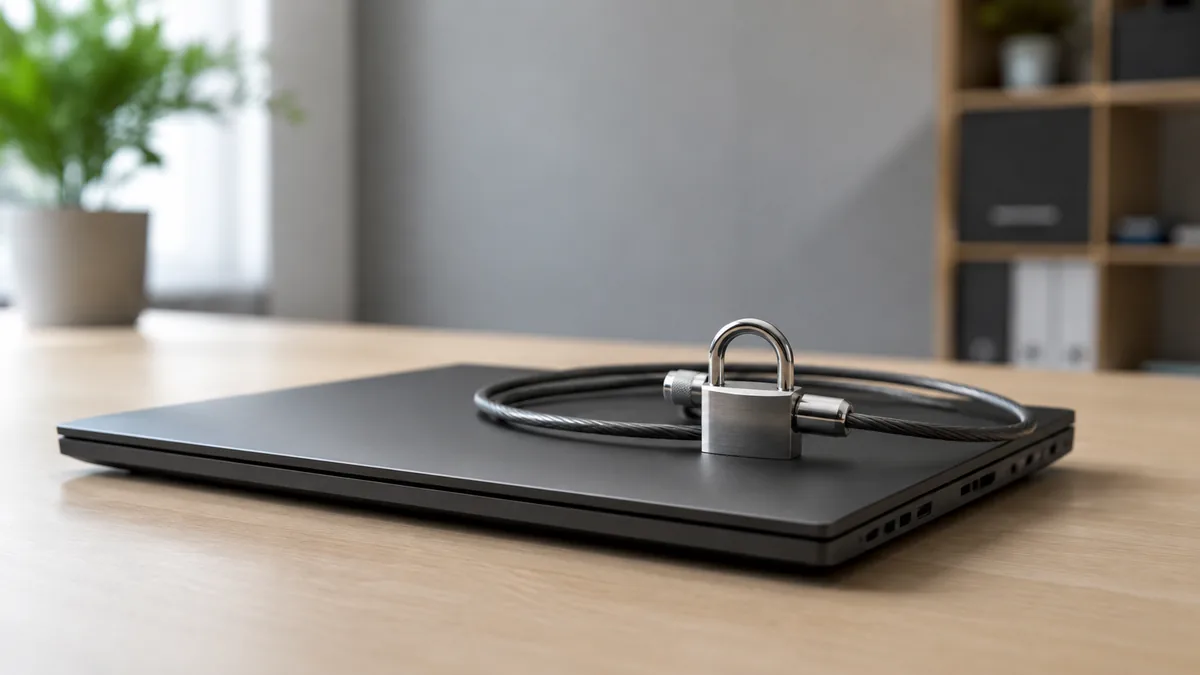
- Use a Kensington lock in shared or semi-public spaces such as a co-working desk, hot-desk or library. It will not stop a determined thief, but it defeats the grab-and-go, which is most theft.
- Be discreet. A laptop bag that screams "expensive laptop," or one left visible in a parked car, invites trouble. Keep it out of sight.
- Lock the screen every time you step away, even at your own desk in a shared office.
Then enable Find My Device before anything happens — this is a setting you turn on now so the tool exists when you need it. On a Mac, switch on Find My in your iCloud settings; on Windows, enable Find My Device in Settings under Privacy & Security while signed in to your Microsoft account. With it on, you can locate the laptop on a map from another device, remotely lock it, or as a last resort remotely wipe it so your data cannot be reached. None of that works if you only think to enable it after the machine is gone, so do it today.
If your laptop is lost, stolen or sold
Whether the machine is leaving your hands against your will or by choice, there are steps that protect the data either way.
If it is lost or stolen, move quickly and in order. Use Find My or Find My Device from another device to locate and lock it, and wipe it remotely if recovery looks unlikely. Then change the passwords on your key accounts — email first, because it can reset everything else — and sign those sessions out of the missing device. Switch on two-factor authentication anywhere you have not already. Finally, make a police report, which you may need for insurance or, if work data was involved, for your employer. Notice how much calmer this list is when the drive was encrypted: even in the worst case where you never see the laptop again, the data on it is safe.
If you are selling, giving away or disposing of a laptop, a quick file delete or ordinary format is not enough — that data can often still be recovered. On an encrypted machine the reliable method is to erase the encryption keys and factory-reset: on a Mac use Erase All Content and Settings, and on Windows use Reset this PC with the option to remove everything and clean the drive. Because the drive was encrypted, wiping the keys leaves any remaining data unreadable. Sign out of and de-authorise your accounts first — iCloud, Microsoft, and any app licences — so the next owner cannot inherit your logins. If the laptop held anything genuinely sensitive and you want certainty rather than trust, we can carry out a secure erase for you.
Where we fit in
Good security still runs into hardware reality sometimes, and that is where we come in. If a drive fails or the laptop stops booting despite everything, our data recovery service can often retrieve your files even when the machine itself is not worth repairing — one more reason a dead laptop is not automatically a total loss, as we cover in repair or replace your laptop. During any repair we treat your data as confidential, we do not go through your files, and we will happily talk you through backing up before you hand the machine over. We follow careful internal procedures for how devices and data are handled on the bench — the same discipline described in our laptop repair and MacBook repair process pages. And if you simply want your laptop looked over and kept in good shape, a longer life is a security benefit too, since supported, updated machines stay safer — our maintenance checklist and battery-care advice on protecting your laptop battery both help there.
Keep reading
Guides that go with this one
When a drive fails and there is no backup
How we retrieve files from dead drives and laptops that will not boot.
Read the guide →The laptop maintenance checklist
Simple routines that keep a machine fast, healthy and supported for longer.
Read the guide →How to choose a laptop repair shop
What to look for in a repairer you are about to trust with your data.
Read the guide →Worried about the data on a failing laptop?
If your drive is playing up or the machine will not boot, do not risk it — a free, no-obligation diagnosis tells you where your data stands and what it takes to recover it. Walk in, or send a photo and we will advise before anything is lost.
Questions we get every week
Laptop security — frequently asked questions
What is the single most important thing I can do to secure my laptop?
Turn on full-disk encryption — BitLocker on Windows or FileVault on Mac — and pair it with a strong login password. Encryption is what stops a thief who steals your laptop from simply pulling out the drive, plugging it into another machine and reading every file on it. A login password on its own does not protect the data; the drive can be removed and read directly unless it is encrypted. It takes a few minutes to enable, runs invisibly afterwards, and is the difference between losing a laptop and losing everything on it. Just as important, keep the recovery key somewhere safe and separate, because if you lose it you can lock yourself out of your own data permanently.
Is full-disk encryption enough, or do I still need backups?
You need both, because they solve different problems. Encryption protects your data from someone else reading it; a backup protects your data from being lost. Encryption does nothing if the drive itself fails, if the laptop is stolen and not recovered, or if ransomware encrypts your files against you — in every one of those cases a backup is what gets your data back. We recommend a 3-2-1 approach: three copies of your data, on two different types of media, with one copy kept off-site or in the cloud. Hardware does fail eventually, so treat backups as routine, not optional, and test that you can actually restore from them.
How do I stay safe using my laptop on public Wi-Fi in Singapore?
Open networks in cafes, malls and MRT stations are convenient but you cannot assume they are private, so treat them as untrusted. Avoid logging into banking or making payments while connected to open public Wi-Fi, use a reputable VPN to encrypt your traffic, and make sure the sites you visit show HTTPS. Turn off automatic connection to open networks so your laptop does not silently join a look-alike hotspot set up to intercept traffic. If you genuinely need to do something sensitive on the move, tethering to your phone's mobile data is usually safer than a random free network.
What should I do immediately if my laptop is lost or stolen?
Act quickly and in order. First, use Find My on a Mac or Find My Device on Windows from another device to locate it and put it into lost mode or remotely lock it, and if recovery looks unlikely, remotely wipe it. Next, change the passwords on your important accounts — email first, since it is the key to resetting everything else — and sign out of those sessions on the lost device. Enable two-factor authentication anywhere you have not already. Finally, make a police report, which you may need for insurance or for your employer if work data was on the machine. If the laptop was encrypted, its data is protected even if you never get it back, which is exactly why encryption matters.
How do I securely wipe a laptop before selling or disposing of it?
Deleting files or doing a quick format is not enough, because the data can often still be recovered. On a modern laptop with an encrypted drive, the reliable method is to erase the encryption keys and then do a full factory reset — on a Mac use Erase All Content and Settings, and on Windows use Reset this PC with the option to remove everything and clean the drive. Because the drive was encrypted, wiping the keys makes the remaining data unreadable. Also sign out of and de-authorise your accounts first, so the new owner cannot inherit your logins. If the machine holds anything genuinely sensitive and you want certainty, ask us and we can handle the secure erase for you.
Can you recover my data if my drive fails, and is my data safe during a repair?
Yes on both counts. If a drive fails, dies or the laptop no longer boots, our data recovery service can often retrieve your files even when the machine itself is beyond economical repair, which is one more reason a failed laptop is not automatically a total loss. During any repair we handle your data with care and confidentiality, we do not go through your files, and we can talk you through backing up before you hand the machine over so nothing is at risk. If your drive is encrypted, keep your recovery key handy, because we will need it to access an encrypted volume for certain repairs or recovery work.
Secure setup, honest advice, careful hands.
Whether you need data off a failing drive, a repair done with your files treated as confidential, or a secure wipe before you sell, a free, no-obligation diagnosis is the place to start. Walk in, or send a photo and we will tell you what we think before you spend anything.