
★★★★★
They repair fast and good, my DELL laptop had damaged screen and battery and they fixed it in one day. Diagnosis is free and they quote after checking on the problem. Pre-test testing and post testing done well.. Highly recommend.

Buying & education guide · Singapore
A laptop battery is a consumable — it wears out no matter what you do. But how fast it wears is largely in your hands, and in Singapore's heat the difference between careful and careless use can be years of runtime. This guide separates what genuinely protects a lithium-ion battery from the myths that do nothing, and tells you what to do the day it starts to swell.
Keep the laptop cool — heat ages the battery faster than anything else, so never leave it in a hot car or in direct sun, and keep the vents clear. Where it is easy, keep the charge roughly between 20% and 80% and avoid sitting at a full 100% while the machine is hot and working hard. Turn on your system's battery-optimisation feature, use the correct charger, and do not drain to zero as a habit. Ignore the old myths about fully discharging modern batteries. If the battery ever swells, stop using the laptop and get it replaced — that is a safety matter, not a cosmetic one.
On this page
Almost every modern laptop runs on a lithium-ion (or lithium-polymer) battery, and every one of those cells is wearing out from the day it is made. Understanding why makes the care advice below obvious rather than a list of rules to memorise. Two things drive the wear: charge cycles and heat.
A charge cycle is one full charge's worth of energy used — not necessarily in one sitting. Using half the battery today and half tomorrow, then topping up each time, counts as one cycle, not two. Manufacturers rate most laptop batteries for a few hundred cycles before capacity drops to around 80% of what it was when new. That is why a battery that once ran for eight hours is down to five after a few years of daily use: you have simply spent a good chunk of its rated cycles. This part of ageing is normal and unavoidable — the goal of good habits is not to stop it, but to make sure heat and stress do not add a second, faster form of wear on top of it.
The chemistry inside the cell also dislikes extremes. Sitting at a very high charge level puts the internal materials under more voltage stress, and sitting fully empty stresses them in a different way. Neither is catastrophic on its own, but over months and years, time spent parked at 100% or run flat to 0% quietly costs you capacity. This is the reasoning behind the 20%–80% guidance further down — it is about reducing the average stress the cell lives under, not about a magic number.
If cycles are the wear you cannot avoid, heat is the wear you can. Temperature is the single largest factor in how fast a lithium-ion battery loses capacity, and it matters more than any charging habit you might adopt. Every stretch of time the cell spends hot permanently removes a little capacity, and unlike a full charge — which you can undo by unplugging — heat damage does not come back. In a climate as warm and humid as Singapore's, this is the part of battery care worth taking most seriously.
The worst thing you can do to a laptop battery is leave it somewhere that gets genuinely hot. A car parked in the sun can reach temperatures well above anything the battery is designed to survive, and even a bag left on a sunny windowsill or a dashboard is asking for trouble. Direct sunlight on the machine while you work outdoors does the same thing more slowly. None of this is dramatic in the moment — the laptop will seem fine — but the capacity you lose is gone for good.
Everyday heat matters too. A laptop that runs hot under load — gaming, video editing, lots of browser tabs on a warm afternoon — is heating its own battery from the inside. You can help it shed that heat by keeping it on a hard, flat surface rather than a bed, sofa or cushion that blocks the vents, and by keeping the fans and heatsink clean. Dust build-up is a major cause of a machine running hotter than it should, which is why a safe cleaning routine and the occasional thermal service pay off for the battery as well as for performance. If your machine already runs hot and slow, our guide to a laptop that charges slowly and a proper diagnosis will tell you whether heat is the culprit.
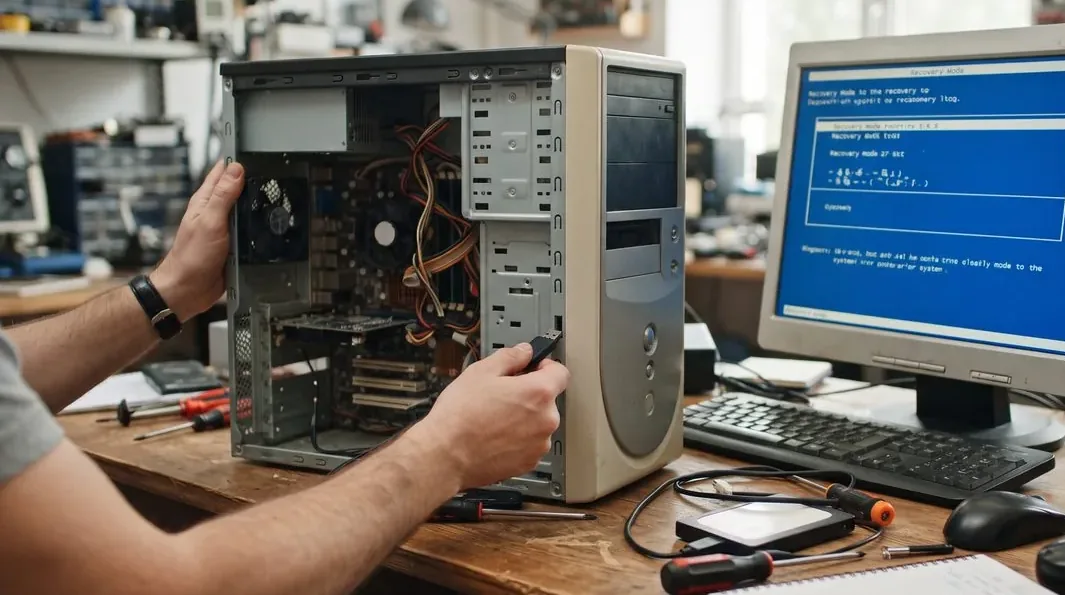
Charging habits matter less than heat, but they are free to get right, so they are worth doing. Here are the ones that genuinely help — and none of them require you to babysit the machine.
For a wider routine that keeps the whole machine healthy, not just the battery, our laptop maintenance checklist pulls these habits together with cleaning, updates and thermal care.
Plenty of battery advice is left over from an older generation of batteries and simply does not apply to the lithium-ion cell in your laptop. Following it wastes effort at best and does real harm at worst.
If your laptop's battery has swelled — the case is bulging, the trackpad has lifted, the keyboard feels raised, or the machine no longer sits flat — stop using it now. Swelling means the cell has failed internally and is producing gas, and a damaged lithium cell can catch fire or rupture. Do not press on it, do not try to puncture or "flatten" it, and do not keep charging the laptop. Power it down, unplug it, keep it away from anything flammable, and bring it in for a professional battery replacement. A swollen battery can also push against and crack the screen or trackpad, so replacing it promptly protects the rest of the machine too.

Because it matters, it is worth spelling out what swelling is and why it is urgent. A lithium-ion cell is a sealed pouch or can. When it degrades badly — through age, heat, a manufacturing fault or physical damage — it can begin to generate gas inside that sealed space, and the pack visibly puffs up. On a laptop this shows first as a machine that rocks on the desk, a trackpad that no longer clicks evenly, or a bottom cover that bows outward. Some users notice the keyboard rising before anything else.
A swollen battery is a genuine hazard, not a cosmetic flaw. The safe response is simple: stop charging, stop using the laptop, and do not apply any pressure to the swollen area. Puncturing a swollen cell can cause it to ignite, so nothing sharp, no prising, no "just squeezing it back down". Keep the machine somewhere cool and away from paper, fabric and other flammables until it can be handled properly. Then bring it to a technician who can remove the failed cell safely and fit a healthy one. This is not a repair to attempt at home, and it is not one to postpone.
Even with perfect care, a battery is a wear part and will eventually need replacing. That is not a failure on your part — it is the nature of the chemistry. The signs that a battery has reached the end of its useful life are usually clear:
The good news is that a battery replacement is one of the highest-value repairs there is — a fresh cell restores a sound laptop for a small fraction of the cost of a new machine. We fit genuine-grade cells and dispose of the old one responsibly. See laptop battery replacement for how the work is done, and if you want to understand the internals, our laptop repair procedures explain the component-level side.
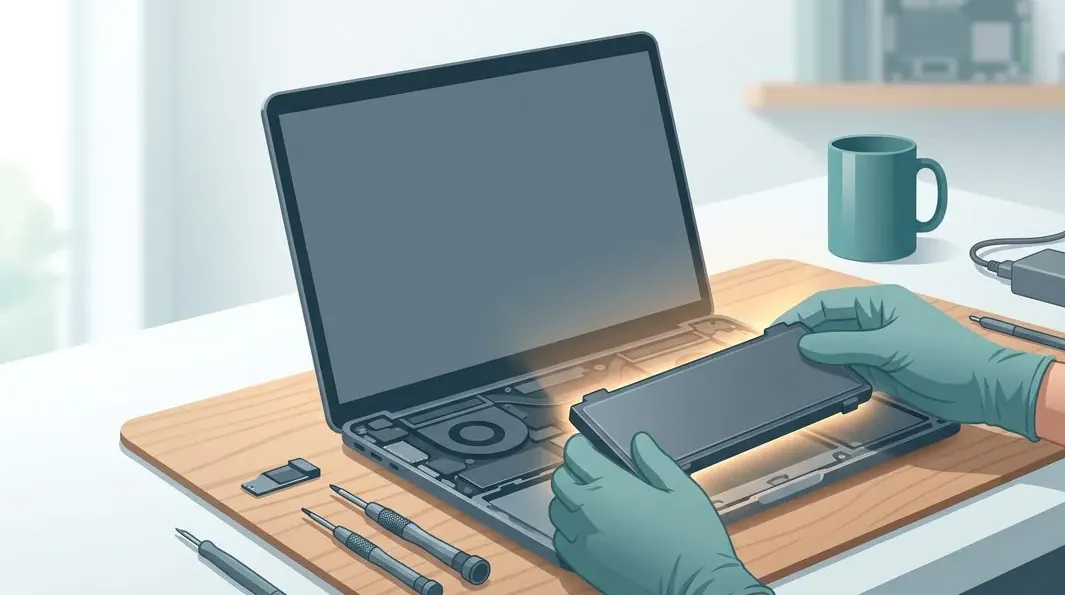
Everything above applies to MacBooks, with a few Apple-specific conveniences. macOS gives you a proper battery health readout — hold Option and click the battery menu, or open System Settings, to see the condition and cycle count — and Optimised Battery Charging is on by default, learning your routine and holding the charge below full until you need it. Apple silicon MacBooks run cool and efficiently, which is kind to the battery, but they are not immune to heat or swelling. For the Apple-specific detail — reading cycle counts, understanding the health percentage, and what "Service Recommended" really means — see our MacBook battery health guide.
If you are not sure whether your battery is simply ageing normally or genuinely on the way out, the quickest way to know is to have it checked. Bring the laptop in, or send a photo and a description of what it is doing, and we will read the battery's health, cycle count and actual behaviour and tell you honestly whether it needs replacing yet. Diagnosis is free on walk-ins and there is no obligation to proceed. If the battery is swollen, do not wait — power the machine down and bring it in. You can also request a quote before you visit.
A free, no-obligation battery check tells you the real health, cycle count and whether a replacement is due — with genuine-grade cells and a written warranty if you go ahead. Walk in, or send a photo first.
Keep reading
Swollen or short runtime? How a fresh, genuine-grade cell is fitted and tested.
Read the guide →Reading cycle counts, the health percentage and what "Service Recommended" means.
Read the guide →The simple habits that keep the whole machine — battery included — running well.
Read the guide →Verified Google reviews
Real reviews from our Google profile, shown with the customer’s name as they left it. The score and the count are Google’s own, updated every week.
They repair fast and good, my DELL laptop had damaged screen and battery and they fixed it in one day. Diagnosis is free and they quote after checking on the problem. Pre-test testing and post testing done well.. Highly recommend.
Great service and advice given. Down to earth advice instead of overcharging.
My daughter's ASUS laptop battery was deteriorating and also overheating. They repaired the set within the same day and also provided interior cleaning for General maintenance. Responsive and affordable! Highly recommend!
Recommended…Fast response in replying with my enquiries on battery replacement. Completed the replacement fast and able to use my laptop back as usual. Great Service.
I sent in 2 Dell laptops for repairs due to SSD replacement and battery and fan replacement. The technicians service were fast and prompt with ready parts. They are conveniently located and service is overall recommended! Thank you!
Brought in my MacBook Pro 2016 and issues with battery. The team serviced it quickly in a day time! Good service! 😊
Thank you for the good service. Free of charge If no service. You have kept your promise. Once again, thank you.
My ipXS max no power after not using for few years and they managed to repair successfully with battery change and no need repair motherboard 👍
Questions we get every week
Keep it cool. Heat is the biggest enemy of a lithium-ion battery by a wide margin, and it does far more damage than any charging habit. Every stint at a high temperature permanently shaves a little off the battery's capacity, and that loss adds up over the years. In Singapore's climate that means never leaving a laptop in a parked car or in direct sun, not blocking the vents by using it on a bed or cushion, and cleaning out dust so the fans can do their job. If you get only one thing right, make it keeping the machine cool under load.
Where it is practical, yes, because a lithium-ion cell ages slightly faster when it sits full or runs completely flat. Topping up before you hit zero and unplugging somewhere around 80 percent is gentler on the battery over the long run. That said, do not let it rule your life — the convenience of a full charge before a long day out is worth more than a tiny amount of extra wear. Use the 20 to 80 range as an easy default, and charge to full whenever you actually need the runtime.
On a modern laptop it is not the problem people think it is. The charging circuit stops drawing power once the battery is full, so it is not being overcharged. The real issue is the combination of a full charge and heat — a machine that runs hot while permanently plugged in and pushed hard will age its battery faster. If you work mostly at a desk, leave it plugged in, keep it cool, and turn on the battery-optimisation setting so the system can manage the charge level for you.
No. That advice is left over from old nickel-based batteries, which suffered from a memory effect. Modern lithium-ion cells do not have a memory, and running them flat to zero repeatedly is one of the more stressful things you can do to them. An occasional full cycle can help the battery gauge report its percentage more accurately, but you should never make a habit of draining to zero as a form of maintenance — it does the opposite of protecting the battery.
Treat a swollen battery as a safety issue and stop using the laptop straight away. Swelling means the cell has failed internally and is producing gas, and a damaged lithium cell can catch fire or rupture. Do not press on it, do not puncture it, and do not keep charging the machine. If the case is bulging, the trackpad is lifting or the keyboard feels raised, power the laptop down, unplug it and bring it in for a professional battery replacement. It is not something to leave for another few weeks.
The clearest signs are a runtime that has collapsed to a fraction of what it once was, a machine that shuts down suddenly even though it shows charge left, an operating-system warning such as Windows or macOS telling you to service or replace the battery, and any visible swelling. Most laptop batteries are good for a few hundred full charge cycles before capacity drops noticeably, so after three or four years of daily use some decline is normal. When the runtime no longer gets you through what you need, a replacement cell restores the machine for a fraction of the cost of a new laptop.
Free, no-obligation diagnosis: we read the health and cycle count and tell you straight whether your battery is fine, ageing, or due for replacement. If it is swollen, bring it in now — do not keep using it.