
★★★★★
I got the motherboard issue fixed on my 16” MacBook Pro. No data was lost, and everything is the same as before. As promised, I also received a 60-day service warranty. Thank you, iDevice! 😊

Buying & education guide · Singapore
A laptop rarely dies all at once. It slows down, runs hot, loses battery life and fills up quietly over months — and almost all of that is preventable with a light routine. This checklist sets out exactly what to do weekly, monthly, quarterly and once a year, tuned for Singapore's heat, humidity and dust. Everything here is safe to do yourself; the machine stays closed.
Weekly, restart the laptop, install updates, empty the bin, back up and wipe the screen and keyboard. Monthly, check free storage, prune start-up apps, clear browser clutter, look at battery health and run an antivirus scan. Quarterly, clean the vents from the outside, check for dust build-up, update drivers and test that a backup actually restores. Once a year, book a professional thermal service and repaste, a battery check, a deep clean and an SSD health check. Keep the machine cool, off soft surfaces and away from liquids. In Singapore's climate, heat and dust are the two things to stay ahead of — everything else follows from that.
On this page
The weekly tasks are the ones that keep small problems from becoming big ones. None of them takes long, and together they cover the two things that matter most week to week: your machine staying responsive, and your files staying safe. Run through this list once a week — a quiet moment on a Sunday evening works well.
Once a month, spend fifteen minutes looking a little deeper. These checks catch the slow drifts — a filling drive, a growing pile of start-up programs, a battery quietly losing capacity — before they turn into a machine that feels tired. Set a recurring reminder so it does not slip.
powercfg /batteryreport from a
command prompt to see full-charge capacity against the original design capacity. On a MacBook, look at Battery
Health in System Settings. Watch the trend over months, and read our guide on
how to protect your laptop battery for habits that slow the
wear.
Every three months, do the tasks that keep the hardware and your safety net healthy. This is where Singapore's climate really earns its place on the checklist — dust and heat are relentless here, and a quarterly rhythm keeps them from compounding.
Some maintenance needs the machine opened, and that is where DIY should stop and a technician should take over. Opening a laptop means releasing fragile clips, disconnecting ribbon cables and handling static-sensitive parts — easy to get wrong, and expensive when it goes wrong. Book these once a year, or sooner if something below flags up.
The theme across all of these is the same: the routine, external tasks are yours to own week to week, and the once-a-year internal work is ours. You never need to open the machine yourself to keep it healthy.
A professional thermal service, deep clean, battery check and SSD health report — everything on the yearly list, done safely on the bench. Walk in, or send a photo and a description and we will tell you what your machine needs.

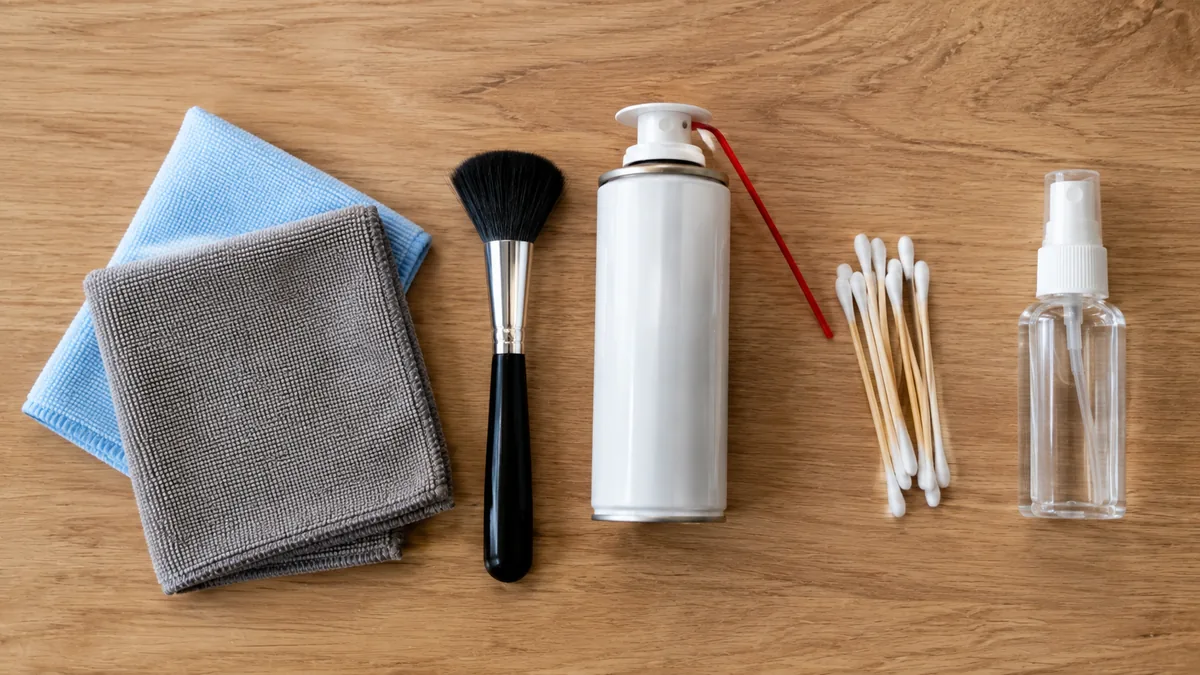
How you treat a laptop day to day matters as much as any scheduled task. Most of the machines that reach our bench with early failures were not unlucky; they were run hot on a bed, carried loose in a bag, or kept next to a drink. A few simple habits prevent the majority of avoidable damage:
Hardware care keeps a laptop alive; software care keeps it feeling quick. Alongside the weekly and monthly tasks above, a little ongoing housekeeping stops the gradual clog of programs and files that makes an older machine feel slower than it really is:
None of this is complicated, and that is the point. The reason laptops fail early is almost never a single dramatic event; it is the slow accumulation of heat, dust, a full drive and a worn battery, none of which announces itself until the machine is already struggling. A light routine — five minutes a week, fifteen a month, a longer look each quarter, and one professional service a year — keeps all four in check and adds years of useful life for very little effort or cost. If you follow the way we approach repairs and servicing, you will recognise the same principle in our laptop repair process: catch the small thing early, and the big, expensive thing usually never happens.
Keep the external and software tasks as your own habit, and leave the internal work — the thermal service, the battery, the deep clean and the drive check — to us. Diagnosis is free on walk-ins, so if you are ever unsure whether something is normal wear or a fault worth acting on, it costs nothing to have us take a look before it becomes a bigger job.
Keep reading
The right cloths, the right technique, and what never to spray near it.
Read the guide →Charging habits that slow wear and keep runtime healthy for years.
Read the guide →What really determines a laptop's life, and how to stretch it.
Read the guide →Verified Google reviews
Real reviews from our Google profile, shown with the customer’s name as they left it. The score and the count are Google’s own, updated every week.
I got the motherboard issue fixed on my 16” MacBook Pro. No data was lost, and everything is the same as before. As promised, I also received a 60-day service warranty. Thank you, iDevice! 😊
Excellent Lap top repair service! Fast turn around, professional support & my computer was fixed quickly.
They repair fast and good, my DELL laptop had damaged screen and battery and they fixed it in one day. Diagnosis is free and they quote after checking on the problem. Pre-test testing and post testing done well.. Highly recommend.
My surface laptop was replaced with an SSD card and the services was very good.
Managed to fixed my 16inch MacBook pro within 5 working days thank you!
Great service - MacBook froze on upgrade. Could not solve problem myself. iDevice expedited the repairs and my Mac is like new! Very reasonable rates for repair too. Highly recommend.
Super fast and efficient. My motherboard spoiled, spent $350 to replace it, better than getting a new laptop at 2-3k. Hopefully can last for another year 😆
Managed to successfully fix my damaged iPhones and my data is also saved! Thank you for assisting
Questions we get every week
For most people in Singapore, an internal clean and fresh thermal paste once a year is a sensible baseline, and every six months if you game, use the machine on a bed or sofa, live near a construction site, or keep pets. Our climate is warm, humid and dusty, so vents and fans clog faster here than in cooler, drier places. You do not need to open the laptop yourself to stay on top of this — the external and software tasks in this checklist do most of the work, and a professional thermal service handles the internal dust safely without risking cracked clips or a torn ribbon cable.
Plenty, as long as you keep the laptop closed up. Safely restart it weekly, install updates, empty the recycle bin or trash, back your files up, and wipe the screen and keyboard with a barely damp microfibre cloth. Monthly, check your free storage space, review start-up apps, clear browser clutter, look at battery health and run an antivirus scan. You can also blow loose dust off the outside of the vents from a short distance. What you should not do is open the chassis, dismantle the fan, or spray liquid into the vents — that is where DIY causes damage, and it is exactly the part we handle for you.
Singapore sits close to the equator, so ambient temperatures and humidity are high all year, and there is no cool season to give a laptop's cooling system a break. Warm, moist air carries more dust and it sticks more readily, so the fine mesh over the fan and the fins of the heat sink clog steadily. As that layer builds, airflow drops, the fan spins louder, and the processor throttles to protect itself, which shows up as heat, noise and slowdown. Regular cleaning of the vents from the outside slows it down, and a yearly internal thermal service clears what you cannot reach.
On Windows you can open a command prompt and run powercfg /batteryreport, which saves a page showing the design capacity against the current full-charge capacity — the gap between the two is your wear. On a MacBook, hold Option and click the battery menu, or open System Settings and look at Battery Health for a Normal or Service reading, plus the cycle count in System Information. A battery that holds well under its original capacity, drops charge quickly, or has visibly swollen and lifted the trackpad or case is due for replacement. A swollen battery is a safety issue and should be dealt with promptly rather than left in service.
Yes, and the effect is larger than most people expect. The two things that quietly kill laptops are heat and neglected storage, and both are addressed directly by this routine. Keeping the vents clear and the thermal system serviced stops the processor from cooking itself and the battery from ageing prematurely; keeping some free space on the drive and the software tidy keeps the machine responsive and reduces write wear on the SSD. A laptop that is kept cool, backed up and lightly maintained routinely reaches five to seven years of useful service, where a neglected one often struggles well before that.
Bring it in when the problem is inside the machine or when the routine tasks stop fixing it. Persistent overheating and fan noise after the vents are clear, a battery that reports Service or has swollen, a drive that is throwing errors or reporting bad SMART health, liquid that has gone anywhere near it, or a slowdown that a restart and a tidy-up no longer cure — these are all signs to book a professional look rather than push further at home. Diagnosis is free on walk-ins, so if you are unsure whether something is normal wear or a real fault, it costs nothing to have us check.
You own the weekly and monthly routine; we handle the yearly thermal service, battery check, deep clean and SSD health report. Free, no-obligation diagnosis on walk-ins — bring it in, or send a photo and we will tell you what it needs.