
★★★★★
I got the motherboard issue fixed on my 16” MacBook Pro. No data was lost, and everything is the same as before. As promised, I also received a 60-day service warranty. Thank you, iDevice! 😊
Buying & education guide · Singapore
A clean laptop looks better, runs cooler and lasts longer — but the wrong cloth, the wrong spray or one drop of liquid in the wrong place can do far more harm than the dirt ever would. This guide walks you through exactly what to use and how to clean every part of your machine safely, with the humidity and dust of Singapore in mind. No opening the laptop, no risky shortcuts.
Power the laptop off and unplug it first. Use a dry microfibre cloth for dust, and only ever dampen the cloth — never spray liquid onto the machine. Clean the screen with a lightly damp microfibre cloth using distilled water or a proper screen cleaner, never glass cleaner or ammonia. Use 70% or stronger isopropyl alcohol on a cloth for the keys, trackpad, palm rest and chassis. Blow dust from the ports and vents with short bursts of compressed air from the outside only. Keep every drop of moisture away from ports, vents and speakers, never poke anything metal inside, and never open the laptop yourself — heavy internal dust is a workshop job.
On this page
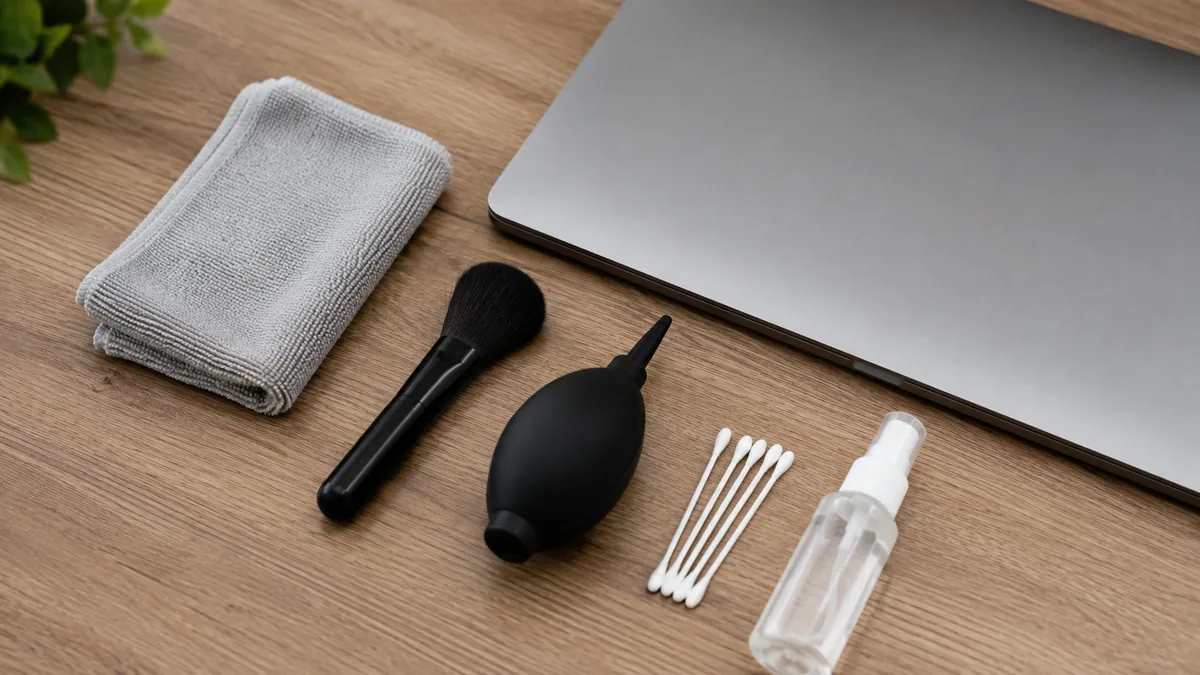
You do not need a special kit, and you certainly do not need harsh chemicals. A handful of inexpensive items, most of which you can buy from any pharmacy or hardware shop in Singapore, will let you clean every external surface of the machine safely:
That is the whole list. Notice what is not on it: no household glass cleaner, no bleach, no all-purpose spray, no vacuum cleaner and no screwdriver. Every one of those causes more damage than it prevents, and we cover why below.
Before you touch a single surface, three rules matter more than any technique. Follow them and it is almost impossible to hurt the machine; break them and even a gentle wipe can turn into an expensive repair.
Everything that follows is simply these three rules applied area by area. If you are ever unsure whether a surface is too wet, it is — a properly damp cloth should leave no visible film and should dry within a few seconds.
The display is the part people most want to clean and the part most often damaged in the attempt. Modern laptop and MacBook panels carry delicate anti-glare and anti-reflective coatings, and the wrong chemical strips them permanently, leaving cloudy patches that no repair can polish out. Treat the screen as the most fragile surface on the machine.
Never use household glass cleaner, ammonia-based sprays, bleach or acetone on a screen — these are made for bare glass, not coated panels, and they cloud the coating fast. And never spray anything onto the display itself; the liquid runs straight down into the bezel and the hinge. If your screen already shows scratches, cloudy patches or dead pixels that cleaning will not fix, that is a hardware issue rather than a dirt one, and our screen replacement page explains the options.
The keyboard and palm rest collect the most grime because your hands are on them all day, and in Singapore's climate that means oils, sweat and the fine grit that settles on every desk. The good news is these surfaces are far more robust than the screen, so isopropyl alcohol is your friend here.
The trackpad cleans up beautifully with a microfibre cloth lightly dampened with isopropyl alcohol. Wipe in small circles to lift the skin oils that make it feel sticky, then buff dry. A clean trackpad tracks far more smoothly, and it takes only a few seconds.
For the lid, the palm rest and the underside, a microfibre cloth with a little isopropyl alcohol removes marks and grease and dries almost instantly. Work the cloth into the seams and around the edges, and use a cotton bud dampened with alcohol for the tight corners and the strip around the trackpad button. Keep the cloth away from the speaker grilles and any vents — wipe up to them, not across them. If a spill has left keys sticky or unresponsive rather than merely dirty, cleaning will not restore them and you may need a keyboard replacement.
Dust in the charging port, the USB sockets and especially the cooling vents is what quietly turns a fast, quiet laptop into a hot, throttling one. Clearing it is worthwhile — but this is also where people do the most damage by reaching for the wrong tool, so go gently.
The cooling vents are the intake and exhaust grilles, usually along the sides, the back or the underside. This is where Singapore's dust does the most harm, packing into the fine fins of the heatsink over time.
Crucially, do not open the laptop to reach the fan. Heavy dust packed inside the heatsink cannot be cleared from the outside, and it needs a proper strip-down. If your machine still runs hot or loud after an external clean, that internal dust — and dried-out thermal paste — is the cause, and it is a job for a fan and thermal service. Our guide to why laptops overheat explains what is happening inside when this occurs.
A few habits cause most of the cleaning damage we see, so avoid all of them: no household glass cleaner, ammonia or bleach on the screen — they strip the coating for good. No spraying liquid onto the laptop; always dampen the cloth. No vacuum cleaner on or inside the machine — the airflow and nozzle can generate a static charge that damages components. Nothing metal poked into ports or vents. No soaking — a barely-damp cloth is as wet as anything should ever get. Do not clean while the laptop is on or plugged in. And do not open the laptop yourself to clean inside; that risks the screws, the connectors and the delicate ribbon cables, and it can void a warranty. When a clean needs to go deeper than the surface, that is exactly what a workshop is for.
Surface cleaning keeps a healthy laptop looking and running well, but some problems live inside the case where a cloth and a can of air cannot reach. It is time to hand the machine to a technician when:
A professional internal clean is done on an anti-static bench with the right tools, so the fan, heatsink and board are cleaned safely and the thermal paste is renewed — none of which surface cleaning can do. If you would rather keep your own maintenance simple and safe, our laptop maintenance checklist sets out an easy routine, and our guide to protecting your battery covers the other half of keeping a laptop healthy. For how our technicians handle internal work, see the laptop repair procedure. Not sure whether a wipe-down is enough or an internal clean is due? Send us a photo or drop by and we will tell you honestly.
If clearing the vents from outside has not helped, the dust is packed in the heatsink and the thermal paste has dried out. A free, no-obligation diagnosis tells you exactly what the machine needs before you spend anything.
Keep reading
What an internal clean and fresh thermal paste actually fix, and when you need one.
Read the guide →A simple routine that keeps your machine fast, cool and reliable for years.
Read the guide →What is happening inside when a laptop runs hot, and how to stop it.
Read the guide →Verified Google reviews
Real reviews from our Google profile, shown with the customer’s name as they left it. The score and the count are Google’s own, updated every week.
I got the motherboard issue fixed on my 16” MacBook Pro. No data was lost, and everything is the same as before. As promised, I also received a 60-day service warranty. Thank you, iDevice! 😊
Excellent Lap top repair service! Fast turn around, professional support & my computer was fixed quickly.
They repair fast and good, my DELL laptop had damaged screen and battery and they fixed it in one day. Diagnosis is free and they quote after checking on the problem. Pre-test testing and post testing done well.. Highly recommend.
My surface laptop was replaced with an SSD card and the services was very good.
Managed to fixed my 16inch MacBook pro within 5 working days thank you!
Great service - MacBook froze on upgrade. Could not solve problem myself. iDevice expedited the repairs and my Mac is like new! Very reasonable rates for repair too. Highly recommend.
Super fast and efficient. My motherboard spoiled, spent $350 to replace it, better than getting a new laptop at 2-3k. Hopefully can last for another year 😆
Managed to successfully fix my damaged iPhones and my data is also saved! Thank you for assisting
Questions we get every week
Use a clean, dry microfibre cloth for everyday dust and fingerprints, and for anything stubborn dampen the cloth very lightly with distilled water or a cleaner made specifically for screens. Never spray anything directly onto the panel and never use household glass cleaner, ammonia, bleach or a paper towel — modern laptop screens carry delicate anti-glare and anti-reflective coatings that ammonia strips and rough paper scratches. Wipe gently in one direction with the laptop powered off, let it dry fully, and only close the lid once no moisture remains.
Yes, on the right surfaces and applied the right way. Isopropyl alcohol of 70% or higher is excellent for the keyboard keys, the palm rest and the outer chassis because it lifts grease and evaporates quickly without leaving residue. Always put the alcohol onto a microfibre cloth or cotton bud rather than onto the laptop, and keep it away from the screen, which has coatings that alcohol can damage on some panels. Never soak anything, never let liquid run towards a port or vent, and always clean with the machine powered off and unplugged.
From the outside only, using short bursts of compressed air aimed into the vents at an angle so dust is pushed out rather than deeper in. Hold the can upright, keep it a few centimetres back, and if you can see the fan blades hold them still with a cotton bud so the airflow does not spin them too fast and stress the bearing. Do not open the laptop yourself and do not use a vacuum cleaner, which can generate static. If the vents stay blocked or the machine still runs hot, the dust is packed inside the heatsink and needs a proper workshop strip-down and thermal service.
A quick wipe of the screen, keyboard and chassis every week or two keeps grime from building up, and a more thorough external clean including the vents every one to three months suits most people. Singapore's humidity and fine dust mean grilles and fans clog faster here than in drier climates, so if you use the laptop on a bed, sofa or carpet, or in a dusty room, lean towards the shorter interval. An internal clean and fresh thermal paste is a separate job for a technician, and is usually worth doing every couple of years or whenever the machine starts running hot.
No. Always shut the laptop down fully, unplug the charger and, if the battery is removable, take it out before you start. Cleaning a powered machine risks liquid reaching live circuitry, and a wet keyboard can register random key presses or trigger shortcuts while you work. Powering off also lets the surfaces cool, makes smudges and dust far easier to see against a dark screen, and means a stray drop of moisture has time to evaporate before you ever switch back on. Wait until everything is completely dry before powering up again.
Get a technician involved when the problem is inside the machine rather than on its surface. If the fan is loud, the laptop runs hot or throttles, dust is visibly packed behind the vents, or a drink has been spilled into it, that needs opening up safely — something best left to a workshop with the right tools and anti-static handling. A professional thermal service cleans the heatsink and fan properly and replaces the dried thermal paste, which surface cleaning cannot reach. If you are unsure, send us a photo or bring the laptop in and we will tell you whether a wipe-down is enough or an internal clean is due.
A free, no-obligation diagnosis gives you our honest read on whether your laptop just needs a wipe-down or a full thermal service. Walk in, or send a photo and we will tell you what we think before you spend anything.