
★★★★★
They repair fast and good, my DELL laptop had damaged screen and battery and they fixed it in one day. Diagnosis is free and they quote after checking on the problem. Pre-test testing and post testing done well.. Highly recommend.

Troubleshooting guide · Singapore
A laptop that runs on mains but refuses to charge the battery is one of the most common — and most misread — faults we see. Very often it is a deliberate battery-care setting, a tired charger or a driver glitch rather than a broken battery at all. This guide walks you through the safe checks you can do at home, what each symptom points to, and the point at which it is worth handing to a workshop.
Check your maker's battery-care or charge-limit setting first — a battery deliberately capped at 60 to 80 percent looks broken but is not. Then try a known-good charger of the correct wattage, and uninstall the Microsoft ACPI-Compliant Control Method Battery driver in Device Manager and reboot. If it still will not charge, the fault is most likely the battery, the charging port or the board — all of which we can diagnose before you commit to anything.
On this page
"Plugged in, not charging" is a very specific complaint, and it is worth being precise about what it means. The laptop is receiving power and running perfectly happily on the charger — the screen is on, the fan is spinning, everything works. What is not happening is the battery topping up. That single distinction rules out a whole class of dead-machine faults straight away, and it points you at the handful of things that sit between the wall socket and the battery cells. Before you assume the battery is finished, it pays to know that a battery which simply will not charge is very often not faulty at all.
The most common cause, and the one most often mistaken for a fault, is a battery-care or charge-limit setting. Almost every major laptop maker now ships a feature that deliberately holds the battery below full — commonly at 60 or 80 percent — to slow the chemical ageing that a battery suffers when it is kept at 100 percent all day. When that cap is on, Windows will happily report "plugged in, not charging" at exactly that figure, and nothing is wrong. The next most common cause is a faulty charger or cable: a brick that has died, a frayed lead, or an underpowered replacement charger that can run the laptop but cannot supply enough to both run it and charge the battery at the same time.
After those two, the picture gets more hardware-shaped. A Windows battery-driver glitch — the Microsoft ACPI-Compliant Control Method Battery driver hanging — can make a healthy battery read as not charging until the driver is reset. A worn or loose charging port, whether a DC-in jack or a USB-C connector, can pass just enough current to run the laptop but not a steady charge, often only at a certain cable angle. The battery itself may simply be worn out: after several hundred charge cycles a pack loses capacity, and eventually it can no longer hold a useful charge or the internal protection circuit refuses to accept one. And least often, there is a charging-circuit fault on the motherboard — a failed charging IC, a blown fuse or a shorted rail — which needs component-level work on a bench. That last one sounds alarming, but in our workshop it is the least common of the six by a wide margin.
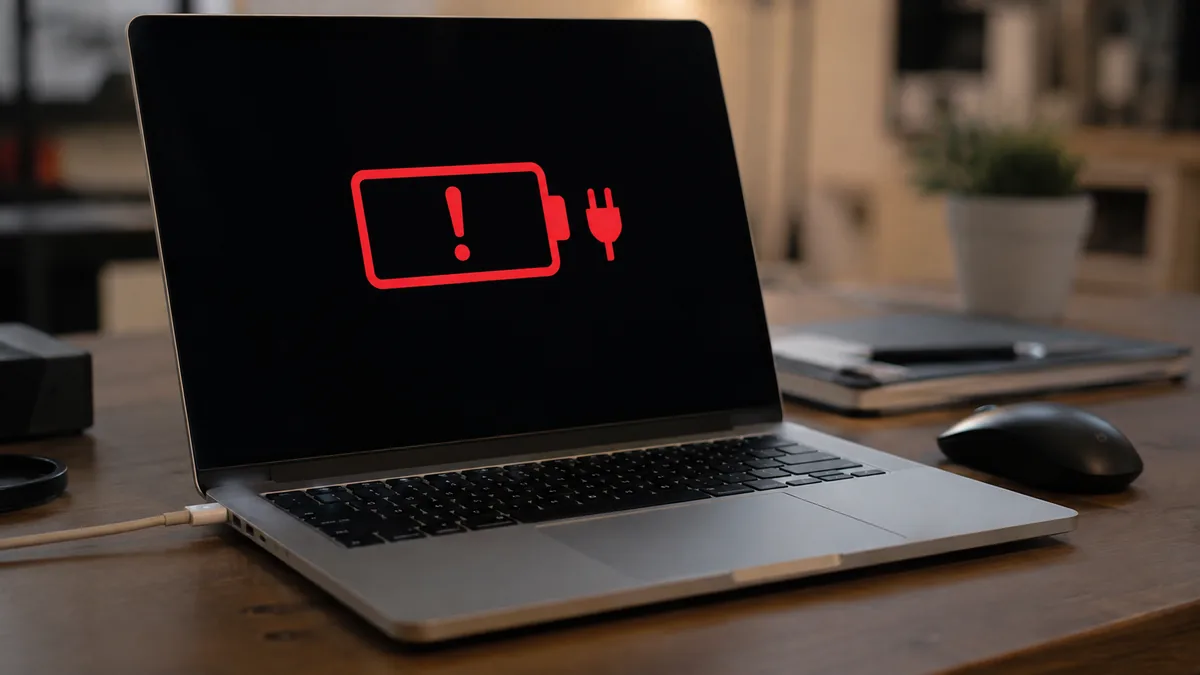
Use this quick reference to see where your particular symptom is likely to sit, and whether it is something you can safely check yourself or something for a workshop.
Quick diagnosis
A guide, not a guarantee — the only way to be certain is to test the battery, port and charging circuit on a bench supply, which is exactly what our free diagnosis does.
Tell us the make, model and what Windows says about the battery — the exact percentage and message. A technician replies with a probable cause and an honest price band before you travel — diagnosis is free on walk-ins.
Work through these in order. They are all safe, none of them involves opening the laptop, and between them they resolve a large share of non-charging machines — very often without any parts at all. Stop at the first one that puts the battery back on charge.
powercfg
    /batteryreport
; Windows saves an HTML report showing the battery's design capacity against its current
full-charge capacity. If the full-charge figure has dropped to a small fraction of the design figure, the pack
is simply worn out and no software fix will bring it back — that is a battery replacement, not a glitch.Do not open the laptop to swap the battery yourself unless you know what you are doing, do not keep a mismatched or damaged charger plugged in hoping it will "kick in", and never puncture, bend or press on a battery. Most importantly: if the base or trackpad feels raised, bulged or no longer sits flat, the battery is swollen. Stop using the machine, unplug it and stop charging it — a swollen lithium cell is a fire risk and needs proper handling and a prompt replacement.

If you have checked the battery-care setting, tried a known-good charger of the right wattage, reset the battery driver and the laptop still will not charge, the fault has moved beyond anything you can safely fix at home. At that point the cause is usually one of three things, and each needs a workshop:
If the battery has swollen — the tell-tale sign is a base or trackpad that no longer sits flat — treat it as urgent and stop charging the machine until it has been seen. And if you want the wider context on how these parts fit together and what a component-level repair involves, our laptop repair service page and the laptop parts replacement guidance explain the whole process.
Whatever the cause, our diagnosis comes first and is free on walk-ins: we test the battery, the port and the charging circuit, tell you what is wrong and what it will cost before any work begins, and if we cannot fix it you do not pay a repair fee. Most non-charging laptops turn out to be a cheap fix — a setting, a charger or a battery — rather than a dead machine, so it is almost always worth finding out which before you write it off. If your battery does charge but only briefly, our guide on a laptop charging slowly covers that neighbouring fault, and if the machine will not power on at all, see laptop won't turn on.
Related repair services
Failed and swollen packs replaced the same day on most models.
See the service →Worn jacks and connectors that pass power but not a steady charge.
See the service →Charging ICs, blown fuses and shorted rails traced and fixed.
See the service →Verified Google reviews
Real reviews from our Google profile, shown with the customer’s name as they left it. The score and the count are Google’s own, updated every week.
They repair fast and good, my DELL laptop had damaged screen and battery and they fixed it in one day. Diagnosis is free and they quote after checking on the problem. Pre-test testing and post testing done well.. Highly recommend.
Great service and advice given. Down to earth advice instead of overcharging.
My daughter's ASUS laptop battery was deteriorating and also overheating. They repaired the set within the same day and also provided interior cleaning for General maintenance. Responsive and affordable! Highly recommend!
Recommended…Fast response in replying with my enquiries on battery replacement. Completed the replacement fast and able to use my laptop back as usual. Great Service.
I sent in 2 Dell laptops for repairs due to SSD replacement and battery and fan replacement. The technicians service were fast and prompt with ready parts. They are conveniently located and service is overall recommended! Thank you!
Brought in my MacBook Pro 2016 and issues with battery. The team serviced it quickly in a day time! Good service! 😊
Thank you for the good service. Free of charge If no service. You have kept your promise. Once again, thank you.
My ipXS max no power after not using for few years and they managed to repair successfully with battery change and no need repair motherboard 👍
Questions we get every week

That exact message usually means the laptop is receiving power and running, but the battery is not accepting a charge. The most common reasons are a manufacturer battery-care or charge-limit setting that deliberately caps the battery at 60 to 80 percent, a battery driver glitch in Windows, an underpowered or faulty charger, a worn charging port, or a battery that has aged past the point of holding charge. Start by checking the battery-care setting in your maker's app or BIOS, because a deliberate cap is very often mistaken for a fault.
A battery that charges normally then stops at a round figure like 60 or 80 percent is almost always a battery-care feature working as designed, not a fault. Many makers ship a charge-limit or battery-conservation mode that holds the charge below full to slow battery ageing. Look for it in the manufacturer's utility — names vary by brand — or in the BIOS. Switch to full-charge or one-time full-charge mode if you need the extra runtime, and the ceiling will lift once you next charge.
Yes, and it is one of the few genuine software fixes. Windows uses a driver called Microsoft ACPI-Compliant Control Method Battery to talk to the battery, and it can occasionally hang so that a healthy battery reads as not charging. In Device Manager, expand Batteries, right-click that driver and uninstall it, then restart — Windows reinstalls it automatically on boot. This costs nothing, harms nothing, and revives a fair share of stuck batteries. If it makes no difference, the fault is more likely the charger, port or battery.
Try a known-good charger of the correct wattage first. If the laptop starts charging with a different charger, the original charger or cable was the fault — the cheapest outcome. If a good charger still will not charge, and the battery-care setting and driver are both ruled out, the issue is the battery, the charging port or the board. A Windows battery report, run with the command powercfg /batteryreport, shows the design capacity against the current full-charge capacity, which tells you how worn the battery really is.
It is usually safe to keep using the laptop on mains power while you sort out a charging fault, with one important exception. If the trackpad or the base of the laptop feels raised, bulged or no longer sits flat, the battery is swollen. Stop using it, unplug it, and have it replaced promptly — a swollen lithium cell is a fire and safety risk and should not be charged or pressed on. Short of that, a battery that simply will not charge is not dangerous, only inconvenient.
Almost always, because the fix is usually a battery or a port rather than a whole new laptop. Once we have ruled out the charger, the battery-care setting and the driver, most non-charging laptops need either a replacement battery or a charging-port repair, both of which cost a fraction of a new machine. A smaller share are a charging-circuit fault on the board, which we repair at component level. We diagnose the fault and quote before any work, so you decide with the figure in front of you.
Walk-ins welcome from the CBD, Orchard, Novena, Toa Payoh, Bishan, Ang Mo Kio, Jurong East, Clementi, Tampines, Bedok, Woodlands, Yishun, Hougang and Punggol. We tell you what is wrong and what it costs before any work begins.