
★★★★★
Excellent Lap top repair service! Fast turn around, professional support & my computer was fixed quickly.
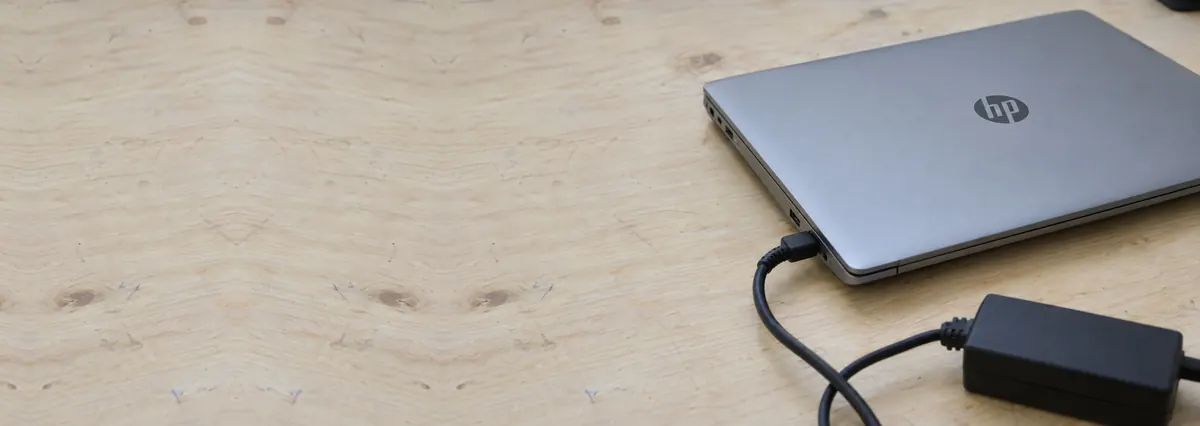
Troubleshooting guide · Singapore
A laptop that crawls from empty to full over half a day is frustrating, but it is far more often the wrong charger, the wrong port or a heavy workload than a dying machine. This guide walks you through the safe checks you can do at home, what each symptom points to, and the point at which a slow charge is worth handing to a workshop.
Use the original charger, or a replacement of the same wattage, plugged into the correct charging port. Try charging with the laptop switched off to separate the charger from the workload, and let a hot machine cool down. If a known-good, correct-wattage charger in the right port still charges slowly with the lid closed, the fault is usually a worn charging port, an aged battery or the board's charging circuit — none of which is a safe home fix, and all of which we can diagnose for free before you commit to anything.
On this page
"Charging slowly" is really a question about power in versus power out. A laptop battery fills at whatever rate the charger can safely push into it, minus whatever the laptop is spending on the screen, the processor and everything else at that moment. When charging feels slow, one of those two numbers is usually to blame: either not enough power is coming in, or too much is going straight back out. Nail down which side of that equation you are on and you have solved most of the puzzle before you even open a settings menu.
On the power-in side, the biggest single cause we see is an underpowered or non-original charger. This has become far more common in the USB-C era, because so many chargers now share the same connector. A phone charger, a slim travel brick or a low-wattage power bank will physically plug into a USB-C laptop and appear to be "charging", but it can only deliver a fraction of the wattage the machine actually wants. A laptop designed for a 90W charger being fed 30W will crawl, and under any real load it may not gain charge at all. The same happens with a cheap replacement barrel-plug adapter rated below the original.
Still on the power-in side, USB-C laptops have a second trap: the wrong port. Not every USB-C socket on a laptop carries full charging power. Some are wired for data only, some deliver a reduced wattage, and only the port the manufacturer marks for charging will pull the battery up at full speed. Plug into the wrong one and a perfectly healthy charger looks slow. Beyond the port choice, a worn cable or charging port with poor contact throttles the delivered power — a frayed cable, a bent USB-C tip, or a loose DC-in jack that only makes a good connection at a certain angle all reduce the current that reaches the board.
On the power-out side, the usual culprit is simply heavy load while charging. Gaming, video rendering, virtual machines and long video calls can draw almost as much power as the charger supplies, so very little is left over to fill the battery. This is normal physics, not a fault, but it convinces a lot of people their charging is broken when it is really just busy. Related to this is heat: a hot battery charges more slowly on purpose, because the charging circuit deliberately slows down to protect the cells, and in Singapore's climate a laptop running warm in a bag or on a bed traps heat and throttles itself.
Finally, when the charger, port, cable, load and temperature all check out, the cause has usually moved inside the machine. A degraded, aged battery charges slowly, stalls at a certain percentage, or drains almost as fast as it fills, because its usable capacity has shrunk with age and charge cycles. And least often, there is a genuine charging-circuit fault on the motherboard — a weak charging IC or a partly failed power path that limits current into the pack. That last one sounds alarming, but it is the rarest of the group and, like the rest, is something a workshop can confirm on a bench supply rather than guess at.

Use this quick reference to see where your particular symptom is likely to sit, and whether it is something you can safely check yourself or something better left to a workshop.
Quick diagnosis
A guide, not a guarantee — the only way to be certain is to measure the current going into the board and the pack, which is exactly what our free diagnosis does.
Tell us the make, model, the wattage printed on your charger and what percentage it climbs in an hour. A technician replies with a probable cause and an honest price band before you travel — diagnosis is free on walk-ins.
Work through these in order. They are all safe, none of them involves opening the laptop, and between them they explain and cure the large majority of slow-charging machines. Stop at the first one that restores a normal charging speed.
Do not force a mismatched or damaged charger just because it fits, do not poke into the charging port with a pin, needle or anything metal, and do not keep using a machine whose base or trackpad feels raised — that is a swollen battery, which is a fire risk and needs proper handling. If a charger ever runs very hot, smells, or the cable is visibly damaged, stop using it and replace it rather than risk it.
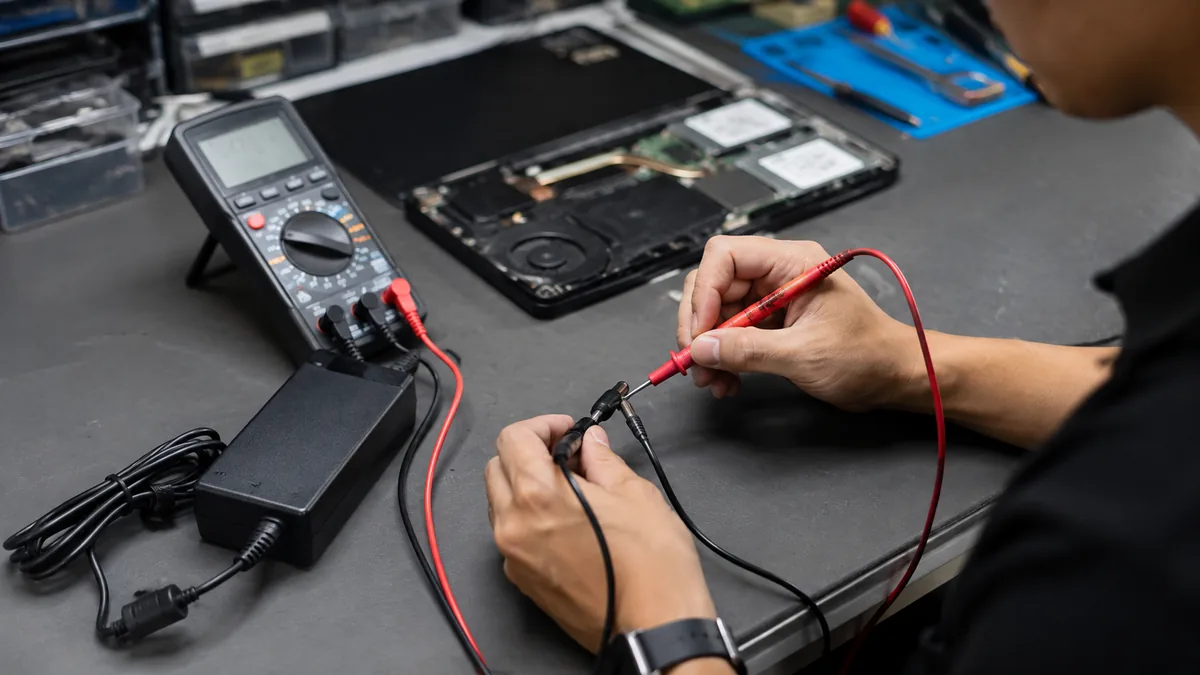
If you have confirmed the original or correct-wattage charger, the right charging port, a clean cable and a light workload, charged with the laptop switched off and cool, and it still crawls, the fault has moved beyond anything you can safely fix at home. At that point the cause is usually one of three things, and each needs a workshop:
Telling those three apart by eye is nearly impossible, which is why we measure rather than guess. On the bench we watch the current the charger delivers, the current reaching the board and the current actually going into the pack, and the numbers point straight at the weak link. If you are working through a wider set of charging problems, our companion guides on a laptop battery that will not charge at all and a laptop running hot while charging cover the neighbouring symptoms, and the laptop repair overview explains how we approach every brand.
Whatever the cause, our diagnosis comes first and is free on walk-ins: we tell you what is wrong and what it will cost before any work begins, and if we cannot fix it you do not pay a repair fee. There are no invented prices and no pressure — most slow-charging laptops turn out to be a cheap charger or a straightforward battery rather than anything dramatic, and it is almost always worth finding out which before you write the machine off.
Related repair services
Worn jacks and connectors that throttle the power reaching the board.
See the service →Worn packs that charge slowly or drain fast, replaced same day.
See the service →Weak charging ICs and failing power paths traced and fixed.
See the service →Verified Google reviews
Real reviews from our Google profile, shown with the customer’s name as they left it. The score and the count are Google’s own, updated every week.
Excellent Lap top repair service! Fast turn around, professional support & my computer was fixed quickly.
Great service and advice given. Down to earth advice instead of overcharging.
My macbook 16 inches battery was not charging and did a replacement and os reinstalled at affordable cost! Happy with their services!
Supportive staff . It took me to 4 day to resolve issues related to mother board.
Good service. The staff is friendly and responsive both on-line and off-line. The issue with my macbook was resolved swiftly, and the most importantly, the repair was done well.
Prompt reply when you have questions even weekends, and most important people service.
Fast, friendly and the most important: excellent technical skills of the team. Changed bloated battery on my old MacBook Pro in 3 hours, incl. cleaning and a comprehensive function test.
Fast service! Great customer support too. Looking forward to pickup the item. Helps to know there several days worth of warranty post-servicing.
Questions we get every week

The most common reason is that the laptop is no longer getting the wattage it expects. Check the charger first: a phone charger, a low-wattage USB-C power bank, or a replacement brick rated below the original can only trickle-charge a laptop that wants 65W, 100W or more. A worn cable or a loose charging port also cuts the delivered power. After that, look at what the laptop is doing — gaming, video calls or rendering while plugged in can draw almost as much as the charger supplies, leaving little left to fill the battery. Rule out those three before assuming the battery or the board is at fault.
Yes, more than anything else. A laptop charges as fast as the charger can safely deliver, so a 30W USB-C brick will fill a machine designed for a 90W charger at roughly a third of the speed — if it keeps up at all under load. USB-C Power Delivery negotiates a wattage between the charger and the laptop, and it always settles on the lower of the two. Using the original charger, or a replacement of the same wattage and the correct connector, is the single biggest thing you can do for charging speed. If you must use a spare, check the numbers printed on the brick against your original.
On many laptops the USB-C ports are not identical. Some carry full charging power, some carry only data or a reduced wattage, and only the ports marked for charging will pull the battery up quickly. Look for a small battery or lightning-bolt icon next to the port, or check the manual to see which one is the primary charging port. Plugging into a data-only or secondary port is one of the most common reasons a perfectly good charger seems to charge slowly. Move the cable to the correct port and the speed usually jumps straight back up.
You can, but heavy use will slow charging and it is worth understanding why. The charger has a fixed budget of power. Everything the laptop is doing — the screen, the processor, the graphics chip — is paid for out of that budget first, and only what is left over goes into the battery. Gaming or video editing can consume almost the whole budget, so the battery barely fills or even drops while plugged in. If you want the fastest charge, close heavy apps or, better still, charge with the laptop switched off. That single test also tells you whether the slow charge is really the charger or just the workload.
It can. Laptop batteries lose capacity as they age, and an old pack can charge slowly, refuse to go past a certain percentage, or report a full charge that drains within minutes. On Windows you can generate a battery report to see the design capacity against the current full-charge capacity — a large gap means the pack is worn. A tired battery is not dangerous on its own, but a swollen one is, and both are worth replacing. If the charger and port check out and the battery report shows heavy wear, a fresh battery usually restores normal charging speed.
Very likely, yes. If you have confirmed the original or correct-wattage charger, the right charging port, a clean cable and a light workload, and it still crawls, the fault has usually moved inside the machine. The three common culprits are a worn charging port with poor contact, an aged battery that no longer accepts a fast charge, and a fault on the charging circuit of the motherboard. All three need a workshop to diagnose properly, because the only sure way to tell them apart is to measure the current going into the board and the pack. Our diagnosis is free on walk-ins, so you find out which one it is before committing to anything.
Walk-ins welcome from the CBD, Orchard, Novena, Toa Payoh, Bishan, Ang Mo Kio, Jurong East, Clementi, Tampines, Bedok, Woodlands, Yishun, Hougang and Punggol. We tell you what is wrong and what it costs before any work begins.