
★★★★★
I got the motherboard issue fixed on my 16” MacBook Pro. No data was lost, and everything is the same as before. As promised, I also received a 60-day service warranty. Thank you, iDevice! 😊
MacBook troubleshooting guide · Singapore
A MacBook that flashes a folder with a question mark, throws First Aid errors, freezes constantly or has files quietly vanishing may have a failing SSD. On modern Macs the storage is soldered and paired to the logic board, so a failing drive is not a part you can swap at home — and the wrong move can turn a recoverable drive into a lost one. This guide walks Singapore MacBook owners through the safe steps, starting with the most important one: back up while you still can.
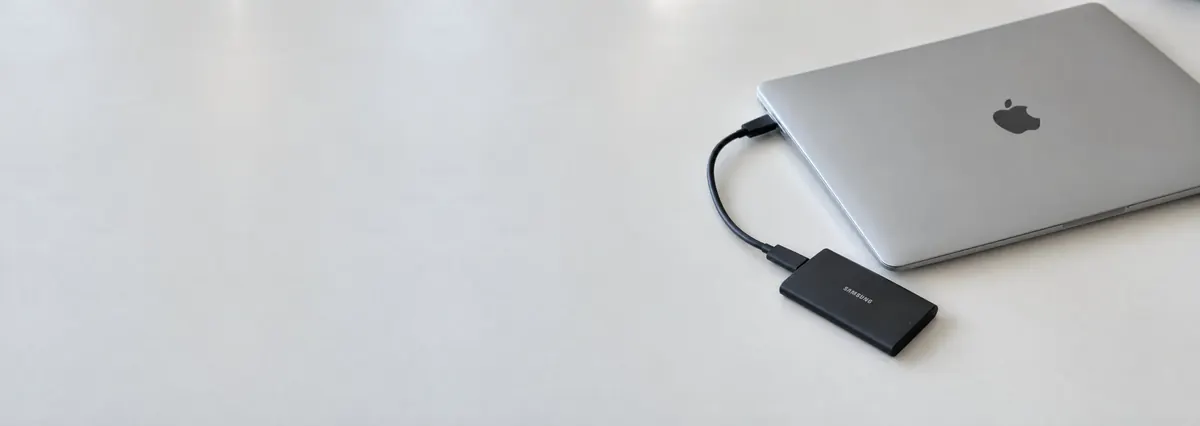
If your MacBook still boots at all, back up your data right now — before you troubleshoot, before you restart it again, before you read the rest of this page. Copy your important files to an external drive or start a Time Machine backup. A failing SSD can stop mounting entirely with almost no warning, and once it does the files become a specialist recovery job. Then, and only then, boot into Recovery and run Disk Utility → First Aid to check the disk. Do not erase or reinstall macOS while your data is unbacked. If the disk fails First Aid, won't mount, or doesn't appear at all, stop using the Mac and let us image it safely.
On this page
Storage failure on a MacBook rarely announces itself cleanly. It usually creeps in as odd behaviour before it becomes a machine that won't boot, which is exactly why catching the early signs matters — the window where you can still rescue your files is often short. The commonest early warning is sudden, unexplained slowness: the whole Mac hangs on simple tasks, the spinning beachball appears constantly, apps take an age to open. Alongside that you may see files or folders disappearing, documents that won't open, or files that have become corrupt. Frequent freezes, sudden restarts and kernel panics — where the screen dims and tells you the Mac needs to restart — are all classic signs of a drive that macOS can no longer read reliably.
As the failure deepens, the symptoms move to startup. The Mac may get stuck on the Apple logo and never finish loading, or show the dreaded flashing folder with a question mark — the Mac's way of saying it cannot find a system to boot from. Open Disk Utility from Recovery and you may find the disk showing errors, failing First Aid, refusing to mount, or — the worst sign — the internal disk not appearing at all. Each of those points more firmly at the hardware, and each is a reason to stop and protect the data rather than keep prodding the machine.
Here is the part that is unique to modern Macs, and it changes everything. On Apple silicon MacBooks (M1, M2, M3 and later) and on Intel MacBooks fitted with the T2 security chip, the SSD is not a separate drive at all. The NAND flash chips are soldered directly onto the logic board, and they are cryptographically paired to that specific board's secure enclave. Two things follow from this. First, you cannot simply unplug a failing SSD and slot in a new one the way you could with an older laptop — there is no drive to remove. Second, if the board or the NAND itself fails, getting your data back is a chip-level recovery job handled on the board with specialist equipment, not a quick drive swap. This is the single biggest reason a Time Machine or cloud backup is essential on a modern MacBook: the storage and the machine are one and the same, so if one dies, so can the other. Only older pre-2016 MacBooks used removable or proprietary SSD modules that a workshop can lift out and replace in the traditional way.
Use this quick reference to see where your MacBook's storage symptom is likely to sit, and whether it is something you can safely check yourself or something for a workshop. Whatever the row, if your files are not backed up, treat backing them up as step zero.
Quick diagnosis
A guide, not a guarantee — the only way to be certain is to read the disk and the board on a bench, which is exactly what our free diagnosis does. Back up first regardless of the row.
Tell us the MacBook model and exactly what the disk is doing — flashing folder, First Aid error, or not showing in Disk Utility. A technician replies with a probable cause and an honest read on data recovery before you travel. Diagnosis is free on walk-ins.
Work through these in order. They are all safe, none involves opening the MacBook, and the guiding principle throughout is simple: protect the data before you try to fix anything. A failing SSD gets worse with use, so every step is designed to take pressure off the drive, not add to it. Stop at the first point where your files are safe.
Do not reformat the disk or reinstall macOS on a MacBook whose files you have not backed up — that can overwrite recoverable data for good. Do not keep force-restarting a Mac that is stuck on the logo or the flashing folder; each attempt can push a struggling drive further over the edge. And do not keep working on a machine that is throwing kernel panics or losing files in the hope it settles down — a drive giving those warnings is telling you the time to copy your data off is now, not later.
If the disk fails First Aid, refuses to mount, or does not appear in Disk Utility at all, you have reached the point where DIY stops and careful handling begins. The goal at this stage is not to "fix" the drive by any means necessary — it is to get your data off safely and then decide about the machine. Here is what each situation usually needs, and why each one belongs in a workshop:
Whatever the cause, our diagnosis comes first and is free on walk-ins: we look at the disk and the board, tell you honestly whether the data looks recoverable and what it will cost, and let you decide with the facts in front of you. If we cannot help, you do not pay a repair fee. For a broader picture of what a failing drive looks like on modern Macs, our guides on the flashing folder with a question mark, a MacBook stuck on the Apple logo and general MacBook slow performance cover the neighbouring symptoms in more detail. For any other Apple device, our Apple repair service works on the same bench.
Related repair services
Files imaged safely first, including chip-level recovery from Apple silicon storage.
See the service →Board-level work on soldered, board-paired storage that no longer appears.
See the service →SSD replacement on older and Intel MacBooks with removable drives.
See the service →Verified Google reviews
Real reviews from our Google profile, shown with the customer’s name as they left it. The score and the count are Google’s own, updated every week.
I got the motherboard issue fixed on my 16” MacBook Pro. No data was lost, and everything is the same as before. As promised, I also received a 60-day service warranty. Thank you, iDevice! 😊
Managed to fixed my 16inch MacBook pro within 5 working days thank you!
Great service - MacBook froze on upgrade. Could not solve problem myself. iDevice expedited the repairs and my Mac is like new! Very reasonable rates for repair too. Highly recommend.
Fixed my MacBook Air A1932 with motherboard issues within a week. Helpful staff. Thanks 👍
They managed to fix my MacBook Pro 15-inch a1707 successfully with the flexgate damage with a quick turnaround time as I had to fly overseas the next couple days. Thanks for rushing out the work! 👍
Managed to recover data from MacBook Pro 16” successfully. Professionally done. Thanks.
Brought in my MacBook Pro 2016 and issues with battery. The team serviced it quickly in a day time! Good service! 😊
My macbook 16 inches battery was not charging and did a replacement and os reinstalled at affordable cost! Happy with their services!
Questions we get every week
On most modern MacBooks, no. On Apple silicon models (M1, M2, M3 and later) and Intel MacBooks with the T2 chip, the SSD is soldered directly to the logic board and cryptographically paired to it, so it cannot simply be unplugged and swapped like a normal drive. If the storage fails on these machines, both repair and data recovery become a chip-level job on the board itself. Older pre-2016 MacBooks used removable or proprietary SSD modules that a workshop can replace much more easily. The first step is always to confirm which model you have, because it changes everything that follows.
A flashing folder with a question mark means the Mac cannot find a valid system to start from — it is not seeing a bootable disk. That can be a corrupt macOS install, a scrambled startup-disk setting, or a failing SSD that is no longer being read. Boot into Recovery and open Disk Utility: if the internal disk appears, you may be able to run First Aid or reselect it as the startup disk; if the disk does not appear at all, that points to a hardware storage fault. Do not erase or reinstall while your files are unbacked, because that can overwrite data you may still be able to recover.
Not necessarily. First Aid failing means the file system is damaged, but the underlying data can often still be imaged and recovered by a specialist. The safest thing you can do is stop using the Mac immediately — every extra boot and write is a chance to overwrite what is still there. Do not reformat, do not reinstall macOS, and do not run repeated First Aid attempts hoping it clears. If the files matter, power the machine down and bring it in so the drive can be imaged safely before anyone attempts a repair.
It can be. Frequent freezes, sudden restarts, kernel panics and files that disappear or become corrupt are all classic signs of failing storage, because macOS is reading and writing to bad areas of the SSD. Sudden extreme slowness — where the whole machine hangs on simple tasks — often points the same way. These are early warnings, and they are the best time to act: if the Mac still boots at all, back up your data straight away while you still can, because a drive that is throwing these symptoms can stop mounting entirely with little notice.
If the Mac still boots, back up straight away and gently — the goal is to copy your important files off with as little strain on the drive as possible. Plug in an external drive and either start a Time Machine backup or simply drag your most important folders across first, in case the disk fails partway. Avoid heavy tasks while it copies. If the machine only boots intermittently, prioritise your irreplaceable files over a full system image. If it will not boot at all, stop trying and let a workshop image the disk, because repeated forced restarts risk finishing off a drive that is already on its way out.
It is worth getting it assessed, because a dead board does not automatically mean the data is unreachable. On Apple silicon and T2 Macs the SSD is soldered and paired to the logic board, so recovery is a chip-level task rather than a simple drive swap — but where the NAND itself is intact, a specialist can often still get the files back. We start with a free diagnosis, tell you honestly whether recovery looks feasible and what it would cost, and you decide with the facts in front of you. There is no repair fee if we cannot help, so it costs nothing to find out where you stand.
Walk-ins welcome from the CBD, Orchard, Novena, Toa Payoh, Bishan, Ang Mo Kio, Jurong East, Clementi, Tampines, Bedok, Woodlands, Yishun, Hougang and Punggol. We image failing drives safely and tell you what is recoverable and what it costs before any work begins.