
★★★★★
I got the motherboard issue fixed on my 16” MacBook Pro. No data was lost, and everything is the same as before. As promised, I also received a 60-day service warranty. Thank you, iDevice! 😊
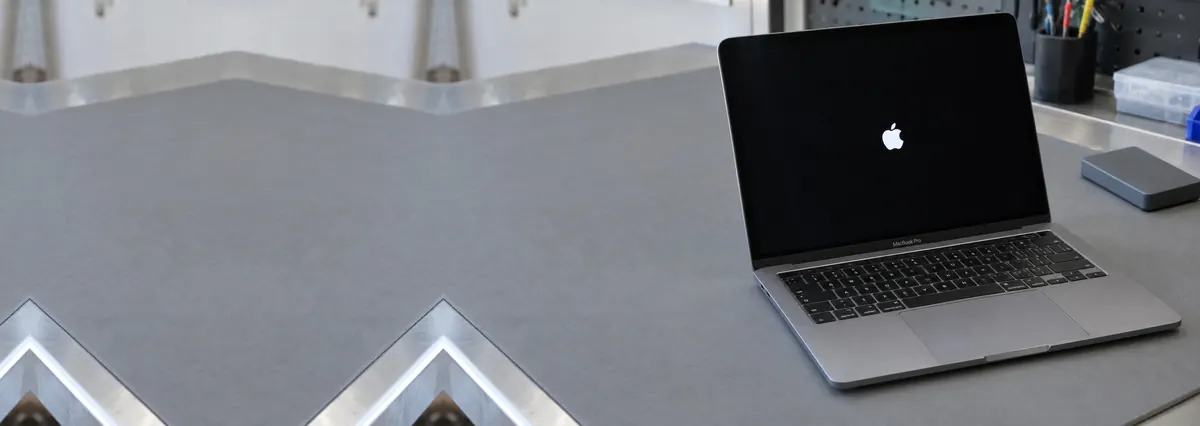
MacBook troubleshooting guide · Singapore
A MacBook that freezes on the grey Apple logo — or on a progress bar that crawls to a standstill and never finishes — is worrying, but it is usually a software or update problem rather than a dead machine, and most of the fixes keep every file exactly where it is. This guide walks Singapore MacBook owners through the safe steps in the right order, for both Apple silicon and Intel models, and shows the point at which a frozen logo means a failing disk that needs a workshop.
If there is a progress bar, be patient once — a stuck update can take a long time, so leave it on power for a good while first. If it truly will not move, force restart (hold the power button about ten seconds), unplug every peripheral, and try again. Still stuck? Boot into Safe Mode to skip bad login items, then into macOS Recovery and run Disk Utility → First Aid. If First Aid passes, reinstalling macOS from Recovery repairs the system without erasing your files. If the disk won't repair or it still hangs after a reinstall, that points to a failing SSD or logic board — get the data recovered before anything is erased.
On this page
The Apple logo is not the very first thing a Mac shows when you press power — it appears after the machine has passed its low-level power-on checks and has started to load macOS. That single fact tells you a lot: if you have reached the logo at all, the hardware has woken up and the trouble lies in the operating system finishing its start-up. So a MacBook frozen on the logo is a fundamentally different problem from one that shows no sign of life, and the fixes are software-first rather than power-first.
Within that, the most useful clue is the progress bar. If a thin bar sits under the logo and is inching along — or has inched along and then stalled — macOS is actively working, and the cause is almost always software: an interrupted or failed macOS update that left the system half-installed, or corrupted system files that macOS is struggling to load. A bar that fills completely and then loops back to a stuck logo on every restart is the classic signature of a botched update. By contrast, a plain logo with no progress bar that simply hangs — sometimes for tens of minutes with nothing happening — leans more towards storage or hardware: a damaged startup disk, disk errors macOS cannot get past, a full or failing SSD, or in the worst cases a logic-board fault.
Several other things commonly tip a healthy Mac into a stuck-logo boot. Incompatible login items or third-party kernel extensions — the low-level add-ons that some antivirus tools, VPNs, virtualisation software and old drivers install — can jam the boot before you ever reach the desktop; these are exactly what Safe Mode skips. Disk errors in the file system, often the after-effect of an unexpected shutdown or a power cut mid-write, can leave macOS unable to mount its own startup volume. A full or failing SSD with almost no free space, or one that is developing bad blocks, can stall the boot as macOS tries and fails to write its start-up caches. And a peripheral conflict — a faulty hub, an external drive, or a dongle drawing power or presenting itself as a boot device — can hold the whole process hostage until you unplug it.
One Apple-specific point that shapes everything below: on Apple silicon MacBooks (M1, M2, M3 and later) and on Intel Macs with the T2 chip, the SSD is soldered to the logic board and paired to it. That makes the built-in recovery and reinstall tools safe and powerful for software faults — but it also means that if the storage or the board itself fails, your data cannot simply be moved to another Mac. We come back to why that matters when we reach the point of professional repair.
Use this quick reference to see where your MacBook's exact symptom is likely to sit, and whether it is something you can safely work through yourself or something that belongs on a bench.
Quick diagnosis
A guide, not a guarantee — the only way to be certain is to read the disk and board on a bench, which is exactly what our free diagnosis does.
Tell us the MacBook model, whether you see a progress bar, and what you last did before it froze. A technician replies with a probable cause and an honest read on whether it's software or storage before you travel — diagnosis is free on walk-ins.
Work through these in order — the order genuinely matters, because each step is safer and less disruptive than the one after it, and most stuck-logo MacBooks are freed well before the end. None of these steps erases your files. Stop at the first one that gets you to the desktop.
Do not erase the disk or "reset" the Mac to try to force a boot while your files are still on it and not backed up — that is the one action that turns a recoverable problem into permanent data loss. Do not keep force-restarting over and over if the disk is missing from Recovery or First Aid keeps failing; a marginal SSD can get worse with each attempt, and repeated tries reduce what a specialist can recover. And if the Mac had a liquid spill before it stuck on the logo, stop and bring it in — that is a hardware problem, not a software one.
If you have been patient with the progress bar, force restarted, unplugged everything, tried Safe Mode, run First Aid and reinstalled macOS from Recovery, and the MacBook still freezes on the logo, the problem has crossed from software into hardware. Three signs in particular mean it is time for a bench, and each needs a workshop:
Here is the part that matters most, and the reason we lead with it. On Apple silicon and T2 MacBooks the SSD is soldered to the logic board and cryptographically paired to it, so if the board or the NAND storage fails, your data cannot simply be moved to another Mac — recovering it is a specialist, component-level task, not a drive swap. That is why, whenever the files matter, we prioritise data recovery before any repair that could put them at risk, and never erase anything until your data is safe. Our diagnosis comes first and is free on walk-ins: we tell you whether it is a corrupted system, a failing drive or a board fault, and what it will cost, before any work begins — and if we cannot fix it, you do not pay a repair fee. For the full picture on MacBook parts and boards, see our MacBook repair service, and for any other Apple device our Apple repair bench works the same way.
Related guides & services
Files rescued from unbootable Macs, including soldered Apple silicon storage.
See the service →Missing SSDs, dead rails and no-boot boards fixed at component level.
See the service →Signs of a dying drive, and what it means for your files.
Read the guide →Verified Google reviews
Real reviews from our Google profile, shown with the customer’s name as they left it. The score and the count are Google’s own, updated every week.
I got the motherboard issue fixed on my 16” MacBook Pro. No data was lost, and everything is the same as before. As promised, I also received a 60-day service warranty. Thank you, iDevice! 😊
Managed to fixed my 16inch MacBook pro within 5 working days thank you!
Great service - MacBook froze on upgrade. Could not solve problem myself. iDevice expedited the repairs and my Mac is like new! Very reasonable rates for repair too. Highly recommend.
Fixed my MacBook Air A1932 with motherboard issues within a week. Helpful staff. Thanks 👍
They managed to fix my MacBook Pro 15-inch a1707 successfully with the flexgate damage with a quick turnaround time as I had to fly overseas the next couple days. Thanks for rushing out the work! 👍
Managed to recover data from MacBook Pro 16” successfully. Professionally done. Thanks.
Brought in my MacBook Pro 2016 and issues with battery. The team serviced it quickly in a day time! Good service! 😊
My macbook 16 inches battery was not charging and did a replacement and os reinstalled at affordable cost! Happy with their services!
Questions we get every week
The Apple logo appears once the Mac has passed its power-on checks and is loading macOS, so being stuck there means the operating system itself cannot finish loading. The usual causes are an interrupted or failed macOS update, corrupted system files, a damaged startup disk, incompatible login items or third-party kernel extensions, disk errors, or a full or failing SSD. A logo with a progress bar that stalls part-way through usually points at software or an update; a logo with no progress bar that simply hangs is more likely a storage or hardware fault. Working through a force restart, Safe Mode and macOS Recovery in that order clears the great majority of software cases without erasing anything.
Wait once, properly, before doing anything. A stalled progress bar during a macOS update can genuinely take a long time — sometimes an hour or more on older Macs or large updates — so leave it on power and untouched for a good while first. If the bar has not moved at all for a couple of hours, or it fills and the Mac simply restarts to the same stuck logo, then a force restart is reasonable: press and hold the power button for about ten seconds until the Mac switches off, then press it again to start. A progress bar means macOS is doing something, so patience is the first and safest step.
Safe Mode loads only the essentials and skips login items and third-party extensions, which often lets a Mac boot when a normal start hangs. On Apple silicon MacBooks (M1, M2, M3 and later) shut the Mac down, then press and hold the power button until you see the startup options screen, choose your startup disk, then hold the Shift key and click Continue in Safe Mode. On older Intel MacBooks, turn the Mac on and immediately hold the Shift key until the login window appears. If the Mac reaches the desktop in Safe Mode, restart normally afterwards — that alone clears a surprising number of stuck-logo cases caused by a bad login item or extension.
No — used correctly, neither one erases your data. Disk Utility's First Aid, run from macOS Recovery, only checks and repairs the disk's structure; it does not delete files. Reinstalling macOS from Recovery replaces the operating system while leaving your documents, apps and settings in place, so it is a genuine repair rather than a wipe. The only option that erases everything is Disk Utility's Erase, which you should never touch while your files still matter and are not backed up. If in doubt, run First Aid, reinstall macOS over the top, and leave Erase well alone.
If Disk Utility cannot repair the disk, the internal drive does not appear in Recovery at all, or the Mac still freezes on the logo after a clean macOS reinstall, the problem has moved from software to hardware — most often a failing SSD or a logic-board fault. At that point repeated boot attempts can make a marginal drive worse, so the safest move is to stop trying and get it diagnosed. We read the board and storage on a bench, tell you whether it is a drive or a board fault, and, crucially, prioritise getting your data off before anything is erased or replaced.
Often yes, but how hard it is depends on the model. On Apple silicon and T2 MacBooks the SSD is soldered to the logic board and cryptographically paired to it, so if the board or the NAND storage fails, the data cannot simply be moved to another Mac — recovery becomes a specialist, component-level job rather than a drive swap. That is exactly why a Time Machine or cloud backup matters so much on these machines. If your files are important and the Mac will not boot, avoid repeated power-on attempts and ask us about data recovery when you bring it in, so the storage is handled before any repair that could put the data at risk.
Different symptom? See our related guides on a MacBook showing a folder with a question mark, a MacBook SSD failure, or a MacBook black screen.
Walk-ins welcome from the CBD, Orchard, Novena, Toa Payoh, Bishan, Ang Mo Kio, Jurong East, Clementi, Tampines, Bedok, Woodlands, Yishun, Hougang and Punggol. We recover your data first, tell you what is wrong and what it costs, and never erase anything before your files are safe.