
★★★★★
I got the motherboard issue fixed on my 16” MacBook Pro. No data was lost, and everything is the same as before. As promised, I also received a 60-day service warranty. Thank you, iDevice! 😊
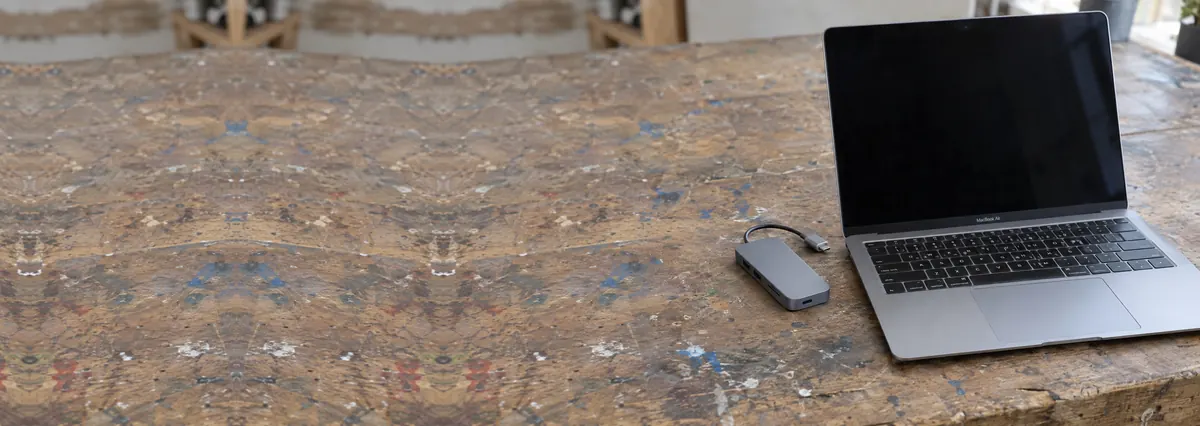
MacBook troubleshooting guide · Singapore
A MacBook that lags, stutters or hangs on the spinning beachball is frustrating, but the cause is usually something soft and fixable — a nearly full SSD, a crowd of background apps, or macOS quietly re-indexing after an update — long before it is a hardware fault. This guide walks Singapore MacBook owners through the safe checks for both Apple silicon and Intel models, what each symptom points to, and the point at which an upgrade or a workshop is the honest answer.
Check your free storage first (System Settings → General → Storage) and clear space if you are under about 10 to 15 per cent free — a full SSD is the number-one cause of a slow Mac. Then open Activity Monitor and look at the CPU and Memory tabs for a runaway app or high memory pressure, trim your Login Items, and restart the Mac if you rarely do. If you have just updated macOS, let Spotlight finish indexing before you judge it. If it is still slow after all that, an ageing Intel drive or a memory-limited model may need an upgrade or a health check — both of which we diagnose for free.
On this page
A Mac rarely gets slow for one dramatic reason. Far more often it is the quiet accumulation of several small things, each stealing a little speed, until one day the beachball spins on tasks that used to be instant. The good news is that most of those causes are software, cost nothing to fix, and involve nothing more adventurous than a few settings screens. Before you assume the machine is dying, it is worth understanding what is actually competing for its attention.
The single most common culprit is an almost-full SSD. macOS does not just store your files on the drive — it uses the free space as working room for virtual-memory swap, caches, indexing and temporary files. When the disk fills past roughly 85 to 90 per cent, the system runs out of that breathing space and everything slows. The spinning beachball you see so often is frequently the Mac swapping data to a drive that is too full to swap comfortably. Keeping 10 to 15 per cent of the SSD free is one of the most effective things you can do.
Close behind are too many login items and background apps. Every utility that launches at startup, every menu-bar app, every cloud-sync client and every helper that sits quietly in the background is using memory and processor time whether you are looking at it or not. Over a couple of years of installing things, a Mac can accumulate a surprising crowd of them, and together they make both startup and everyday use drag.
Then there is Spotlight re-indexing, which catches a lot of people out right after a macOS update, a migration to a new Mac, or a large photo import. macOS rebuilds its search index in the background, and while it does the CPU and disk stay busy and the Mac feels sluggish. This one is temporary and normal — it usually settles within a few hours — so it is worth ruling out before you go hunting for a fault.
Longer-term, an outdated or too-heavy macOS plays a part. Running an old, unpatched system can leave you slower and less secure, while installing the newest macOS on hardware that is several generations old can also weigh it down — a modern OS asks more of the machine than the one it shipped with. Heavy browsers with dozens of open tabs are another everyday drain: each tab is effectively a small program, and a browser left open for weeks with fifty tabs can consume more memory than everything else combined.
Underneath all of that sits memory pressure. When the apps you are running need more RAM than the Mac has, macOS starts compressing memory and swapping to the SSD to cope, and that is when things crawl. Here is the Apple-specific catch: on Apple silicon MacBooks (M1, M2, M3 and later) the memory is soldered onto the chip and cannot be upgraded later, so the amount you bought at purchase is what you have for the life of the machine. Finally, a couple of genuine hardware causes exist — a failing SSD on an older Intel Mac, and thermal throttling, where dust-clogged fans and trapped heat force the processor to slow itself down to stay cool — and we cover when those are worth a workshop below.
Use this quick reference to see where your MacBook's symptom is likely to sit, and whether it is something you can safely sort out yourself or something worth a workshop's attention.
Quick diagnosis
A guide, not a guarantee — the only way to be certain is to check the drive, memory and thermals properly, which is exactly what our free diagnosis does.
Tell us the MacBook model, how full the drive is, and when it feels slowest. A technician replies with a probable cause and an honest read on whether it is a free fix, an upgrade or a repair — before you travel. Diagnosis is free on walk-ins.
Work through these in order. They are all safe, none involves opening the MacBook or installing anything risky, and between them they cure a large share of slow Macs. Stop at the first one that gives you your speed back.
You do not need so-called Mac "cleaner" or "speed booster" apps — many do more harm than good, and everything above is built into macOS at no cost. If the Mac is freezing hard, throwing disk errors or beachballing on everything even with plenty of free space, stop tidying and back up your data first: those are signs of a possible failing drive, and repeated use can make a recoverable situation worse. Never open an Apple silicon MacBook to "add RAM" — the memory is soldered to the chip and cannot be changed.
If you have cleared storage, quieted the background apps, let indexing finish, updated and restarted, and the MacBook is still slow, the honest answer moves from housekeeping to hardware and options. At that point the cause is usually one of these, and each is worth a proper look:
Whatever the cause, our diagnosis comes first and is free on walk-ins: we test the drive health, memory and thermals, tell you plainly whether it is a free tidy-up, a worthwhile upgrade or a machine that has had its day, and quote any work before it begins. If we cannot help you, there is no fee. For any other Apple device, our Apple repair service works on the same bench, and a genuinely board-level fault is handled by our MacBook logic board repair team.
Related repair services
SSD and memory upgrades on Intel Macs, plus fan and thermal service.
See the service →Recovery from failing drives, including soldered Apple silicon storage.
See the service →Deeper board-level faults diagnosed and fixed at component level.
See the service →Verified Google reviews
Real reviews from our Google profile, shown with the customer’s name as they left it. The score and the count are Google’s own, updated every week.
I got the motherboard issue fixed on my 16” MacBook Pro. No data was lost, and everything is the same as before. As promised, I also received a 60-day service warranty. Thank you, iDevice! 😊
Managed to fixed my 16inch MacBook pro within 5 working days thank you!
Great service - MacBook froze on upgrade. Could not solve problem myself. iDevice expedited the repairs and my Mac is like new! Very reasonable rates for repair too. Highly recommend.
Fixed my MacBook Air A1932 with motherboard issues within a week. Helpful staff. Thanks 👍
They managed to fix my MacBook Pro 15-inch a1707 successfully with the flexgate damage with a quick turnaround time as I had to fly overseas the next couple days. Thanks for rushing out the work! 👍
Managed to recover data from MacBook Pro 16” successfully. Professionally done. Thanks.
Brought in my MacBook Pro 2016 and issues with battery. The team serviced it quickly in a day time! Good service! 😊
My macbook 16 inches battery was not charging and did a replacement and os reinstalled at affordable cost! Happy with their services!
Questions we get every week
The spinning beachball means an app is busy and macOS is waiting — very often because the Mac has run low on memory and is swapping to the SSD, or because the SSD itself is nearly full. macOS needs free storage to work as scratch space, so a drive that is over about 85 to 90 per cent full will drag everything down. Check free space in System Settings, General, Storage, and open Activity Monitor to see if the Memory tab shows high memory pressure or a single app hogging the CPU. Clearing storage, quitting the heavy app and restarting fixes most sudden slowdowns.
Yes, and it is one of the most common causes we see. macOS uses free storage as working space — for virtual memory swap, caches, indexing and temporary files — so when the drive fills past roughly 85 to 90 per cent the system has nowhere to breathe and slows noticeably. Aim to keep at least 10 to 15 per cent of the SSD free. Use System Settings, General, Storage to see what is taking room, empty the Trash, and move large photo or video libraries to external or cloud storage. On many Macs this single change brings back most of the lost speed.
On Apple silicon MacBooks (M1, M2, M3 and later) you cannot — the memory is part of the chip and soldered to the logic board, so the amount you bought at purchase is fixed for the life of the machine. That is why choosing enough memory up front matters on these models. On older Intel MacBooks it depends: some have socketed RAM that can be upgraded, while many later Intel models also have soldered memory. If your Mac is memory-limited we can tell you exactly which category it falls into and whether an upgrade is even possible before you spend anything.
Usually not — this is normal and temporary. After a macOS update, a migration or a big import, Spotlight re-indexes your files in the background and that pushes CPU and disk usage up for a while, which feels like lag. It typically settles within a few hours. Leave the Mac plugged in and awake, and you can watch progress in Activity Monitor under the CPU tab, where a process named mds or mds_stores will be busy. If it is still crawling a day or two later with the drive not full, then it is worth looking further.
Often, yes. If an older Intel MacBook still runs a spinning hard drive, fitting an SSD is the single biggest speed improvement you can make and it transforms the machine. On some Intel models a RAM upgrade helps too. We diagnose the Mac first, tell you honestly whether an upgrade will give you real years of use or whether the model is too dated to be worth it, and quote the work before you decide. There is no charge for the diagnosis and no fix, no fee if we cannot help.
It can, particularly on older Intel MacBooks. If the Mac beachballs constantly, freezes, throws disk errors, or apps hang while reading and writing files, a failing drive is a real possibility and you should back up your data straight away before doing anything else. On Apple silicon and T2 Macs the SSD is soldered to the board, so a failing drive is a specialist recovery job rather than a simple swap — another reason a Time Machine or cloud backup matters. Bring it in and we will test the drive health and advise on recovery if needed.
Walk-ins welcome from the CBD, Orchard, Novena, Toa Payoh, Bishan, Ang Mo Kio, Jurong East, Clementi, Tampines, Bedok, Woodlands, Yishun, Hougang and Punggol. We test the drive, memory and thermals and tell you what is wrong and what it costs before any work begins.