
Troubleshooting guide · Singapore
Laptop keyboard not working? Find out why before you replace it
A keyboard that has gone quiet — whether it is the whole board or just a few stubborn keys — is frustrating, but it is often a settings glitch, a stuck driver or a bit of debris rather than a broken part. This guide walks you through the safe checks you can do at home, what each symptom points to, and the point at which a spill or a dead membrane means it is time for a workshop.
Restart the laptop first — a freeze looks exactly like a dead keyboard. Then plug in an external USB keyboard to confirm it is the built-in one and to keep working. Check that Filter Keys and Sticky Keys are off and the language layout is correct, then update or reinstall the keyboard driver in Device Manager. If it stopped after a spill, power off now and bring it in the same day. If none of the safe checks help, the fault is the ribbon cable, the membrane or the board — all of which we can diagnose before you commit to anything.
On this page
Why a laptop keyboard stops working
"Keyboard not working" covers two genuinely different situations, and the very first thing to do is decide which one you have — because it changes everything that follows. Either the whole keyboard has gone dead, with not a single key doing anything, or some keys work and others do not. A whole dead keyboard almost always comes down to something every key shares: the system has frozen, the driver has stopped responding, or the ribbon cable that connects the keyboard to the board has worked loose. A handful of dead keys, by contrast, points at something local to those keys — debris underneath them, a worn membrane contact, or the first sign of a spill in one corner of the board.
When the entire keyboard is unresponsive, the cause is usually one of a few things. The most innocent is a frozen system: the laptop has locked up and the keyboard only looks dead, which a restart cures instantly. Next is a keyboard driver problem — a corrupted or stuck driver that Windows can reinstall for you. Then there are Windows settings: accessibility toggles like Filter Keys or Sticky Keys can make a keyboard behave strangely or seem to ignore you, and a wrong keyboard language or layout makes it type the wrong characters even though every key is physically fine. Beyond software, a loose keyboard ribbon cable — the flat connector between the keyboard and the motherboard — can disconnect the whole keyboard at once, often after a knock or a previous repair. And, less often, a board-level fault on the keyboard controller can kill it, though that is rare.
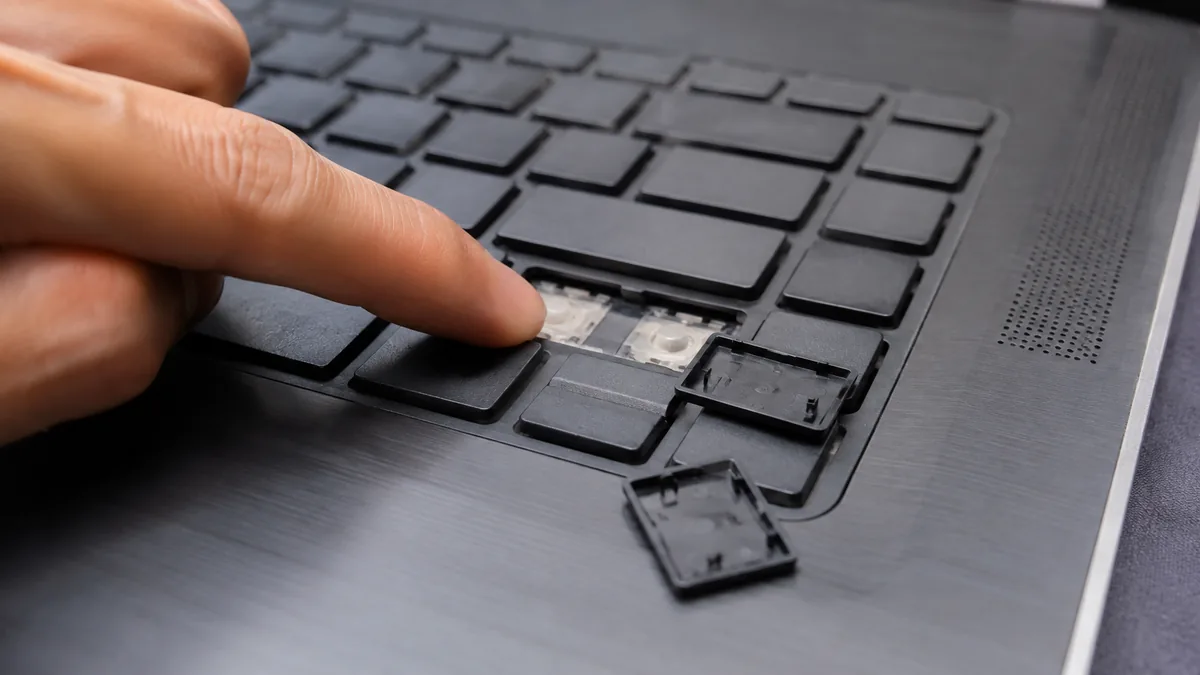
When only some keys have died, the list is different. Dirt and debris under a key — crumbs, dust, hair — can block the plunger so the key never reaches its contact. A failed membrane, the thin printed layer under the keys that carries the electrical contacts, wears out with heavy typing and leaves certain keys permanently dead. And a liquid spill is the one cause that can start local and spread: a splash of coffee or water begins by killing a few keys, then corrodes outward across the membrane and down onto the board over hours and days. That progressive nature is exactly why a spill is treated as urgent rather than something to watch and wait on.
There is also a whole category that is not a hardware fault at all. If the keys clearly respond but produce the wrong letters or symbols, the keyboard is working perfectly and a setting is to blame — a wrong regional layout, an accidental Num Lock, or a stuck modifier. It is always worth ruling these out first, because they cost nothing to fix and are astonishingly common.
Match your symptom to the cause
Use this quick reference to see where your particular symptom is likely to sit, and whether it is something you can safely check yourself or something for a workshop.
Quick diagnosis
Symptom-to-cause reference
A guide, not a guarantee — the only way to be certain is to test the keyboard and its cable on the bench, which is exactly what our free diagnosis does.
Not sure which one it is? Send us a photo.
Tell us the make, model, which keys are affected and whether anything was spilled. A technician replies with a probable cause and an honest price band before you travel — diagnosis is free on walk-ins.
Safe fixes you can try yourself
Work through these in order. They are all safe, none of them involves opening the laptop, and between them they clear a large share of keyboards that seem broken but are not. Stop at the first one that works. One exception applies before you start: if the keyboard stopped after a spill, skip these and jump to the warning below — powering the machine on to test it is the one thing you must not do.
- Restart the laptop. A frozen system looks exactly like a dead keyboard, so a clean restart is the first and easiest fix. If the trackpad still works, use it to restart from the menu; if nothing responds at all, press and hold the power button until the machine shuts down, wait a few seconds, and switch it back on. A surprising number of "dead" keyboards come straight back to life this way.
- Plug in an external USB keyboard. This does two useful things at once. It lets you keep working immediately, and it tells you where the fault lives: if the external keyboard types normally, the problem is definitely in the built-in keyboard, its cable or its driver — not in Windows or your account. If even the external keyboard misbehaves, the issue is a system or settings one, which the next steps address.
- Check the accessibility settings. In Windows settings, open the Accessibility (or Ease of Access) section and make sure Filter Keys and Sticky Keys are switched off. Filter Keys tells Windows to ignore brief or repeated keystrokes, which makes a healthy keyboard feel dead or laggy; Sticky Keys changes how modifier keys behave. Both are easy to switch on by accident with a shortcut, and both are common culprits behind strange typing.
- Check the keyboard language and layout. If the keys respond but produce the wrong symbols, the hardware is fine and the layout is wrong. In the language settings, set the keyboard back to English (Singapore) or English (UK) to match your physical keys, remove any stray layouts you did not add, and check that Num Lock is not turning part of the keyboard into a number pad. This fixes most "wrong character" cases with no repair at all.
- Update or reinstall the keyboard driver. Open Device Manager, expand Keyboards, right-click your keyboard entry and choose to update the driver. If that does not help, right-click again, choose to uninstall the device, then restart the laptop — Windows reinstalls the standard keyboard driver automatically as it boots. This clears a corrupted or stuck driver, a common reason a whole keyboard goes unresponsive, and it is completely safe because Windows puts the driver back for you.
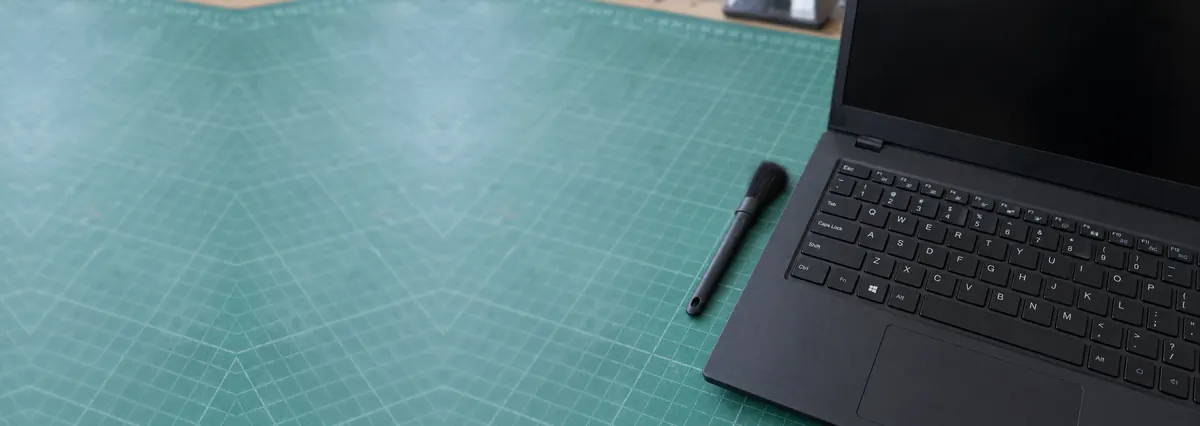
- Gently clean debris from under the keys. For a few stuck or dead keys, turn the laptop off, hold it upside down and give it a gentle shake to dislodge crumbs and dust, then use a soft brush or a short burst of compressed air held upright around the affected keys. Do not pry keycaps off unless you are confident — the tiny clips underneath break easily and are fiddly to refit.
- Use the On-Screen Keyboard as a stopgap. While you sort things out, Windows has a built-in On-Screen Keyboard you can open from the Accessibility settings and click with the trackpad or mouse. It is not a fix, but it lets you log in, type a password or finish an urgent task without waiting for a repair or an external keyboard.
A spill is the one situation where you should not troubleshoot at all. Power the laptop off immediately, unplug the charger, and stop pressing keys to "test" it — every extra minute powered on lets liquid short and corrode the board. Turn the laptop upside down like an open tent so liquid drains away from the electronics. Do not use rice, a hairdryer or a heat source. Liquid keeps corroding the keyboard membrane and the board long after the surface feels dry, so bring it in the same day — the sooner it is opened, cleaned and dried professionally, the more we can save.
When to get professional repair
If you have restarted the laptop, confirmed the fault with an external keyboard, ruled out the accessibility settings and the layout, and reinstalled the driver — and the built-in keyboard still does nothing — the fault has moved beyond anything you can safely fix at home. At that point the cause is usually one of three things, and each needs a workshop:
- A failed keyboard membrane. When the thin contact layer under the keys wears out or is damaged, individual keys or whole rows go permanently dead. Because the membrane is bonded into the keyboard assembly, the standard fix is a full keyboard swap rather than a repair of single keys — see our laptop keyboard replacement service.
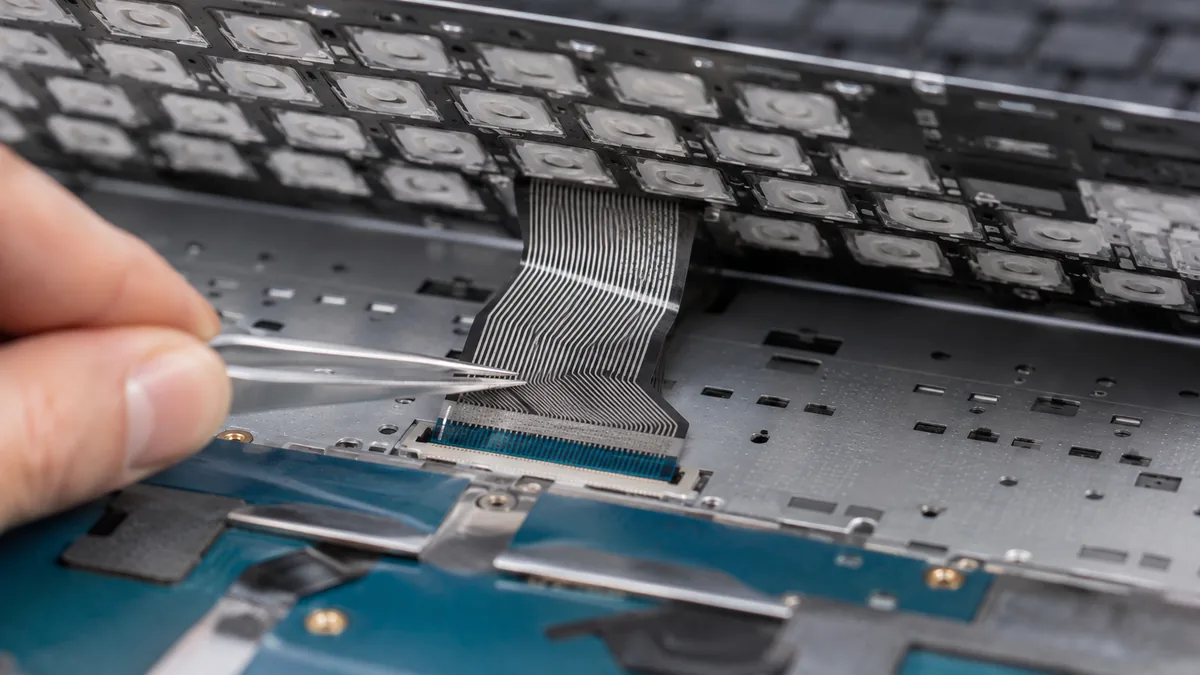
- A loose or damaged ribbon cable. If the keyboard cuts in and out when you move the machine, or died after a knock or a previous repair, the flat ribbon cable to the board may have worked loose or torn. Reseating or replacing it is a workshop job because it means opening the laptop and handling a delicate connector — part of our general laptop repair work.
- A board-level fault. Rarely, the keyboard connector or its controller on the motherboard fails, and the keyboard stays dead no matter what is plugged into it. This needs component-level diagnosis on the bench — our laptop motherboard repair service traces and fixes the actual failed component rather than replacing the whole board.
A liquid spill is the one case where you should not wait at all. Liquid damages a keyboard and the board beneath it slowly through corrosion, so a machine whose keys died after a spill needs a workshop the same day — see our liquid damage guidance. If the files on the machine matter and the spill was serious, avoid powering it on and ask about data recovery, which reads the drive safely even when the laptop itself is out of action.
Whatever the cause, our diagnosis comes first and is free on walk-ins: we tell you what is wrong and what it will cost before any work begins, and if we cannot fix it you do not pay a repair fee. Many keyboards that seem broken turn out to be a driver, a setting or a bit of debris that costs nothing — it is almost always worth finding out which before you replace anything. And if you are troubleshooting other laptop faults, our guides on a trackpad not working and a laptop that won't turn on walk through those the same way.
Related repair services
If it turns out to be hardware
Keyboard replacement
Worn membranes and spill-damaged keyboards swapped on most models.
See the service →Motherboard repair
Keyboard connectors and controllers traced and fixed on the board.
See the service →Liquid damage repair
Same-day cleaning and drying before corrosion spreads further.
See the service →Questions we get every week
Laptop keyboard not working — frequently asked questions
Why has my whole laptop keyboard suddenly stopped working?
When every key goes dead at once, the cause is rarely the individual keys — it is something they all share. The most common reasons are a frozen system, a keyboard driver that has stopped responding, or a loose or disconnected ribbon cable between the keyboard and the board. Restart the laptop first, because a freeze mimics a dead keyboard perfectly. If a restart does not help, plug in an external USB keyboard: if that one works, the fault is in the built-in keyboard, its cable or its driver, and a workshop can confirm which. A whole dead keyboard is far more often a cable or driver issue than a board fault.
Only a few keys on my laptop have stopped working — what does that mean?
A handful of dead keys, while the rest type normally, points to a localised problem rather than a shared one. Usually it is debris trapped under the keys, a worn or damaged membrane contact beneath them, or the early stage of liquid damage in one area. It is very rarely a driver or cable fault, because those tend to knock out the whole keyboard at once. Gently clean around the affected keys and check they are not physically stuck. If they still do not respond, the membrane under those keys has most likely failed, and the usual fix is a keyboard replacement rather than a repair of individual keys.
My laptop keyboard types the wrong characters or symbols — is it broken?
Often not broken at all. If the keys respond but produce the wrong letters, numbers or symbols, the hardware is usually fine and the problem is a settings one. Check the keyboard language and layout in Windows — a keyboard set to the wrong region will swap symbols like the quote, at and hash keys. Also check that Sticky Keys, Filter Keys and Num Lock are not causing odd behaviour. Set the layout back to English (Singapore or UK) and switch off the accessibility toggles, and normal typing usually returns without any repair.
My laptop keyboard stopped working after a drink spill — what should I do?
Treat a spill as urgent. Power the laptop off immediately, unplug the charger, and do not keep pressing keys to test it — every extra minute powered on lets liquid short and corrode the board. Turn the laptop upside down like an open tent so liquid drains away from the electronics, and do not use rice or a hairdryer. Bring it in the same day: liquid keeps corroding the keyboard membrane and the board underneath long after the surface feels dry, so the sooner it is opened, cleaned and dried professionally, the more we can save.
Can I just reinstall the keyboard driver to fix it myself?
Yes, and it is a safe fix worth trying. Open Device Manager, expand Keyboards, right-click your keyboard entry and choose to update the driver first. If that does not help, right-click again, choose to uninstall the device, then restart the laptop — Windows reinstalls the standard keyboard driver automatically on boot. This clears a corrupted or stuck driver, which is a common cause of a keyboard that has gone completely unresponsive. If the keyboard still does nothing after a reinstall and a restart, the fault is hardware rather than software, and it is time for a workshop check.
Is it worth repairing a laptop keyboard, or should I just use an external one?
An external USB keyboard is a perfectly good stopgap and lets you keep working while you decide, but for a laptop you carry around, a fixed built-in keyboard is usually worth it. A keyboard replacement is a common, well-understood repair and costs a fraction of a new laptop, so unless the machine is already near the end of its life it is normally worth doing. We diagnose the fault first and free on walk-ins — often it is a cable, a driver or a settings issue that costs nothing to fix, and we tell you that before quoting any parts.
Bring it in for a free diagnosis
Walk-ins welcome from the CBD, Orchard, Novena, Toa Payoh, Bishan, Ang Mo Kio, Jurong East, Clementi, Tampines, Bedok, Woodlands, Yishun, Hougang and Punggol. We tell you what is wrong and what it costs before any work begins.