
Troubleshooting guide · Singapore
Vertical or horizontal lines on your laptop screen? Here's what they mean
Coloured stripes down the display, a band across the middle, or garbled blocks where the picture should be — lines on a laptop screen look dramatic, but they usually trace back to just four causes, and one simple test tells them apart. This guide walks you through the safe checks you can do at home, what each pattern points to, and the point at which it is worth handing to a workshop.
Restart the laptop once to rule out a driver glitch, then plug in an external monitor. If the external screen is clean, the fault is your laptop's panel or its display cable; if the external screen shows the same lines, it is the graphics chip or the mainboard. Watch whether the lines change as you gently move the lid — that hints at the cable. Never press or bend the screen to chase lines away; that only spreads the damage. Whatever the cause, we can diagnose it for free before you commit to anything.
On this page
What lines on a laptop screen mean
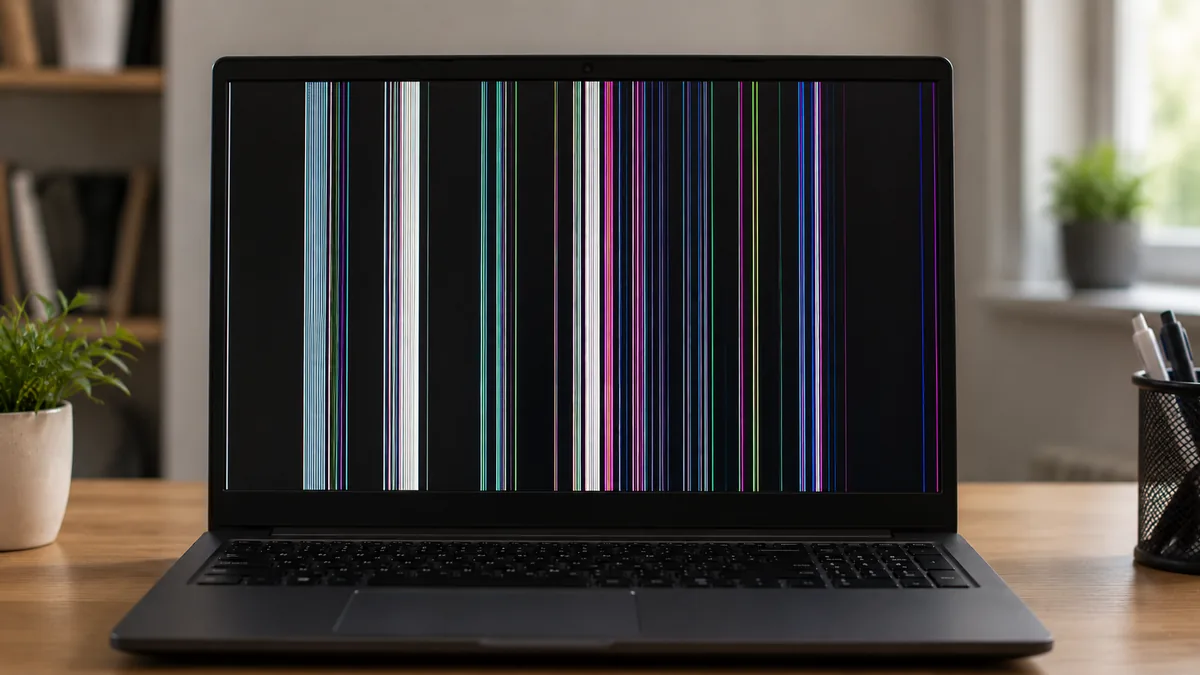
"Lines on the screen" is really a family of symptoms, and the shape and behaviour of the lines is what tells you where the fault sits. You might see a single thin coloured line running the full height of the display, several stripes clustered together, a solid band across the width, faint horizontal ripples that wash over the image, or chunky garbled blocks that look like a corrupted picture. Each of those patterns leans towards a different cause, and the good news is that the most common causes are self-contained parts rather than whole-machine failures.
There are four things that produce lines, and it is worth understanding each before you touch anything. The panel itself — the LCD or OLED assembly — can be cracked or pressure-damaged internally even when the outer glass looks perfectly intact. A knock in a bag, a hard shut with an object on the keyboard, or a twist to the lid can fracture the delicate layers inside without leaving a visible crack, and the result is usually one or more fixed coloured vertical lines that never move. The display cable — the thin eDP ribbon that carries the image from the mainboard, up through the hinge, to the panel — can loosen, chafe or partly break after years of opening and closing; its tell-tale sign is lines that appear, flicker or clear as the lid angle changes. A graphics-driver glitch in the software can throw up temporary lines or artefacts that a reboot or a driver update clears, because nothing is physically wrong. And the graphics chip or mainboard — the GPU that draws the picture in the first place — can fail and send out a corrupted image, which shows as artefacts and garbled blocks.
Telling them apart by eye is a useful start. Single or multiple coloured vertical lines that stay rock-steady, no matter what is on screen, almost always mean the panel. Lines that come and go as you move the lid point at the cable. Ripples, blocks or artefacts that also corrupt the boot logo and the BIOS screen — before Windows or macOS even loads — point at the graphics chip rather than any software. But eyeballing only narrows it down. The one test that actually separates a screen fault from a graphics fault takes thirty seconds and needs nothing more than a spare monitor, and it is the single most valuable thing you can do before bringing the laptop in.
The external-monitor test. Connect your laptop to an external monitor or a TV with the right cable (HDMI, USB-C or DisplayPort), and switch the external display on. Now compare the two screens. If the external monitor shows a clean, perfect image while the laptop's own screen still has lines, the graphics chip is clearly fine — it is drawing the picture correctly — so the fault has to be in the laptop's panel or its display cable. If, on the other hand, the external monitor shows the same lines, artefacts or garbled blocks as the built-in screen, then the image is already corrupted before it leaves the machine, which means the graphics chip or the motherboard is at fault. That one comparison decides which of two very different repairs you are looking at, so it is always worth doing first.
Match your symptom to the cause
Use this quick reference to see where your particular pattern of lines is likely to sit, and whether it is something you can safely check yourself or something for a workshop.
Quick diagnosis
Symptom-to-cause reference
A guide, not a guarantee — the only way to be certain is to run the panel and cable on a bench and read the graphics output, which is exactly what our free diagnosis does.
Not sure which one it is? Send us a photo.
Tell us the make, model, whether the lines move with the lid, and what an external monitor shows. A technician replies with a probable cause and an honest price band before you travel — diagnosis is free on walk-ins.
Safe fixes you can try yourself
Work through these in order. They are all safe, none of them involves opening the laptop or touching the panel, and between them they either fix the problem outright or tell a technician exactly where to look. Stop at the first one that clears the lines.
- Restart the laptop once. A surprising number of line and artefact problems are a one-off rendering glitch that a clean reboot clears. Save your work, shut the machine down fully — not just sleep — and start it again. If the lines are gone and stay gone, it was a software hiccup and there is nothing more to do. If they come straight back, move on.
- Update or roll back the graphics driver. If the lines survive a reboot but only appear once the desktop has loaded, the graphics driver may be at fault. Update it from the maker's website (Intel, AMD, NVIDIA or the laptop brand). If the lines started right after a recent update, do the opposite and roll the driver back to the previous version. Driver fixes only work when the hardware is healthy, so this is worth a try before assuming the worst.
- Run the external-monitor test. This is the most important step. Connect an external monitor or TV with the correct cable and compare the two displays. A clean external screen with lines only on the laptop means the fault is the panel or its cable. The same lines on both screens means the graphics chip or the board. This single check decides which repair you need, so do it even if the earlier steps did nothing.
- Note whether the lines change as you gently move the lid. With the laptop on, very gently open and close the lid a little and watch the lines. If they flicker, appear or clear as the angle changes, the display cable is the likely culprit. Note the angle that triggers it — but do this once, lightly, and then stop. Do not keep flexing the lid to reproduce the fault.
- Check for a stuck or ghost image first. If what you are seeing is a faint retained outline rather than sharp coloured lines, leave the screen showing a plain white or all-black image for a few minutes, or let the machine sleep and wake. True image retention on some panels fades on its own; sharp fixed lines will not, and that tells you it is real damage rather than a temporary artefact.
- Write down exactly what you see. Note the colour of the lines, whether they are vertical or horizontal, whether they move, and whether they show in the boot logo before Windows or macOS loads. Lines that are present in the BIOS or start-up screen are always hardware. A clear description saves diagnosis time and helps a technician quote you accurately.
Do not press, tap, twist or bend the screen to try to make the lines disappear — pressure damages the very layers inside the panel that produce the image, and it routinely turns a single line into a spreading black patch or an ink-like bloom that no repair can undo. Do not keep flexing the lid over and over to reproduce a cable fault, and do not open the laptop to poke at the cable unless you genuinely know what you are doing, as the eDP connector and the panel are both easy to damage. If the lines are worsening or a dark patch is spreading, stop using the screen and have it looked at promptly.
When to get professional repair
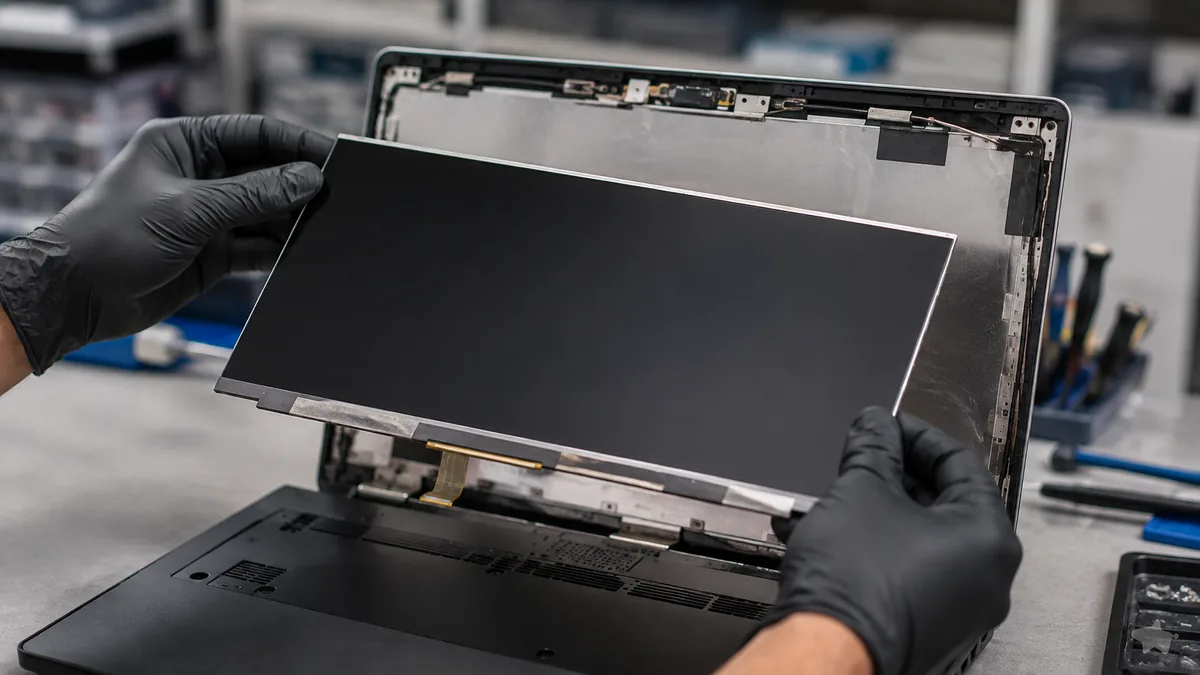
If a reboot and a driver update have not helped, and the external-monitor test has pointed you at the hardware, the fault has moved beyond anything you can safely fix at home. At that point the cause is usually one of three things, and each needs a workshop:
- The panel. Fixed coloured lines that do not move, that stay the same on an external monitor showing a clean picture, or that come with a spreading dark patch, mean the LCD or OLED panel is physically damaged and needs replacing. This is a common, self-contained repair — our broken or cracked laptop screen repair service covers LCD, OLED and touch panels across every brand.
- The display cable. Lines that flicker or clear as the lid moves usually mean the eDP cable running through the hinge has loosened or chafed. Reseating or replacing the cable — and sometimes repairing a worn hinge that has been straining it — is a straightforward job. Our laptop hinge repair service handles the hinge and cable faults that cause this.
- The graphics chip or mainboard. If the artefacts and garbled blocks show on an external monitor too, the fault is in the GPU or the board that drives it, which needs component-level diagnosis. Rather than replacing the whole board, our laptop motherboard repair service traces and fixes the actual failed component wherever it can — usually at a fraction of the cost of a new board.
Whatever the cause, our diagnosis comes first and is free on walk-ins: we tell you whether it is the panel, the cable or the graphics chip, and what it will cost, before any work begins — and if we cannot fix it you do not pay a repair fee. Because most screen-line faults are a single self-contained part rather than a dead machine, it is almost always worth finding out which before you write the laptop off. If your screen problem is actually flickering rather than fixed lines, our laptop screen flickering guide may fit better, and if the machine will not power on at all, start with our laptop won't turn on guide. For a broader view of how we approach every repair, see our laptop repair service, and if the files on the machine matter, ask about data recovery.
Related repair services
If it turns out to be hardware
Screen replacement
Cracked and pressure-damaged panels with fixed lines, replaced across every brand.
See the service →Motherboard repair
Failing graphics chips and boards that garble the image, traced and fixed.
See the service →Hinge repair
Worn hinges and chafed display cables that make lines flicker with the lid.
See the service →Questions we get every week
Lines on a laptop screen — frequently asked questions
Why does my laptop screen have vertical or horizontal lines?
Lines usually come from one of four things: a damaged LCD or OLED panel, a loose or damaged display cable, a graphics-driver glitch, or a failing graphics chip on the mainboard. As a rough guide, single or multiple coloured vertical lines that stay put almost always mean the panel itself is damaged, even when the glass looks intact. Lines that appear, shift or vanish as you move the lid point at the display cable. And garbled blocks or artefacts that also show up on an external monitor point at the graphics chip or the board. The one test that separates them is plugging in an external monitor — that tells you in seconds whether the fault is the panel or something deeper.
How do I tell if the lines are the screen or the graphics card?
Connect an external monitor or TV with the right cable and look at what it shows. If the external display is completely clean while the laptop's own screen has lines, the fault is in the laptop's panel or its display cable — the graphics chip is fine, it is just the screen that cannot show the image correctly. If the external monitor also shows the same lines, artefacts or garbled blocks, then the image is being drawn wrongly before it ever reaches the screen, which points at the graphics chip or the motherboard. This single test is the most useful thing you can do before bringing the laptop in.
Can a software update or driver fix lines on my screen?
Sometimes, if the cause is a graphics-driver glitch rather than physical damage. Restart the laptop first, because a one-off rendering error often clears on a reboot. If the lines return, update the graphics driver from the maker's website, or roll it back if the lines started right after a recent update. Software fixes only help when the hardware is healthy, though — if the lines are still there in the start-up logo or the BIOS screen before Windows loads, no driver will fix them, because the fault is in the panel, the cable or the graphics chip and needs hardware attention.
The lines change when I move the laptop lid — what does that mean?
That is a classic sign of a display cable fault. The thin eDP cable that carries the image runs through the hinge, and years of opening and closing can chafe, loosen or partly break it. When the lines flicker, appear or clear as you gently change the lid angle, the connection is being disturbed as the cable flexes. Note exactly which angle triggers it and stop moving the lid — do not keep flexing it to reproduce the fault, as that can turn a cheap cable job into a cracked panel. A cable or connector reseat is usually a straightforward workshop repair.
Is a laptop screen with lines worth repairing, or should I replace the laptop?
Usually worth checking first. A large share of screen-line cases turn out to be a panel or a cable, both of which are self-contained parts that cost a fraction of a new laptop to replace, and the rest of the machine is untouched. Only the cases where an external monitor also shows artefacts point at the graphics chip, which is a bigger job. We diagnose the fault before quoting, so you get the repair figure and an honest read on whether the machine is worth keeping, and you decide with both numbers in front of you.
Will pressing on the lines or the screen make them go away?
No — and please do not try. Pressing, bending or tapping the panel to chase lines away is one of the fastest ways to turn a minor fault into an unrepairable one. An LCD or OLED panel is a sealed assembly of glass and delicate layers, and pressure damages the very cells that produce the image, often spreading the lines or adding black patches and ink-like blooms that no repair can undo. If you see lines, leave the screen alone, run the external-monitor test, and let a technician open the machine safely.
Bring it in for a free diagnosis
Walk-ins welcome from the CBD, Orchard, Novena, Toa Payoh, Bishan, Ang Mo Kio, Jurong East, Clementi, Tampines, Bedok, Woodlands, Yishun, Hougang and Punggol. We tell you whether it is the panel, the cable or the graphics chip, and what it costs, before any work begins.