
★★★★★
They repair fast and good, my DELL laptop had damaged screen and battery and they fixed it in one day. Diagnosis is free and they quote after checking on the problem. Pre-test testing and post testing done well.. Highly recommend.
Troubleshooting guide · Singapore
A screen that flashes, shimmers or flickers is distracting and worrying, but a good share of cases are a free software fix — an outdated graphics driver or a wrong refresh rate — not a broken panel. This guide shows you two quick tests that split the problem cleanly, the safe checks you can do at home, and the point at which a flickering laptop needs a workshop.
Run two quick tests. First, open Task Manager and watch it: if it flickers with everything else, update or roll back your graphics driver; if it stays steady, uninstall a recently installed app. Second, plug in an external monitor: if the external screen is steady, the fault is in the laptop's own panel or its display cable; if the external monitor flickers too, it is the driver or the GPU. If the flicker changes when you gently move the lid, it is almost certainly the display cable in the hinge — a workshop job we can diagnose for free.
On this page
A flickering screen looks like one problem, but it comes from two very different places: the software that drives the picture, and the hardware that displays it. The good news is that the software causes are usually free to fix, and the two simple tests below tell you within a couple of minutes which side of the fence your fault sits on. Before you assume the panel is dying, it is worth ruling out the cheap, quick culprits first — because in a large share of cases that is all it turns out to be.
On the software side, the most common cause is an outdated or faulty graphics driver. Drivers translate what your programs want onto the screen, and when one is buggy or mismatched — often after a Windows update — the picture can flash or flicker across the whole display. A close second is a refresh-rate or resolution mismatch: if the display is set to a rate the panel does not properly support, you get a steady flicker or a faint shimmer. The third software cause is an incompatible app — a single program that fights with your display settings and makes the screen flicker only while it or its overlays are active.
On the hardware side, the usual suspect is the display cable: a thin eDP ribbon that runs from the motherboard, through the hinge, and up to the panel. Because it flexes every time you open and close the lid, it is often worn or chafed exactly where it passes through the hinge, and a damaged section produces flicker that changes as the lid moves. Then there is a failing backlight, which shows as the whole picture pulsing or dimming, and a failing LCD or OLED panel, where the flicker is built into the display itself. A knock or a drop can also leave a loose connector at either end of the cable. Telling these apart by eye is hard — which is exactly why the two tests below matter so much.
The two tests are worth learning by heart. The Task Manager test: open Task Manager and watch it while the screen misbehaves. If Task Manager also flickers, the fault is usually a display driver; if Task Manager stays perfectly steady while everything around it flickers, the fault is usually an incompatible app. The external-monitor test: plug in a second screen. If the external monitor is steady while the laptop's own screen flickers, the fault is inside the lid — the panel or its cable — not the graphics chip. If the external monitor flickers too, the problem is shared, which points at the driver or, less often, the GPU on the board. Between them, these two checks route almost every flicker case to the right fix.
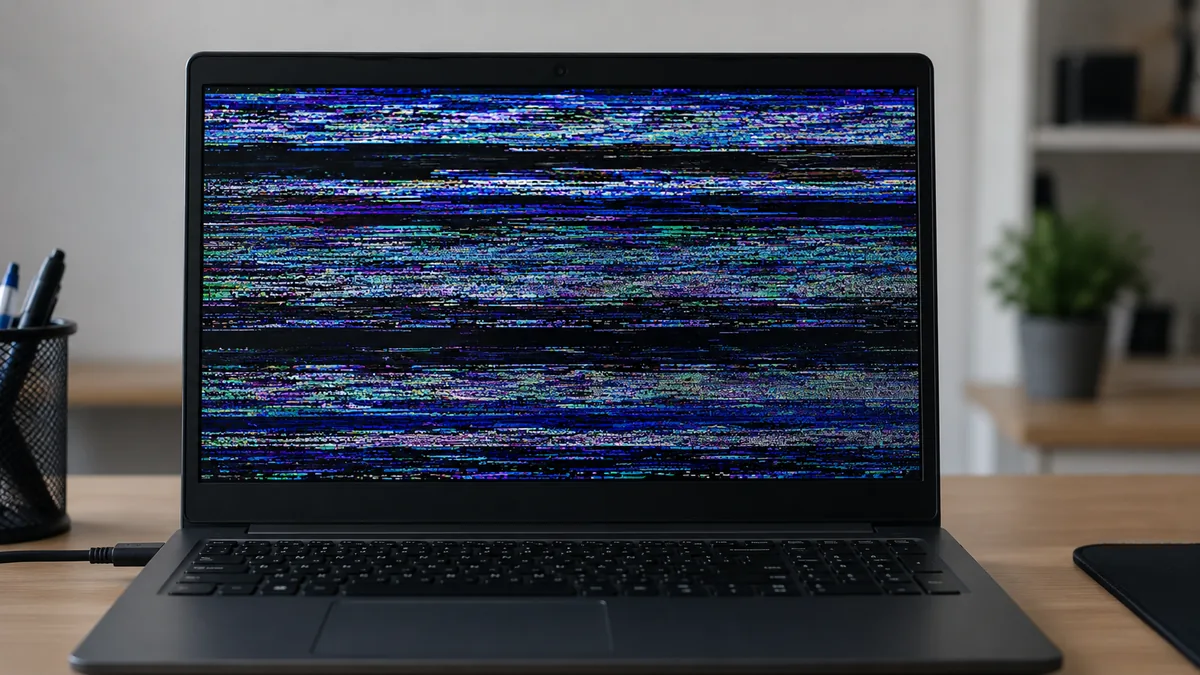
Use this quick reference to see where your particular symptom is likely to sit, and whether it is something you can safely check yourself or something for a workshop.
Quick diagnosis
A guide, not a guarantee — the only way to be certain is to test the panel, cable and board on the bench, which is exactly what our free diagnosis does.
Tell us the make, model and exactly when the flicker appears — all the time, only in one app, or when you move the lid. A technician replies with a probable cause and an honest price band before you travel — diagnosis is free on walk-ins.
Work through these in order. They are all safe, none of them involves opening the laptop, and between them they resolve a large share of flickering screens — or at least tell you clearly that the fault is hardware. Stop at the first one that fixes it.
Do not open the laptop to prod at the display cable unless you know what you are doing, and do not keep opening and closing the lid to force the flicker to come back — that is exactly the movement that wears the cable through the hinge. Avoid "fix flicker" utilities from unknown sites, which often bundle unwanted software. And if the screen has visible cracks, dark blotches or spreading lines along with the flicker, stop testing and have the panel checked before it fails completely.
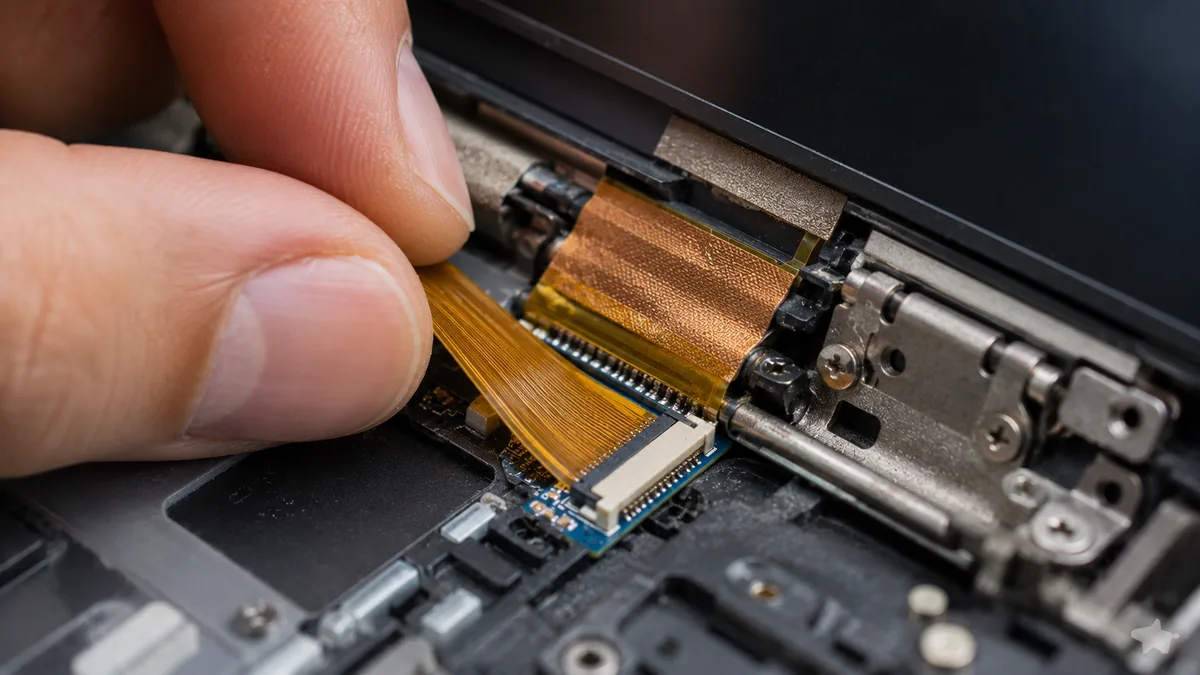
If the Task Manager test, a matched driver and the correct refresh rate have not stopped the flicker, or if the external-monitor test showed the fault is inside the lid, the cause is hardware and it needs a workshop. At that point it is usually one of three things, and each has a clear fix:
The honest bit: we do not know which of these it is until we test it, and neither does anyone quoting you a price sight unseen. Our diagnosis comes first and is free on walk-ins — we tell you whether it is the cable, the backlight, the panel or the board, and what the repair will cost, before any work begins. If we cannot fix it you do not pay a repair fee, and we never invent a fault to justify a bill. For the fine detail of how we test and replace display parts, see our laptop repair procedure. And if your screen shows lines rather than flicker, or the machine will not power on at all, our guides on laptop screen lines and a laptop that won't turn on may fit your symptom better.
Related repair services
Failing panels and backlights swapped for the correct part for your model.
See the service →Worn hinges and the display cables that chafe and flicker inside them.
See the service →GPU faults and display rails traced and fixed on the board.
See the service →Verified Google reviews
Real reviews from our Google profile, shown with the customer’s name as they left it. The score and the count are Google’s own, updated every week.
They repair fast and good, my DELL laptop had damaged screen and battery and they fixed it in one day. Diagnosis is free and they quote after checking on the problem. Pre-test testing and post testing done well.. Highly recommend.
Sent my laptop in for a screen replacement at 4:30pm on a Monday, got it back at lunchtime the next day. Super fast and great customer service. Thanks iDevice.
I had a MacBook Pro with a broken screen and they came to the rescue and replace with a new screen within 1 x day. Fantastic service and I would highly recommend.
Had my laptop working fine within 24 hours of service. LCD was replaced too and anyone finding a good laptop repair service, will recommend this place.
Brought my Asus Windows laptop on 27 Oct, screen repaired on 28, 5 star service!
Manage to fix my iPad mini screen as well as the home button with minimal cost incurred compared to Apple Store. It was a very disappointing with Apple Store that they only cares about selling new products to consumers. At least in here, the staffs help you to save either your iPad, iPhone or even Mac book. Thumb up for them!!
Fixed my screen quickly. Cost about what I expected from looking up screen specs/cost online!
my ipad screen was broken and he replaced it for me pretty quickly and the repair price here is quite good, the staff is very friendly
Questions we get every week

A screen that starts flickering out of nowhere is most often a software cause: an outdated or faulty graphics driver, a Windows update that changed the refresh rate, or a newly installed app that does not get along with your display. Those are all things you can fix yourself. If none of them helps, the fault is usually hardware — a loose or chafed display cable, a failing backlight, or an ageing LCD or OLED panel. The quickest way to tell software from hardware is the Task Manager test and the external-monitor test described on this page.
Open Task Manager and watch it while the screen flickers. If Task Manager flickers along with everything else on screen, the problem is almost always a display driver — update or roll it back. If Task Manager stays steady while the rest of the screen flickers, the problem is usually an incompatible app that you should uninstall or update. It is a simple, free check that points you at the right fix before you change any hardware, and it takes about a minute to do.
Flicker that changes as you open, close or gently flex the lid points strongly at the display cable — the thin eDP ribbon that runs from the motherboard, through the hinge, to the panel. That cable is often worn where it bends through the hinge, and moving the lid disturbs the damaged section. This is a hardware fault that needs a workshop. Do not keep flexing the lid to reproduce it, as that can worsen the damage; note what you saw and have the cable and hinge checked.
Most likely, yes. Connect an external monitor and compare: if the external screen is rock steady while the laptop's own screen flickers, the graphics chip and driver are fine and the fault is inside the lid — the panel, the backlight or the display cable. If the external monitor also flickers, the problem is shared, which points at the graphics driver or, less often, the GPU on the motherboard. This one test splits most flicker cases cleanly into a panel-side job or a board-side job.
Yes, and it is a common and easy fix. If Windows or an app has set the display to a refresh rate or resolution the panel does not properly support, you can get a steady flicker or a subtle shimmer. Go into display settings, open the advanced display options, and make sure the refresh rate is set to the value your panel is rated for. While you are there, check that the resolution matches the panel's native setting. If correcting these stops the flicker, no hardware repair is needed at all.
Usually worth checking first, because a large share of flickering screens are either a free software fix or a modest hardware job. A display cable is one of the cheaper parts in a laptop; even a panel replacement is normally a fraction of the price of a new machine. We diagnose the exact cause before quoting — driver, cable, backlight or panel — so you get an honest repair figure and a read on the machine's remaining value, and you decide with both numbers in front of you. Diagnosis is free on walk-ins.
Walk-ins welcome from the CBD, Orchard, Novena, Toa Payoh, Bishan, Ang Mo Kio, Jurong East, Clementi, Tampines, Bedok, Woodlands, Yishun, Hougang and Punggol. We tell you what is wrong and what it costs before any work begins.