
★★★★★
My daughter's ASUS laptop battery was deteriorating and also overheating. They repaired the set within the same day and also provided interior cleaning for General maintenance. Responsive and affordable! Highly recommend!
Troubleshooting guide · Singapore
A clicking laptop is one of the few faults where the first minute matters more than the last. A steady, rhythmic click from a mechanical hard drive means the drive is failing — and every extra minute of use risks losing more of your files. This guide helps you tell a dying drive from a harmless fan or coil whine, and tells you exactly what to do first: back up. If the drive holds the only copy of important files, keep it powered off and send it to a clicking-drive recovery specialist.
If the click is a steady, rhythmic tick that comes with freezing or slow file access, treat it as a failing hard drive: back up everything you can right now, then stop using the laptop and get the drive imaged and replaced — ideally with an SSD. If the sound is an irregular tick that rises and falls with fan speed and there are no freezes, it is most likely the cooling fan, which is mechanical but not a data emergency. Never open the drive, and never run repair tools on a disk that is already clicking.
On this page
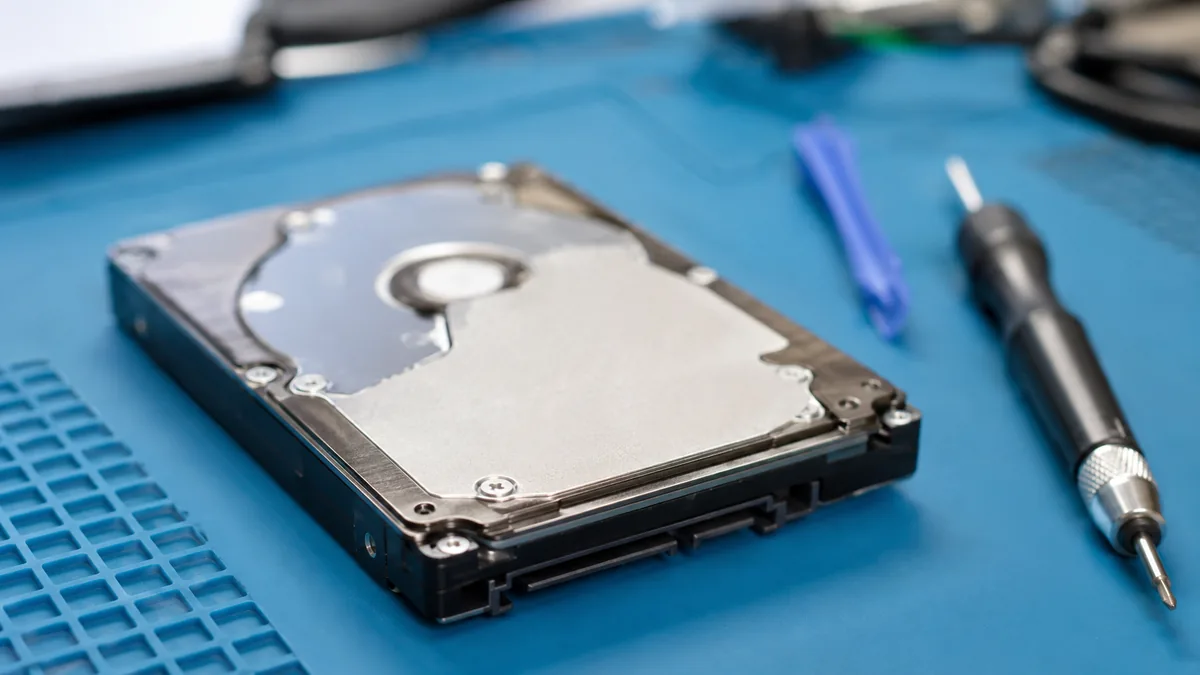
Not every click means the same thing, but one of them is an emergency and the rest are not — so the first job is to work out which click you have. The sound you least want to hear is a steady, rhythmic clicking or clunking that keeps a regular beat, especially when it arrives with the laptop freezing, taking an age to open files, or refusing to boot. That is the classic "click of death" from a mechanical hard drive, and it means the read/write head is repeatedly slamming back to its parked position because it can no longer find or read your data. This is not a noise to investigate at leisure. A drive that clicks is a drive that is actively failing, and the single most important thing you can do is get your files off it before it stops for good.
We put this first, in bold, for a reason: on a failing mechanical drive, every extra minute of use is another chance for the head to score the platter and destroy more data. People lose photos, work and years of files not because the click appeared, but because they kept using the machine after it did — running it "just to finish one thing," or letting Windows try to repair the disk. If there is any chance the click is your hard drive, back up first and ask questions later.
The good news is that a click is not always the drive. The cooling fan is the next most common culprit: a fan ticks or clicks when a blade catches a strand of dust, brushes a stray wire, or when its bearing has worn with age. It is mechanical, and worth fixing so the laptop keeps cooling itself, but it is not a data emergency. A loose internal component or cable can vibrate against the fan or casing and produce an intermittent rattle. Older laptops with an optical drive can click as the disc mechanism spins up or fails to read. And coil whine — a faint electrical clicking or high-pitched buzz from the power circuitry under load — is usually harmless, even if it is annoying.
The trick to telling them apart is to notice what the sound tracks. A hard-drive click is steady and even, appears when the machine is reading or writing, and travels together with freezes and slow file access. A fan noise is more irregular and rises and falls with fan speed — louder when the laptop is hot or working hard, quieter when it idles. If the click gets worse with temperature and load, suspect the fan. If it keeps a metronome beat and the machine hangs, suspect the drive and act accordingly.
Use this quick reference to place your particular symptom, and to see whether it is something you can safely check yourself or something that needs a workshop straight away. When the drive is even a possibility, the safe default is always to back up first.
Quick diagnosis
A guide, not a guarantee — the only way to be certain is to read the drive's health and listen inside the machine on the bench, which is exactly what our free diagnosis does.
Tell us the make, model, exactly what the click sounds like and whether the laptop freezes. A technician replies with a probable cause and honest next steps before you travel — and if it's a failing drive, we'll tell you how to protect your files first. Diagnosis is free on walk-ins.
Work through these in order. They are all safe, none of them involves opening the laptop or the drive, and the first one decides everything that follows. If there is any chance the click is your hard drive, protecting your files comes before every other step.
Do not keep using a laptop that clicks rhythmically and freezes in the hope it "settles down" — it will not, and you are spending your data doing it. Do not run disk-repair or recovery software on a clicking drive, and never open the drive to look inside; a hard drive is sealed for a reason and opening it outside a clean environment ends any chance of recovery. If your files matter and the backup will not complete, stop and let a professional image the drive on write-blocked hardware.

If the click is a steady beat that comes with freezes, slow file access or a failure to boot, the machine has reached the point where a workshop is the safe next move — and the sooner the better. What happens next depends on which of two very different jobs you are looking at:
Whichever it turns out to be, our diagnosis comes first and is free on walk-ins: we listen to the machine, read the drive's health, and tell you what is wrong and what it will cost before any work begins — and if we cannot fix it, you do not pay a repair fee. For a clicking drive, we will always help you protect your files before we touch anything else. For anything else the laptop is doing, our general laptop repair service covers every brand, and our laptop parts replacement process explains how we work.
Related repair services
Files pulled from a clicking drive before anything else is done.
See the service →Replace a failing mechanical drive with a faster, quieter SSD.
See the service →A clicking or worn fan replaced with a full dust clean-out.
See the service →Verified Google reviews
Real reviews from our Google profile, shown with the customer’s name as they left it. The score and the count are Google’s own, updated every week.
My daughter's ASUS laptop battery was deteriorating and also overheating. They repaired the set within the same day and also provided interior cleaning for General maintenance. Responsive and affordable! Highly recommend!
I sent in 2 Dell laptops for repairs due to SSD replacement and battery and fan replacement. The technicians service were fast and prompt with ready parts. They are conveniently located and service is overall recommended! Thank you!
I had a MacBook Pro with a broken screen and they came to the rescue and replace with a new screen within 1 x day. Fantastic service and I would highly recommend.
Fast in responding and staff Dean is experienced and skillful to get my laptop fan issue fixed. 👍
Fantastic service- very professional and quick turnaround. Absolute pleasure to get my macbook repairs done at iDevice. Convenient location as well. Strongly recommend them.
Excellent service, fast turn-around and conveniently located in the Esplanade MRT Xchange right near the escalator going up to South beach Marriot Hotel 👍
Fantastic! Got my iPad that had a “blue screen” shut down issue fixed within a few days :) highly recommend!
It was very nice experience and happy to get fantastic service. Their reply is so quick and kind. And, service too. Thx.
Questions we get every week
If it is a steady, rhythmic click — often called the click of death — and it comes with the laptop freezing, taking a long time to open files or failing to boot, then yes, a mechanical hard drive is very likely failing. That click is the read/write head repeatedly resetting because it cannot find data. Back up everything you can right now, then stop using the machine. Every extra minute a failing drive runs is another chance for the head to damage more of the platter and take your files with it.
Listen to the rhythm and what it tracks. A drive click is usually a steady, evenly spaced tick that appears when the machine is reading or writing, and it comes hand in hand with freezes and slow file access. A fan noise is more of an irregular tick or rattle that rises and falls with fan speed — it gets louder when the laptop is hot or under load and quiet when it idles. If the sound changes with temperature and workload it points to the fan; if it tracks disk activity and comes with freezes it points to the drive.
It depends on the source, and you should find that out before you gamble. If the click is the fan or harmless coil whine, the laptop is not in danger and you can keep using it while you arrange a service. But if there is any chance it is the hard drive, a machine that still works is exactly the moment to act — a failing drive often keeps running for a while before it stops for good. Back up immediately, because the window between the first click and total failure can be hours rather than weeks.
Often, yes, but it becomes a data-recovery job rather than a repair, and time matters. A clicking drive is imaged on write-blocked hardware so nothing new is written to a disk that is already unstable, and in the worst cases the platters are worked on in a clean environment. What ruins recovery is repeated power cycles and consumer repair tools that keep the failing drive spinning. Stop using it, do not run disk-repair utilities on it, and bring it in so it can be handled properly.
That pattern points at the cooling fan rather than the drive. A fan clicks or ticks when a blade catches a strand of dust or a stray wire, or when the bearing has worn. It is mechanical and worth fixing so the laptop keeps cooling properly, but it is not a data emergency. Clearing the vents from the outside with short bursts of compressed air sometimes quietens it; if it persists, the fan needs replacing. A worn fan left alone eventually seizes and lets the laptop overheat.
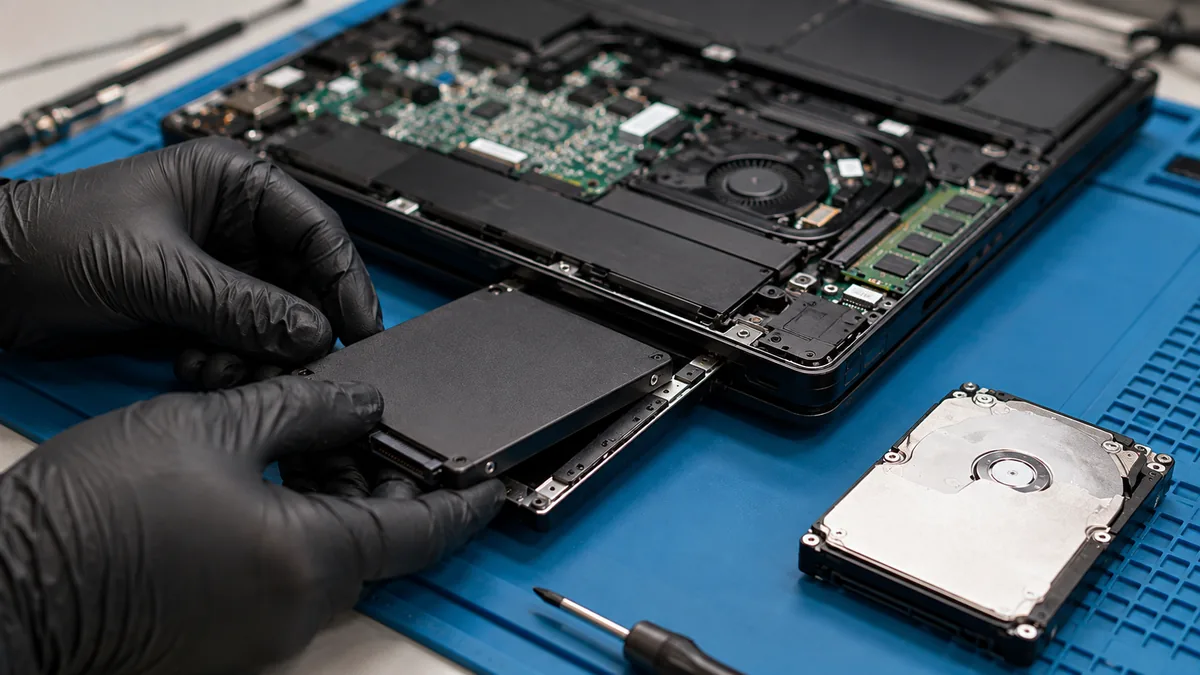
Once your data is safe, yes — an SSD is the natural replacement. Solid-state drives have no moving heads or platters, so they cannot suffer the mechanical click of death, and they make an older laptop noticeably faster and quieter as a bonus. We recover or transfer your files first, then fit and set up the new drive so the machine boots as before. If the files matter, we handle recovery before the swap so nothing is lost in the changeover.
Still hearing something you can't place? Compare notes with our guides on a noisy laptop fan and a laptop that keeps freezing — freezing alongside a click is a strong hint the drive is involved.
Walk-ins welcome from the CBD, Orchard, Novena, Toa Payoh, Bishan, Ang Mo Kio, Jurong East, Clementi, Tampines, Bedok, Woodlands, Yishun, Hougang and Punggol. If it's a failing drive, we'll help you protect your files first — and tell you what recovery or repair costs before any work begins.