
Troubleshooting guide · Singapore
Laptop fan very noisy? Listen to the sound before you worry
A roaring laptop fan is usually a cry for cooling, not a broken part — but a grinding or rattling fan is a different story. This guide helps you read the noise your fan is making, walks through the safe checks you can do at home, and shows the point at which a proper thermal service or a new fan is the answer.
First, listen. A smooth, loud whoosh usually means heat — open Task Manager to catch a runaway process, clear the vents, and use the laptop on a hard surface. A grinding, rattling or clicking noise, or a fan error beep at boot, means the fan itself is worn or seized and needs replacing. A short blast of compressed air from outside can help with dust, but packed-in dust and dried thermal paste need the laptop opened — which is a workshop job, and one we diagnose free before any work begins.
On this page
Why a laptop fan gets loud
A laptop fan has one job: to pull cool air across the heatsink and push hot air out of the vents, keeping the processor and graphics chip inside their safe temperature range. The fan does not run at a fixed speed — it follows a curve set by the machine, spinning faster as the internals get hotter and slowing down when they cool. So the first thing to understand is that a fast, loud fan is very often the cooling system doing exactly what it should. The real question is not "why is the fan spinning fast" but "why does the laptop think it is so hot" — or, if the noise is rough rather than airy, "is the fan itself the thing that is broken".
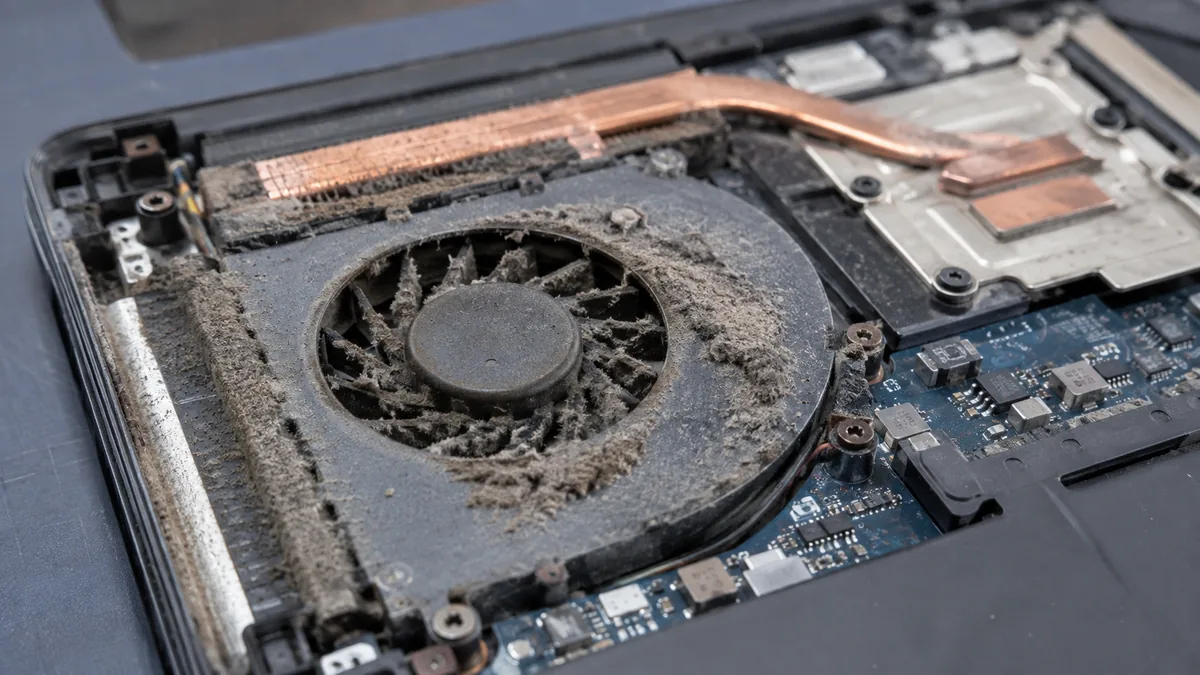
That split — heat versus a mechanical fault — is the whole diagnosis, and you can usually hear which one you have. A loud but smooth rush of air, a steady whoosh that rises and falls with what you are doing, is the fan working hard against heat. The heat itself comes from a handful of everyday causes. A background process is pinning the processor — a stuck app, a browser tab gone wild, a Windows update indexing in the background, or in the worst case malware quietly mining — so the chip is genuinely busy and genuinely hot. Or the cooling path is clogged with dust: in Singapore's warm, humid air, fine dust settles on the fins and fan blades over a year or two, insulating the heatsink so the fan has to spin far faster to shift the same heat. Or the thermal paste has dried out — the soft compound between the chip and the heatsink hardens with age and stops carrying heat efficiently, so everything runs hotter and the fan runs louder to compensate. Or, simply, the vents are blocked because the laptop is sitting on a bed, a sofa cushion or a lap, and the air it needs has nowhere to go.
A rough, irregular noise is a different animal. A grinding, rattling, ticking or clicking sound is mechanical, and it points at the fan as a physical part. The most common cause is a worn fan bearing — the tiny bearing the fan spins on wears out with age and heat, and a worn bearing grinds or clicks as it turns. The other is a blade catching on something: a build-up of matted dust, or occasionally a stray internal cable, brushing the spinning blades and producing a rattle or tick. A buzzing or vibrating sound usually means the fan has worked loose in its housing, or an object is resting against it. And a distinct fan error beep at startup, common on HP and Lenovo machines, means the laptop cannot detect the fan spinning at all — the fan has seized or its connector has come adrift, and the machine refuses to boot rather than cook itself. One thing that is not a fault: a fan whose pitch rises and falls, whining up and then settling down, is simply the fan curve responding to changing load, and is perfectly normal.
Match the sound to the cause
Use this quick reference to place the noise you are hearing, and to see whether it is something you can safely check yourself or something better left to a workshop. The codes are just for easy reference if you contact us.
Quick diagnosis
Sound-to-cause reference
A guide, not a guarantee — the only way to be certain is to open the machine and measure temperatures against fan speed, which is exactly what our free diagnosis does.
Not sure what the noise is? Record it for us.
Tell us the make and model, when the noise started, and whether it is a smooth roar or a rough grind. A short voice note or video of the sound helps a technician point to the likely cause and an honest price band before you travel — diagnosis is free on walk-ins.
Safe fixes you can try yourself
Work through these in order. Every one of them is safe, none of them involves opening the laptop, and between them they quieten a large share of loud fans — especially the ones that are loud because of heat rather than a worn part. Stop at the first one that solves it.
- Open Task Manager and find the culprit. Press Ctrl+Shift+Esc, click the CPU column to sort by processor use, and watch for a minute. If one process is sitting near 100 percent, that is almost certainly why the fan is roaring. If it is something you recognise and can close, close it; if it is unfamiliar, note the name and look it up before ending it. A single runaway process is the most common reason a fan runs loud while you seem to be doing nothing.
- Clear the vents and change the surface. Make sure nothing is covering the intake and exhaust vents, and never run the laptop on a bed, a sofa or a cushion — soft surfaces block the airflow and trap heat. Use it on a hard, flat desk, or on a cooling pad that lifts the base and moves air underneath. Just giving the fan room to breathe can drop the temperature enough to slow it right down.
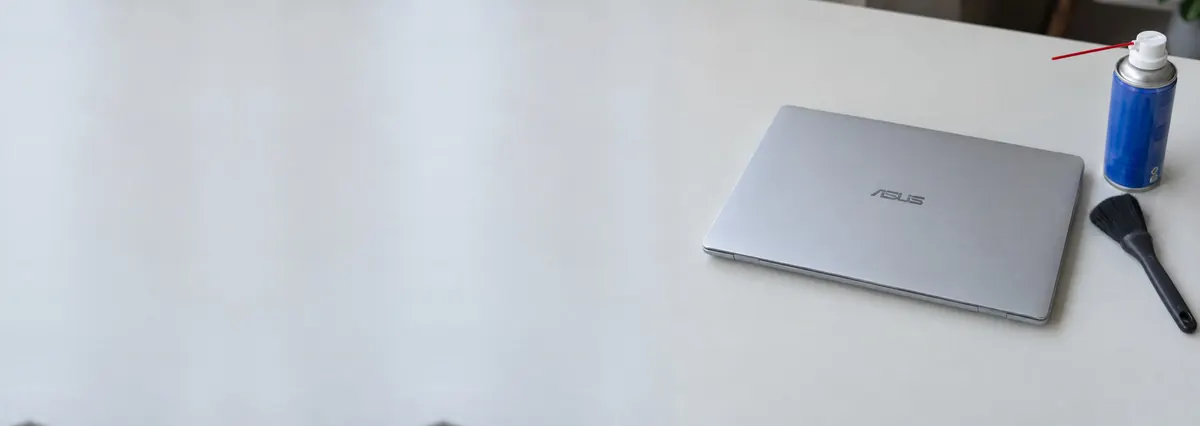
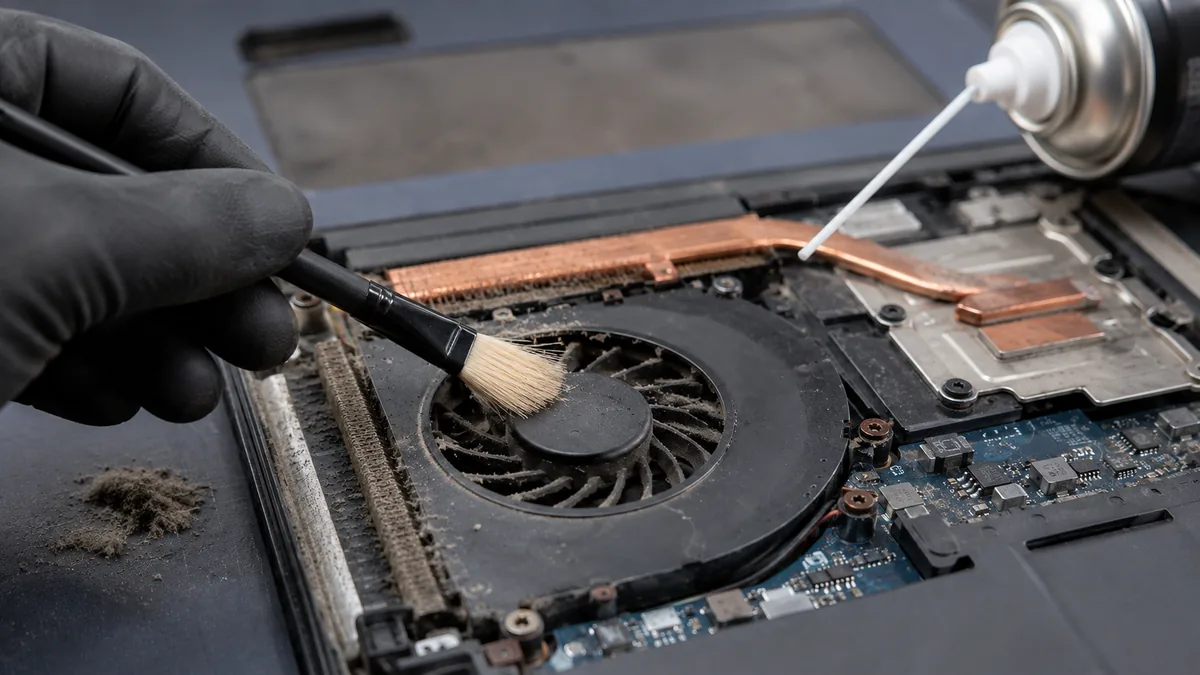
- Give the vents a careful blast of compressed air. With the laptop off, hold a can of compressed air upright and use short bursts aimed into the vents from the outside to push loose dust out. Keep a little distance, do not tip the can so liquid sprays, and do not let the fan spin up fast under the air — hold the blades still through the vent with a toothpick if you can see them, or use only brief puffs. External air only shifts loose dust; packed-in dust needs the machine opened.
- Update Windows and your drivers. An out-of-date system can leave a background task running hot or a power setting misbehaving. Install pending Windows updates, restart, and let it settle — a fresh boot also clears any stuck process that a restart would have fixed anyway.
- Run a malware scan. Hidden mining or adware can quietly max the processor and keep the fan screaming. Run a full scan with Windows Security, or a reputable scanner you trust, and clear anything it flags. This is worth doing whenever the fan runs loud and hot for no obvious reason.
- Check your power and cooling settings. On Windows, set the power mode to Balanced rather than Best performance for everyday use, which lets the processor idle cooler and quieter. Close the pile of browser tabs and background apps you are not using — each one adds a little heat, and together they add up.
Do not open the laptop to clean the fan or renew the paste unless you genuinely know what you are doing — ribbon cables, fan connectors and heat pipes are easy to damage. Do not spin the fan hard with compressed air, and never spray anything liquid into the vents. Do not keep dismissing a fan error beep to force the machine on; running with no working fan lets the processor overheat. And if you hear a clear grinding or rattling, stop treating it as dust — that is a mechanical fault that a clean will not fix.
When to get professional repair
If you have checked Task Manager, cleared the vents, run on a hard surface and scanned for malware and the fan is still loud, or if the noise was rough from the start, the fault has moved beyond a home fix. At that point it is usually one of these, and each needs a workshop:
- A worn or seized fan. Grinding, rattling, clicking or a fan error beep all mean the fan is mechanically worn and needs replacing — cleaning cannot bring a worn bearing back. Our laptop fan replacement service fits a matched fan and confirms the machine cools and quietens as it should afterwards.
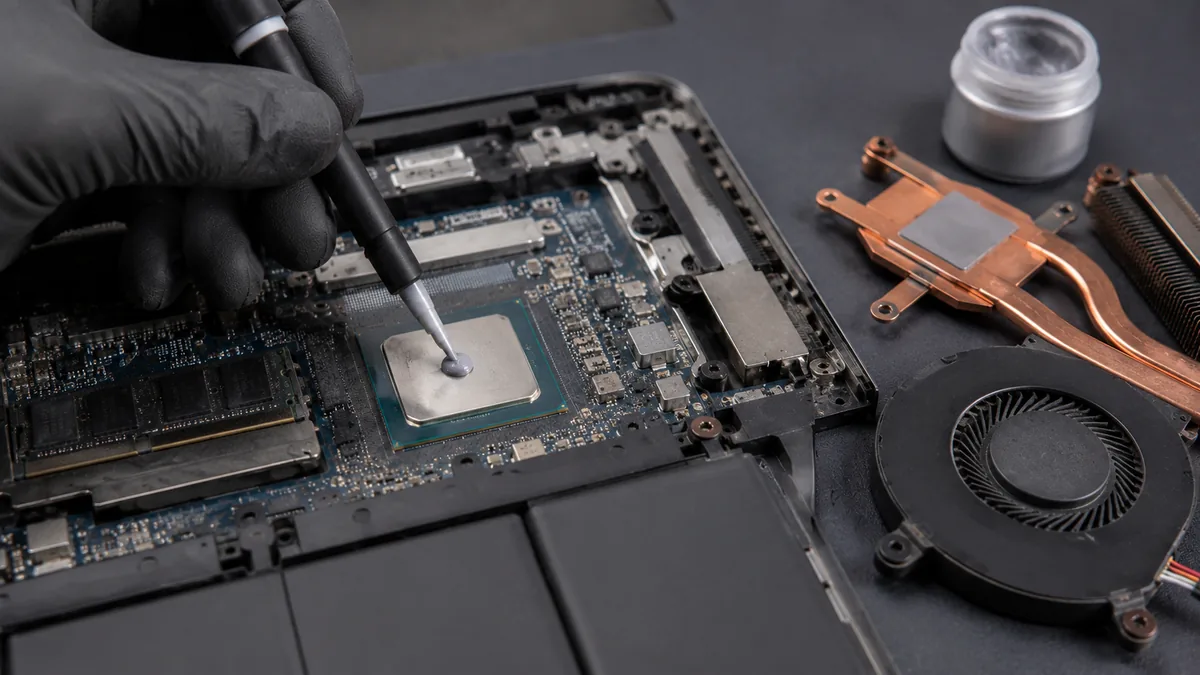
- A cooling system full of dust and dried paste. A laptop that runs hot and loud after a year or two usually needs a full thermal service: opening the machine, clearing the packed dust from the fins and blades, and renewing the thermal paste and any worn pads. This drops temperatures noticeably, which in turn slows the fan and quietens it. It is the single most effective fix for a machine that roars under everyday use.
- Heat that has started to damage the board. Left alone, sustained overheating ages the solder joints and components over time. If the machine has been running hot for a long while and now shows other symptoms, a component-level check on our laptop motherboard repair bench can find and fix the damage before it spreads.
Cooling work is not glamorous, but it is one of the highest-value services we do: a thermal clean and fan service often takes a laptop from screaming and thermal-throttling back to quiet and fast, and it protects the board from the slow damage that heat causes. Our approach follows the same careful process as every other job — see our laptop repair standard procedure for how we work. For desktops, all-in-ones and towers that run loud, our computer repair service handles the same cooling issues on larger machines.
Whatever the cause, our diagnosis comes first and is free on walk-ins: we open the machine, measure how hot it runs against how fast the fan spins, and tell you what is wrong and what it will cost before any work begins. If we cannot fix it, you do not pay a repair fee. If your fan noise comes alongside other heat symptoms, our guides on a laptop overheating or a laptop that shuts down randomly cover the related faults in the same honest detail.
Related repair services
If it turns out to be the cooling
Fan replacement
Grinding, rattling and dead fans replaced with a matched part.
See the service →Motherboard repair
Heat damage traced and fixed before it spreads across the board.
See the service →Computer repair
Loud, overheating desktops and all-in-ones cleaned and serviced.
See the service →Questions we get every week
Laptop fan very noisy — frequently asked questions
Why is my laptop fan suddenly so loud all the time?
A fan that suddenly runs loud almost always means the laptop is running hot and the fan is spinning fast to keep up. The two everyday causes are a background process pinning the processor and a cooling system that has filled with dust. Open Task Manager and look at the CPU column: if one process is sitting near 100 percent, that is your noise. If the processor is idle but the fan still roars, the vents and fins are probably clogged, or the thermal paste inside has dried out and the machine is overheating. In humid, dusty Singapore, dust buildup is the single most common reason a healthy laptop gets loud after a year or two.
How can I tell a normal loud fan from a fan that is failing?
Listen to the character of the noise, not just the volume. A loud but smooth rush of air — a steady whoosh that rises and falls with what you are doing — is the fan working hard against heat, and it is usually a cooling problem rather than a broken fan. A grinding, rattling, ticking or clicking noise is mechanical: it points to a worn fan bearing or a blade catching on dust or a stray cable. A buzzing or vibrating sound often means the fan is loose or something is touching it. Smooth and loud is a heat issue; rough and irregular is a fan issue.
Is it safe to blow compressed air into my laptop fan?
Short, gentle bursts from outside the vents are safe and often help; a full blast that spins the fan hard is not. Hold the can upright, keep it a little distance from the vent, and use brief puffs to push dust out through the openings — never tip the can so liquid sprays out. The important rule is not to let the fan spin up fast under the air, because a fan driven far past its normal speed can damage its own bearing and even feed a small voltage back into the board. If the vents are truly caked, external air only moves the loose dust; the packed dust on the fins needs the laptop opened, which is a workshop job.
My laptop shows a fan error beep at startup. What does that mean?
A fan error at boot — common on HP and Lenovo machines — means the laptop cannot detect its cooling fan spinning at startup, so it stops and warns you rather than risk overheating. It usually means the fan has seized, its bearing has failed, or its connector has come loose from the board. This is not something to keep dismissing to get into the system, because running without a working fan lets the processor overheat. The fan needs to be checked and, in most cases, replaced. Bring it in and we can confirm whether it is the fan itself or its connection to the board.
Will cleaning the fan fix the noise, or do I need a full thermal service?
It depends on why it is loud. If the noise is a smooth roar from dust and heat, a proper internal clean often quietens it a great deal, and if the thermal paste has dried we usually recommend renewing it at the same time so temperatures actually drop. If the noise is a grinding or rattling from a worn bearing, cleaning will not cure it — the fan is mechanically worn and needs replacing. Our standard thermal service opens the machine, clears the fins and blades, renews the paste and pads, and replaces the fan if it is worn, which addresses both the noise and the heat behind it.
Can I keep using my laptop while the fan is very noisy?
For a short while, but do not leave it. A loud fan is the machine telling you it is fighting heat, and sustained high temperatures slowly age the board, the battery and the solder joints. If the noise is a smooth roar, clear the vents, use the laptop on a hard surface and check for a runaway process to buy time. If you hear grinding or a rattle, or you get a fan error beep, stop relying on it — a fan that fails completely leaves the processor with no cooling at all. Getting it looked at early is far cheaper than the heat damage that follows a dead fan.
Bring it in for a free diagnosis
Walk-ins welcome from the CBD, Orchard, Novena, Toa Payoh, Bishan, Ang Mo Kio, Jurong East, Clementi, Tampines, Bedok, Woodlands, Yishun, Hougang and Punggol. We measure how hot it runs and tell you what it costs before any work begins.