
★★★★★
Excellent Lap top repair service! Fast turn around, professional support & my computer was fixed quickly.
Troubleshooting guide · Singapore
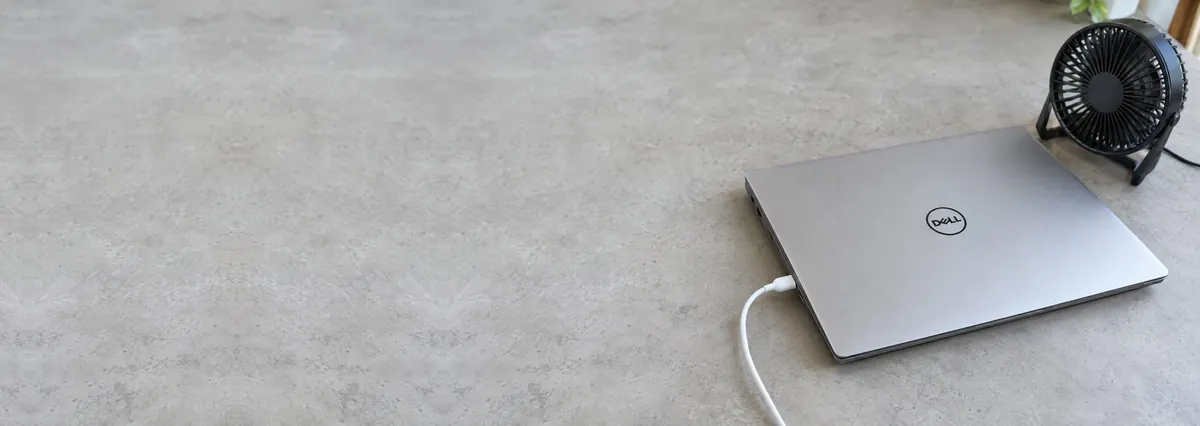
Some warmth while a laptop charges is completely normal — charging makes heat, and if you are using the machine at the same time the processor adds more. The trick is telling ordinary warmth apart from the kind of heat that points to a blocked vent, a tired battery or a charger fault. This guide sets the expectations, walks you through the safe cooling steps, and shows the point at which it is worth handing to a workshop.
A charging laptop is meant to feel warm, and warmer still if you are using it while it charges. Move it to a hard, flat, ventilated surface, close heavy apps or let it charge while idle, and use the correct original charger. If it is still very hot to the touch, if the charger brick is extremely hot, or if the base feels raised, stop — a swollen battery or a hot charger is a fire risk. That is a repair, not a home fix, and we diagnose it free before you commit to anything.
On this page
Start with the part that surprises people: a laptop is supposed to get warm while it charges. Pushing energy back into a lithium battery is not a lossless process — some of that energy always comes out as heat, which is why the underside and the area around the charging port feel warm during a charge. Now add the fact that most of us keep working while the laptop is plugged in. The processor and graphics chip generate their own heat, and that heat lands on top of the charging heat. Two sources, one cooling system. In Singapore's warm, humid climate, where the air the fans pull in is already hot, the whole thing simply runs a few degrees warmer than it would in a cold country. None of that, on its own, is a fault.
So what counts as normal, and what counts as a problem? Comfortable warmth you can rest your hand on is normal. Heat that is genuinely too hot to touch, a charger brick that becomes painfully hot, the laptop throttling and stuttering, or — worst of all — the machine shutting itself down mid-charge, is not. And any sign of physical swelling is an immediate red flag, whatever the temperature. Keep those thresholds in mind as you read on, because most "my laptop is so hot when charging" cases turn out to be one of a handful of very ordinary causes rather than a failing machine.
When the heat really is excessive, the culprit is usually one of these. You may be running heavy apps while charging — a game, a render, a big export — which stacks maximum processor heat on top of the charge. You may be charging on a soft surface like a bed, a sofa or your lap, which sinks into the vents and chokes off the airflow the cooling system depends on. The cooling system may be clogged with dust, so the fans spin but move far less air than they should. Fast charging itself pushes more power into the pack in less time and naturally generates more heat. The battery may be degraded or swollen, in which case it runs hot as it fails. Or there may be a faulty or wrong charger, or a fault in the charging circuit on the board, delivering power inefficiently. The first four you can often sort out yourself; the last three usually mean a workshop.
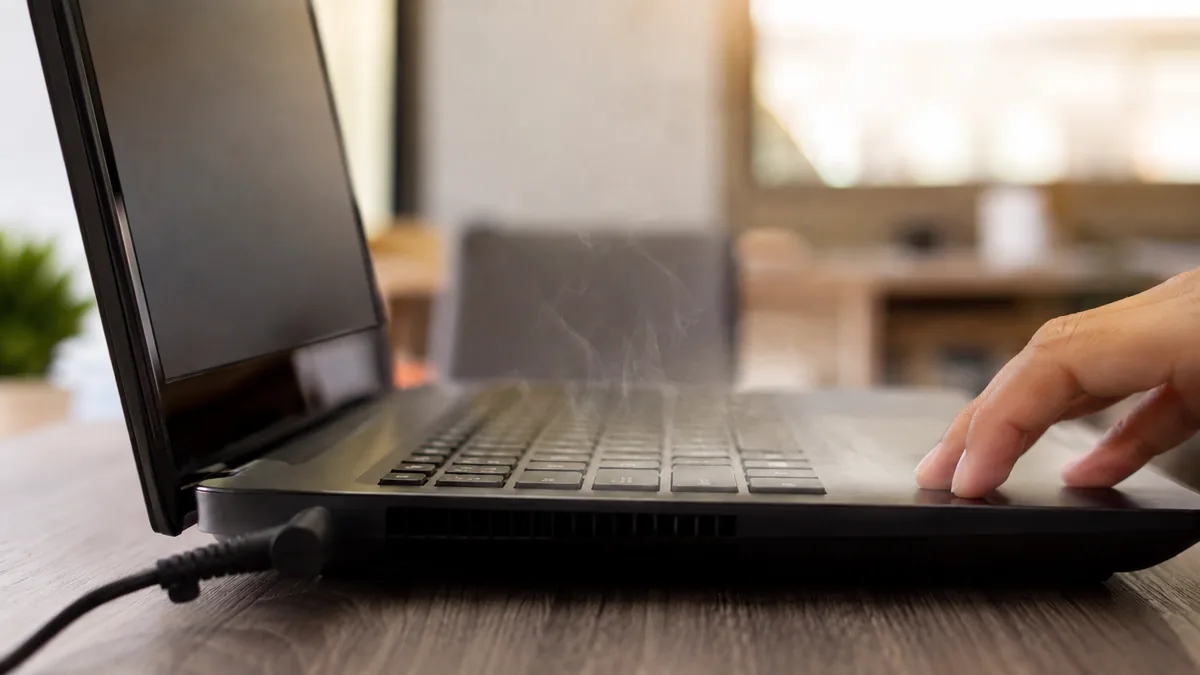
Use this quick reference to see where your particular symptom is likely to sit, and whether it is something you can safely check yourself or something for a workshop.
Quick diagnosis
A guide, not a guarantee — the only way to be certain is to read the temperatures and the charging circuit on the bench, which is exactly what our free diagnosis does.
Let us know the make, model, how hot it gets, and whether it happens only under load or all the time on charge. A technician replies with a probable cause and an honest price band before you travel — diagnosis is free on walk-ins.
Work through these in order. They are all safe, none of them involves opening the laptop, and between them they settle the temperature on most machines that are simply running warm rather than faulty. Stop at the first one that clearly helps.
If the base or trackpad feels raised or bulging, stop using the laptop immediately — that is a swollen battery, which runs hot and is a fire risk, and it needs proper handling. The same goes for a charger brick that becomes extremely hot, smells odd or has a damaged cable: unplug it and stop using it. Do not press on a bulge, do not puncture a battery, and do not keep force-charging through a charger that is overheating. When heat is this severe, the safe move is to power down and bring the machine in.
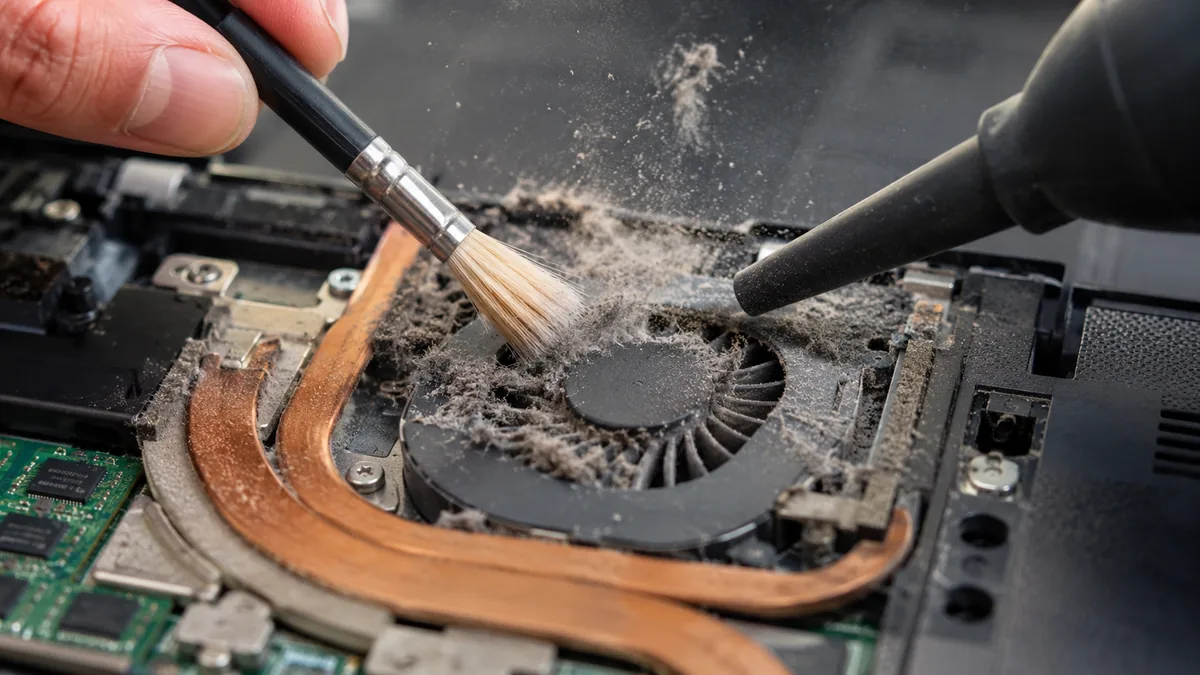
If you have moved the laptop to a hard surface, lightened the workload, confirmed the correct charger and cleared the vents, and it still runs very hot on charge, the heat has moved beyond anything you can safely fix at home. At that point the cause is usually one of three things, and each needs a workshop:
A swollen battery or a charger that is extremely hot is the one case where you should not wait. Both are fire risks, so a machine showing either needs a workshop promptly rather than another few days of charging. If you are unsure whether what you are feeling is normal warmth or a real fault, that is exactly what a diagnosis is for — we read the temperatures and the charging behaviour on the bench and tell you which it is.
Whatever the cause, our diagnosis comes first and is free on walk-ins: we tell you what is wrong and what it will cost before any work begins, and if we cannot fix it you do not pay a repair fee. Most "hot while charging" laptops are either behaving exactly as designed or need a simple battery or cooling service — it is almost always worth finding out which before you worry. For anything else that is misbehaving, our general laptop repair service covers every brand, and you can see how we work in our laptop parts replacement process.
Related repair services
Degraded and swollen packs that run hot, replaced the same day on most models.
See the service →Worn or clogged fans cleaned or replaced, with fresh thermal paste.
See the service →Worn ports and charging-circuit faults traced and fixed.
See the service →Verified Google reviews
Real reviews from our Google profile, shown with the customer’s name as they left it. The score and the count are Google’s own, updated every week.
Excellent Lap top repair service! Fast turn around, professional support & my computer was fixed quickly.
Great service and advice given. Down to earth advice instead of overcharging.
My macbook 16 inches battery was not charging and did a replacement and os reinstalled at affordable cost! Happy with their services!
Supportive staff . It took me to 4 day to resolve issues related to mother board.
Good service. The staff is friendly and responsive both on-line and off-line. The issue with my macbook was resolved swiftly, and the most importantly, the repair was done well.
Prompt reply when you have questions even weekends, and most important people service.
Fast, friendly and the most important: excellent technical skills of the team. Changed bloated battery on my old MacBook Pro in 3 hours, incl. cleaning and a comprehensive function test.
Fast service! Great customer support too. Looking forward to pickup the item. Helps to know there several days worth of warranty post-servicing.
Questions we get every week

A degree of warmth is completely normal. Charging a battery releases heat, and if you are also using the laptop the processor adds its own heat on top, so the underside and the area near the charging port often feel warm during a charge. That is expected, especially in Singapore's climate. What is not normal is heat that is genuinely too hot to keep your hand on, a charger brick that becomes extremely hot, the machine shutting itself down, or any sign of swelling. Comfortable warmth is fine; painful heat is a signal to stop and investigate.
Because you are stacking two heat sources at once. Charging the battery produces heat on its own, and a heavy task such as gaming, video editing or rendering pushes the processor and graphics chip to full power, which produces a great deal more. Run both together and the cooling system has to shed the combined load, so temperatures climb. It is usually harmless in short bursts, but if the laptop becomes uncomfortably hot or throttles and stutters, let it charge while idle or switched off, or lighten the workload while it is on the charger.
Yes, and it is one of the most common causes we see. Most laptops pull cool air in and push hot air out through vents on the base and sides. A soft surface like a bed, sofa cushion, blanket or your lap sinks into those gaps and blocks the airflow, so the heat the charge is producing has nowhere to go and builds up inside. Always charge on a hard, flat, open surface — a desk, a table or a laptop stand — so the vents stay clear. If the machine cools down noticeably once it is on a hard surface, blocked airflow was the problem.
It can. A charger that is not the correct type or wattage for your model, or a cheap third-party replacement, may deliver power poorly and run hot itself, and a failing charger or a damaged cable can do the same. The charger brick will always get somewhat warm in use, but it should never become so hot that it is hard to hold. Use the original charger that came with the laptop, or a proper like-for-like replacement of the correct wattage. If the brick is extremely hot, smells odd or the cable is frayed, stop using it — a failing charger is both a heat and a safety problem.
Please treat that as urgent. A base or trackpad that feels raised, bulging or no longer sits flat is the classic sign of a swollen battery, and a swollen lithium cell runs hot and is a genuine fire risk. Combined with heavy heat on charge, it means the battery needs to be checked and replaced without delay. Stop charging the laptop, unplug it, power it down, keep it away from anything flammable, and bring it in. Do not press on the bulge, puncture it or keep using the machine — a swollen pack should be handled and replaced properly.
Start with airflow and workload. Charge on a hard, flat, ventilated surface so the vents are clear, and close heavy apps while it charges — or let it charge while idle or switched off if you can. Use the correct original charger, and gently clear dust from the vents with a short burst of external compressed air. Give it time to cool and see whether the temperature settles. If after all of that the laptop still runs very hot on charge, the cause is usually a tired battery, a clogged or failing cooling system, or a charging-circuit fault, and that is worth having checked by a technician.
Walk-ins welcome from the CBD, Orchard, Novena, Toa Payoh, Bishan, Ang Mo Kio, Jurong East, Clementi, Tampines, Bedok, Woodlands, Yishun, Hougang and Punggol. We tell you what is wrong and what it costs before any work begins.