
★★★★★
I got the motherboard issue fixed on my 16” MacBook Pro. No data was lost, and everything is the same as before. As promised, I also received a 60-day service warranty. Thank you, iDevice! 😊
Troubleshooting guide · Singapore
A trackpad that has gone dead, or a cursor that skips and jumps around the screen, is one of the most fixable faults there is — very often it is nothing more than a toggle that got pressed by accident or a driver that needs a refresh. This guide walks you through the safe checks you can do at home, what each symptom usually means, and the point at which the machine really needs a workshop.
Look for the Fn key plus the touchpad key (often F5, F6, F7 or F9, with a little pad icon) and press it once. If that does nothing, open Settings, then Bluetooth and devices, then Touchpad, and make sure it is switched on and set to stay on when a mouse is connected. Restart, then reinstall the touchpad driver in Device Manager. Clean the surface and dry your fingers if the cursor is jumpy. If none of that helps — or the pad had a spill, a knock, or feels raised — it needs a workshop, which we diagnose free before you commit to anything.
On this page
Before you reach for a screwdriver or start worrying about a new laptop, it helps to know that a misbehaving trackpad is almost always a soft fault rather than a broken part. In our intake, the large majority of "trackpad not working" cases turn out to be something you can fix in a couple of minutes without opening the machine at all — a switch, a setting or a driver. Genuine physical failures do happen, but they are the minority, and they tend to announce themselves with a specific history: a spill, a drop, or a pad that feels wrong to the touch. Working out which camp you are in is most of the job.
The single most common cause is embarrassingly simple: the trackpad has been switched off. Nearly every Windows laptop has an Fn key combined with a function key — frequently F5, F6, F7 or F9, marked with a tiny touchpad icon — that toggles the pad on and off, and it is very easy to catch by accident while reaching for volume or brightness. A close cousin of this is the pad being turned off in Windows settings, under Bluetooth and devices, where a single switch controls the whole touchpad. Both of these leave the hardware perfectly healthy; nothing is broken, the machine has simply been told to ignore the pad.
The next tier is software. A touchpad driver problem — a driver that has become corrupted, or one that a Windows update has replaced with a version your pad does not like — can kill the pad outright or make the cursor behave strangely. Very often the fix is to update or reinstall the driver from Device Manager, which takes minutes and costs nothing. Related to this is a setting many people never notice: Windows can be set to auto-disable the touchpad whenever an external USB or Bluetooth mouse is connected, so that your palm does not nudge the cursor as you type. If your pad dies the moment you plug in a mouse and springs back to life when you unplug it, this setting — not a fault — is the reason.
Then there are the everyday physical causes that do not involve any real damage. A frozen system can lock up the pad along with everything else, and a restart clears it. Dirt, moisture or grease on the surface — a slightly damp fingertip, sunscreen, hand cream or oily food — confuses the capacitive sensor and produces exactly the dead or jumpy behaviour people describe; a wipe and dry hands often restore it instantly. An erratic, jumpy cursor in particular is most often a driver issue or a dirty surface rather than a hardware failure.
Finally, the smaller group of genuine hardware faults. A loose or partly disconnected ribbon cable — the flat connector that links the pad to the motherboard — can come adrift after a knock or a clumsy previous repair, cutting the pad off entirely. A spill can seep beneath the pad and corrode the sensor or that same ribbon. The pad itself can simply fail with age or wear, and very rarely the fault sits on the board that reads it. One physical cause deserves special mention: a jumpy cursor combined with a pad or base that feels raised, bulging or spongy is a classic sign of a swollen battery pressing up from underneath. That is not just a trackpad problem — it is a safety issue, and it needs to be checked promptly.

Use this quick reference to see where your particular symptom is likely to sit, and whether it is something you can safely check yourself or something for a workshop.
Quick diagnosis
A guide, not a guarantee — the only way to be certain is to open the machine and read the pad and its cable on the bench, which is exactly what our free diagnosis does.
Tell us the make, model and exactly what the trackpad does — dead, jumpy, or only misbehaving with a mouse plugged in. A technician replies with a probable cause and an honest price band before you travel — diagnosis is free on walk-ins.
Work through these in order. They are all safe, none of them involves opening the laptop, and between them they revive the great majority of trackpad problems. If you have no working pad at all, plug in a USB or Bluetooth mouse first so you can navigate while you troubleshoot. Stop at the first step that works.
Do not open the laptop to poke at the trackpad ribbon unless you know what you are doing — the connectors are delicate and easy to tear. Do not keep using a machine that had a spill in the hope it dries out; liquid keeps corroding for days. And most importantly, if the trackpad or the base feels raised, bulging or spongy, stop using the laptop — that is a swollen battery pushing up from beneath the pad, which is a fire risk and needs proper handling straight away.
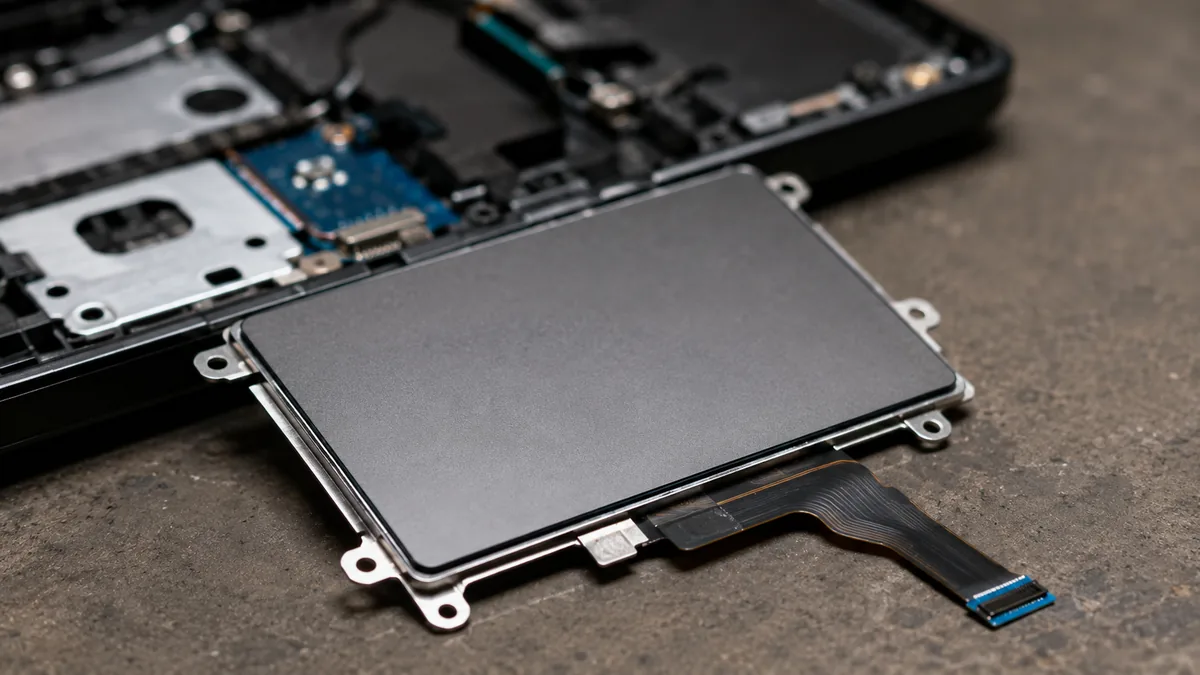
If you have pressed the toggle, checked the settings, restarted, cleaned the pad and reinstalled the driver and the trackpad still will not respond — or if it never had a chance because the machine was spilled on, dropped, or the pad feels wrong — the fault has moved beyond anything you can safely fix at home. At that point the cause is usually one of a handful of things, and each needs a workshop:
Whatever the cause turns out to be, our diagnosis comes first and is free on walk-ins: we open the machine, read the pad and its cable, and tell you exactly what is wrong and what it will cost before any work begins — and if we cannot fix it, you do not pay a repair fee. Most trackpad faults are a quick, cheap fix wearing a worrying symptom, so it is almost always worth finding out which before you resign yourself to living on a mouse. If the keyboard is playing up too, our sibling guide on a laptop keyboard not working covers that in the same way, and if the machine will not start at all, see laptop won't turn on.
Related repair services
Failed touchpads and loose ribbon cables replaced on every brand.
See the service →Swollen packs pressing up on the trackpad, replaced the same day.
See the service →Spill and wear damage that often travels with a dead trackpad.
See the service →Verified Google reviews
Real reviews from our Google profile, shown with the customer’s name as they left it. The score and the count are Google’s own, updated every week.
I got the motherboard issue fixed on my 16” MacBook Pro. No data was lost, and everything is the same as before. As promised, I also received a 60-day service warranty. Thank you, iDevice! 😊
Excellent Lap top repair service! Fast turn around, professional support & my computer was fixed quickly.
They repair fast and good, my DELL laptop had damaged screen and battery and they fixed it in one day. Diagnosis is free and they quote after checking on the problem. Pre-test testing and post testing done well.. Highly recommend.
My surface laptop was replaced with an SSD card and the services was very good.
Managed to fixed my 16inch MacBook pro within 5 working days thank you!
Great service - MacBook froze on upgrade. Could not solve problem myself. iDevice expedited the repairs and my Mac is like new! Very reasonable rates for repair too. Highly recommend.
Super fast and efficient. My motherboard spoiled, spent $350 to replace it, better than getting a new laptop at 2-3k. Hopefully can last for another year 😆
Managed to successfully fix my damaged iPhones and my data is also saved! Thank you for assisting
Questions we get every week
The most common reason is the simplest: the trackpad has been switched off. Nearly every Windows laptop has an Fn key combined with one of the function keys (often F5, F6, F7 or F9, marked with a small touchpad icon) that toggles the pad on and off, and it is very easy to hit by accident. Press that combination once and test. If that does nothing, check Settings, then Bluetooth and devices, then Touchpad, and make sure the switch is on. After that the usual suspects are a driver problem, a plugged-in USB or Bluetooth mouse that has auto-disabled the pad, or a system that has simply frozen and needs a restart.
An erratic or jumpy cursor is usually one of three things. Most often it is dirt, moisture or grease on the surface — even a slightly damp or oily fingertip confuses the sensor, so wipe the pad and dry your hands and test again. Second is a touchpad driver that has become confused, which reinstalling from Device Manager fixes. Third, and more serious, a cursor that jumps while the pad also feels raised or spongy can mean a swollen battery pressing up from underneath. If the pad is bulging or the base no longer sits flat, stop and have the battery checked, because a swollen cell is a safety issue.
That is a deliberate setting, not a fault. Windows has an option that disables the touchpad automatically whenever an external USB or Bluetooth mouse is connected, so your palm cannot nudge the cursor while you type. Go to Settings, then Bluetooth and devices, then Touchpad, expand the section, and tick the box that keeps the touchpad on when a mouse is connected. Once that is enabled the pad will keep working alongside your mouse. If unplugging the mouse instantly brings the trackpad back, this setting is almost certainly the reason.
Open Device Manager, expand the section named Mice and other pointing devices or Human Interface Devices, and look for your touchpad, which may be listed as a Precision Touchpad, Synaptics, ELAN or a similar name. Right-click it and choose Update driver first. If that does not help, right-click again, choose Uninstall device, then restart the laptop — Windows reinstalls the driver automatically on the next boot. For the newest driver, download it from your laptop maker's support page for your exact model. A driver refresh fixes a large share of dead and jumpy trackpads without any parts.
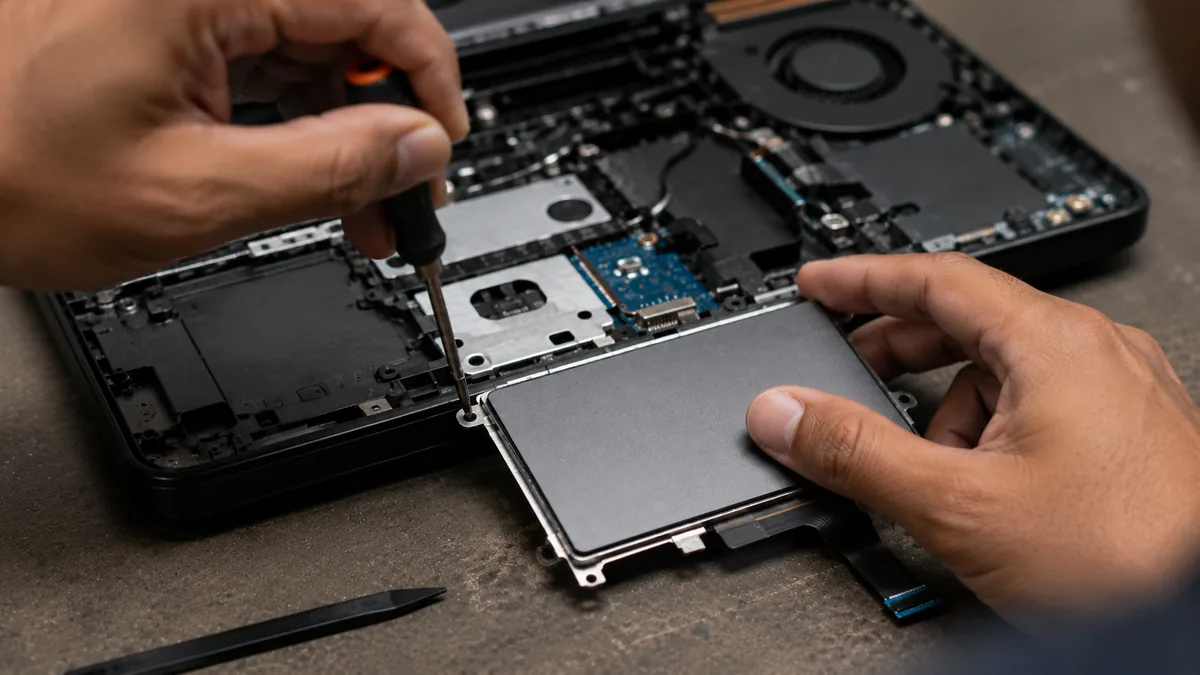
Yes. A liquid spill can seep under the trackpad and corrode the pad or the ribbon cable that connects it to the board, and a knock or a drop can loosen or crack that same ribbon connector. If your trackpad died right after a spill or a fall, no amount of driver or setting changes will bring it back, because the problem is physical. A spill in particular should be seen quickly, since liquid keeps corroding a board for days after it dries. These cases need a workshop to open the machine, clean or reseat the cable, and replace the pad if it is damaged.
An external mouse is a perfectly good stopgap and lets you keep working while you decide, but a dead trackpad is usually worth fixing because most causes are cheap. Very often it is a disabled toggle or a driver, which costs nothing, and even a physical failure is normally a touchpad or ribbon-cable replacement rather than a whole new machine. We diagnose the fault free on walk-ins and quote the repair before any work begins, so you can weigh the cost against the value of the laptop and decide with the numbers in front of you rather than guessing.
Walk-ins welcome from the CBD, Orchard, Novena, Toa Payoh, Bishan, Ang Mo Kio, Jurong East, Clementi, Tampines, Bedok, Woodlands, Yishun, Hougang and Punggol. We tell you what is wrong and what it costs before any work begins.