
Troubleshooting guide · Singapore
Laptop power button not working? Here's how to tell what's really wrong
An unresponsive power button is frustrating, but it is not always a broken button — sometimes the laptop is simply stuck in a power state, and sometimes it is a wider no-power fault. This guide helps you tell the two apart, walks you through the safe checks you can do at home, and shows you the point at which the switch, its flex cable or the board needs a workshop.
First rule out a wider no-power fault: plug in a known-good charger, confirm its light is on, and do a 30-second hard reset with the charger unplugged. If the laptop then wakes another way — opening the lid or connecting the charger — but the button still does nothing, the switch, its flex cable or the board's power-on circuit is at fault. Cleaning a sticky button is safe; replacing a worn switch or flex is a workshop job we can diagnose before you commit to anything.
On this page
Why a laptop power button stops responding
Before you assume the button is broken, it helps to know that "the power button does nothing" describes two very different situations, and separating them is most of the job. In the first, the laptop is genuinely not powering on — no charger light, no fan, no flicker of a keyboard backlight when you press the button — which is a wider problem than the switch, and one we cover in detail in our laptop won't turn on guide. In the second, the machine clearly has power and can be woken another way, but the button itself is unresponsive. If pressing the button produces no light and no fan at all, you cannot yet tell which of these you have, and that is the very first thing to establish.
Once you have ruled out a dead machine, an unresponsive button usually comes down to one of a handful of causes. The most common — and the most reassuring — is a stuck power state: the tiny power controller on the board has latched, and a hard reset that drains the residual charge frees it, at which point the button works normally again. Next is a physically worn or stuck button: the little tactile switch under the key wears out after tens of thousands of presses, and dust, crumbs or dried spills can gum it up so it sticks down or no longer springs back. Then there is a damaged power-button flex or ribbon cable, the thin connector that carries the button's signal to the board, which can work loose or corrode after a knock or a spill.
Two more causes are worth knowing about. On many laptops the power key is part of the keyboard, wired through the same ribbon and controller as every other key — so a keyboard fault, a loose keyboard flex or a failed keyboard controller can kill the power key along with its neighbours. And, least often, there is a board-level fault on the power-on circuit itself: a failed controller, a cracked joint or a damaged trace that stops the button's press from ever reaching the parts that start the machine. A completely flat or failed battery can also leave a laptop looking dead to the button when it is really just out of charge. Each of these points at a different fix, which is why matching the symptom matters so much.

Match your symptom to the cause
Use this quick reference to see where your particular symptom is likely to sit, and whether it is something you can safely check yourself or something for a workshop.
Quick diagnosis
Symptom-to-cause reference
A guide, not a guarantee — the only way to be certain is to read the button and the board on a bench, which is exactly what our free diagnosis does.
Not sure if it's the button or the board? Send us a photo.
Tell us the make, model and exactly what happens when you press the button — and whether the laptop wakes any other way. A technician replies with a probable cause and an honest price band before you travel — diagnosis is free on walk-ins.
Safe fixes you can try yourself
Work through these in order. They are all safe, none of them involves opening the laptop, and between them they resolve a large share of unresponsive-button cases — or at least tell you clearly whether the switch is the problem. Stop at the first one that works.
- First rule out a wider no-power fault. If pressing the button produces no light, no fan and no flicker at all, you cannot yet blame the button. Plug in a known-good charger of the correct type and wattage, check that a light appears on the charger or the laptop, and try a different wall socket. If nothing responds to any charger, treat it as a laptop that won't turn on and follow our no-power guide before going further.
- Do a 30-second hard reset. This is the single most effective fix, because an unresponsive button is often just a stuck power state. Unplug the charger and remove every external device — USB drives, hubs, SD cards, second monitors. If your battery is removable, take it out. Press and hold the power button for a full 30 seconds to drain the residual charge from the board, then refit the battery, reconnect only the charger, and try again. If the button works after this, the switch itself was fine.
- Confirm the charger is delivering power. A laptop with a completely flat battery can look dead to the button. Check for a charging light, leave it plugged in and untouched for 30 to 60 minutes if the battery was drained, then try the button again without unplugging.
- Check the button isn't physically stuck. Look closely at the power key. If it feels spongy, sits lower than the surrounding keys, or stays depressed, dust or dried spill may be gumming it up. Gently clean around the edges with a soft dry brush or a burst of compressed air held upright. Do not pour liquid on it and do not pry the key off — a cautious clean is as far as it is safe to go.
- Note whether nearby keys also fail. On laptops where the power button is a key on the keyboard, a keyboard fault can take the power key down with it. Tap a few nearby keys in a text field. If a cluster of keys around the power key are also dead, the problem is likely the keyboard or its flex cable rather than the switch on its own — useful for a technician to know.
- Check your power and wake settings. If the laptop actually powers on but simply will not wake from sleep with the button, the fault may be in software, not hardware. In Windows, review the power button and sleep behaviour under Power Options, and make sure a recent update or a "fast startup" setting has not changed how the button wakes the machine.
- Try waking it another way. Many laptops can also be started by opening the lid or connecting the charger. If one of these reliably powers the machine on while the button does nothing, you have confirmed the laptop is healthy and the fault sits with the button, its flex or the board — and you can keep using the machine that way until it is repaired.
Do not pry the power key off or open the laptop to "reseat" the button or its flex unless you know what you are doing — the ribbon connectors are delicate and the battery is right there. Do not keep hammering the button on a machine that had a liquid spill, and never poke inside the button opening with a metal tool. If the base or trackpad feels raised, stop using the machine — that is a swollen battery, a fire risk, and it needs proper handling.
When to get professional repair
If you have tried a hard reset with a known-good charger and the button still does nothing — while the laptop either wakes another way or shows other signs of life — the fault has moved beyond a safe home fix. At that point the cause is usually one of the following, and each needs a workshop:
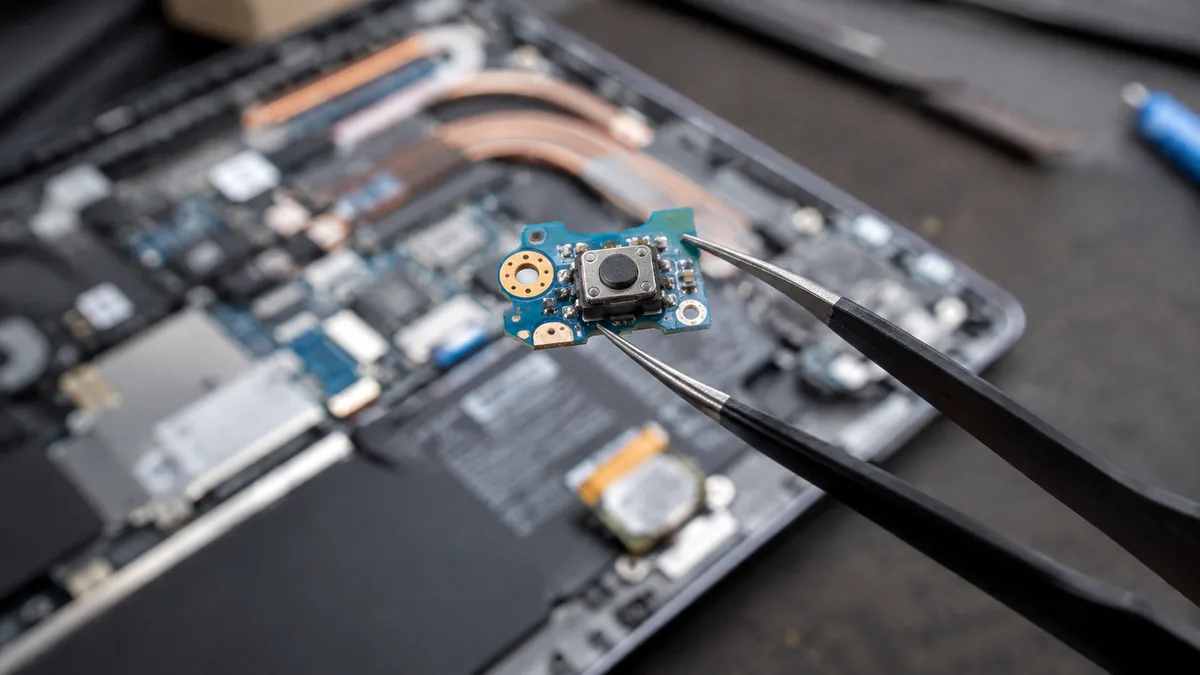
- A worn or broken power button. The tactile switch under the key eventually fails, or a button that has taken a spill sticks and no longer makes contact. Replacing the switch or the button assembly is a routine bench repair on most models, handled alongside our laptop repair service.
- A damaged power-button flex. The thin ribbon that carries the button's signal to the board can tear, work loose or corrode. Reseating or replacing it means opening the laptop and handling fragile connectors — a job for the bench, not the kitchen table.
- A keyboard-integrated power key. Where the button lives on the keyboard, a keyboard or flex fault kills it along with other keys, and the fix is usually a keyboard replacement rather than a switch swap.
- A board-level power-on fault. A failed controller, a cracked joint or a damaged trace on the power-on circuit needs component-level diagnosis. Rather than replacing the whole board, our laptop motherboard repair service traces and fixes the actual failed part — usually at a fraction of the cost of a new board.
A flat or failing battery is worth checking too: if the machine only ever looks dead when it has been off charge for a while, our battery replacement service handles tired and swollen packs on most models the same day. And if the button stopped working right after a spill, do not wait — liquid corrodes a board slowly, so a machine that failed after contact with liquid needs a workshop the same day. For a fuller picture of how we approach component swaps, our laptop parts replacement guide walks through the process.
Whatever the cause, our diagnosis comes first and is free on walk-ins: we tell you what is wrong and what it will cost before any work begins, and if we cannot fix it you do not pay a repair fee. A power button that has simply worn out is one of the cheaper faults we see, and most laptops can still be woken another way in the meantime — so it is almost always worth finding out exactly what is wrong before you write the machine off. If a wider keyboard problem is really behind it, we can sort that on the same visit.
Related repair services
If it turns out to be hardware
Motherboard repair
Power-on circuits, failed controllers and cracked joints traced and fixed.
See the service →Keyboard replacement
When the power key lives on a keyboard that has failed or been spilled on.
See the service →Battery replacement
Tired and swollen packs replaced the same day on most models.
See the service →Questions we get every week
Laptop power button not working — frequently asked questions
How do I know if it's the power button or the laptop that won't turn on?
Look for any sign of life the moment you press the button — a charging light, a keyboard backlight, a fan spin or a click. If pressing the button changes nothing at all, you cannot yet tell the button apart from a wider no-power fault, so first rule that out: plug in a known-good charger, confirm its light is on, and do a hard reset. If the machine still shows no response to any charger, treat it as a laptop that won't turn on rather than a button fault. If the laptop wakes by other means — say it powers on when you open the lid or connect the charger — but the button itself does nothing, then the button, its flex cable or the board's power-on circuit is the likely culprit.
Can a hard reset fix an unresponsive power button?
Often, yes, because what looks like a dead button is frequently a stuck power state rather than a broken switch. Unplug the charger, remove any external devices, and if your battery is removable take it out. Press and hold the power button for 30 seconds to drain the residual charge from the board, then reconnect only the charger and try again. This clears a latched power controller and revives a surprising number of laptops whose button seemed unresponsive. If the button works normally after a hard reset, the switch itself was fine all along.
Why does my power button feel stuck, mushy or need a hard press?
That is the classic sign of a worn or physically failing button. The tiny tactile switch under the key wears out with tens of thousands of presses, and dust, crumbs or spilled liquid can gum it up so it sticks down or no longer springs back. A button that needs a very firm press, feels spongy, or stays depressed is a mechanical fault. You can gently clean around it, but a switch that has actually worn out or a button pad that is damaged needs to be replaced on the bench — it is not something you can safely repair at home.
My power button is part of the keyboard — could a keyboard fault be the problem?
Yes. On many laptops the power button is a key on the top row of the keyboard, wired through the same ribbon cable and controller as every other key. If that cable works loose, corrodes after a spill, or the keyboard controller fails, the power key can stop responding along with other keys. A quick test is to see whether nearby keys also misbehave: if a cluster of keys including the power key are dead, the fault is likely the keyboard or its flex cable rather than the switch alone, and the fix is usually a keyboard or flex replacement.
Is a laptop with a broken power button worth repairing?
Almost always, because the button and its flex cable are inexpensive parts and the repair is straightforward on most models. Even when the fault turns out to be the board's power-on circuit, component-level repair usually costs a fraction of a new laptop. We diagnose the fault before quoting, so you get the repair figure and an honest read on the machine before you decide. In the meantime many laptops can still be woken another way — by opening the lid or connecting the charger — so you are rarely locked out of your files while you weigh it up.
Can I open my laptop to fix the power button myself?
We would not recommend it. The safe checks — a hard reset, a known-good charger, cleaning around a sticky button and checking your power and wake settings — need no tools and carry no risk. Beyond that, replacing a worn button, reseating a power-button flex or repairing the board's power-on circuit means opening the laptop, working next to the battery and handling delicate ribbon connectors, where a slip can turn a cheap fix into an expensive one. Those repairs belong on a bench with the right tools and antistatic handling, which is exactly what our workshop diagnosis covers — free on walk-ins.
Bring it in for a free diagnosis
Walk-ins welcome from the CBD, Orchard, Novena, Toa Payoh, Bishan, Ang Mo Kio, Jurong East, Clementi, Tampines, Bedok, Woodlands, Yishun, Hougang and Punggol. We tell you what is wrong and what it costs before any work begins.