
★★★★★
They repair fast and good, my DELL laptop had damaged screen and battery and they fixed it in one day. Diagnosis is free and they quote after checking on the problem. Pre-test testing and post testing done well.. Highly recommend.
Troubleshooting guide · Singapore
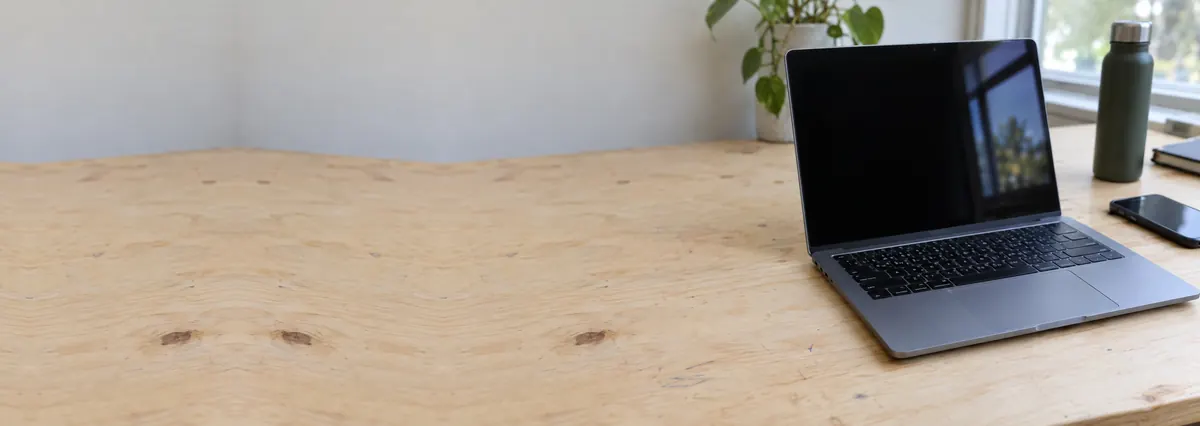
Your laptop lights up, the fan spins, maybe it even chimes — but the screen stays black with no image at all. Before you assume the worst, there is one simple test that tells you whether the problem is just the laptop's own screen or something deeper in the computer. This guide walks you through the safe checks you can do at home, shows how each symptom points to a different cause, and explains when a black screen is worth handing to a workshop.
First make sure the laptop actually powers on — lights, fan, warmth. If it is completely dead instead, that is a different fault covered in our laptop won't turn on guide. Then run the one test that matters: plug in an external monitor. If the external monitor shows a picture, the computer is fine and the fault is the laptop's own panel, display cable or backlight. If the external monitor is also blank, the problem is upstream in the GPU, RAM or motherboard. Try the display-toggle key (Win+P), turn the brightness up, do a hard reset, and shine a torch at an angle to check for a faint image. If the screen is still black after that, it is a hardware fault we can diagnose before you commit to anything.
On this page
The very first thing to settle is whether your laptop is really a "no display" case at all. A no-display laptop powers on — you see the power light, you hear or feel the fan spin, the keyboard may light up — it just never puts an image on the screen. That is a genuinely different situation from a laptop that is completely dead: no lights, no fan, no sound at all when you press the button. If yours does nothing when you press power, this is the wrong guide; the causes there are the charger, the battery or the power circuit, and our laptop won't turn on guide covers them. Everything below assumes the machine clearly has power but the screen stays black.
Once you know it powers on, the single most useful test in this entire guide is to connect an external monitor — any spare screen, TV or projector, over HDMI or USB-C. This works because the display path has two halves. Everything before the video output — the motherboard, the RAM and the graphics chip (GPU) — produces the image and feeds it to both the built-in screen and any external monitor. Everything after the output — the laptop's own panel, the thin internal display cable, and the backlight that lights the panel from behind — belongs only to the built-in screen. So the external monitor cleanly splits the problem in two.
If the external monitor shows a clear picture, the whole computer is working — it is booting, the GPU is fine, the RAM is fine. The fault is confined to the laptop's own screen assembly, and it is almost always one of three things: a failed panel (the LCD or OLED itself has died or cracked internally), a damaged display cable (the eDP ribbon that runs through the hinge and can be pinched or worn there), or a failed backlight (the panel and image are fine but nothing lights them up, so you see only a very dark screen). These are the good outcomes, because they are contained repairs and your files are never in question.
If the external monitor is also blank, the fault is upstream, before any image reaches either screen. The most common culprits are a GPU failure (the graphics chip has degraded or lost its solder joints, a classic cause of a machine that powers on to nothing), faulty or unseated RAM (bad memory stops the system completing its power-on self test, or POST, so it never gets as far as drawing a picture), or a broader motherboard or no-POST fault where the board powers the fans but cannot actually start the computer. These need proper bench diagnosis, because the symptom — a black screen on both displays — looks identical whatever the underlying cause.
There are a couple of near-misses worth knowing too. Sometimes the computer is running perfectly and the screen is simply switched to the wrong output — a display-toggle key or Windows' Win+P projection setting left on "second screen only" leaves the built-in panel dark for no fault at all. And sometimes brightness has simply been turned all the way down. Both are instant, no-cost fixes, which is exactly why they come first in the steps below. As a rule of thumb: external monitor works means it is the screen; external monitor blank means it is the computer; a faint image under a torch means it is the backlight.

Use this quick reference to see where your particular symptom is likely to sit, and whether it is something you can safely check yourself or something for a workshop.
Quick diagnosis
A guide, not a guarantee — the only way to be certain is to test the panel, cable and board on the bench, which is exactly what our free diagnosis does.
Let us know the make, model, and exactly what you see — does an external monitor show a picture, is there a faint image under a torch, do you hear beeps? A technician replies with a probable cause and an honest price band before you travel — diagnosis is free on walk-ins.
Work through these in order. They are all safe, none of them involves opening the laptop or removing a single screw, and between them they clear the black screens that are not hardware — and, just as usefully, they tell you which hardware fault you have if they don't. Stop at the first one that restores the picture.
Do not open the laptop to reseat the display cable, the RAM or the graphics chip unless you genuinely know what you are doing — the eDP display ribbon and its connectors are fragile, and a slipped screwdriver or a half-seated connector can turn a small, contained fault into a cracked panel or a damaged board. Do not keep force-restarting a machine that beeps or blinks at you; that is a hardware fault a reboot will not clear. And if the laptop was dropped, knocked or took a spill just before the screen went black, treat it as possible physical damage and stop poking at it — every one of the steps above works safely from the outside.
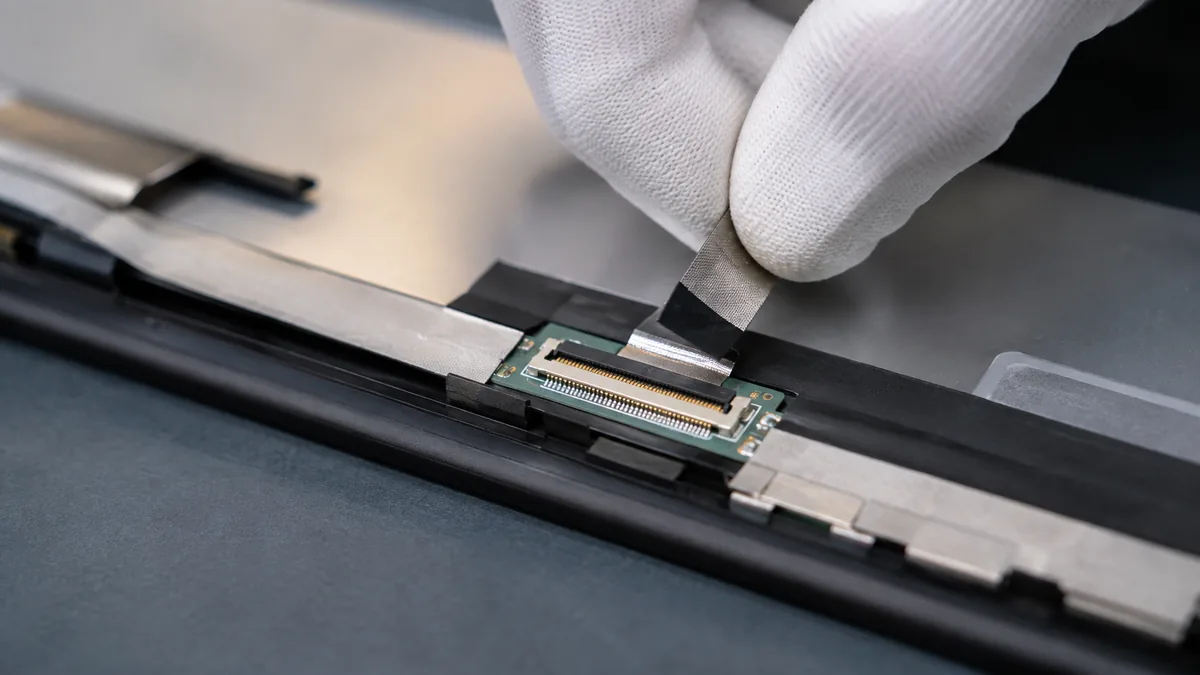
If you have raised the brightness, tried the external monitor, pressed the display-toggle key, done a full hard reset and checked for a faint image under a torch, and the built-in screen is still black, the fault has moved past anything you can fix from the outside. Which repair you need depends on what the external monitor test told you:
Distinguishing these is exactly what a bench diagnosis is for: we confirm power and POST, test the panel and its cable on known-good parts, check the backlight circuit and, where the screen stays dark on both displays, work through the board to find the real fault. Reassuringly, none of these repairs normally touches your SSD, so your files stay safe throughout — the storage sits apart from the display and the graphics. If you would like the full picture of how we approach component-level laptop work, our laptop repair standard operating procedure lays it out, and our guide to the signs your laptop needs professional repair explains when a fault is past a home fix.
Whatever the cause, our diagnosis comes first and is free on walk-ins: we tell you what has failed and what it will cost before any work begins, and if we cannot fix it you do not pay a repair fee. A black screen looks alarming, but it very often turns out to be a single contained part — a panel, a cable or a backlight — rather than a write-off, so it is almost always worth finding out which before you replace the machine. When you are ready, you can get a free written quote and bring it in.
Related repair services
Dead panels and display cables pinched at the hinge, replaced and tested.
See the service →GPU, RAM and no-POST faults traced and fixed on the board itself.
See the service →Completely dead with no lights or fan? Start with the power guide instead.
Read the guide →Verified Google reviews
Real reviews from our Google profile, shown with the customer’s name as they left it. The score and the count are Google’s own, updated every week.
They repair fast and good, my DELL laptop had damaged screen and battery and they fixed it in one day. Diagnosis is free and they quote after checking on the problem. Pre-test testing and post testing done well.. Highly recommend.
Sent my laptop in for a screen replacement at 4:30pm on a Monday, got it back at lunchtime the next day. Super fast and great customer service. Thanks iDevice.
I had a MacBook Pro with a broken screen and they came to the rescue and replace with a new screen within 1 x day. Fantastic service and I would highly recommend.
Had my laptop working fine within 24 hours of service. LCD was replaced too and anyone finding a good laptop repair service, will recommend this place.
Brought my Asus Windows laptop on 27 Oct, screen repaired on 28, 5 star service!
Manage to fix my iPad mini screen as well as the home button with minimal cost incurred compared to Apple Store. It was a very disappointing with Apple Store that they only cares about selling new products to consumers. At least in here, the staffs help you to save either your iPad, iPhone or even Mac book. Thumb up for them!!
Fixed my screen quickly. Cost about what I expected from looking up screen specs/cost online!
my ipad screen was broken and he replaced it for me pretty quickly and the repair price here is quite good, the staff is very friendly
Questions we get every week
If the power light comes on and the fans spin but the screen shows no image, the laptop has power and the fault is somewhere between the motherboard and the display. The quickest way to narrow it down is to plug in an external monitor. If the external monitor shows a picture, the computer itself is working and the fault is the laptop's own panel, its display cable or the backlight. If the external monitor is also blank, the problem is deeper — usually the graphics chip, the RAM or the motherboard failing to complete its start-up. That one test decides which half of the machine to look at.
The external monitor separates the two halves of the display path. Everything up to the graphics output — the motherboard, the RAM and the GPU — feeds both the built-in screen and any external monitor. Everything after it — the panel, the internal display cable and the backlight — belongs only to the laptop's own screen. So if the external monitor shows a clear picture, the whole computer is fine and only the laptop's screen assembly is at fault. If the external monitor stays blank too, the fault is upstream in the computer itself, before the image ever reaches either screen.
It is a different fault. A no-display laptop still powers up — you see lights, hear the fan, maybe feel it get warm — it simply shows no image. A laptop with no power at all does nothing: no lights, no fan, no sound when you press the button. If yours is completely dead, this guide is not the right one; our laptop won't turn on guide covers dead power, chargers and power circuits instead. Confirm you have lights and fan spin first, because the causes and the fixes are not the same.
Shine a torch at an angle across the screen while the laptop is on. If you can make out a faint desktop or logo in the light but the screen is otherwise dark, the panel and the image are both working — what has failed is the backlight that lights the panel from behind. That points to a backlight, a backlight cable or a board-level backlight circuit rather than the whole panel or the graphics. It is a good sign, because the computer is clearly running and producing an image; only the lighting has gone.
In most cases yes, it can be repaired. A failed panel or display cable is a common screen replacement, a backlight fault is usually a component-level board or cable repair, and a GPU or RAM fault is diagnosed and fixed at board level. None of those normally touches the SSD, so your files are almost always safe — the storage is separate from the display and the graphics. We tell you which part has failed and quote before any work, and if the drive is healthy your data stays put throughout the repair.
No — please do not open it. The display cable and its connectors are delicate, and a slipped screwdriver or a partly seated connector can turn a small fault into a broken panel or a damaged board. RAM and GPU faults need proper diagnosis to confirm, not guesswork. Everything in the safe-fixes section here works from the outside without removing a single screw: the external monitor test, the display-toggle key, a hard reset and the torch test. If those do not restore the picture, bring it in for a free diagnosis rather than opening the machine.
Walk-ins welcome from the CBD, Orchard, Novena, Toa Payoh, Bishan, Ang Mo Kio, Jurong East, Clementi, Tampines, Bedok, Woodlands, Yishun, Hougang and Punggol. We tell you what is wrong and what it costs before any work begins.
More laptop troubleshooting guides: laptop screen flickering and laptop won't turn on.