
★★★★★
I got the motherboard issue fixed on my 16” MacBook Pro. No data was lost, and everything is the same as before. As promised, I also received a 60-day service warranty. Thank you, iDevice! 😊
Troubleshooting guide · Singapore
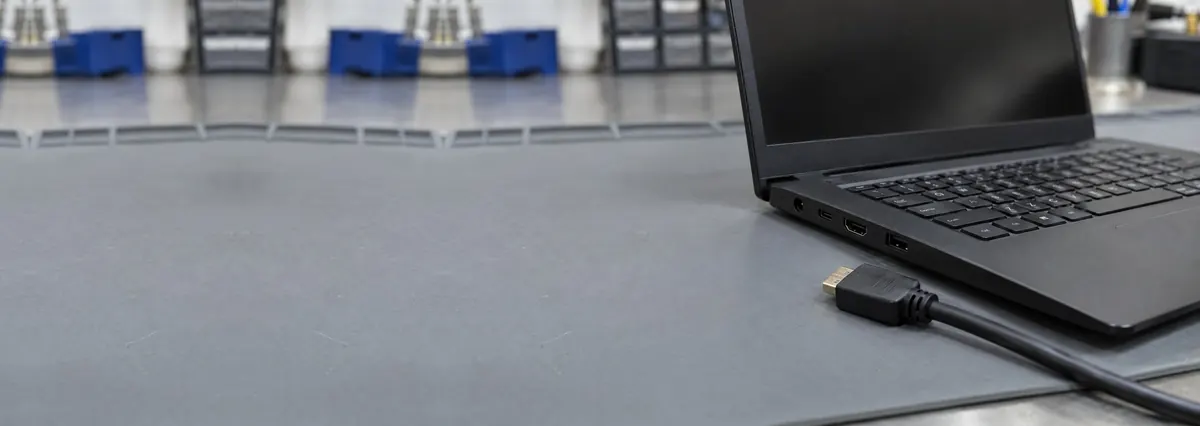
A laptop that shows nothing on an external monitor or TV over HDMI is usually a cable, an input setting, or a display mode that has not been switched on — not a broken machine. This guide walks you through the safe checks you can do at home, shows how each symptom points to a different cause, and explains the point at which a damaged HDMI port or a graphics-output fault is worth handing to a workshop.
Try a different HDMI cable and a different monitor or TV first, and set the display to the correct HDMI input using its own source button. On Windows, press Win+P and choose Duplicate or Extend so the laptop actually sends a picture out; on a Mac, open Displays and click Detect Displays. If there is still no image, update the graphics driver, try a different port or a known-good adapter, and restart with the cable already connected. If the port only works when you wiggle the cable, or nothing appears on any known-good screen, the HDMI socket or the graphics output is likely damaged — both of which we can diagnose before you commit to anything.
On this page
"HDMI not working" almost always means the same thing to the person experiencing it — you plug the cable into an external monitor or a TV, and nothing appears. The good news is that a black external screen is one of the most over-diagnosed faults there is. Nine times out of ten the laptop is perfectly healthy and the picture is being blocked by something small and completely fixable: the wrong cable, the wrong input on the display, or a display mode that was never switched on. Before you assume the port is broken, it pays to work through those in order.
The single most common culprit is not the laptop at all — it is the cable or the display's input source. HDMI cables fail silently and often, especially thin or well-travelled ones, and a monitor or TV that is left on the wrong input will sit on a black screen no matter what you connect. Every external display has its own source or input button, and it must be pointed at the exact HDMI socket you plugged into. This one pairing — good cable plus correct input — clears a huge share of "no signal" complaints on its own.
The next most common cause is the display mode. A laptop does not automatically push its picture out of the HDMI port; you have to tell it to. On Windows that means pressing Win+P and choosing Duplicate or Extend — if it is set to "PC screen only", the external display stays black by design. On a Mac you open System Settings, Displays and click Detect Displays. People often plug in, see nothing, and conclude the hardware is dead when the machine simply was never asked to output anything.
After that come the software and setup causes. A graphics-driver issue can stop the laptop recognising an external display or hold it on a resolution the monitor cannot show; updating or reinstalling the display driver fixes a good number of these. Then there is the wrong port problem, which trips up more people every year: many slim laptops have no full-size HDMI at all and expect you to output through USB-C or Thunderbolt with a dongle — and not every USB-C port even carries video, so a charge-only port or a cheap adapter will never drive a screen. Matching the right port to a known-good adapter solves those.
Only once all of that is ruled out do you reach the genuine hardware causes, and they are where a workshop comes in. A damaged or loose HDMI port — a worn socket, bent pins, or a solder pad torn away from the board after a cable was yanked or tripped over — gives the tell-tale sign of a picture that flickers, cuts out, or only appears when you hold the plug at an angle. Beyond that, a GPU or board fault in the graphics output can kill external display entirely while the built-in screen still works. As a rule of thumb: no picture on any cable or monitor after the settings checks leans toward the driver or the graphics output, a picture that comes and goes with cable movement leans toward the port, and a display that works on one screen but not another leans toward the monitor or adapter.

Use this quick reference to see where your particular symptom is likely to sit, and whether it is something you can safely check yourself or something for a workshop.
Quick diagnosis
A guide, not a guarantee — the only way to be certain is to test the port and the graphics output on the bench, which is exactly what our free diagnosis does.
Let us know the make, model, and exactly what you see — a "no signal" message, a screen that flickers when you touch the cable, or nothing from a USB-C dongle. A technician replies with a probable cause and an honest price band before you travel — diagnosis is free on walk-ins.
Work through these in order. They are all safe, none of them involves opening the laptop, and between them they clear the large majority of HDMI faults that are not hardware. Stop at the first one that works.
Do not open the laptop to poke at the HDMI port or reflow the connector unless you genuinely know what you are doing — the socket is soldered to the board and its pads tear easily, and a botched attempt turns a simple port repair into a board-level one. Do not force a plug that will not seat, or wiggle it hard to "find" a signal; that is exactly how pins bend and pads lift. And do not download drivers from random third-party "driver updater" sites, which often bundle unwanted software — always use your laptop maker's official support page.

If you have tried another cable and another monitor, set the correct input, switched on the display with Win+P or Detect Displays, updated the graphics driver, tried every port and a known-good adapter, and restarted with the cable connected — and there is still no picture, or the picture only appears when you hold the plug at an angle — the fault has moved past anything you can fix in software. At that point the cause is usually one of a couple of hardware problems, and each needs a workshop:
Distinguishing these is exactly what a bench diagnosis is for: we test the port with known-good cables and monitors, check whether the graphics output responds at all, and confirm whether you are looking at a straight port resolder, a new socket, or something deeper on the board. If you are still not sure whether your symptoms cross the line into a workshop job, our guide on the signs your laptop needs professional repair lays out where DIY ends. For anything else that is misbehaving, our general laptop parts replacement service covers every brand.
Whatever the cause, our diagnosis comes first and is free on walk-ins: we tell you what is wrong and what it will cost before any work begins, and if we cannot fix it you do not pay a repair fee. Most external-display complaints turn out to be a cable, an input or a setting rather than a broken part, so it is almost always worth finding out which before you write anything off. If you would like a written quote to plan around, you can request one here before you visit.
Related repair services
GPU and graphics-output faults traced and fixed at component level.
See the service →Component-level diagnosis and parts replacement for every make.
See the service →When the built-in screen is blank too, start your diagnosis here.
Read the guide →Verified Google reviews
Real reviews from our Google profile, shown with the customer’s name as they left it. The score and the count are Google’s own, updated every week.
I got the motherboard issue fixed on my 16” MacBook Pro. No data was lost, and everything is the same as before. As promised, I also received a 60-day service warranty. Thank you, iDevice! 😊
Excellent Lap top repair service! Fast turn around, professional support & my computer was fixed quickly.
They repair fast and good, my DELL laptop had damaged screen and battery and they fixed it in one day. Diagnosis is free and they quote after checking on the problem. Pre-test testing and post testing done well.. Highly recommend.
My surface laptop was replaced with an SSD card and the services was very good.
Managed to fixed my 16inch MacBook pro within 5 working days thank you!
Great service - MacBook froze on upgrade. Could not solve problem myself. iDevice expedited the repairs and my Mac is like new! Very reasonable rates for repair too. Highly recommend.
Super fast and efficient. My motherboard spoiled, spent $350 to replace it, better than getting a new laptop at 2-3k. Hopefully can last for another year 😆
Managed to successfully fix my damaged iPhones and my data is also saved! Thank you for assisting
Questions we get every week

A black external screen over HDMI is far more often a cable, input or display-mode issue than a broken laptop. Start with the easy wins: swap in a known-good HDMI cable, set the monitor or TV to the correct HDMI input using its own source button, and on Windows press Win+P and choose Duplicate or Extend so the laptop actually sends a picture out. On a Mac, open System Settings, Displays and click Detect Displays. If a second cable, a second monitor and the right display mode still give you nothing, update the graphics driver, and if it is still blank the HDMI port or the graphics output may be damaged and worth a bench check.
The laptop will not send a picture out until you tell it to. On Windows, press the Windows key and P together to open the Project menu, then choose Duplicate to mirror your screen or Extend to use the monitor as extra space — PC screen only will leave the external display black. On a Mac, go to System Settings, Displays and click Detect Displays, then arrange the screens. If nothing appears even after selecting Duplicate or Extend, move on to trying another cable and another display, and then updating the graphics driver.
Many thin laptops drop the full-size HDMI port and expect you to output through USB-C or Thunderbolt instead, using an adapter or dock. The catch is that not every USB-C port carries video — the port has to support DisplayPort Alt Mode, and a charge-only or data-only port will never drive a screen no matter what you plug in. Use a known-good, powered adapter, try each USB-C port on the laptop, and check your model's specifications to confirm which port supports video output before assuming the hardware has failed.
A damaged HDMI port usually shows a clear pattern: the picture flickers, cuts in and out, or only appears when you wiggle or hold the cable at a certain angle, and it works on some cables and monitors but not others once you have ruled those out. That points to a worn socket, bent pins, or a solder pad torn away from the board — often after a cable was yanked sideways or tripped over. This is not something to fix at home; forcing the plug can make it worse. A bench diagnosis confirms whether the port needs resoldering or replacing.
In most cases the port itself can be repaired rather than replacing the whole motherboard. If the HDMI socket is worn, loose or has a torn pad, a technician can resolder the connections or fit a new port at component level, which is far cheaper than a board swap. It is only when the graphics chip or the display output circuit on the board has failed that the job becomes a deeper board-level repair. We diagnose which one you have first and give a written quote before any work, so you know exactly what you are paying for.
If the same laptop and cable drive one display but not another, the laptop is usually fine and the difference is on the display side. Check that the monitor is set to the right HDMI input, that its own cable and power are sound, and that any resolution or refresh rate it expects is supported. Some older monitors, KVM switches and cheap adapters also handshake poorly over HDMI. Try the monitor with a different source, and try your laptop on a screen you know works; if your laptop drives a known-good display fine, the fault sits with the other monitor, not your machine.
Walk-ins welcome from the CBD, Orchard, Novena, Toa Payoh, Bishan, Ang Mo Kio, Jurong East, Clementi, Tampines, Bedok, Woodlands, Yishun, Hougang and Punggol. We tell you what is wrong and what it costs before any work begins.
More laptop troubleshooting guides: laptop with no display and signs your laptop needs professional repair.