
★★★★★
I got the motherboard issue fixed on my 16” MacBook Pro. No data was lost, and everything is the same as before. As promised, I also received a 60-day service warranty. Thank you, iDevice! 😊
Troubleshooting guide · Singapore
Crackling, popping, buzzing or distorted sound from a laptop is far more often a driver or settings problem you can clear yourself in minutes than a blown speaker. This guide walks you through the safe checks you can do at home, shows how each symptom points to a different cause, and explains the point at which a torn speaker or a failing audio codec on the board is worth handing to a workshop.
Start in software, because that is where most crackling lives. Update or reinstall the audio driver, turn off all audio enhancements, and set the default playback format to 24-bit 48000 Hz. Set the Windows power plan to High Performance to rule out DPC latency from a background driver, and install any pending Windows or macOS updates. Crucially, test with headphones: if the headphone output is clean and only the built-in speaker crackles, the speaker or the amplifier on the board is the likely cause — and distortion only at high volume, or crackling that started after a spill, both point at hardware. Those we can diagnose before you commit to anything. On a MacBook, see our MacBook speaker replacement page: where the model allows, we can replace the speaker alone.
On this page
"Crackling audio" covers a few genuinely different problems, and telling them apart is most of the battle. Sound that crackles constantly on everything is not the same as a laptop that pops in short bursts only now and then, and neither is the same as a speaker that is clean quietly but distorts and buzzes at high volume. Before you change anything, notice which of those you have, because each points at a completely different part of the audio chain — and often at whether the problem is even a hardware fault in the first place.
The single most useful check comes before any of that: plug in a pair of headphones and play the same audio. If the headphones sound perfectly clean and only the built-in speaker crackles, the fault is after the software stage — a damaged speaker, a loose connector, or the amplifier on the board. If the crackling is there on headphones and speaker alike, it is almost certainly software: a driver, a sample-rate mismatch or a latency problem. That one test splits the whole diagnosis in half.
When the fault is software — which is the majority of cases — the causes fall into a short list. The most common is an audio driver that has become corrupt or was quietly changed by a Windows update, which is why crackling so often appears "out of nowhere" the morning after an update. Next is a sample-rate or bit-depth mismatch: when the format Windows outputs does not match what the speakers or an app expect, the sound is resampled on the fly and you hear clicks and dropouts. Audio "enhancements" — the bass boost, loudness equalisation and virtual-surround effects baked into many drivers — routinely add distortion of their own. And high DPC latency, where a background driver such as Wi-Fi, a trackpad or an aggressive power-management setting stalls the processor a fraction too long, starves the audio buffer and produces the classic intermittent pop. All four are software, all safe to fix at home, and between them they explain most crackling.
The remaining causes are hardware, and they are where a workshop comes in. A blown or torn speaker — a cone damaged by being driven too hard, by age, or by a knock — buzzes and distorts, typically worse at volume, and no software change will clear it. A loose speaker connector on the board gives crackle that comes and goes as the laptop flexes. A failing audio codec or amplifier — the chips on the motherboard that turn the digital signal into sound — can distort every output at once. And liquid damage is a category of its own: a spill can corrode the speaker coil or the audio circuitry, and audio that went crackly soon after a spill should be treated as hardware straight away. As a rule of thumb: crackle on headphones and speaker together leans software; clean headphones with a crackling speaker, or distortion only at high volume, leans toward the speaker or the board.
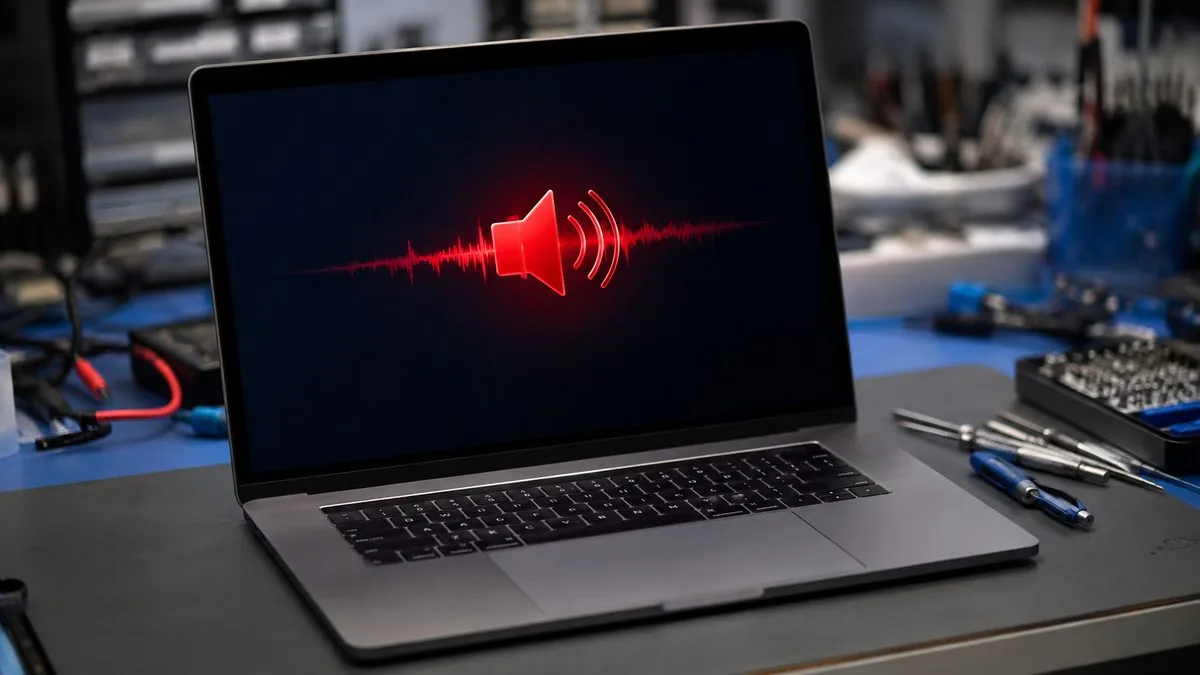
Use this quick reference to see where your particular symptom is likely to sit, and whether it is something you can safely check yourself or something for a workshop.
Quick diagnosis
A guide, not a guarantee — the only way to be certain is to test the speaker, the connector and the audio circuit on the bench, which is exactly what our free diagnosis does.
Let us know the make, model, and exactly what you hear — crackle on everything, pops in bursts, or distortion only at volume. A technician replies with a probable cause and an honest price band before you travel — diagnosis is free on walk-ins.
Work through these in order. They are all safe, none of them involves opening the laptop, and between them they clear the large majority of crackling that is not hardware. Stop at the first one that works.
Do not open the laptop to poke at the speaker or reseat its connector unless you genuinely know what you are doing — the ribbon connectors are fragile and easy to tear. Do not keep pushing the volume to maximum to "test" a speaker that is already distorting, as driving a damaged cone hard can finish it off. Do not download audio drivers from random third-party "driver updater" sites, which often bundle unwanted software; always use your laptop maker's official support page. And if the machine took a spill or a knock just before the crackling started, treat it as possible hardware damage rather than forcing software fixes.

If you have tested with headphones, reinstalled the audio driver, turned off enhancements, matched the sample rate, set the power plan to High Performance and updated the system, and the sound still crackles, pops or distorts, the fault has moved past anything you can fix in software. At that point the cause is usually one of a few hardware problems, and each needs a workshop:
Distinguishing these is exactly what a bench diagnosis is for: we play a known-good signal through the speaker, the headphone jack and the board separately, check the speaker connector, and confirm whether you are looking at a simple speaker swap, a reseated connector, or a codec fault deeper on the board. If the machine has also been feeling sluggish, a slow system can make audio stutter under load too, which our guide on a laptop running slow covers. And if you are weighing up whether the problem is worth a workshop at all, our checklist on the signs your laptop needs professional repair helps you decide.
Whatever the cause, our diagnosis comes first and is free on walk-ins: we tell you what is wrong and what it will cost before any work begins, and if we cannot fix it you do not pay a repair fee. Most crackling complaints turn out to be a driver or a setting rather than a broken part, so it is almost always worth finding out which before you write anything off. If you would like a written quote before travelling, you can request one here.
Related repair services
Blown, torn or buzzing speakers swapped for clean, full-volume sound.
See the service →Loose connectors, speaker modules and every other component, board level.
See the service →Failing audio codecs, amplifiers and liquid-damaged circuits traced and fixed.
See the service →Verified Google reviews
Real reviews from our Google profile, shown with the customer’s name as they left it. The score and the count are Google’s own, updated every week.
I got the motherboard issue fixed on my 16” MacBook Pro. No data was lost, and everything is the same as before. As promised, I also received a 60-day service warranty. Thank you, iDevice! 😊
Excellent Lap top repair service! Fast turn around, professional support & my computer was fixed quickly.
They repair fast and good, my DELL laptop had damaged screen and battery and they fixed it in one day. Diagnosis is free and they quote after checking on the problem. Pre-test testing and post testing done well.. Highly recommend.
My surface laptop was replaced with an SSD card and the services was very good.
Managed to fixed my 16inch MacBook pro within 5 working days thank you!
Great service - MacBook froze on upgrade. Could not solve problem myself. iDevice expedited the repairs and my Mac is like new! Very reasonable rates for repair too. Highly recommend.
Super fast and efficient. My motherboard spoiled, spent $350 to replace it, better than getting a new laptop at 2-3k. Hopefully can last for another year 😆
Managed to successfully fix my damaged iPhones and my data is also saved! Thank you for assisting
Questions we get every week

Sudden crackling is usually software, not a broken speaker. The most common triggers are an audio driver that has become corrupt or was changed by a Windows update, a sample-rate mismatch between Windows and the app you are playing, audio enhancements adding distortion, or high DPC latency where a background driver such as Wi-Fi or power management briefly stalls the audio stream. Start by updating or reinstalling the audio driver, turning off audio enhancements, and setting the default format to 24-bit 48000 Hz. Test with headphones too: if the headphone output is clean and only the built-in speaker crackles, the speaker or the amplifier on the board is the more likely cause.
The fastest test is a pair of headphones. Plug them in and play the same audio: if the headphones sound perfectly clean while the built-in speaker still crackles, pops or buzzes, the fault is after the software stage — a blown or torn speaker cone, a loose speaker connector, or the amplifier on the board. If the crackling is present on headphones and the speaker equally, it is far more likely a driver, sample-rate or DPC-latency issue you can fix in software. A speaker that only distorts at high volume but is clean when quiet is another classic sign of a physically damaged or ageing speaker.
DPC latency is the delay before a device driver finishes a background task and hands the processor back. Audio needs a steady, uninterrupted stream, so when one driver — often Wi-Fi, a network adapter, a trackpad or an aggressive power-management setting — holds the processor a fraction too long, the audio buffer runs dry and you hear a pop or a crackle. It tends to appear in bursts rather than constantly. Setting the Windows power plan to High Performance, updating the driver for the device that is stalling, and disabling deep power-saving states usually clears it. This is a purely software issue and never means the speaker is damaged.
Often, yes. When the default format Windows uses does not match what your speakers or an app expect, the audio has to be resampled on the fly, and that can introduce crackles, clicks and dropouts. In the Sound settings, open the playback device's advanced properties and set the default format to a standard value such as 24-bit, 48000 Hz, then test. If that does not help, try 16-bit 44100 Hz. It is a completely safe change, it takes seconds, and it resolves a surprising share of crackling complaints, especially after a Windows update has reset the format.
A blown or torn laptop speaker is almost always a straightforward repair, not a reason to replace the machine. On most laptops the speakers are a small module that unclips from the chassis, so a distorted or buzzing speaker can be swapped for a new one. If the crackling turns out to be the audio codec or amplifier on the motherboard rather than the speaker itself, that is a board-level repair where we trace and replace the failed component instead of the whole board. We diagnose which one you have first and quote before any work begins.
If sound turned crackly or distorted soon after a spill, treat it as liquid damage rather than a software glitch and stop using the machine. Liquid can corrode the speaker coil, the audio amplifier or the codec on the board, and continuing to run current through a wet or corroded circuit makes the damage worse. Do not try to dry it with heat or open it yourself. Power it off, unplug it, and bring it in for a diagnosis — the sooner corrosion is cleaned off the board, the better the chance of saving both the audio circuit and the rest of the laptop.
Walk-ins welcome from the CBD, Orchard, Novena, Toa Payoh, Bishan, Ang Mo Kio, Jurong East, Clementi, Tampines, Bedok, Woodlands, Yishun, Hougang and Punggol. We tell you what is wrong and what it costs before any work begins.
More laptop troubleshooting guides: laptop running slow and signs your laptop needs professional repair.