

MacBook guides · Singapore
How to wipe a Mac before selling or gifting (2026): the safe order that avoids data loss
Handing over a Mac that still has your photos, passwords and Apple Account on it is a real risk — and erasing it the wrong way can lose data you meant to keep. Done in the right order, it takes fifteen minutes, leaves nothing behind, and hands the buyer a clean machine that sets up as new.
On this page
- Get the order right — back up before you erase
- Step 1 — make a complete backup you can trust
- Step 2 — sign out of everything
- Step 3 — Erase All Content and Settings
- Older Intel Macs without EACS
- Activation Lock and Find My — the buyer's problem you must solve
- Common mistakes that cost people their data
- If it goes wrong: recovery and repair in Singapore
Get the order right — back up before you erase
The most important thing here is the sequence. Wiping a modern Mac is fast, and final. Apple silicon Macs — every MacBook Air and Pro since late 2020 — and Intel models with a T2 security chip do not scrub files one by one; they throw away the encryption key that makes the drive readable. Once that key is gone, the data is mathematically unrecoverable — no software or lab brings it back.
That is brilliant for privacy and a disaster if you skipped the backup. So the order is always the same: back up first, sign out second, erase last. If your data is irreplaceable and you are unsure, talk to a data recovery specialist before you touch the erase button, not after.
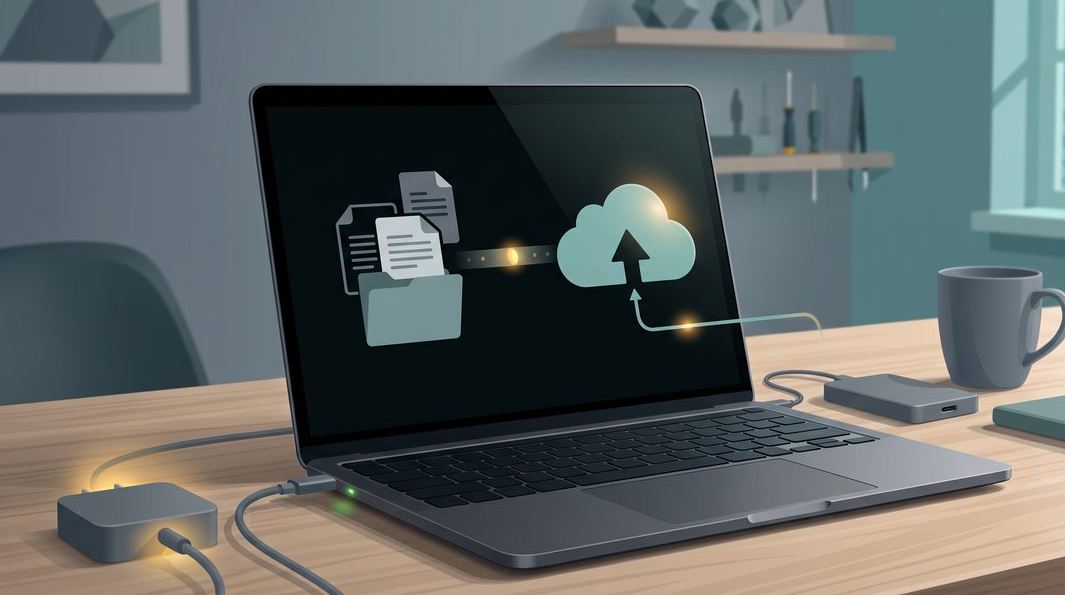
Step 1 — make a complete backup you can trust
Before anything is erased, get a full copy of everything off the Mac — there is no undo after this. You have three sensible routes, and no harm in using more than one.
- Time Machine is the built-in option we recommend. Plug in an external drive with more free space than your Mac uses, open System Settings → General → Time Machine, add the disk, and let a full backup finish.
- iCloud and Drive sync covers Desktop, Documents, Photos and passwords if it is switched on — but confirm the upload has finished before you sign out, as half-synced files do not count as a backup.
- A manual copy of your most precious folders to an external SSD is worth doing on top.
Once it is done, verify it — open the drive and confirm your key folders are really there. A backup you have not checked is a hope, not a backup.
Step 2 — sign out of everything
If you plan to use Erase All Content and Settings in the next step, it signs you out of your accounts and removes Activation Lock automatically. On older Macs you must do it by hand.
The services that matter most are iCloud / your Apple Account and iMessage. To sign out of iCloud manually, open System Settings, tap your name, scroll to the bottom and choose Sign Out. For iMessage, open Messages → Settings → iMessage and sign out there too — skip this and texts from other iPhone users can keep vanishing into a Mac you no longer own. If any software is licensed to this machine, such as Microsoft 365 or Adobe, deauthorise it now.

Step 3 — Erase All Content and Settings
This is the correct way to wipe a Mac, and the one Apple recommends. On any Apple silicon Mac or Intel Mac with a T2 chip, open System Settings → General → Transfer or Reset → Erase All Content and Settings and enter your admin password.
Behind that one button, the Mac does everything at once: it signs you out of your Apple Account, turns off Find My and Activation Lock, removes Touch ID and Apple Pay, and erases all settings and media by destroying the encryption key. When it finishes, the Mac restarts to the Hello setup screen. Leave it there so the new owner starts fresh under their own account.
This removes the two biggest headaches, leftover accounts and Activation Lock, in one step. To check which model you have, open Apple menu → About This Mac: anything listing an "Apple M" chip is Apple silicon, and most Intel models from 2018 onward have the T2. When in doubt, the MacBook workshop can confirm it in a minute.
Not sure your Mac is truly wiped — or worried you erased too soon?
Send us the model and one line on what happened. You will get an honest read on whether the machine is safe to hand over, or whether any data can still be saved, before you make it worse.
Older Intel Macs without Erase All Content and Settings
If your Mac is an older Intel model with no T2 chip — many machines from 2017 and earlier — the one-click option does not exist. The order still holds: back up, sign out, then erase.
After signing out of iCloud and iMessage, restart and hold Command + R to boot into macOS Recovery. Open Disk Utility, select your main volume (usually "Macintosh HD"), and choose Erase, formatting as APFS for recent macOS or Mac OS Extended (Journaled) for older versions. Then quit and choose Reinstall macOS so the buyer receives a working machine at the setup screen.
One point people forget: without hardware encryption a plain erase does not destroy the underlying data the way a T2 or Apple silicon wipe does — which is also why old Intel Macs are occasionally recoverable when a newer one never would be. If the machine is on its last legs and you are selling it as spares or repairs, read our MacBook Pro repair guide or MacBook Air repair guide first so you can describe its faults honestly.

Activation Lock and Find My — the buyer's problem you must solve
Activation Lock is the single thing that turns a smooth sale into a dispute. It ties the Mac to your Apple Account through Find My, so a lost or stolen machine is useless to a thief. The flip side is that a buyer cannot set up a Mac still locked to you — they hit a screen demanding your Apple Account password.
Erase All Content and Settings removes Activation Lock for you. To be certain, sign in at icloud.com, open Find My → Devices, and confirm the Mac no longer appears — if it does, select it and choose Remove This Device. On the wiped Mac, the setup assistant should proceed without asking for a previous owner's password; if it does ask, the lock is still active and the machine is not ready to sell.
This is also why buying a used Mac carries risk: if the seller has not cleared Activation Lock, you own an expensive paperweight until they do. Whether selling or buying, insist the Mac reaches the Hello screen with no lock before money changes hands. If a machine you bought is stuck locked and the seller has gone quiet, an Apple repair specialist can confirm the situation, though only the original account holder can lawfully release the lock.
Common mistakes that cost people their data
Almost every lost-cause case we see traces back to a handful of avoidable errors.
- Erasing before backing up. The big one. On an encrypted Mac there is no undelete — the moment you confirm, a lifetime of photos can be gone.
- Trusting a half-finished iCloud sync. Signing out mid-upload strands files that never reached the cloud. Wait for sync to complete first.
- Assuming "empty the Bin" is enough. That leaves your accounts, passwords and messages intact for the next owner. Only a proper erase clears them.
- Leaving Activation Lock on. The buyer gets home and the Mac will not activate. Confirm Find My is clear before it leaves.
- Selling a faulty Mac as "perfect". If it sometimes fails to power on, say so — and if you would rather fix it first, our guide on a MacBook that will not turn on covers the usual culprits.
If you have already erased irreplaceable data, stop using the Mac and bring it in. On a modern encrypted Mac the honest answer is usually that it is gone, but on some older drives there is a slim window — protect it by powering the machine down and letting a professional data recovery assessment tell you where you stand.
If it goes wrong: recovery and repair in Singapore
Two situations bring people to our bench, and both have honest answers. The first is erasing before backing up. If the Mac is Apple silicon or T2-based and Erase All Content and Settings has run, the data cannot be rebuilt, and we tell you that rather than take your money to try. On an older non-encrypted drive or a failed backup disk there is often a real chance, priced after a free diagnosis and usually from the low hundreds.
The second is a Mac that will not wipe because it will not stay on. That is a repair problem, not a software one: a flaky power line, a swollen MacBook battery, or a fault on the logic board can all stop a machine completing an erase. If the goal is to recover irreplaceable files off a dead Mac before selling the shell for parts, our data recovery service exists for exactly that. Either way, walk-in diagnosis is free, you get a written quote before any work, every repair carries a written warranty, and if we cannot fix it you do not pay a repair fee.
Questions we get every week
Frequently asked questions
Does Erase All Content and Settings really remove everything for the next owner?
Yes. On an Apple silicon Mac, or an Intel Mac with a T2 chip, Erase All Content and Settings cryptographically wipes the encryption key, so your files, accounts and settings are gone in seconds and cannot be rebuilt — even by us. It also signs you out of iCloud and turns off Activation Lock. The Mac restarts as if brand new, and the buyer sets it up under their own Apple Account. This is the method Apple recommends, and it is far safer than dragging files to the Bin.
Do I need to sign out of iCloud before I erase my Mac?
If you use Erase All Content and Settings, it signs you out for you, so a separate step is not required. On an older Intel Mac without a T2 chip you must sign out manually first — open System Settings, tap your name, scroll down and choose Sign Out, then also sign out of iMessage. Skipping this can leave the Mac tied to your Apple Account and locked to the new owner, so always confirm you are signed out before it leaves your hands.
What is Activation Lock and how do I make sure it is off?
Activation Lock ties the Mac to your Apple Account through Find My, so a lost or stolen machine cannot be reused. The catch is that a buyer cannot set up a Mac that is still locked to you. Erase All Content and Settings removes it automatically. To be sure, sign in at icloud.com, open Find My, and confirm the Mac no longer appears in your device list — or check Settings on the erased Mac shows the setup assistant with no Activation Lock prompt.
Can I still recover my data after I have erased the Mac?
Usually not, and that is the point. Because modern Macs erase the encryption key rather than the files, a wiped drive is mathematically unrecoverable — there is no undelete. This is exactly why a full backup must come first. If you erased before backing up and the data was irreplaceable, bring the Mac to us before doing anything else; on the rare older Fusion Drive or non-encrypted setup there is sometimes a slim chance, but on an Apple silicon or T2 Mac the honest answer is that the data is gone.
How much does it cost to recover data from a wiped Mac in Singapore?
It depends entirely on the Mac and what happened. A recovery from an old non-encrypted hard drive or a failed backup disk is priced after diagnosis, often from the low hundreds. On an Apple silicon or T2 Mac that has run Erase All Content and Settings, no lab can rebuild the data, so we will tell you that up front rather than charge you to try. Walk-in diagnosis is free, you get a written quote before any work, and if we cannot recover the data there is no recovery fee.
Keep reading
Related guides
Data recovery in Singapore: drives, phones and soldered storage
What is recoverable when a backup does not exist and the drive is dead or wiped.
MacBook Air repair guide
Common Air faults and what a repair really costs before you sell or keep it.
How to recover data from an iPhone
The honest hierarchy of iPhone recovery, and the first move that saves your data.
Get a written quote before a screw turns
Component-level diagnostics, a fixed price in writing, and no repair fee if we cannot fix it. Walk in Mon–Fri, or WhatsApp the workshop.