
Troubleshooting guide · Singapore
Laptop touchscreen not working? Find out why before you replace the screen
A 2-in-1 or touchscreen Windows laptop that has gone unresponsive, taps where you never touched, or ignores half the glass is very often a driver or calibration glitch you can clear yourself in minutes — not a broken panel. This guide walks you through the safe checks you can do at home, shows how each symptom points to a different cause, and explains the point at which a cracked digitiser or a loose display cable is worth handing to a workshop.
Restart the laptop first — a clean reboot revives a surprising number of dead touchscreens on its own. Then clean the glass with a dry microfibre cloth, dry your hands, and remove any screen protector to test. Next, open Device Manager, expand Human Interface Devices, and make sure HID-compliant touch screen is enabled; if it is disabled, enable it, and if touch is still dead, uninstall the touch driver and restart so Windows reinstalls it. Run any pending Windows updates too. If touch stays unresponsive after all of that, only part of the screen reacts, or the glass is cracked, the fault is likely a damaged digitiser or a loose cable — both of which we can diagnose before you commit to anything.
On this page
Why a laptop touchscreen stops working
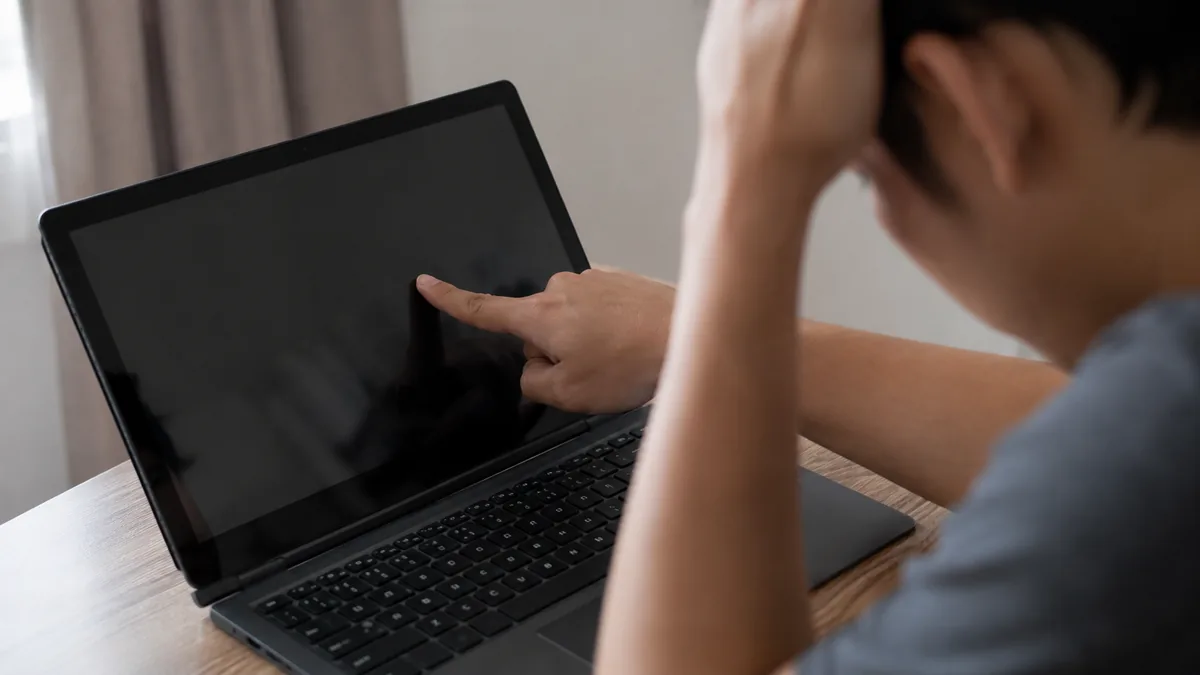
"Touchscreen not working" covers several genuinely different situations, and telling them apart is most of the battle. A laptop where touch is completely dead but the picture is perfect is not the same as one that registers ghost taps and drifts on its own, and neither is the same as one where touch works in one area of the screen but not another. Before you change anything, notice which of those three you have, because each points at a completely different part of the chain — and often at whether the problem is software you can fix in minutes or hardware that needs a bench.
The reassuring news comes first: on a touchscreen laptop the mouse, trackpad and keyboard keep working normally even when touch has failed, so you are never locked out of the machine. That also gives you the single most useful clue. If the display itself is clear, bright and correct and only the touch has stopped, the panel is healthy and the fault sits in the touch layer or its driver — which is exactly the sort of thing you can often fix yourself. It is when the picture is cracked, black or flickering as well as touch failing that you are looking at physical damage to the bonded assembly.
When the fault really is just touch, the causes fall into a short list, and most are software. The most common by far is the HID-compliant touch screen driver being disabled or corrupted, which sits in Device Manager under Human Interface Devices and can be knocked out by an update or a bad shutdown. Close behind is a Windows update that replaced the driver or left calibration in a bad state — a genuinely frequent cause of a touchscreen that worked yesterday and is dead today. Sometimes the machine simply needs a restart after a long uptime, and touch returns on its own. A screen protector, dirt, oil or moisture on the glass can confuse the capacitive sensor into ignoring you or inventing taps, and bad calibration can leave the cursor landing a centimetre from your finger. Those five are all safe to address at home and between them explain most cases.
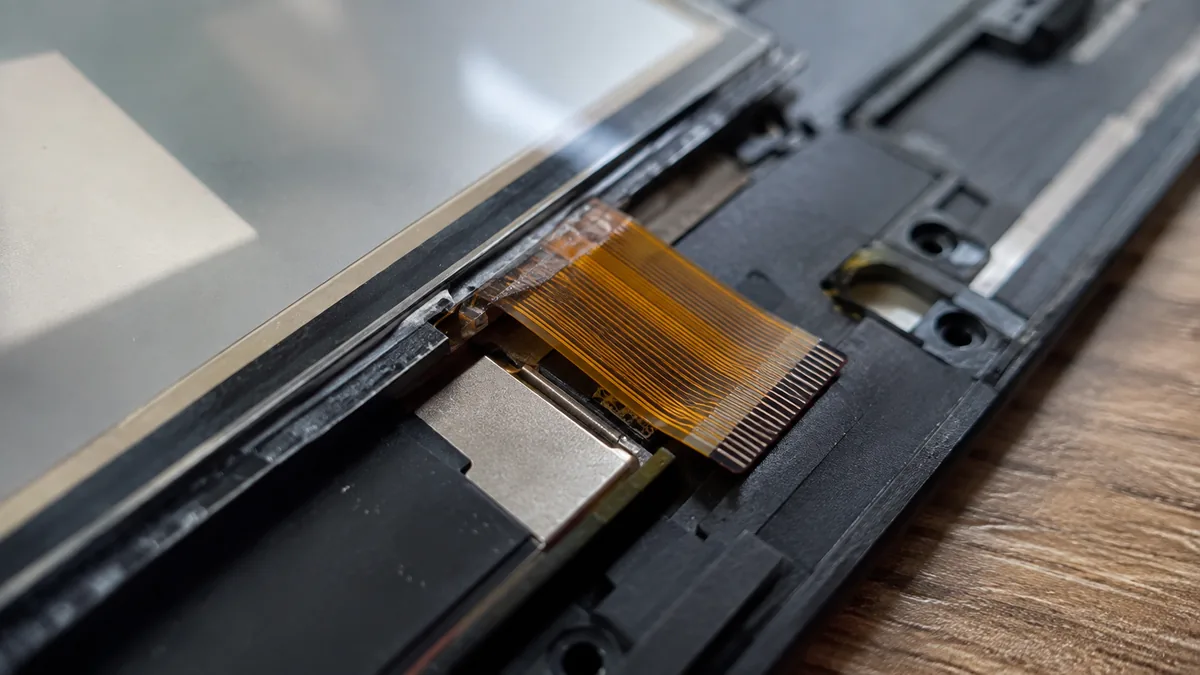
The remaining causes are hardware, and they are where a workshop comes in. A cracked digitiser — the thin touch-sensing grid bonded to the glass — produces dead patches, ghost touch, or a screen that ignores you entirely, often after a knock or pressure on the lid. A damaged glass or panel that has taken a drop can fail touch and picture together. And a loose or partly disconnected display cable, the ribbon that carries touch data down through the hinge to the board, can make touch cut out intermittently or die in a region. As a rule of thumb: whole-screen touch death with a perfect picture leans toward the driver, ghost touch leans toward dirt or a cracked digitiser, and a dead zone in one part of the screen leans firmly toward the digitiser or the cable. Crucially, none of the hardware causes are fixed by opening the laptop yourself — the touch layer is bonded to the panel, so a real repair means a whole-assembly replacement on the bench.
Match your symptom to the cause
Use this quick reference to see where your particular symptom is likely to sit, and whether it is something you can safely check yourself or something for a workshop.
Quick diagnosis
Symptom-to-cause reference
A guide, not a guarantee — the only way to be certain is to test the digitiser and the display cable on the bench, which is exactly what our free diagnosis does.
Not sure which one it is? Tell us the symptom.
Let us know the make, model, and exactly what you see — touch fully dead, ghost taps, or a dead patch in one corner. A technician replies with a probable cause and an honest price band before you travel — diagnosis is free on walk-ins.
Safe fixes you can try yourself
Work through these in order. They are all safe, none of them involves opening the laptop, and between them they clear the large majority of touchscreen faults that are not hardware. Stop at the first one that works.
- Restart the laptop properly. Not sleep — a full shutdown and power-on, or a restart from the Start menu. A touch controller that has hung after days of uptime very often springs back to life after one clean reboot, and it costs nothing to try. This is the single most effective first step and it fixes more dead touchscreens than anything else on this list.
- Clean the screen and dry your hands. Wipe the glass with a dry or barely damp microfibre cloth to clear fingerprints, oil, sweat and moisture, which can all confuse a capacitive touchscreen into ignoring you or inventing ghost taps. Make sure your fingers are clean and dry too — a capacitive sensor reads poorly through moisture or lotion. In Singapore's humidity, condensation on a cold screen alone can cause erratic touch.
- Remove any screen protector. A thick, cheap or badly-fitted protector, or one with trapped dust and bubbles, can stop touch registering or cause phantom taps. Peel it off and test the bare glass. If touch returns, the protector was the problem — replace it with a thinner, touch-rated one designed for your model.
- Check the touchscreen is not disabled in Device Manager, and enable it. Right-click the Start button and open Device Manager, then expand "Human Interface Devices". Look for "HID-compliant touch screen". If it shows a small down-arrow badge it is disabled — right-click it and choose "Enable device". If it is not listed at all, that is a clue the driver has failed or the hardware is not being detected.
- Update or reinstall the touchscreen driver. In the same Human Interface Devices section, right-click "HID-compliant touch screen" and choose "Update driver", or choose "Uninstall device" and then restart the laptop so Windows reinstalls a fresh copy on boot. For the newest version, download it from your laptop maker's official support page for your exact model rather than a third-party site. A corrupt driver is behind a large share of touch faults and this never touches your files.
- Run Windows Update to completion. Because updates both cause and cure touch problems, open Settings, go to Windows Update, and install everything pending, then restart. A corrected touch driver often arrives this way. If touch broke immediately after a specific update, installing the next cumulative update frequently puts it right.
- Try a different user profile. Create or switch to another Windows user account and test touch there. If it works in the new profile, the fault is a corrupted setting or calibration in your original profile rather than the hardware — which points you back at re-running the touch driver install and calibration for that account instead of a repair.
Do not open the laptop to poke at the display cable or the touch panel yourself. On a touchscreen laptop the glass, digitiser and panel are bonded into one sealed assembly, the cables are fragile ribbons, and prising the lid open almost always cracks the glass or tears a connector — turning a possible driver fix into a guaranteed panel replacement. Do not press hard on a screen with ghost touch to "reset" it; pressure can spread digitiser damage. Do not download drivers from random third-party "driver updater" sites, which often bundle unwanted software; always use your laptop maker's official support page. And if the machine took a spill or a drop just before touch died, treat it as possible hardware damage rather than forcing software fixes.
When to get professional repair
If you have restarted, cleaned the glass, removed the protector, enabled and reinstalled the HID touch driver, run Windows Update and tested a second profile, and touch is still unresponsive, erratic in one area, or the glass is visibly cracked, the fault has moved past anything you can fix in software. At that point the cause is usually one of a few hardware problems, and each needs a workshop:
- A cracked or damaged digitiser. When touch is dead in patches, invents ghost taps, or ignores you entirely after a knock, the touch-sensing digitiser bonded to the glass has been physically damaged. Because it is fused to the panel, the fix is a bonded-panel replacement rather than swapping just the glass — see our laptop screen replacement service, which covers touch assemblies.
- A loose or failing display cable. If touch cuts out when the lid flexes or moves, or a whole strip of the screen has gone dead, the ribbon cable carrying touch data down through the hinge has come loose or frayed. That is an internal reseat or cable replacement, and it often overlaps with the wider display work in our laptop parts replacement service.
- Impact damage across the panel. When touch and picture fail together — cracks, lines, black areas — the whole bonded assembly has taken a hit, and the same job also cures related faults like a flickering laptop screen when they stem from the panel or cable. If the fault instead traces to the board that drives the display, our laptop motherboard repair service handles it at component level.
Distinguishing these is exactly what a bench diagnosis is for: we test the digitiser and the display panel separately, check the cable at the hinge, and confirm whether you are looking at a driver fix, a cable reseat, or a full bonded-assembly replacement — so you only pay for what genuinely needs replacing. If you are weighing up whether it is time to stop troubleshooting, our guide to the signs your laptop needs professional repair is a useful sanity check.
Whatever the cause, our diagnosis comes first and is free on walk-ins: we tell you what is wrong and what it will cost before any work begins, and if we cannot fix it you do not pay a repair fee. Most touch complaints turn out to be a driver or a setting rather than broken glass, so it is almost always worth finding out which before you write anything off. When it is genuinely a hardware job, get a written quote before you decide.
Related repair services
If it turns out to be hardware
Screen replacement
Cracked bonded touch assemblies and dead digitisers replaced as one unit.
See the service →Laptop repair
Display cables, connectors and every other part, all brands, quoted first.
See the service →Screen flickering
Flicker and lines that share the same cable and panel causes as touch faults.
See the service →Questions we get every week
Laptop touchscreen not working — frequently asked questions
Why has my laptop touchscreen suddenly stopped responding?
A touchscreen that worked yesterday and is dead today is far more often a software glitch than broken glass. The most common cause is the HID-compliant touch screen driver being disabled or corrupted, frequently after a Windows update. Start with a full restart, then clean the screen and dry your hands, then open Device Manager, expand Human Interface Devices, and make sure HID-compliant touch screen is enabled — if it is disabled, right-click and enable it. If those do not help, uninstall the touch driver and restart so Windows reinstalls it. If touch is still dead after all of that, or the glass is cracked, it points at a hardware fault in the digitiser and needs a workshop.
My touchscreen registers taps I never made or jumps around — what causes ghost touch?
Phantom taps, a cursor that drifts, or the screen reacting where you did not touch are called ghost touch. The usual harmless causes are dirt, oil or moisture on the glass, or a poor-quality screen protector confusing the sensor — clean the screen with a dry microfibre cloth and remove any protector to test. Ghost touch can also follow a Windows update that upset calibration. If cleaning and a restart do not settle it, ghost touch often means the digitiser layer has been physically damaged by a knock, pressure or a hairline crack, and a damaged digitiser is a panel-level repair rather than a setting you can change.
The touchscreen works in one corner but not another — is that a driver or hardware problem?
When touch works perfectly in some areas of the screen but is dead in others, that is almost always hardware, not software. A driver fault typically kills the whole touch layer at once, not one patch of it. A dead zone usually means the digitiser grid has been damaged in that spot — often from a drop, a pen dig, or pressure on the lid — or a display cable feeding the touch panel has partly come loose. Because the touch layer is bonded to the glass and panel on almost every modern laptop, fixing a dead zone means replacing the bonded assembly, which is a workshop job we quote before starting.
Can a Windows update break my laptop touchscreen, and how do I fix it?
Yes. A Windows update is one of the most common reasons a touchscreen stops responding overnight, because it can replace or disable the touch driver, or leave calibration in a bad state. The fix is safe and file-free: restart the laptop first, then open Device Manager, expand Human Interface Devices, and enable or reinstall HID-compliant touch screen. Running any pending Windows updates to completion often installs the corrected driver as well. If a recent update clearly caused it and nothing brings touch back, the driver may need a clean reinstall from your laptop maker's official support page for your exact model.
Is a cracked laptop touchscreen worth repairing?
In most cases, yes. A cracked or unresponsive touchscreen is repairable, but on nearly every modern laptop the glass, the touch digitiser and the display panel are bonded together as one sealed unit, so the fix is a full bonded-panel replacement rather than swapping just the glass. That makes it a more involved job than a plain non-touch screen swap, but it is routine work for us and restores both the display and the touch. We diagnose whether you need the whole assembly or just a driver fix first, and quote in writing before any work begins.
How can I tell if it is the touchscreen or the whole display that has failed?
Look at whether the picture is still fine. If the image is clear, bright and correct but touch does nothing, the display panel is healthy and the problem is the touch layer or its driver — try the software steps first. If the picture itself is cracked, black, flickering or showing lines as well as touch failing, the whole bonded assembly has likely taken damage. Either way, a mouse and keyboard should still work normally, which lets you use the laptop while you decide. We test the panel and the digitiser separately on the bench so you only pay for what actually needs replacing.
Bring it in for a free diagnosis
Walk-ins welcome from the CBD, Orchard, Novena, Toa Payoh, Bishan, Ang Mo Kio, Jurong East, Clementi, Tampines, Bedok, Woodlands, Yishun, Hougang and Punggol. We tell you what is wrong and what it costs before any work begins.
More laptop display troubleshooting: laptop screen flickering and our full laptop repair standard operating procedure.