
★★★★★
I got the motherboard issue fixed on my 16” MacBook Pro. No data was lost, and everything is the same as before. As promised, I also received a 60-day service warranty. Thank you, iDevice! 😊
Troubleshooting guide · Singapore
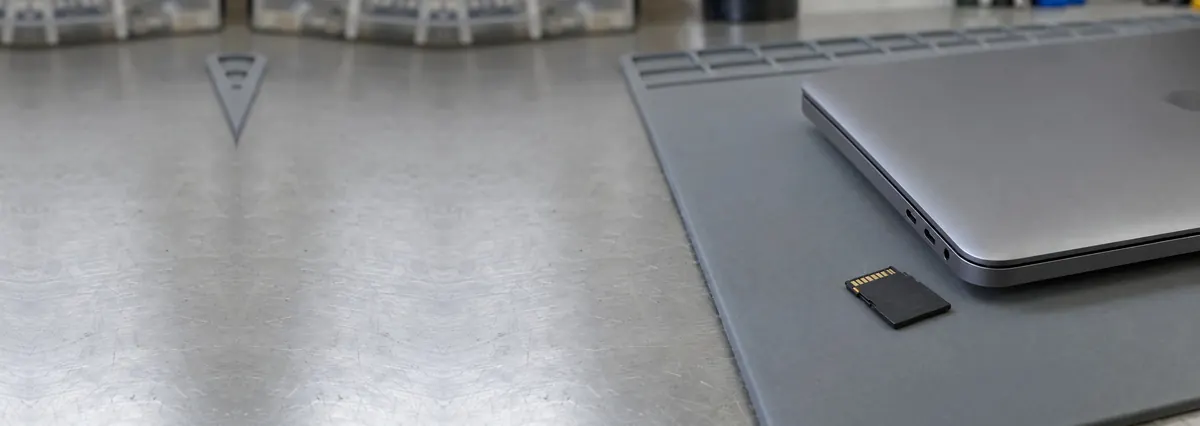
A laptop that ignores your SD or microSD card, or reads it but won't let you save anything, is far more often a faulty card, a write-protect switch or a missing driver than a dead machine. This guide walks you through the safe checks that isolate the card from the reader, shows how each symptom points to a different cause, and explains the point at which a jammed slot or a failed reader board is worth handing to a workshop.
Test the card in another device or a cheap USB card reader first — that single check tells you whether the card or the laptop is at fault. If the card reads elsewhere, try a different, known-good card in your laptop slot, check the card's write-protect switch, then reinstall the card-reader driver in Device Manager and give the slot a gentle puff of compressed air. If no card reads in the slot after all that, the built-in reader or its board connection has likely failed — which we can diagnose before you commit to anything. And if a failing card holds your only copies of photos or files, stop using it and ask us about data recovery straight away.
On this page
"The SD card reader isn't working" hides several genuinely different problems, and the first job is to work out which one you actually have. A slot that detects nothing at all when you push a card in is not the same as one that reads the card but refuses to save or delete, and neither is the same as a reader that worked last week and suddenly vanished from Windows. Notice which of those describes your situation before you change anything, because each one points at a different link in the chain — and the chain has more links than most people expect: the card, the write-protect switch, the driver, the slot itself, and the little reader board inside the laptop.
The single most useful check comes before any of that, and it costs nothing: test the card in another device. Put it in your phone with an adapter, another laptop, or a cheap USB card reader you can buy for a few dollars. If the card reads perfectly elsewhere, the card is fine and the fault is your laptop's reader or its driver. If the card fails everywhere you try it, the card itself has failed — and no amount of fiddling with the laptop will bring it back. This one test splits every "reader not working" case cleanly into two, and it is the step people most often skip.
When the card is good and the fault is on the laptop, the causes fall into a short list. The gentlest is a write-protect switch: nearly every full-size SD card has a tiny lock slider on its left edge, and if it is knocked down towards the contacts the card turns read-only, so Windows sees it but blocks every save and delete. Next is an outdated, disabled or corrupt card-reader driver, which is behind a large share of "reader disappeared" complaints and is completely fixable in software — this is especially common right after a Windows update wipes or replaces the driver. Dust, lint or pocket fluff packed into the slot can also stop the card's contacts meeting the reader's pins, which is very common on laptops carried in bags all day. And a card that simply isn't fully seated — not pushed in until it clicks — will sit there undetected. Those four are all safe to sort out at home.
The remaining causes are hardware, and they are where a workshop comes in. A bent or broken contact pin inside the slot — usually from a card jammed in at an angle or forced when it snagged — leaves the reader unable to make contact no matter what you insert. And a failed reader board or a loose ribbon cable connecting that board to the motherboard makes the whole reader vanish, so every card is ignored while USB card readers still work fine. As a rule of thumb: a card that reads elsewhere but not in the laptop leans toward the driver or the slot; a card that fails everywhere is the card; and a reader that ignores every card while USB readers work leans toward the reader hardware or its cable.

Use this quick reference to see where your particular symptom is likely to sit, and whether it is something you can safely check yourself or something for a workshop.
Quick diagnosis
A guide, not a guarantee — the only way to be certain is to test the card, the slot and the reader board on the bench, which is exactly what our free diagnosis does.
Let us know the make, model, and exactly what you see — no detection at all, a read-only card, or a slot that won't take the card. A technician replies with a probable cause and an honest price band before you travel — diagnosis is free on walk-ins.
Work through these in order. They are all safe, none of them involves opening the laptop, and between them they clear the large majority of card-reader faults that are not hardware. Stop at the first one that works.
Never jam or force a card that goes in at an angle or snags — the contact pins inside the slot are thin and easily bent, and one forced card can turn a simple problem into a board-level repair. Do not push a bent, swollen or cracked card into the slot at all. And if an SD card holds the only copy of your photos or files and it has started failing or asking to be formatted, stop using it now: do not let Windows format it, and do not run random repair tools, because every read of a dying card can make the data harder to save. Set it aside and ask us about data recovery instead.

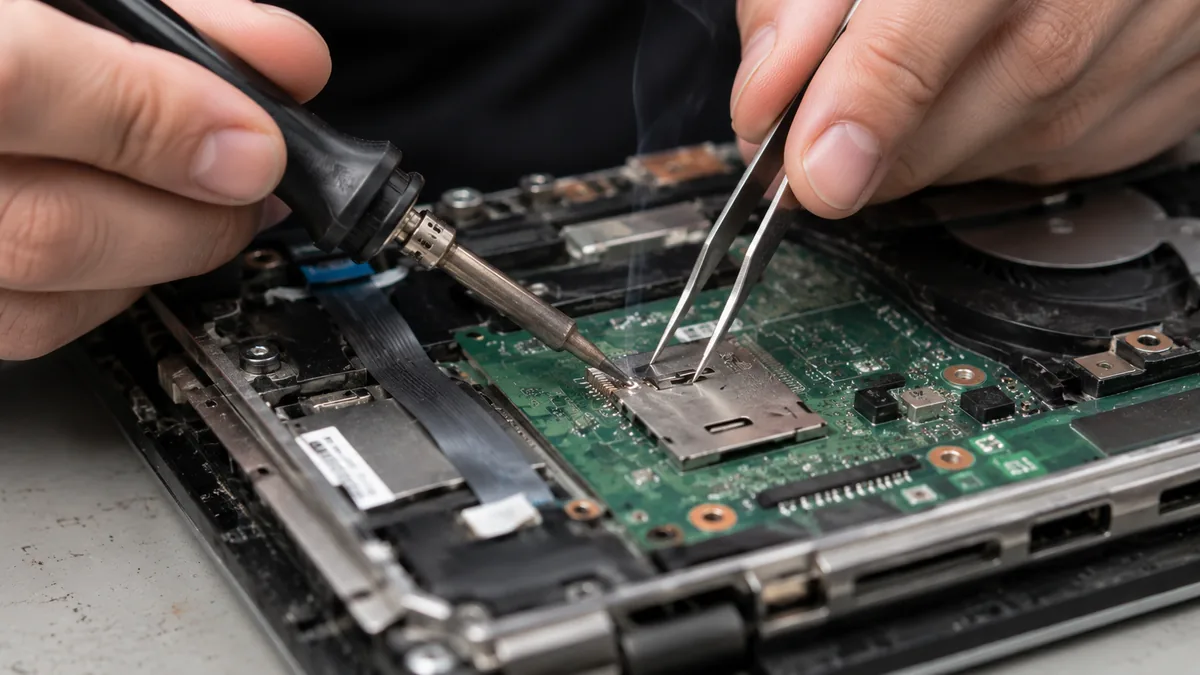
If you have tested the card elsewhere, tried a known-good card in the laptop, checked the write-protect switch, reinstalled the driver, cleaned the slot and restarted, and the built-in reader still ignores every card while a USB card reader works fine, the fault has moved past anything you can fix in software. At that point the cause is usually one of a few hardware problems, and each needs a workshop:
There is also the separate question of the card. If the reader is fine but a card has failed with your only copies of photos, documents or footage on it, that is not a repair job at all — it is a recovery job, and using the card further only lowers the odds. Our data recovery service reads a failing card at a low level to pull the files off before the controller gives out, and the same team handles SSD data recovery when the loss is on an internal drive. If you are not sure whether what you are seeing is a dying card, a broken reader or something else on the machine, our guide to the signs your laptop needs professional repair helps you tell them apart.
Distinguishing all of these is exactly what a bench diagnosis is for: we test your card in a known-good reader, check the slot pins under magnification, confirm whether the built-in reader responds at all, and tell you whether you are looking at a quick module swap, a slot repair, or a card that needs recovering. Whatever the cause, our diagnosis comes first and is free on walk-ins — we tell you what is wrong and what it will cost before any work begins, and if we cannot fix it you do not pay a repair fee. You can get a written quote before deciding, and most reader complaints turn out to be a card or a driver rather than a broken part, so it is almost always worth finding out which before you write anything off.
Related repair services
Photos and files pulled off a failing SD card before the controller gives out.
See the service →Bent slot pins straightened and failed reader modules swapped, every brand.
See the service →Board-level reader faults and ribbon connections traced and fixed.
See the service →Verified Google reviews
Real reviews from our Google profile, shown with the customer’s name as they left it. The score and the count are Google’s own, updated every week.
I got the motherboard issue fixed on my 16” MacBook Pro. No data was lost, and everything is the same as before. As promised, I also received a 60-day service warranty. Thank you, iDevice! 😊
Excellent Lap top repair service! Fast turn around, professional support & my computer was fixed quickly.
They repair fast and good, my DELL laptop had damaged screen and battery and they fixed it in one day. Diagnosis is free and they quote after checking on the problem. Pre-test testing and post testing done well.. Highly recommend.
My surface laptop was replaced with an SSD card and the services was very good.
Managed to fixed my 16inch MacBook pro within 5 working days thank you!
Great service - MacBook froze on upgrade. Could not solve problem myself. iDevice expedited the repairs and my Mac is like new! Very reasonable rates for repair too. Highly recommend.
Super fast and efficient. My motherboard spoiled, spent $350 to replace it, better than getting a new laptop at 2-3k. Hopefully can last for another year 😆
Managed to successfully fix my damaged iPhones and my data is also saved! Thank you for assisting
Questions we get every week
When nothing shows up after you insert a card, the fault is one of three things: the card, the driver, or the reader. Test the same card in another device or through a cheap USB card reader — if it reads elsewhere, your laptop's reader or its driver is the problem. Then try a different, known-good card in the laptop slot; if that one works, your original card has failed. If no card works in the slot but every card works over USB, the built-in reader or its driver is at fault. Reinstalling the card-reader driver in Device Manager fixes many of these; a slot that stays dead after that is a hardware repair.
That is almost always write protection rather than a broken reader. Most full-size SD cards have a tiny lock switch on the left edge; if it is slid down towards the contacts, the card becomes read-only and Windows refuses to write or delete. Take the card out, slide the switch back up towards the top, and reinsert it. If the switch is already up and the card is still read-only, the card's controller may be failing into a protected state to guard the data — copy everything off it straight away and stop using it, because a card that locks itself is often on its way out.
A reader that worked yesterday and vanished after an update has almost certainly lost its driver. Open Device Manager, look under Memory technology devices or Universal Serial Bus controllers for the card reader, and if it is missing, greyed out or flagged with a warning, right-click and choose Uninstall device, then restart so Windows reinstalls a fresh copy. If that does not bring it back, download the card-reader driver from your laptop maker's official support page for your exact model. Because this never opens the machine or touches your files, it is always safe to try before assuming the hardware has failed.
A short, gentle puff of compressed air held upright and a few centimetres from the slot is safe and often clears the lint and pocket dust that stops the contacts meeting the card. What is not safe is poking metal tools, pins or paperclips into the slot, or spraying liquid cleaner in — the contact pins inside are thin and easily bent, and a bent pin turns a simple problem into a board-level repair. If air does not help and nothing seats properly, leave it and let a technician inspect the slot under magnification.
Stop using the card immediately. Every time a failing card is inserted, powered and read, you risk making the data harder to recover, and formatting it or running random repair tools can overwrite what is still there. Do not let Windows format it when it offers to. Set the card aside, keep it dry and static-free, and bring it in — dedicated data recovery reads a failing card at a low level to pull the files off before the controller gives out entirely. The sooner it stops being used, the better the odds.
Usually yes. On many laptops the card reader is a small board or a module connected to the motherboard by a ribbon cable, so a dead reader can be reseated or replaced without touching the rest of the machine. A slot with a bent or broken contact pin, or a reader soldered directly to the motherboard, is a component-level repair instead. We diagnose which one you have first and quote before any work, so you know whether it is a quick module swap or something deeper on the board — and if you only need the reader occasionally, a USB card reader is a cheap stopgap either way.
Walk-ins welcome from the CBD, Orchard, Novena, Toa Payoh, Bishan, Ang Mo Kio, Jurong East, Clementi, Tampines, Bedok, Woodlands, Yishun, Hougang and Punggol. We tell you what is wrong and what it costs before any work begins.
More laptop troubleshooting guides: laptop repair standard operating procedure and the signs your laptop needs professional repair.