
Laptop guides · Singapore
Laptop fan noise: how to fix a loud fan, and when a fan or board service is due
A laptop fan that roars during a video call or spins like a jet on the sofa is trying to tell you something. Often the fix is free and takes ten minutes. Sometimes it means the cooling system needs a clean, a repaste, or a new fan — and knowing the difference saves both your ears and your machine.
On this page
- What a healthy laptop fan should sound like
- The four real reasons laptop fans get loud
- Fix the load first: background processes and settings
- Airflow and heat: where you use the laptop matters
- Clean the dust: the single biggest win
- Thermal paste and pads: when a clean is not enough
- When the fan itself is worn or failing
- When a fan or board service is due, and what it costs
What a healthy laptop fan should sound like
Every modern laptop has intelligent temperature control: the fan speeds up and slows down with the chip's temperature. A fan that spins up when you join a Teams call, export a video or play a game is behaving exactly as designed. No repair will change that, because the alternative is a chip that overheats.
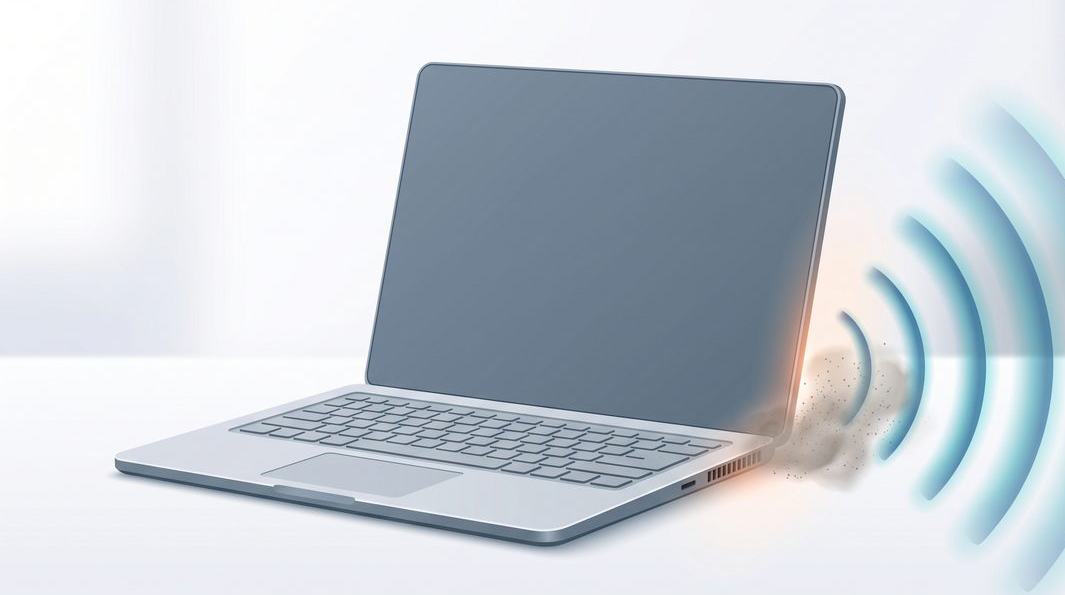
The noise to worry about is different. A fan that runs loud constantly, even at idle, points at heat the cooling system can no longer shed — usually dust or dried paste. A change in the character of the sound — a rattle, grind, click or chassis buzz — is mechanical: the fan itself is wearing out. Loud airflow you can often fix at home; a fan that grinds is a parts problem.
The four real reasons laptop fans get loud
Almost every noisy laptop comes down to one of four things, in this order:
- Software load. Something is working the processor hard — a runaway app, a stuck update, too many tabs, or malware. The fan is responding to real heat.
- Blocked airflow. Dust packed into the heatsink fins, or vents pressed against a bed, sofa or lap.
- Failed thermal paste. The paste between chip and heatsink has dried and cracked, so heat no longer transfers and the fan overcompensates.
- A worn fan. The bearing has aged, so the fan is noisy regardless of temperature — the rattle or grind.
Work down that list from cheapest to most involved: rule out software, improve airflow, clean the dust, repaste, and only then replace the fan. If you would rather not open the machine, a laptop repair workshop can run the whole check-down under a free diagnosis.
Fix the load first: background processes and settings
Before you reach for a screwdriver, check what the laptop is doing. A fan that "suddenly went loud" is usually chasing a background process, and no cleaning will quiet a chip pinned at 100 per cent.
Open the task monitor. On Windows, press Ctrl+Shift+Esc for Task Manager and sort by CPU; on a Mac, open Activity Monitor. Look for anything holding a high percentage while you do nothing demanding — a stalled Windows Update, a heavy browser tab, cloud sync re-indexing, or antivirus mid-scan.
Then close tabs and apps you are not using; let pending updates finish rather than cancelling them in a loop; and run a malware scan, since crypto-mining and adware quietly max the processor. If that settles the fan, you are done. If it stays loud at a genuine idle, the heat is mechanical — and that means airflow and cleaning.
Airflow and heat: where you use the laptop matters
Laptops pull cool air in through base vents and push hot air out the side or back. Singapore's warm climate and humid, clumping dust mean where you use the machine has a real effect on fan speed.
Lift the laptop. Flat on a desk leaves millimetres for air, and a bed, cushion or lap can block the intake entirely. Raising the back edge slightly — a stand or a book under the rear feet — opens the intake and drops fan speed noticeably. A cooling pad with its own fans helps a machine run hard for hours, though it only masks one choked with dust inside. If none of this quietens a fan that roars at idle, the airflow is blocked inside — and that means dust.
Loud even after you have cleaned and closed everything?
Send us the make, model and one line on the noise — a steady roar, or a rattle and grind. You will get an honest read on whether it is a clean, a repaste, or a new fan, with a written quote before anything is opened up.
Clean the dust: the single biggest win
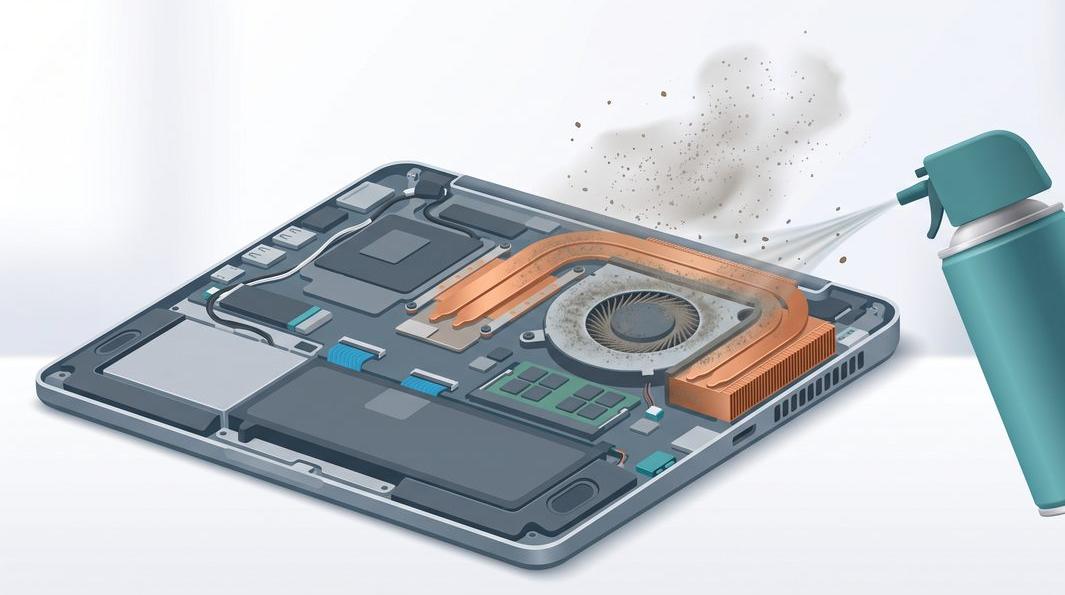
If a laptop is a couple of years old and runs loud at idle, dust is the likeliest cause by a wide margin. A felt-like layer builds on the heatsink fins — the radiator the fan blows through — until air can barely pass, so the fan runs flat out and the machine still runs hot. Clearing that dust is the most effective cheap fix there is.
Blowing a can of compressed air into the vents from outside usually makes things worse — it drives dust deeper into the fins and can overspin the fan enough to damage the bearing. A proper clean means opening the base and clearing the fins directly, holding the fan still. On slim ultrabooks and MacBooks the clips break easily, so it is more involved.
If you are comfortable opening the base, unplug and power down first, hold the fan blade still, and clear the fins with short bursts of air and a soft brush. If clips, ribbon cables or warranty seals make you hesitate, that instinct is right — stop there.
A workshop clean goes further: the fan and heatsink come out, the fins are cleaned properly, and it is the natural moment to refresh the paste. That combination — a full clean plus fresh paste — turns a laptop that sounds like a hairdryer quiet again.

Thermal paste and pads: when a clean is not enough
Between the processor and heatsink sits a thin layer of thermal paste that carries heat across the gap. When new it is soft and conductive; after three to five years — faster in a hot climate — it dries and cracks. Heat no longer crosses efficiently, so the chip runs hot, the fan screams, and the laptop throttles itself. A dust clean alone will not fix this, because the bottleneck is the paste.
A "repaste" means removing the heatsink, cleaning off the old compound, and applying fresh paste plus new thermal pads where the design uses them. Done properly it drops temperatures markedly and lets the same fan hold them at a far lower speed. On many noisy older laptops, a dust clean plus a repaste is the entire fix.
It is fiddly work: too little paste and the chip stays hot; too much and it spills onto the board. This is squarely in professional laptop repair territory, and on Apple machines it belongs with a bench that handles MacBook repair daily, where the cooling assemblies are tightly integrated.
When the fan itself is worn or failing
Everything so far assumes a healthy fan working hard. Sometimes the fan itself is the problem. Each fan spins on a tiny bearing, and after years of use — especially with dust grinding through it — that bearing wears. The sound turns from a smooth rush of air into something mechanical: a rattle, a grinding whir, an intermittent click, or a buzz that changes pitch when you tilt the laptop. No cleaning or repaste will cure that.
A worn fan matters for more than noise. As the bearing degrades the fan moves less air, so the laptop runs hotter even while it sounds louder, and a failing bearing can eventually seize. If you hear grinding or clicking, ease off heavy tasks until it is checked.
The fix is a fan replacement. On many business laptops the fan is a self-contained module that unclips quickly; on slim ultrabooks and some MacBooks it is part of a bonded assembly, so the part costs more. Either way it is a reliable repair, and worth pairing with a clean and repaste in the same visit. If the overheating has already caused shutdowns, have the technician check the board too — persistent heat can stress the motherboard over time.
When a fan or board service is due, and what it costs
The simple decision guide we give walk-in customers — book a service when:
- The fan runs loud at genuine idle after you have cleared the software load — dust or paste.
- You hear a rattle, grind, click or buzz — a worn fan bearing.
- The laptop gets hot enough to throttle, freeze or shut down — urgent, whatever the cause.
- You are not confident opening the base, or the machine is slim, bonded or under warranty.
We quote in bands, and only after seeing the machine. As a rough guide: a dust clean and repaste is the lightest service and often lands in the low hundreds; a fan replacement adds the cost of the part, which varies widely by model; related board work is quoted separately after diagnosis. Our laptop repair cost guide for Singapore lays out the typical ranges.
Two promises hold throughout: you get a written quote before any work starts, and if we cannot fix it you do not pay a repair fee. Walk-in diagnosis is free. And if the noise comes with a swelling that lifts the trackpad, mention it, because a failing battery brings heat problems of its own and is best assessed alongside the fan.
Questions we get every week
Frequently asked questions
Why is my laptop fan suddenly so loud?
A fan that turns loud out of nowhere is almost always reacting to heat or load, not breaking. The usual culprits are a runaway background process pinning the processor, a thick layer of dust choking the vents, or thermal paste that has dried out after a few years. Start by checking Task Manager or Activity Monitor for something using the CPU, then look at whether the vents are blocked. If the noise is a rattle or grinding rather than just a rush of air, the fan bearing itself may be worn — and that is a parts job.
Is it bad to keep using a laptop with a loud fan?
A fan running hard is doing its job, so short term it is not dangerous. The real worry is sustained heat: if the fan cannot keep up because it is clogged or the paste has failed, the laptop will throttle to protect itself, and years of running hot shortens the life of the battery and the board. A grinding or clicking fan is different — that bearing can seize, and once airflow stops the machine can overheat quickly. If you hear mechanical noise rather than airflow, stop heavy use until it is checked.
How often should a laptop be cleaned of dust in Singapore?
Singapore’s humidity and fine dust build up faster than in drier climates, so once a year is a sensible interval for most laptops, and every six months if you keep the machine on carpet, a bed, or in a dusty workspace. Gaming laptops and anything that runs hot for hours a day benefit from more frequent cleaning. A proper clean means opening the base and clearing the heatsink fins, not just blowing a can of air into the vents, which often just pushes the dust deeper.
Does replacing thermal paste actually make a laptop quieter?
Often, yes. Thermal paste carries heat from the chip to the heatsink, and after three to five years it dries and cracks, so heat transfers poorly and the fan spins up to compensate. Fresh paste — and new thermal pads where the design uses them — lets the same fan hold temperature at a much lower speed. On many machines a dust clean plus a repaste is the single most effective fix for noise and heat combined, and it is far cheaper than a new laptop.
How much does a laptop fan replacement cost in Singapore?
It depends on the model and how easy the fan is to reach. A clean and repaste is the lightest job and often lands in the low hundreds; a fan replacement adds the price of the part, which varies widely between a common business laptop and a slim ultrabook with a bonded cooling assembly. We give a written quote after a free walk-in diagnosis, so you know the band before any work starts, and if we cannot fix it you do not pay a repair fee.
Keep reading
Related guides
Laptop repair in Singapore: every brand, component level
Cleaning, repasting, fan and board work under one roof, with a free walk-in diagnosis.
Laptop motherboard repair
When years of heat have stressed the board, and a component-level fix beats a replacement.
How much does laptop repair cost in Singapore?
Honest price bands for cleans, fans, batteries, screens and board work.
Get a written quote before a screw turns
Component-level diagnostics, a fixed price in writing, and no repair fee if we cannot fix it. Walk in Mon–Fri, or WhatsApp the workshop with your model and the noise it makes.