
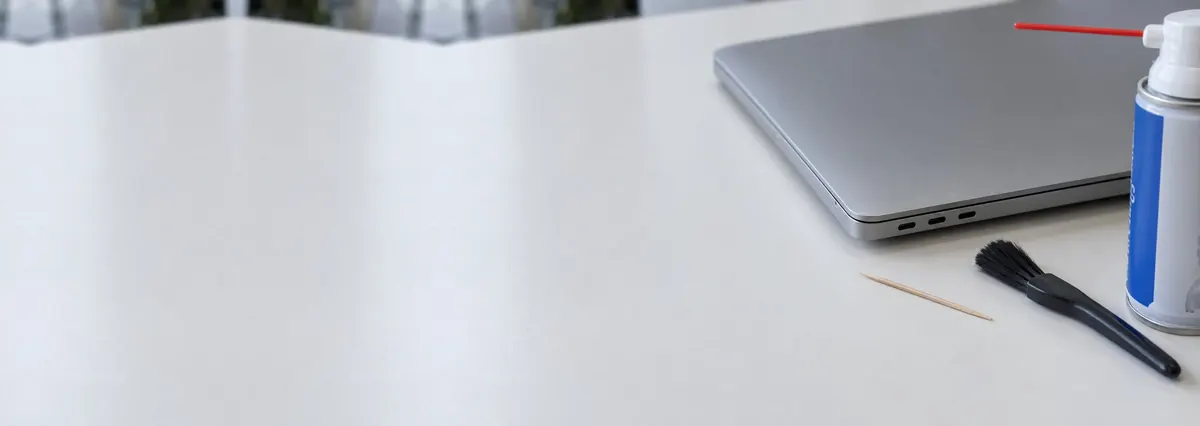
Laptop guides · Singapore
How to clean laptop ports safely (2026): USB-C, USB-A, HDMI and the loose-port fix
A charger that only works at a certain angle, a USB stick that will not seat, a headphone jack that crackles — nine times out of ten it is lint packed into the port, and it clears in two minutes. The tenth time it is a broken connector, and the trick is telling the difference before you make it worse.
On this page
- Before you start — power down and read this first
- Why laptop ports clog up in Singapore's climate
- The right tools (and what never to use)
- Cleaning a USB-C or charging port
- USB-A, HDMI, Ethernet and the headphone jack
- Dirty port or broken port? How to tell
- Keeping ports clean and healthy
- When to bring it in, and what it costs
Before you start — power down and read this first
Inside a laptop socket is a row of thin contacts spaced fractions of a millimetre apart, sitting on live circuitry — rush it with the wrong tool and a two-minute clean becomes a mainboard repair. So before anything goes near a port: shut the laptop down fully (not sleep), unplug the charger, and pull the battery if it is removable.
The single rule that prevents almost all self-inflicted damage: nothing metal, nothing wet, nothing forced. A metal pin or paperclip bridges two contacts and shorts them, or bends the fragile tongue inside a USB-C socket beyond repair. If a port feels hot, smells burnt, or sparks, stop — that is not a cleaning problem, and it is covered under dirty port or broken port below.
Why laptop ports clog up in Singapore's climate
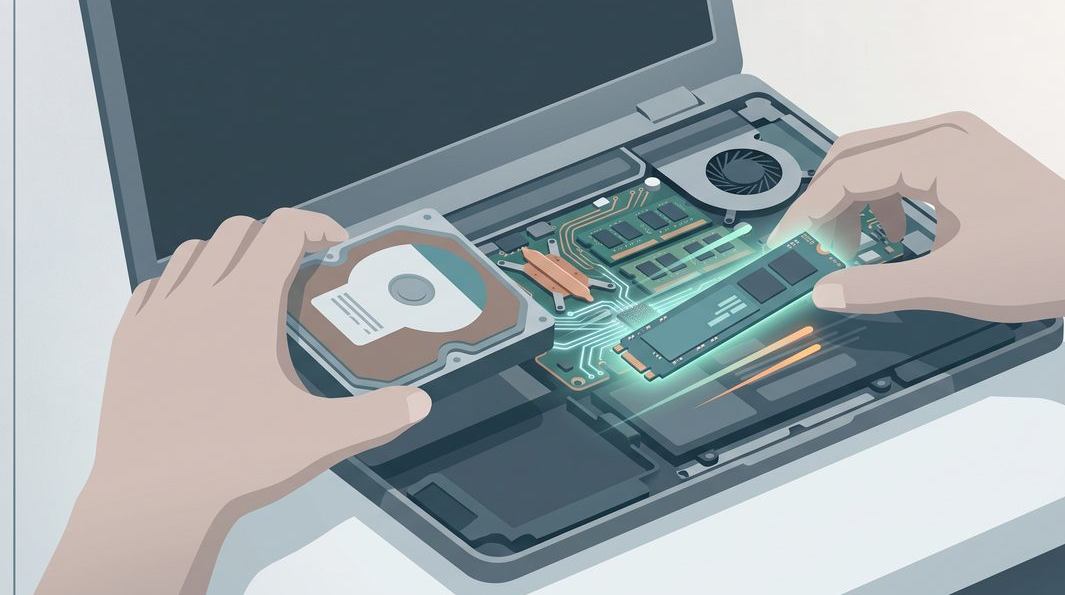
Ports are open holes on a device that lives in a bag and on a hawker-centre table. Pocket lint and fabric fibres drift in and pack tighter with every plug — the connector acts like a ramrod, compressing the debris into a dense felt at the back of the socket. Eventually the plug cannot seat fully, and you get the classic symptoms: a charger that needs jiggling, a USB drive that only reads when pushed, or audio that cuts in and out.
Singapore's humidity adds a second problem: oxidation. Damp, salty air leaves a film on the copper contacts that raises resistance, which is why an older port can run warm or charge slowly even when it looks clean. Light corrosion wipes away with isopropyl alcohol; heavier corrosion under the connector usually means a trip to a laptop repair bench, not a cotton bud.
The right tools (and what never to use)
A good port-cleaning kit is cheap and mostly things you already own:
- Wooden or plastic toothpicks — the hero tool. Non-conductive, firm enough to scrape lint, soft enough not to gouge a contact.
- A can of compressed air, to blow loosened debris out.
- A soft anti-static brush or clean, dry toothbrush for the mouth of the port.
- Isopropyl alcohol, 90% or higher, only on a toothpick tip and only for contacts that need it. The 70% kind holds too much water for electronics.
- A torch or phone light, so you can see what you are removing.
Never put these near a port: a metal pin, needle or paperclip; water, WD-40 or household spray cleaner; a vacuum nozzle held against the socket (it builds static that can zap the board). And with compressed air, hold the can upright in short bursts — tilt it and it spits freezing liquid propellant into the port.
Cleaning a USB-C or charging port
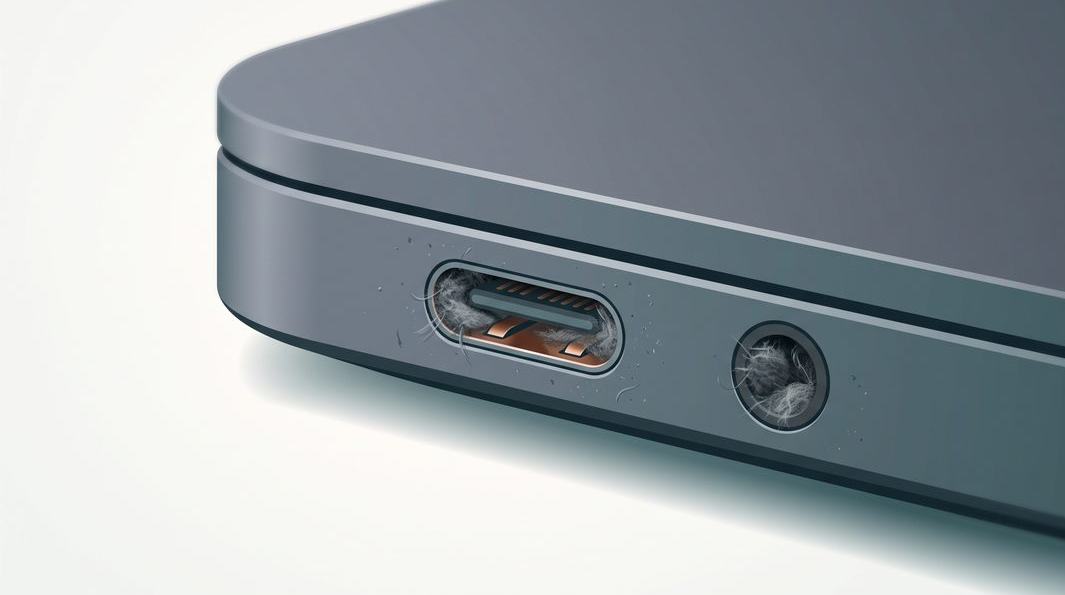
USB-C is the most common culprit and needs the gentlest hand: unlike a USB-A socket it has a thin tongue of gold contacts standing up in the centre. Bend or snap that tongue and the port is finished, so this is a scrape-and-lift job, never a jab:
- Shine a light in and look. You will usually see a grey plug of compacted lint sitting behind the tongue. Find it before you touch it.
- Loosen with a short burst of air. One or two quick puffs sometimes clears a light clog on its own.
- Work a toothpick down the sides. Slide the tip along the top and bottom walls — above and below the tongue — and drag the lint forward and out, keeping clear of the delicate centre tongue.
- Lift, do not pack. Hook the debris toward the opening rather than pushing it deeper, then puff again to clear it.
- If the contacts look tarnished, dampen the toothpick tip with 90%+ isopropyl alcohol, wipe the surfaces, and let it dry before plugging in.
Test with your charger afterwards: a port that was merely dirty now grips the cable firmly. If it still falls out, tilts, or only charges at one angle after a thorough clean, the problem was never dirt — that is a hardware fault a laptop repair workshop needs to see, covered in the dirty-versus-broken section below.
USB-A, HDMI, Ethernet and the headphone jack
The other ports are more forgiving — most tuck their contacts along one wall, not a fragile central tongue:
- USB-A (the classic rectangle). Contacts sit on the plastic block along one side. Blow it out, then run a toothpick along the empty channel. Low-risk.
- HDMI. Fine contacts along the top edge. Compressed air does most of the work; use a toothpick lightly.
- Ethernet (RJ45). Deep and rarely dirty, but the retaining clip can trap fluff. Air, then a careful toothpick along the base.
- Headphone jack (3.5 mm). A round hole that collects pocket fuzz — usually why one earbud goes quiet or the laptop thinks headphones are plugged in. Wrap a wisp of cotton round a toothpick, twist gently, and finish with air.
If cleaning the headphone jack does not fix crackling or a stuck "headphones connected" state, the jack's internal switch may be worn — a component-level fix, not a cleaning one. And for a laptop that has taken a spill rather than just collected dust, our guide on what to do after a laptop water spill matters far more.
Cleaned it and the port still won't hold the cable?
Send us the laptop model and one line on what it does — wobbles, only charges at an angle, or won't read anything — and get an honest read on whether it is a quick connector job or a board repair.
Dirty port or broken port? How to tell
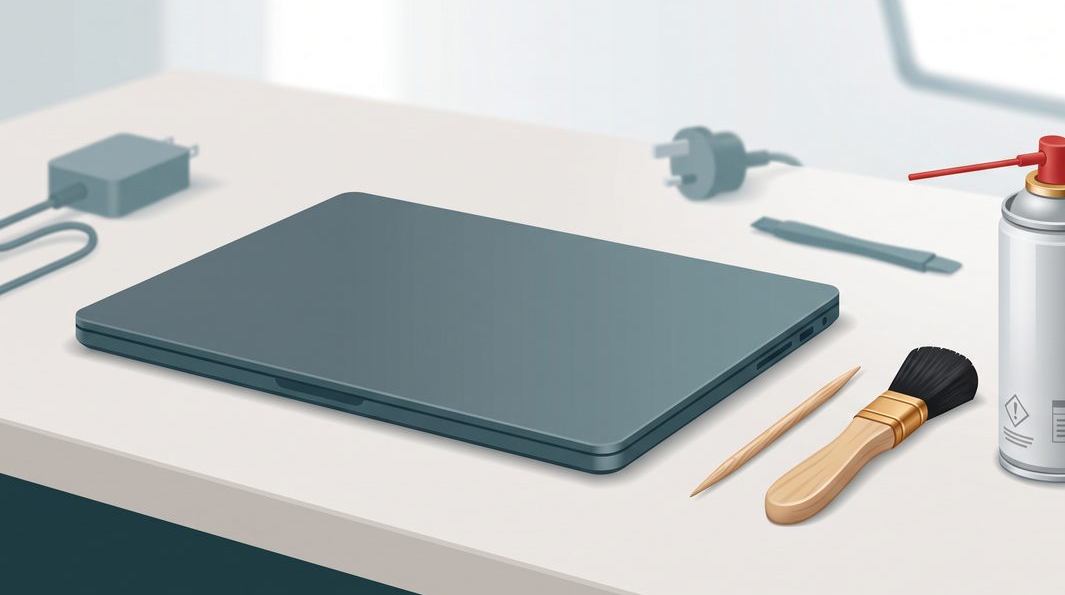
This is the part that saves you money. Cleaning fixes a clogged port; it does nothing for a broken one, and jamming plugs into a broken port makes it worse. Here is how the two feel different:
- Probably just dirty: the plug stops short of seating; it works if you press or hold it; there is visible lint inside; the fault crept in gradually.
- Probably broken hardware: the socket wobbles, tilts or sinks into the case; the cable falls out under its own weight; charging cuts out if you nudge the laptop; the fault appeared suddenly after a drop or a hard yank on the cable.
A loose, tilting or sunken port is almost always a mechanical or solder failure. Every insertion levers the connector against the board, and over hundreds of cycles the solder joints crack — cleaning cannot re-attach a connector to a mainboard. Depending on your laptop, the fix is swapping a small charging daughterboard or re-soldering the connector at board level, the work our laptop motherboard repair bench does under a microscope.
A related fault gets blamed on dirty ports but is not: a laptop that won't charge at all despite a clean port and known-good charger often has a failed charging circuit or tired battery — worth reading our notes on laptop battery replacement first. Keep forcing a failing port and you risk turning a S$120 connector job into a mainboard rebuild; a free walk-in diagnosis at our laptop repair centre settles it in minutes.
Keeping ports clean and healthy
A few small habits keep ports working for the life of the laptop:
- Blow ports out every month or two — it stops lint compacting into a solid plug.
- Support the plug, not just the cable. A dangling charger cable levers the connector sideways, and that strain cracks solder joints over time.
- Insert straight and gently. If a plug will not seat with light pressure, check for debris rather than forcing it.
- Keep it off the bed and sofa, where fabric fibres are worst, and keep drinks away from the keyboard.
Catch the small stuff early, too. A loose-feeling port will not heal itself; fixed as a minor connector job it stays cheap, but left until the laptop only charges balanced on a book it means a bigger repair. If you are weighing whether a fix is worth it on an older machine, our breakdown of laptop repair costs in Singapore lays out the numbers.
When to bring it in, and what it costs
Cleaning is free and you can do it at home. It stops being a DIY job — and you should stop poking — the moment the evidence points to hardware:
- The port wobbles, tilts, or drops the cable after a proper clean.
- It runs hot, sparks, or smells burnt.
- Nothing charges or connects with a known-good cable and a clean port.
- There was a spill, drop, or surge just before the trouble started.
What a repair costs depends on how the port is built in. On many laptops the charging socket lives on a small, separate daughterboard — replacing it is a moderate job, often from around S$120 after diagnosis. Where the connector is soldered straight onto the mainboard, it becomes a micro-soldering repair quoted case by case once we have the machine open. Either way, every laptop repair comes with free walk-in diagnosis, a written quote before any work begins, a written warranty, and a simple promise: if we cannot fix it, you do not pay a repair fee.
Questions we get every week
Frequently asked questions
Is it safe to clean my own laptop ports?
Yes, if you are gentle and use the right tools. Shut the laptop down, unplug it, and use only dry, non-metal tools — a wooden or plastic toothpick, a soft brush, or short bursts of compressed air held upright. The two things that cause real damage are metal probes, which short or bend the delicate pins inside, and liquid poured into a live port. If a port is loose, sparks, or feels hot, stop cleaning and have it looked at — that is a hardware fault, not dirt.
What can I use to clean a USB-C or charging port?
A dry wooden or plastic toothpick is the safest tool for a USB-C port, because the connector has a fragile tongue of contacts down the centre that a metal pin will bend or snap. Gently scrape the lint out of the corners and lift it away, then finish with a short burst of compressed air. If you want to clean the contacts themselves, lightly dampen the tip with isopropyl alcohol of 90% or higher — never water — and let the port dry fully before charging.
My charging port is loose or the cable falls out — is it just dirty?
Not usually. A port that wobbles, tilts, or drops the cable at the slightest touch is almost always a hardware fault rather than dirt — the connector has cracked away from the mainboard, or its solder joints have fatigued from months of plugging and unplugging. Cleaning will not fix a loose port. It needs the connector re-soldered or replaced at board level, which is a workshop job, not a cotton-bud job.
Can compressed air damage my laptop?
It can if you use it carelessly. Always hold the can upright and use short bursts from a few centimetres away; tilting or shaking it can spray freezing liquid propellant into the port. Never spin a cooling fan at high speed with the airflow, as the fan can generate a voltage that harms the board — hold the fan blades still if you are blowing near a vent. Used sensibly, though, a proper can of compressed air is one of the safest cleaning tools there is.
How much does it cost to fix a laptop charging port in Singapore?
It depends on how the port is built. On many laptops the charging socket sits on a small daughterboard that can be swapped for a moderate cost, often from around S$120 after diagnosis. Where the port is soldered directly to the mainboard, it is a micro-soldering job and priced higher, quoted only after we open the machine. We diagnose walk-ins free, give a written quote before any work, and there is no repair fee if we cannot fix it.
Keep reading
Related guides
Laptop repair in Singapore: every brand, component level
From loose charging ports to mainboard faults, diagnosed free and quoted in writing.
Laptop water damage: what to do in the first ten minutes
Why a spill is an emergency, why rice fails, and how corrosion is really cleaned.
How much does laptop repair cost in Singapore?
Honest price bands for ports, screens, batteries and boards, with no surprises.
Get a written quote before a screw turns
Component-level diagnostics, a fixed price in writing, and no repair fee if we cannot fix it. Walk in Mon–Fri, or message the workshop.